RSS Enterprise: timereshared.com/…
An RSS browser by mprove design 2026
Time Reshared
Time Reshared
Sun, 13 Sep 2026 09:56:00 +0900
Site Update
That's the end of the series of posts about WAITS. It was interesting to compare this to TOPS-10, and the saildart.org archive was a gold mine of information about how the system was used.
There is much more to explore - some of the items that are on the disk images available to run under emulation that I did not have time to look at include:
- The email and user-to-user communication system, including an early implementation of the finger protocol.
- The SUDS 2D drawing system and the GEOMED modeller.
- Several classic AI programs, for example Scott and Milner's Logic of Computable Functions and Luckham's theorem prover.
- User utilities, including the CAM/FED compare and merge system.
- Numerous hardware-specific subsystems, including robotics and music.
This blog will resume in late October when I plan to start looking at the IBM System/360 and its early operating systems.
Questions, corrections, comments
I welcome any questions or comments, and also especially any corrections if I have got something wrong. Please email me at rupert@timereshared.com and I will add it here and update the main text.
Sun, 06 Sep 2026 09:25:00 +0900
WAITS: Emulating the Xerox Graphics Printer
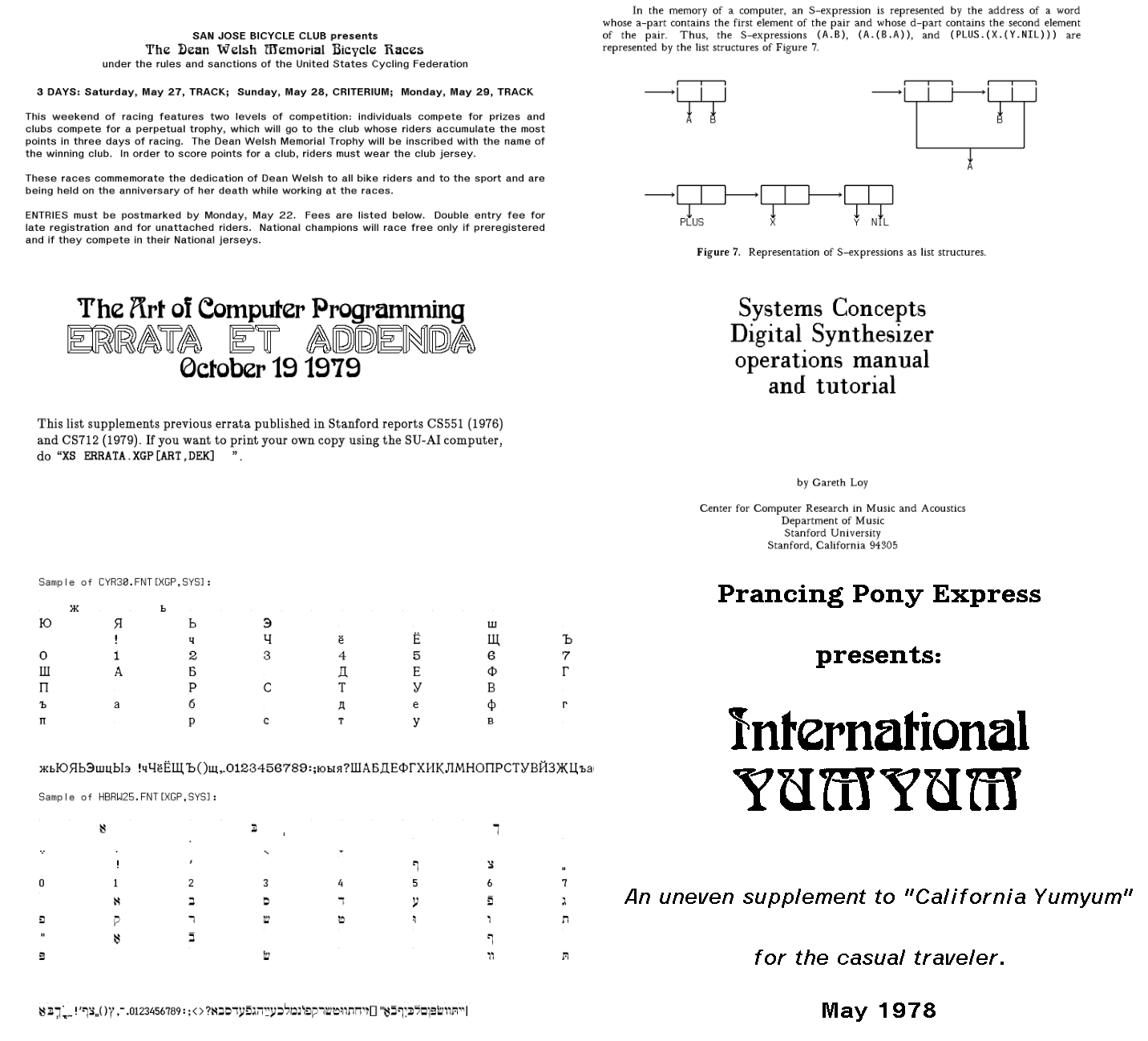
This time we'll look at the Xerox Graphics Printer, an ancestor of today's laser printers, and see how it was used at SAIL. I've created an new emulator which will produce PDF files from output intended for the XGP, so they can be seen again for the first time in 50 years. As an example, here is a montage of six files.
 Montage of PDFs created from XGP files. Source: Rupert Lane. License: CC0.
Background
Xerox provided a XGP to Stanford, MIT and a number of other research institutes in around 1972. The printer was based on an earlier Xerox experiment, the LDX (Long Distance Xerography) which was a fax type system with a scanner and a printer. The XGP just had the printer part. It was similar to modern laser printers in that it used an electrostatic drum and ink powder to print an page, but it had a CRT rather than a laser as its light source.
It could print 192 dots to the inch on a roll of paper 8.5" wide; it had a knife under system control so pages could be cut or it could simply produce a long scroll. Output was black or white only with no greyscale.
Here's a picture taken by a DEC representative of the XGP at SAIL; not the console in the front, it's in the background at the centre of the picture. It seems most sites put a bin in front of it to catch its output. so it often looks quote humdrum.
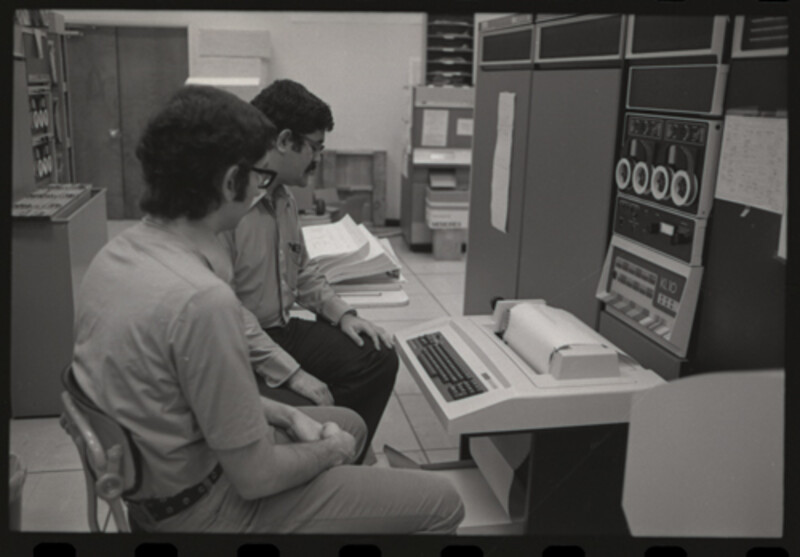 The XGP in the SAIL computer room. Source: CHM.
Each institute integrated this into their systems differently: MIT, for example, interfaced it to their PDP-10 via a PDP-11. Stanford chose to connect it to their PDP-6 (running side-by-side with the PDP-10 at this point) and developer an interface in the WAITS monitor. This could print in either bitmap or text mode; in text mode it could
- select different bitmap fonts stored on disk
- write text, with support for kerning, overprinting and underlining
- position items on the page with pixel accuracy
- draw simple vector graphics
Many output files that were sent to the XGP have been preserved in the saildart.org archive - manuals, project proposals, letters - created by the users as part of their regular work.
You can also make new XGP files using the simh emulator by running the source processors like PUB on either contemporary input files or your own creations
Fonts
This was all taking place in the 1970s, well before Postscript or any of the font technologies we use today. Staff at SAIL created their own bitmap fonts, and there was lots of sharing with MIT, CMU and other XGP sites. As of 1974 the SAIL system had 71 fonts and by the time it was shut down in the 1990s there were over 500. These went beyond just English characters with different appearances, with fonts for Cyrillic, Hebrew and graphics.
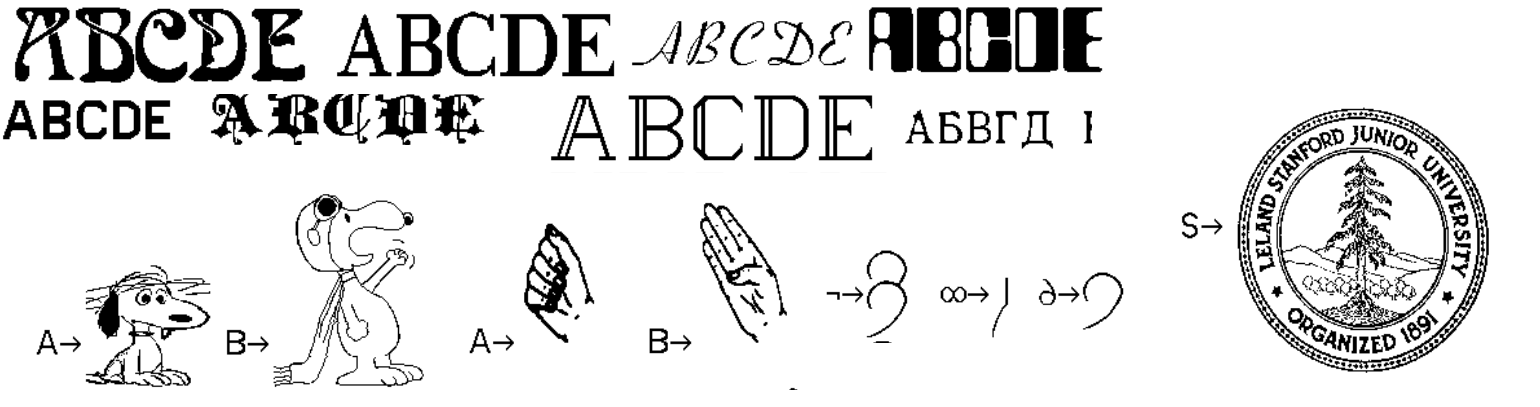 Sample XGP fonts. Source: scanned copy of Find-a-font
On WAITS there are utilities that use the DD terminal to display a
font file (R DDFONT) and edit them (R EDFONT).
Document tools
Along with writing programs, creating documents was one of the key activities of the Stanford AI Lab: a study from 1970 reported that in 1969 the 64 staff produced 23 external documents, 28 AI memos and 15 SAILON operational notes during that year. (It then goes on to facetiously extrapolate from the rate of the growth in the 1960s to the year 2001 where it expected 158 million staff producing 29 billion documents).
To support this need, and to use the XGP, several document production
tools were created at SAIL. These would all take a marked-up text file
as input and produce a .XGP file as output, which could be sent to
the printer via the XSPOOL command,
POX - Prototype Overlay Xewrographics - was written by Robert Maas and was a simple language specifically designed for the XGP. It has around 10 single letter commands introduced by a backslash: for example the below will define two fonts, set "Preface" in font 0 and use font 1 for the body, then starts a paragraph with justified text.
\M0BAXL30;\M1NGR25

\F0Preface\F1

\JThis document will introduce the POX language...
It also had a simple register based programming facility similar to
TECO's called Q-registers, but no high level commands for producing
structured text. It was generally used for smaller documents like
letters. This can be run on WAITS via R POX which will prompt for an
input file.
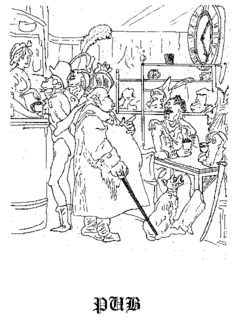 Cover of the PUB manual. Source: saildart.org
PUB was a scriptable markup language, implemented in 1971 by Larry Tesler from an idea by Les Earnest. This spread to other PDP-10 sites where it was extended (support for the XGP printer was added by CMU, for example). It had around 100 commands with an English like syntax together with a built in programming language similar to SAIL. An example from the manual to set up headers and footers with date and page number, and to indent paragraphs by six spaces:
.EVERY HEADING(DAN MATION,PARACYBERNETIC PHENOMENA,{DATE})
.EVERY FOOTING(,{PAGE},)
.INDENT 6
Although it was powerful, it was quite slow, processing around 15
pages per minute. Many of the SAIL manuals, such as those for FAIL,
were produced using PUB. PUB is integrated into the RPG system so you
can type PUB filename.pub to start the program.
 A section from the TeX manual about running it at SAIL. Source: saildart.org
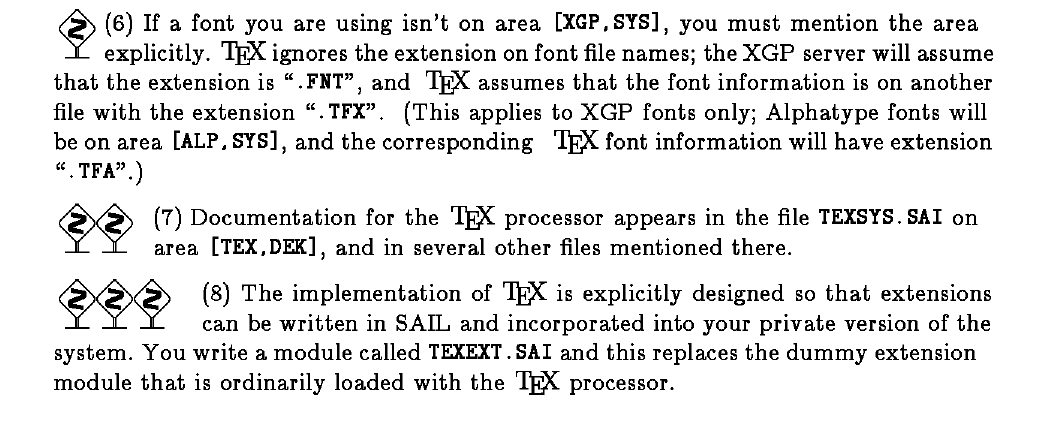
The most famous text processing language to come out of Stanford was TeX, by Donald Knuth. The first full version was written in the SAIL language and made available in 1978. This produced output to an XGP file rather than the DVI files used today. This was pre-METAFONT, so Knuth created XGP font files to integrate with the SAIL printing system.
As the disk images we have running today are from 1974, that means that TeX is not available to run under simh at present. However, the XGP emulator can render to PDF existing XGP files produced by TeX.
The emulator
The new emulator, xgptopdf, is a Python program that is independent from the WAITS simh emulator. It takes a XGP file produced by PUB, POX or TeX as input and produces a PDF file as output. You can directly reference a saildart.org file by giving its WAITS filename; the tool will download the file and produce output in one step.
For example, International Yum Yum was the lab's guide to
restaurants around the world, the cover of which you can see in the
bottom right of the montage at the top of this article. The first
version of this file from 1978 is preserved at saildart.org as
YUMMY.XGP[P,DOC]`, so you can type
xgptopdf YUMMY.XGP[P,DOC]1
and it will make a file YUMMY.XGP[P,DOC]1.pdf in your current
directory that can be viewed or printed.
For new XGP files generated by PUB or POX using the WAITS simh emulator,
use the techniques described in an earlier post to extract the files
to your own computer via a virtual tape file. When unpacking the DART
archive you need the -Woct switch to extract in octal format. So say
you had a tape file extract.tap that contained an XGP file
MY.XGP[1,REL] run
$ dart -Woct -xf extract.tap
$ xgptopdf rel/1/my.xgp
and it will produce my.pdf in your current directory.
The XGP spool file does not embed the font, rather it references which fonts it wants to use via a file name. Therefore the emulator contains a collection of font files from the SAIL backup and a facility to switch font assignments if needed.
The Github repo contains a few examples of PDFs created by this tool. There are several hundred original XGP files on the saildart.org archive - and many more that can be created from their PUB or POX source - so it's well worth exploring to see what you can find.
Further information
The computer history wiki gunkies.org has a page about the XGP. There's information on how it was used at MIT, plus some pictures, at the PDP-10 Github organisation.
Find-a-font - SAILON 74 - contains a guide to the fonts available on WAITS and the font format.
saildart.org has the original PUB manual in text form, along with a version with additional notes from Larry Tesler.
Questions, corrections, comments
September 2026: Lars Brinkhoff correctly pointed out that Stanford connected their XGP to the PDP-6, not directly to the PDP-10.
I welcome any questions or comments, and also especially any corrections if I have got something wrong. Please email me at rupert@timereshared.com and I will add it here and update the main text.
Sun, 30 Aug 2026 08:42:00 +0900
WAITS: Programming in Lisp
Continuing our series about programming on WAITS, this week we'll look at Lisp.
History
Stanford had a version of Lisp on the IBM 7090 and PDP-1 machines used in the first few years of the lab's existence. When they got their PDP-6 they took an early version of Maclisp from MIT, made changes to get it to work with the WAITS system and released it in 1966 in Lisp 1.6. The authors were John Allen, Lynn Quam and Whitfield Diffie (who after leaving SAIL became famous for his work on cryptography).
Lisp 1.6 gained some additional features: as of 1974, the date of the disk image we are using, it had:
- An arbitrary precision fixed point number system.
- An interactive s-expression editor called ALVINE.
- Flexible I/O, including to the teletype and to files.
- A compiler, which reportedly produced code that ran twenty times faster than interpreted code.
- A library to control the III display terminal.
- Debugging and tracing features.
Using interactive Lisp
Start the interpreter with R LISP. By default this will give you 12k
of core which is only enough for trivial programs, to give more core
space add a number representing the core size in kilowords, eg R LISP 48.
It will ask you ALLOC? which if you type Y will allow you to
change sizes of memory buffers; normally just press Enter here. It
will then put you at the * prompt where you can type s-expressions.
Use upper case.
.r lisp

ALLOC?


*(PLUS 2 2)

4
Note that integers are in octal, so use real numbers for calculations.
*(TIMES 8 3)

30
*(TIMES 8.0 3)

24.0
Typing altmode (the Escape key) will close all open parens, for
example after entering 5 below I pressed Escape, the interpreter printed
$ and the two close parens were supplied automatically.
*(PLUS 10.0 2 (TIMES 6 5$
42.0
Variables can be set with SETQ and functions defined with DE.
*(SETQ Y 3)

3
*(DE DOUBLE (X) (TIMES X 2))

DOUBLE
*(DOUBLE Y)

6
The I/O system can handle multiple channels, but for simple reading
from the terminal you can use READ which will accept a s-expression
as input. PRINT will type out its argument, but you can also just
evaluate a form to display its value.
Programs - collections of functions and other declarations can be
created by editors outside of Lisp and read in to the environment
using DSKIN. For example, (DSKIN (FOO . LSP)) will read in the
file FOO.LSP in your current file area.
TPK in Lisp
Let's demonstrate Lisp by implementing the TPK algorithm in Lisp 1.6. We can use the Lisp 1.5 code for CTSS as a base. In the Lisp 1.5 version, the key function to calculate TPK, √|x| + 5x³, is expressed as
(F (LAMBDA (X) (PLUS (SQRT (ABS X)) (TIMES 5 (EXPT X 3)))))so in Stanford Lisp 1.6 this would be:
(DE F (X)
    (PLUS (SQRT (ABS X)) (TIMES 5 (EXPT X 3))))
However, whereas Lisp 1.5 had EXPT but no SQRT or ABS, here
we have ABS but not EXPT or SQRT. We can implement (EXPT X 3)
as a cube function (TIMES X X X) but for SQRT we will need to
resort to the Babylon algorithm we last used in the Essex BCPL
program.
(DE CLOSE (X GUESS)
    (LESSP (ABS (DIFFERENCE (TIMES GUESS GUESS) X)) 0.000001))

(DE IMPROVE (X GUESS)
    (QUOTIENT (PLUS GUESS (QUOTIENT X GUESS)) 2.0))

(DE BABYLON (X GUESS)
    (COND ((CLOSE X GUESS) GUESS)
          (T (BABYLON X (IMPROVE X GUESS)))))

(DE SQRT (X)
    (BABYLON X (QUOTIENT X 2.0)))
This is recursive, so may run out of space for large numbers.
The heart of the program is then:
(DE F (X)
    (PLUS (SQRT (ABS X)) (TIMES 5 (CUBE X))))

(DE LIMIT-F (X)
    (PROG (RESULT)
          (SETQ RESULT (F X))
          (RETURN (COND
                   ((GREATERP RESULT 400.0) (QUOTE TOO-LARGE))
                   (T RESULT)))))

(DE TPK (NUMS)
    (MAPCAR (FUNCTION LIMIT-F) (REVERSE NUMS)))
MAPCAR is available so this was slightly simpler to write compared
to Lisp 1.5.
Finally, a driver program doing the I/O:
(DE MAIN ()
    (PROG (NUMS)
          (PRINT (QUOTE "Please enter 11 numbers in a list"))
          (SETQ NUMS (READ))
          (PRINT (QUOTE "Results are"))
          (RETURN (TPK NUMS))))
To run, we load the file onto the file system using the techniques
discussed in a previous post. When we run Lisp we need to give it some
more core - here 32k just to be sure. We load in the file with DSKIN
and execute the main function.
.r lisp 32

ALLOC?

*(DSKIN (TPK.LSP))

CLOSE
IMPROVE
BABYLON
SQRT
CUBE
F
LIMIT-F
TPK
MAIN
FINISHED-LOADING
*(MAIN)

"Please enter 11 numbers in a list" *(10.0 -1.0 1.0 2.0 3.0 4.0 4.3 4.305 4.303 4.302 4.301)

"Results are"
(399.88630 TOO-LARGE TOO-LARGE TOO-LARGE 399.60864 322.0 136.73204 41
.414213 6.0000000 -3.9999999 TOO-LARGE)
Further information
The primary manual for Stanford Lisp 1.6 can be found in LISP.WD[S,DOC].
The Computer History Museum Software Preservation Group has a detailed history of Lisp, including a page on Lisp 1.6 with several versions of the above manual in PDF format, and information on versions derived from this.
A simpler introduction to Lisp of this area can be found in Clark Weissman's LISP 1.5 Primer, which is also available at the Lisp history page above.
Questions, corrections, comments
I welcome any questions or comments, and also especially any corrections if I have got something wrong. Please email me at rupert@timereshared.com and I will add it here and update the main text.
Sun, 23 Aug 2026 09:01:00 +0900
WAITS: Programming in SAIL
Today we'll look at SAIL, which was derived from Algol 60 and was developed and used on WAITS for both system programs and research projects.
There was a compiler named SAIL,
Assembled and coded in FAIL.
Its authors, they say
(one glorious day)
Were run out of town on a rail.
Comment in the source code for the SAIL compiler, SAIL[S,AIL]
History
SAIL was a combination of work done on two languages. The first was Gogol, which was a simplified version of Algol 60 for the PDP-1. Not much information on this remains apart from a list of its error messages.
The other source - primarily for its associative arrays - was the LEAP language, which was written by Jerome Feldman and Paul Rovner for the Lincoln Labs Tx-2 machine; there's a paper describing this at the ACM.
The compiler was written by SAIL members Don Swinehart and R. Sproull, with the first version being available in November 1969. As the manual puts it
SAIL in a sense has something for everyone. For those who think in ALGOL, SAIL has ALGOL. For those who want the most from the PDP-10 and the time-sharing system, SAIL allows flexible linking to hand-coded machine language programs. For those who have complex input/output requirements, the language provides complete access to the I/O facilities of the PDP-10 system. For those who aspire to speed, SAIL generates fairly good code.
It achieved its goal, with wide use at Stanford and it spread to other PDP-10 sites.
In 1980, there was a commercial spin off of SAIL called MAINSAIL. This was cross-platform, with initial versions on other PDP-10 and -11 operating systems, and possibly VAX and System/360 also. The language had some success (one user was VLSI Technologies for electronic design tools) and was available for at least HP-UX, AIX and IRIX up to the early 2000s. Bitsavers has some documentation.
SAIL features
Like every other Algol 60 implementation, program format and I/O is slightly different, so to set the scene, here's a simple hello world program.
BEGIN
    INTEGER I;
    COMMENT Print Hello World 5 times;
    FOR I ← 1 STEP 1 UNTIL 5 DO
        OUTSTR("HELLO, WORLD" & '15 & '12)
END PROGRAM
This follows the typical Algol 60 block structure, using BEGIN …
END and having statements separated rather than terminated by
semicolons, so the last statement in a block should not have a
semicolon at the end. Comments are statements as well so need to be
terminated depending on their position.
The assignment operator ← is an arrow, which was typeable using the
Stanford keyboard; on a teletype you could use _ instead. A ↔ B
would swap the values of A and B.
For I/O there is an extensive set of routines that can handles files
and different devices, but for console I/O you can use OUTSTR to
print strings (adding a CR/LF line terminator in the above example)
and read a line of input to a string with INCHWL.
Real, integer and boolean types are provided, along with arrays.
Strings are internally represented as a two word value, the first
being a character count and the second a pointer to an array of 7 bit
characters. The body of the OUTSTR shows concatenation of a string
literal with two characters, CR/LF, to produce a new string.
Procedures take value or reference parameters, can be called
recursively (with the keyword RECURSIVE PROCEDURE). Procedures can
also be passed into other procedures.
The LEAP facilities allow sets (PUT item IN set) and associative
arrays (MAKE key ⊗ object ≡ value). You can then do search operations
on these using FOREACH. An example adapted from the manual:
FOREACH x,y,z SUCH THAT father ⊗ x ≡ y AND father ⊗ y ≡ z DO
    PUT z IN grandfathers
Macros are similar to C's macro processor: you can define constants and then they get expanded in the program when used:
    DEFINE ARRAY_SIZE="11";
    ...
    INTEGER ARRAY DATA[1:ARRAY_SIZE];
or to take parameters.
DEFINE APPEND(x, y)="x ← x & y";TPK in SAIL
Let's use the compiler to run the TPK algorithm. The source code can be found here. This can be loaded onto the disk using the techniques described in this post.
The full program looks like this:
BEGIN
    COMMENT TPK algorithm in SAIL for WAITS;

    REQUIRE "{}{}" DELIMITERS;
    COMMENT Size of array to use for TPK;
    DEFINE N = {11};
    COMMENT Macro definitions to print a string with CR/LF at the end;
    DEFINE CRLF={('15 & '12)};
    DEFINE TYPE(MSG)={OUTSTR(MSG & CRLF)};

    REAL PROCEDURE FN(REAL X);
    BEGIN
        RETURN(SQRT(ABS X) + 5*X↑3)
    END;

    COMMENT Main program;
    INTEGER J;
    REAL ARRAY A[1:N];
    TYPE("Please enter 11 numbers");
    FOR J ← 1 STEP 1 UNTIL N DO
    BEGIN
        STRING REPLY;
        BOOLEAN BRCHAR;
        REPLY ← INCHWL;
        A[J] ← REALSCAN(REPLY, BRCHAR)
    END;
    TYPE("Results are");
    FOR J ← N STEP -1 UNTIL 1 DO
    BEGIN
        REAL RESULT;
        RESULT ← FN(A[J]);
        IF RESULT > 400.0 THEN
            TYPE("Too large")
        ELSE
            TYPE(CVF(RESULT))
    END;
END
One additional trick is used for macros:
    REQUIRE "{}{}" DELIMITERS;
    DEFINE TYPE(MSG)={OUTSTR(MSG & CRLF)};
The first line redefines the start and end delimiters for macros to be
curly brackets rather than double quotes; if this is not done, any
double quotes in the text being expanded, for example a string
constant TYPE("Hello") would not work.
The procedure FN shows use of ABS as a unary function, and ↑ as
the exponentiation operator.
We use several type conversion functions here. REALSCAN takes a
string and a boolean and returns a real value if found, otherwise it
will set the boolean to true (we ignore this in the program). CVF
conversed a real to a string.
To compile and run, assuming the program is stored in a file
tpk.sai, use exec:
.exec tpk

SAIL: TPK    1
LOADING

LOADER 2K CORE
EXECUTION
Please enter 11 numbers
Errors found in compilation are handled interactively. If for some
reason I had put UNREAL PROCEDURE it would halt with
.comp tpk

SAIL: TPK    1
UNDECLARED IDENTIFIER: UNREAL
TPK, PAGE 1
01100           UNREAL
                       PROCEDURE FN(REAL X);
^
At this prompt, you can press Enter to continue: in some cases it may
be able to correct the situation but here it would ignore the
statement. You could press E and it would open the file at that line
in the SOS editor; T would do the same in TV. X would exit.
Pressing ? shows a full list of what options are available
Further information
The main manual for SAIL can be found in SAIL.DCS[S,DOC] or on Bitsavers as a PDF.
Dan Swinehart gave a talk on the history of SAIL (and some background on its name) at a 2009 reunion - the video is at the Stanford Archives.
Questions, corrections, comments
I welcome any questions or comments, and also especially any corrections if I have got something wrong. Please email me at rupert@timereshared.com and I will add it here and update the main text.
Sun, 16 Aug 2026 09:28:00 +0900
WAITS: Programming
As an operating system for a research lab, WAITS was used extensively to write programs. In this post we'll look at which languages were used, the software development environment - and investigate an early implementation of Donald Knuth's MIX system.
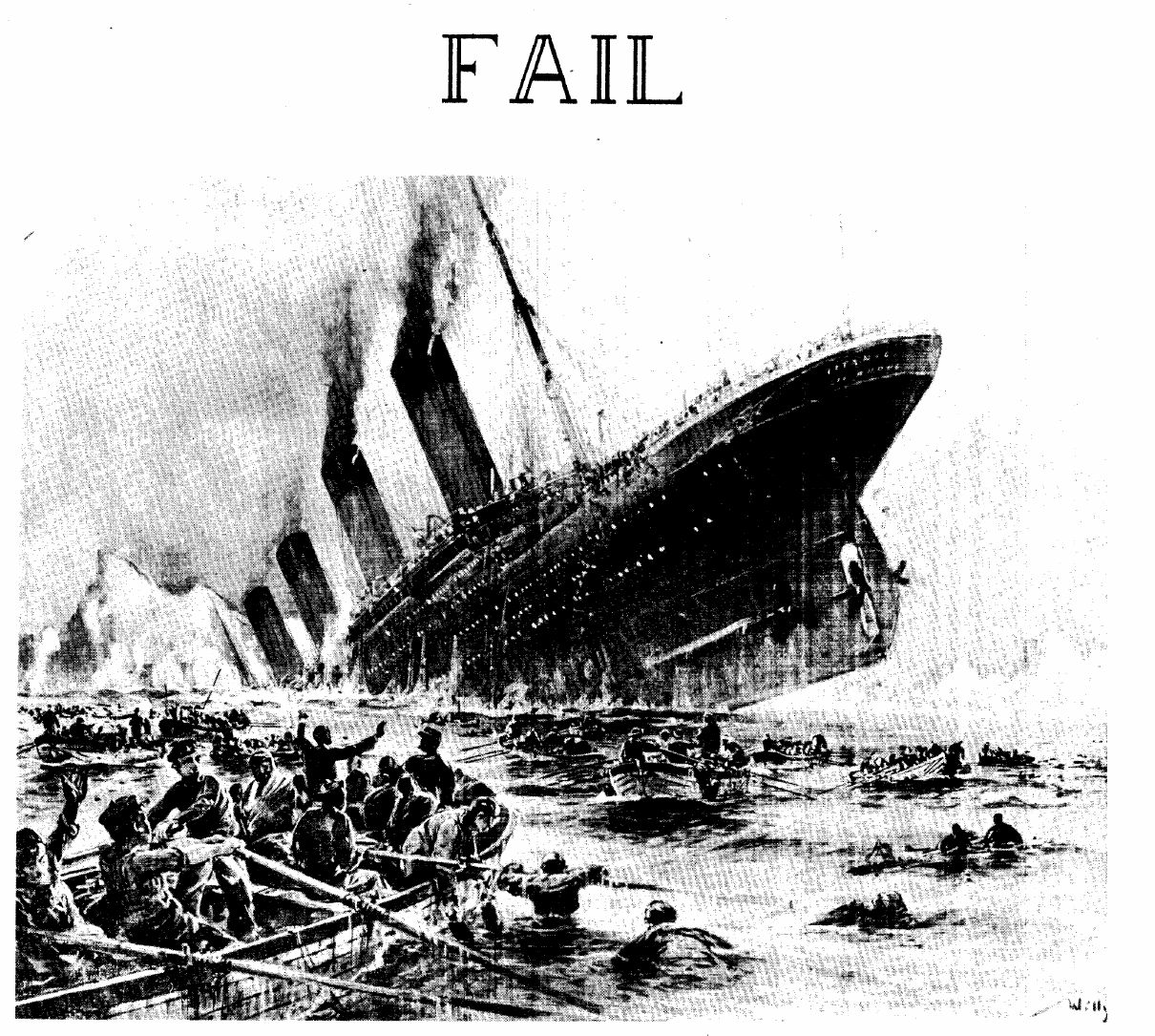 Cover of the FAIL manual.. Source: Bitsavers
Lisp, FAIL and SAIL
The three main programming environments used by the lab were all maintained in house.
Lisp was the main language for AI research at that time, and as the
original author of Lisp, John McCarthy, was the head of SAIL it was
natural it would be used here. The main version used was Lisp 1.6, an
evolution of Lisp 1.5 from MIT, but there were also other dialects -
MLISP, which understands m-expressions like 2+2 instead of the more
traditional Lisp s-expressions (PLUS 2 2), and UCI Lisp from the
University of California in Irvine, which extended Lisp 1.6 and added
tools from BBN Lisp.
Although DEC's MACRO assembler for the PDP-10 was available, the main assembler used was developed at SAIL by Phil Petit and was called FAIL. This was a single pass assembler, which ran five times as fast as DEC's version, and also had more powerful macro capabilities. This was used by system programmers and researchers who needed the extra speed and flexibility of machine language.
SAIL was the lab's version of Algol 60. It added support for linking to PDP-10 assembly language, I/O facilities, extra data structures like associative arrays and a macro package. This made it a good choice for writing system utilities and general algorithmic programs. The first version of Knuth's TeX was written in SAIL.
We'll look at Lisp and SAIL further in future posts.
Other languages
The standard set of languages from DEC - AID, BASIC and Fortran - are also available on WAITS. These work much the same as on TOPS-10, so see the linked articles above for more details. Note that the Fortran version is F40 rather than the newer Fortran-10.
There are a couple of programming languages that came from other
sources. A version of SNOBOL called Fasbol which originated from the
PDP-10 at Berkeley can be executed with R FASBOL. Micro-planner,
based on the PLANNER language, came from MIT and can be run via R
PLNR.
This is as of July 1974, the date of the system image we are running. Looking at saildart.org other languages were added later on, including Pascal, Simula and C.
The development environment
Similar to the concept of 'compile class' commands in TOPS-10 is RPG, or Rapid Program Generation, on WAITS. This can save on typing - as an example, if you just created and compiled a file with
. CREATE hworld.f4
. EXEC hworld.f4
for the rest of the login session you can type commands without
parameters, so EDIT would edit the file and EXEC would compile and
run it. This works across the different editors and languages
supported at SAIL.
As well as the DEC-supplied CREF cross-reference listing tool and DDT debugger, SAIL created a more powerful debugger called RAID.
MIX
MIX was a hypothetical machine Donald Knuth designed and used in his book The Art of Computer Programming to illustrate how an algorithm could be implemented in code without depending on a specific computer or high level language. The book defines the MIX machine and an assembly language that can target it.
An implementation of MIX for a real machine is a handy way to
experiment with these algorithms, and one was developed on the SAIL
machine in around 1970. The assembler is run via R MIXAL and the
virtual machine via R MIX. The latter also includes facilities for
debugging, such as examining the memory or tracing through
instructions.
Documentation is in MIX.RES[UP,DOC] and the source code, in FAIL, is in [MIX,SYS].
I'm not completely sure who wrote this: the source code does not state
an author, and the way it describes the program ("MIX is a simulator
for the MIX machine described in Knuth, vol. 1.") leads me to believe
it was not Donald Knuth himself. There's a comment in MIX1[MIX,SYS]
(CS236B–June 5, 1970)
which makes me think it was done as part of a course, and looking at the Stanford publication Courses and degrees. 1969-1970 page 240 indicates CS236-B was a system programming course taught by Knuth:
The first instance of the documentation MIX.RES[UP,DOC] is from
1972, and the SAIL convention of using the programmer ID who wrote the
doc as its extension, so RES. This ID was used by Richard Smith, who
may have been involved in the original work or took over maintenance
of it later.
Further information
My posts on TOPS-10 programming are useful to compare the languages and tools between the two systems.
Questions, corrections, comments
I welcome any questions or comments, and also especially any corrections if I have got something wrong. Please email me at rupert@timereshared.com and I will add it here and update the main text.
Sun, 09 Aug 2026 09:00:00 +0900
WAITS: Arthur Samuel's Checkers
Although chess was a popular target, one of the earliest examples of using classical pre-LLM artificial intelligence to play games was checkers/draughts. Arthur Samuel wrote one of the first such programs in the early 1950s, ported this to the PDP-10 when he moved to SAIL and even created a version for a home computer in the late 1970s.
In this post we'll look at Samuel's work on checkers and run the 1972 version he created on WAITS.
History
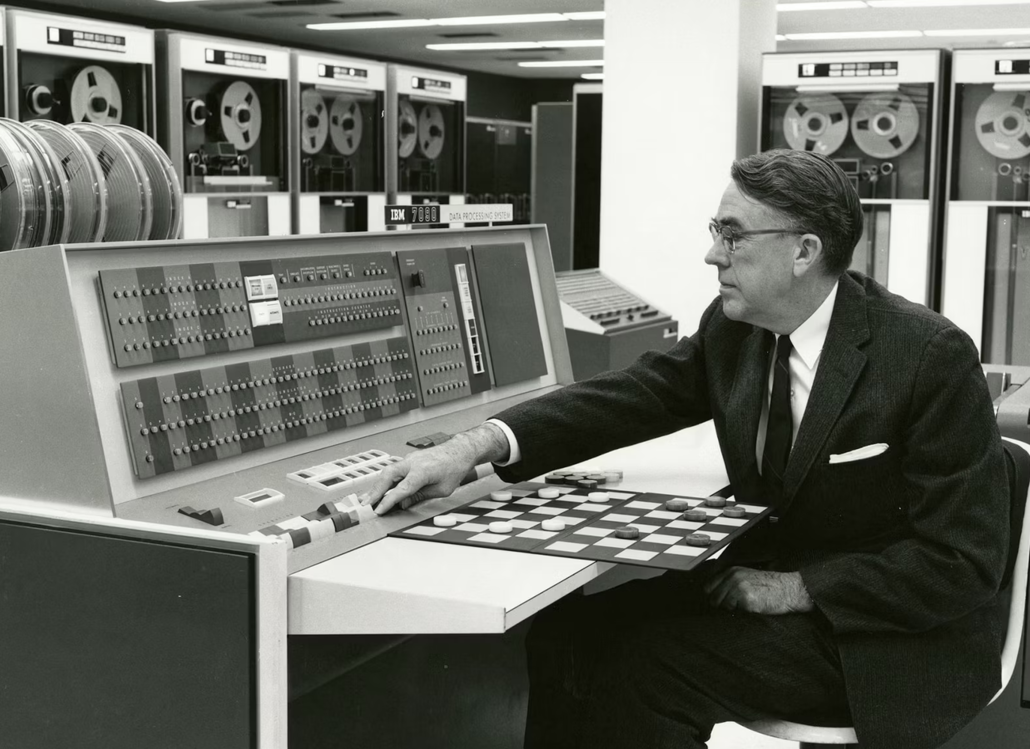 Samuel playing against the IBM 7090. Source: IBM
Arthur Samuel started out working on vacuum tubes at Bell Labs in the 1930s. In 1946 he became a professor at the University of Illinois. Wanting to get a computer for the university, he came up with a proposal to build one, and for it to run a program that could play checkers. He started planning for it on paper, but both it and the computer were not finished when he left in 1949 to work at IBM.
There his main role was on vacuum tubes and later transistors, but the problem of checkers still intrigued him. He worked on it using the IBM 70x series of machines - according to a letter to a computer magazine journalist in 1979, it was written initially in raw machine code as even an assembler was not available for the IBM machine yet. A first version was ready in 1952, but
It was not until 1954, with the advent of the IBM 704 that my program was able to play an interesting game. My contribution was to add learning to the program, and I believe that I can claim a first for this.
In 1956 the program was demonstrated on TV and caught the imagination of the public. Eventually it was able to play games at a level that could sometimes challenge a master player.
Using techniques such as minimax, alpha-beta pruning and rote learning, his work was influential in the early years of AI; Samuel was present at John McCarthy's 1956 Dartmouth workshop and his work was included in Feigenbaum and Feldman's seminal 1960s overview of AI, Computers and Thought.
He retired from IBM in 1966 and came to SAIL as a senior member of staff. Here he helped with many of the lab's projects, and also ported his IBM 7090 assembly program to PDP-10 assembly language. The version we have running today is from 1972.
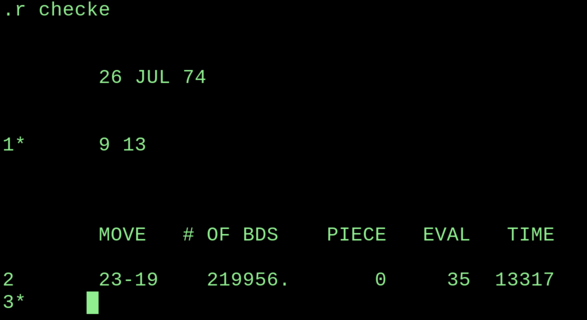 Checkers running on WAITS. Source: Rupert Lane. License: CC0.
He picked it up again in 1976 due to interest from other researchers, and played against a team at Duke University who had a new program running on an IBM System/360. Two games were played, but not to completion due to the amount of CPU time needed. According to an account by Samuel:
it was believed that the Duke program had a possible win in both games. Subsequent analysis reveals that one of these games might still lead to a draw.
Also in 1977, he worked with the makers of the VideoBrain Family Console to develop a version of checkers for this early home computer. This was a cut-down version, as the system only had 1KB of RAM, but offered four different levels of difficulty. He also helped on the AI for the VideoBrain version of Reversi/Othello, Vice Versa.
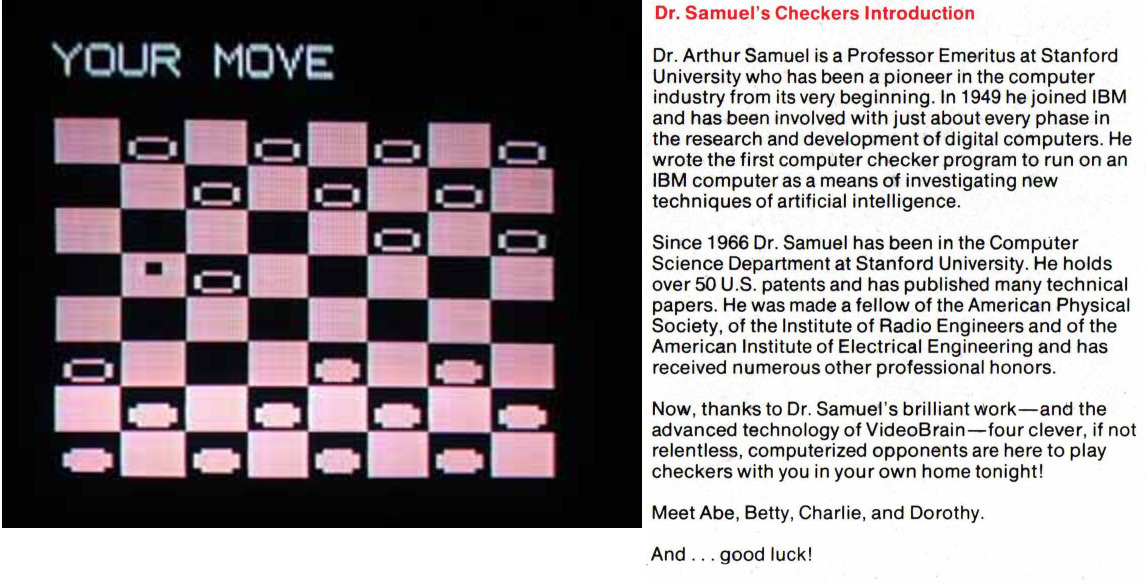 VideoBrain checkers program and manual. Source (l) atariprotos.com (r) archive.org
Playing checkers on WAITS
The program can be run on any terminal type by typing R CHECKE. Type
HELP (must be in upper case) to see a list of commands: you can
enter initial board settings, adjust playing parameters and even have
the computer play itself with the PS command.
By default, you are playing first (as black/red) and the computer second (as white/blue). You enter moves by typing the source and destination squares, using the standard notation where 1 is the bottom right position and 32 the top left.
Here I start the program and move from square 9 to square 13.
.R CHECKE

        26 JUL 74


1*      9 13
The program will then try to find the best move and print it, along with some statistics on the number of positions it searched, the best value of its evaluation function, and the time taken in milliseconds (so about 13s here, would have been much slower on real hardware)
        MOVE   # OF BDS    PIECE   EVAL   TIME

2       23-19    219956.       0     35  13567
so it has moved 23-19. You can type the instruction BD to display
the board in ASCII:
3*     BD

* * * * * * * * * *
* + W + W + W + W *
* W + W + W + W + *
* + W +   + W + W *
*   + W +   +   + *
* +   +   +   + B *
* B + B + B +   + *
* + B + B + B + B *
* B + B + B + B + *
* * * * * * * * * *
But to make life easier, you can also use something like gametable in two player mode to record the moves; here's how the board would look like:
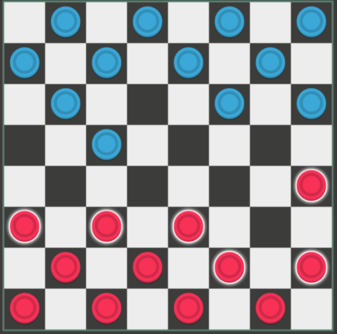 Playing checkers against CHECKE. Source: Rupert Lane. License: CC0.
If you type a nonsensical move it will print:
3*    99 66
SORRY CHARLIE!
I won't give a full account of the game, but by move 44 the program announced:
THE PDP-10 EXPECTS TO WIN IN 11 MOVES.
44      26-22     15171.   11 MOVE WIN.   1017
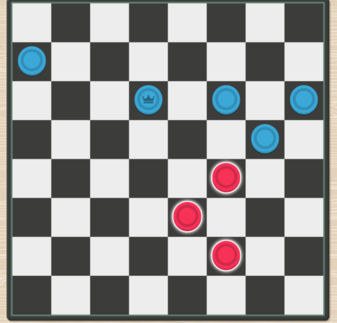
but my downfall occurred just three moves later. Here, FORCED is
printed because by the game's rules if it can take an opposing piece
it must.
45*    10 15
46      17-1          3.       FORCED        0
47*    15 18


        26 JUL 74


1*
The source code
The original IBM 7090 code is not publicly available as far as I am aware.
Samuel's directories on the WAITS system can be found on saildart.org.
It's hard to tell what code matching the CHECKE binary from 1972,
but CKP2.MAC[2,ALS] is the oldest file, dating back to 1971. Further
enhancements - up to 1977 - can be found in [CH2,ALS] and sample
game data in [CH3,ALS], [CH4,ALS] and [3,ALS].
The code shows evidence of it being a port of the IBM 7090 version,
with translations into subroutines of some instruction where there was
not an equivalent on the PDP-10 , eg CAQ.
The VideoBrain development directory is called F8. This includes several versions of the checkers source code along with a cross-assembler in Fortran, presumably written by Fairchild (who made the CPU in the VideoBrain). It's not clear how much was written by Samuel, and how much by his collaborators at VideoBrain. There is also some correspondence between Samuel and the makers of the Videobrain, with Samuel suggesting other games that could be produced and complaints about the unreliability pf the development hardware.
Further information
IBM's article The games that helped AI evolve is a first introduction to Samuel's work at the company on checkers and also discusses Tesauro's TD-Gammon program.
Samuel's original July 1959 paper, "Some Studies in Machine Learning Using the Game of Checkers", in IBM Journal of Research and Development, vol. 3, no. 3, pp. 210-229 is available for download at IEEExplore. The IEEE also has a memorial on Samuel's work.
Richard Sutton and Andrew Barto's book Reinforcement Learning: An Introduction is available in full online and has a case study on Samuel's checkers.
MAME has an emulator for the VideoBrain and copies of the game's cartridge ROM can be found online.
Another early checkers program was written by Christopher Strachey for the Ferranti Mark 1 in the early 1950s; there is an emulator that can run this.
Questions, corrections, comments
I welcome any questions or comments, and also especially any corrections if I have got something wrong. Please email me at rupert@timereshared.com and I will add it here and update the main text.
Sun, 02 Aug 2026 09:10:00 +0900
WAITS: Getting data in and out
If you were working at SAIL in the 1970s and wanted to get data into or out of the system there were several options. Print outs could be made to the line printer or the new XGP laser printer. Data could be exchanged with other sites and computers via magnetic tape (open reel and DECtape) and paper tape. The Arpanet, predecessor of the Internet, was just starting and you could exchange data via ftp with those few sites that were connected. There was one medium not available, however: from the Monitor manual:
Our computer doesn't even have punched card equipment.
On an emulated system running today it's still useful to transfer files between your PC and the WAITS environment. Let's look at some ways to do this.
Download from saildart.org
If you are looking to download files from the existing disk image, for
example the manual for the COPY command in COPY.RPH[S,DOC], the
easiest way is to get these from saildart.org. Simply prepend
https://www.saildart.org/ to the file you want to get and open it in
a browser or download via wget or curl. Note that the file you get
is in HTML, so characters like < will be encoded as <.
If the file you want to get is a binary file rather than a text file, saildart will automatically output it in octal format. Each line of the file will be a 36-bit word encoded as octal digits.
To force a text file to be encoded as binary, add _octal to the end
of the URL, eg https://www.saildart.org/COPY.RPH[S,DOC]_octal.
The file you get will be the most recent version in the DART archive.
Sometimes you want an earlier version, eg to ensure you are viewing a
manual from 1974. To check this, open the directory listing for the
file you want, eg https://www.saildart.org/[S,DOC]. Here you can see
there are several different versions, from 1972 to 1976:
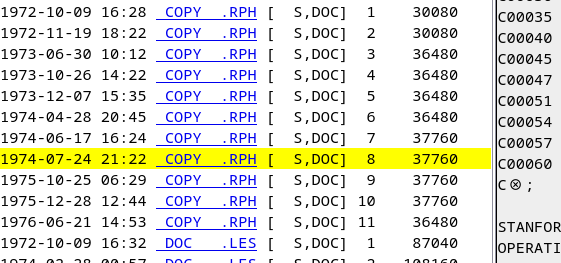 File detector on saildart.org. Source: Rupert Lane. License: CC0.
Note the version number after the directory name, so here I've
selected version 8 which is dated 1974-07-24. To get this file
directly you would go to https://www.saildart.org/COPY.RPH[S,DOC]8.
There is one quirk - for the latest version of the file you should not
provide the version number, so if you wanted version 11 from 1976 you
should request https://www.saildart.org/COPY.RPH[S,DOC]. If you try
to fetch https://www.saildart.org/COPY.RPH[S,DOC]11 it will fail.
Printing
Using the virtual line printer is a good way to get text files - either system files or your own files - out of the system.
First you need to attach a text file to the virtual printer so you can
view the output on your PC. For the quckstart this is done for you
already and the file used will be printer.txt. Otherwise you will
need to press Control-E in the simh window and enter commands:
sim> at lpt -n printer.txt
%SIM-INFO: LPT: creating new file: printer.txt
sim> cont
The -n switch creates a new printer text file each time simh starts.
If you want to keep previous output and append to the file, change
this to -a.
Then in WAITS, use the LIST command to send files to the printer, eg
.list hworld.f4
This takes wildcards like other COPY-class commands.
If you then look at your printer file on your PC you will see the file (it may take several seconds) with a header like this:
26-JUL-74 0955 HWORLD.F4 1,REL PAGE 1-1
LIST sends files directly to the printer. On the real system you
would normally use the spooler by typing PRINT instead, but this is
not running on the emulated system.
Extracting files to your PC via virtual tape
If you want to extract several files from WAITS, here is a method using emulated tapes and the WAITS DART program - the same program that produced the backup tapes on saildart.org.
You will first need to get the dart utility from Lars Brinkhoff's set of
PDP-10 tools:
$ git clone https://github.com/larsbrinkhoff/pdp10-its-disassembler/
$ cd pdp10-its-disassembler/
$ make dart
Copy the dart executable file to somewhere on your PATH.
Next, on the simh console, we will create a blank tape file on your PC
backup.tap and attach it to the emulated tape drive MTA0.
Press Control-E to enter simh command mode and then type the
following. Note that MTC0 on simh maps to MTA0 on WAITS.
sim> at mtc0 backup.tap
%SIM-INFO: MTC0: creating new file
%SIM-INFO: MTC0: Tape Image 'backup.tap' scanned as SIMH format
sim> cont
Switch to your WAITS login and run R DART, then at the * prompt type
dump and the files you want to save. Type exit when done.
.r dart

*dump *.f4
HWORLD F4      1,REL
SECOND F4      1,REL
*exit

EXIT
^C
.
On your host PC, use the dart command you compiled earlier with the
-tf option to view what's on the tape.
$ dart -tf backup.tap

DART VERSION 5  TAPE HEADER
RECORDED 1974-07-26 10:10,  BY [  1,REL] USER CLASS
   DSK:    HWORLD.F4 [  1,REL]        256   1974-07-26 19:02
   DSK:    SECOND.F4 [  1,REL]          3   1974-07-26 19:52
END OF TAPE (NO TRAILER)
Use the -xf option to extract files. It will create directories in
reverse order to store the files, ie HWORLD.F4[1,REL] will go to
rel/1/hworld.f4.
$ dart -xf backup.tap
$ ls rel/1/
hworld.f4  second.f4
Uploading files
To upload files from your PC to WAITS, we can use the same technique
bur in reverse. First, use dart with the -cf option to create a
upload tape file. Here we create the tape upload.tap containing two
Lisp files one.lsp and two.lsp intended for [1,REL] by placing
them in the reverse directory structure shown above.
$ ls rel/1/
one.lsp  two.lsp
$ dart -cf upload.tap rel/1/*
Switch back to the simh console, press Control-E and attach the new file.
sim> at mtc0 upload.tap
%SIM-INFO: MTC0: Tape Image 'upload.tap' scanned as SIMH format
sim> cont
Go to your WAITS login and use DART with the RESTORE command
to get all the files in the archive. You can specify which files to
restore but here we choose to restore everything:
.r dart

*restore *.*[*,*] _ *.*[*,*]
DART VERSION 5  TAPE HEADER
RECORDED  11:02 20-Jul-126,  BY [DMP,SYS] USER CLASS
ONE    LSP     1,REL
TWO    LSP     1,REL
DART VERSION 5  TAPE TRAILER
RECORDED  11:02 20-Jul-126,  BY [DMP,SYS] USER CLASS
MT READ ERROR. MT STATUS = 200610
MT READ ERROR. MT STATUS = 200610
...
When it reaches the end of the tape it will repeatedly say MT READ
ERROR. MT STATUS = 200610; just press Control-C to quit and then
verify your files have been transferred.
.dir *.lsp

26-JUL-74  1104
FILNAM  EXT   SIZE LAST WRITTEN

   [1,REL]
ONE     LSP      2  31-JUN-71
TWO     LSP      2  31-JUN-71
        TOTAL=     4
Further information
The WAITS DART tape backup command is described in DART.REG[UP,DOC].
Lars Brinkhoff is working on getting simh and the WAITS image to provide Arpanet functionality via emulation at sailing-on-arpanet; once this is fully running it may be possible to upload and download files via ftp.
Questions, corrections, comments
I welcome any questions or comments, and also especially any corrections if I have got something wrong. Please email me at rupert@timereshared.com and I will add it here and update the main text.
Sun, 26 Jul 2026 08:50:00 +0900
WAITS: Editors
Today we'll look at the text editors available on WAITS. There are two classes of editor: traditional teletype editors like SOS or TECO, and display editors like TV or E. Although the latter class is not fully working on emulation yet, it's interesting to get an idea of how they operated as they represent an early example of interactive editing.
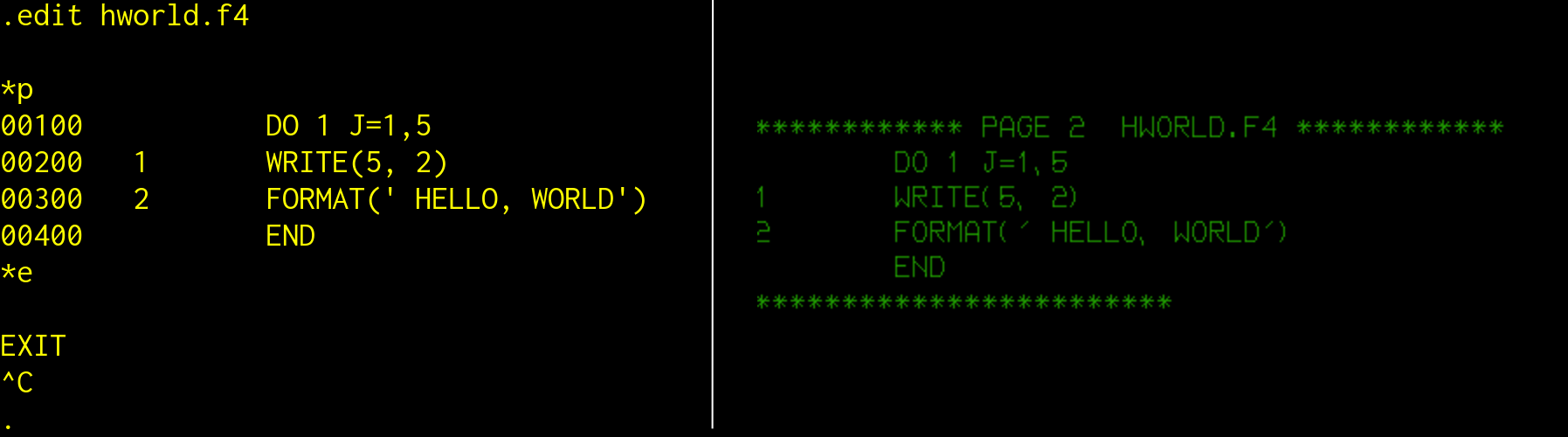 The SOS (left) and TV (right) editors. Source: Rupert Lane. License: CC0.
SOS
SOS - Son of Stopgap - was developed at Stanford and is a basic line orientated editor that can be run from any terminal type.
You can invoke it with CREATE file and it will create a file, start
SOS and let you enter text immediately, or EDIT file to edit an
existing file. The * prompt allows you to enter single letter
commands: in the above we see P to print the file and E to exit.
Each line has a line number prepended to it and you can give line
numbers as arguments to commands, eg P 100,200.
The version we saw on TOPS-10 is similar to what we have running on WAITS, so see my earlier post for more information. There are a couple of differences:
- files are always saved with line numbers; there is no equivalent of
the
EScommand - on display terminals only, the
Zcommand will allow you to edit a line with the standard line editing commands like Control-Space to move the cursor forwards and Control-Backspace to move it back. See the blog entry on terminals for more details.
Finally, on the console, SOS will represent non-standard characters
that are in the Stanford ASCII character set by preceding each with
the escape character ?, for example alpha α is shown as ?".
This includes lower case letters, eg lower case a is ?A. A plain question
mark is ??. See the SOS manual section 1.4 for details.
TECO
TECO - Text Editor and Corrector - is DEC's powerful but somewhat
cryptic character orientated editor. Operating this is the same as on
TOPS-10, so see my post there for more details. Type MAKE file to
create a file and start editing it, type TECO file to edit an
existing file.
The TV display editor
A display editor allows full use of the screen and keyboard of a display terminal like the III or DD, so you can navigate around the file and make changes quickly. This is similar in concept to editors you use today like Emacs or Vim, but the execution, and especially the keystrokes used, are quite different. The WAITS display editors predate the above editors and the IBM PC so there was no convention for it to follow.
Stanford created the TV editor initially in the late 1960s, and then rewrote it as the E editor; the functionality is much the same.
However, at present neither editor works completely on simh. E will crash after a few commands, and both E and TV don't properly display the arrow that shows what line you are on, so it's hard to make changes to a file. Neither editor works on the saildart.otg emulator.
But to give a taste of how these worked, I'll show how to create, view, navigate and edit files using TV.
Creating a file
First let's create a new text file. Log on to the III terminal using
L 1,REG. Create a new file with CTV, eg CTV new.txt. The screen
will clear and will either display a directory or a blank screen; in
either case press Control-P to move to the start of the file. You can
now type in text directly, pressing Return at the end of each line.
Press Control-E to save and exit.
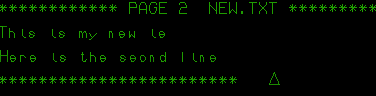 Creating a new file with the TV editor. Source: Rupert Lane. License: CC0.
Navigating in an existing file
As an example of editing a larger file, make a copy of the monitor
manual by typing at the monitor's . prompt COPY MON ←
MONCOM.BH[S,DOC] (The left arrow can be produced by pressing your
left cursor key).
Then open the file with TV mon. You will first see the directory
page, which has a one line summary of each subsequent page in the
file. Each page can be up to a few hundred lines long, and when stored
on disk each page is separated by a form feed. This method is used to
reduce the amount of text that needs to be kept in memory.
Try moving forward a page by typing Control-P; move back with Control-minus Control-P.
Let's say we want to look at section 1.3, Introduction to the Terminal. The directory shows this is on page 12, so you can type Control-1 Control-2 Control-P to give a prefix of 12 to the Control-P command. Your screen will now look something like this.
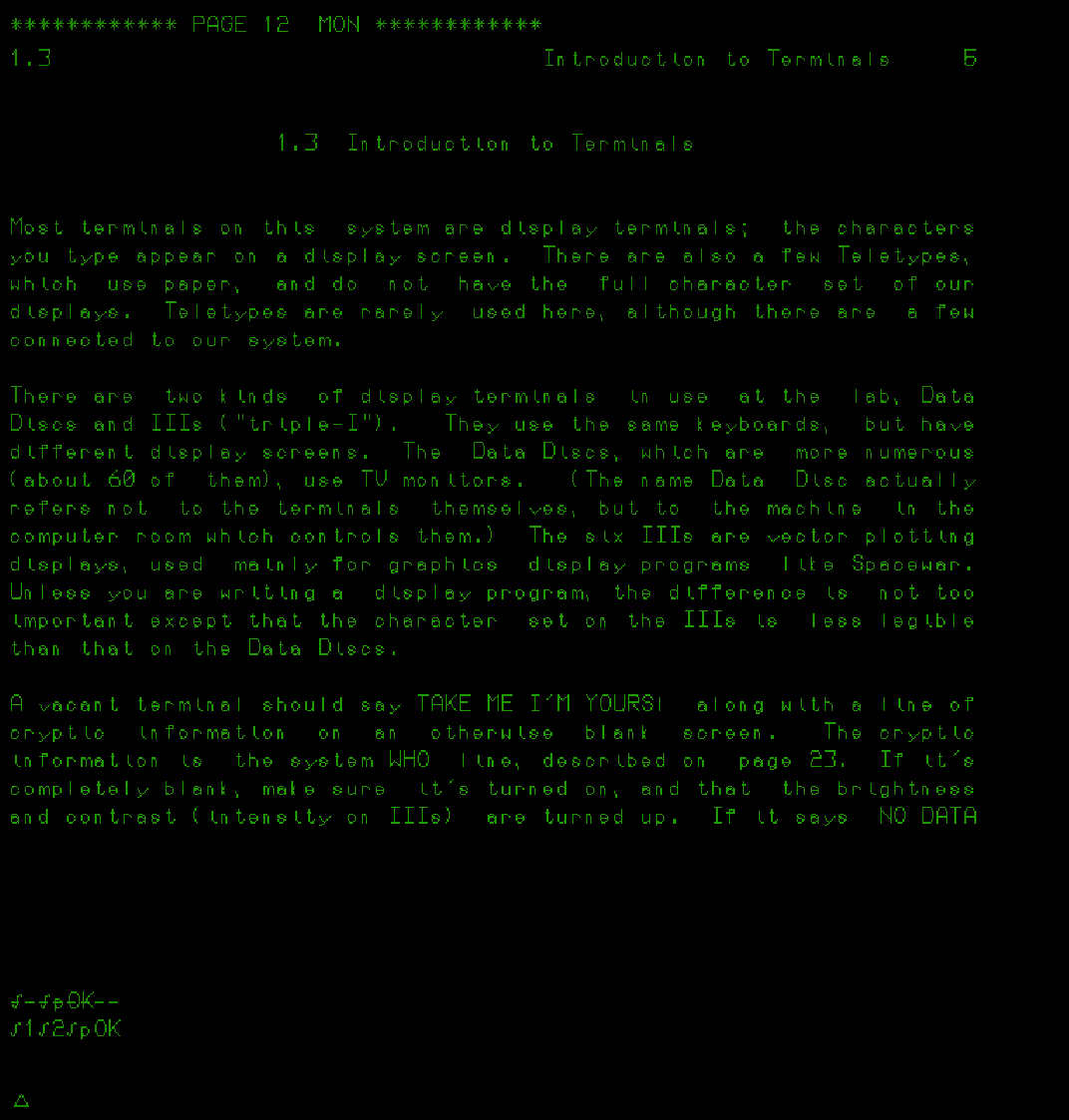 Navigation using the TV editor. Source: Rupert Lane. License: CC0.
The top shows the page number and a line of asterisks denoting the top of the page. The bottom shows a line of dashes, denoting there is more text in this page. Press F5 (FORM) to scroll the window down; press F6 (VT) several times to scroll back up. You will see the commands you are typing being echoed at the bottom of the screen. Control-T moves back by a page, Control-B forwards.
You can move forwards a line with Return and back a line with Backspace; however, as mentioned above, the arrow showing what line you are on is not working so it's a bit confusing.
Editing a line
To get an idea of how editing would work, press Control-Space. A triangular cursor will appear and the line being edited will move down slightly. You can now use the same line editing commands we saw in the blog entry on terminals, eg Control-Space to move forwards a character, Control-Backspace to move back. Typing a normal key will replace what is at the cursor. Press Esc (altmode) to reject your changes; had you wanted to accept them you would type Enter.
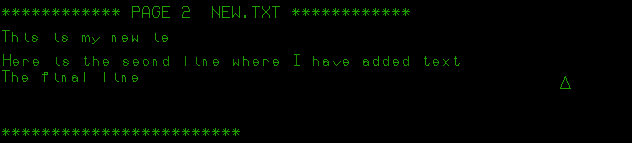 Editing text with the TV editor. Source: Rupert Lane. License: CC0.
There's also an issue here which may be a bug in the emulator. In the
image I have added text to the end of the second line and the right
hand cursor should be below the final t, but instead it is shifted
further to the right.
Moving text
The modern metaphor of the clipboard, where text can be moved or copied to another place, is called attach mode on TV. In the sequence of images below, I start with a four line file where the top line should be moved to the bottom.
 Moving text with the TV editor. Source: Rupert Lane. License: CC0.
- With the cursor on the first line, press Control-A to attach the line. You could give a prefix with Control-n to attach n lines.
- The line affected will show a bar in the left column.
- Press Return 3 times. The attached text will move down with each key press.
- Press Control-Alt-E to release the attached text, so it is now in its correct place.
Instead of Control-A at the start which does the equivalent of a cut operation, pressing Control-C will copy the text instead.
Exploring further
That's about how far I got. Looking at the manual, it does seem like it has some advanced capabilities, such as creating version histories and reformatting Lisp code. One thing to note with the manual is that it uses special prefixes to denote modifier keys - for example, instead of using "Control-P" like we would today it says "αP". The key to understand this is early on in the manual:
   α     means hold the "CONTROL" key down while typing a character.
   β     means hold the "META" key down while typing a character.
   αβ    means hold both "CONTROL" and "META" keys down while typing.
   ⊗     means use either α or αβ with the next character.
More information
Questions, corrections, comments
I welcome any questions or comments, and also especially any corrections if I have got something wrong. Please email me at rupert@timereshared.com and I will add it here and update the main text.
Sun, 19 Jul 2026 09:03:00 +0900
WAITS: The first interactive spell checker
Today we'll look at SPELL, probably the world's first interactive
spell checker, which debuted on WAITS in 1971.
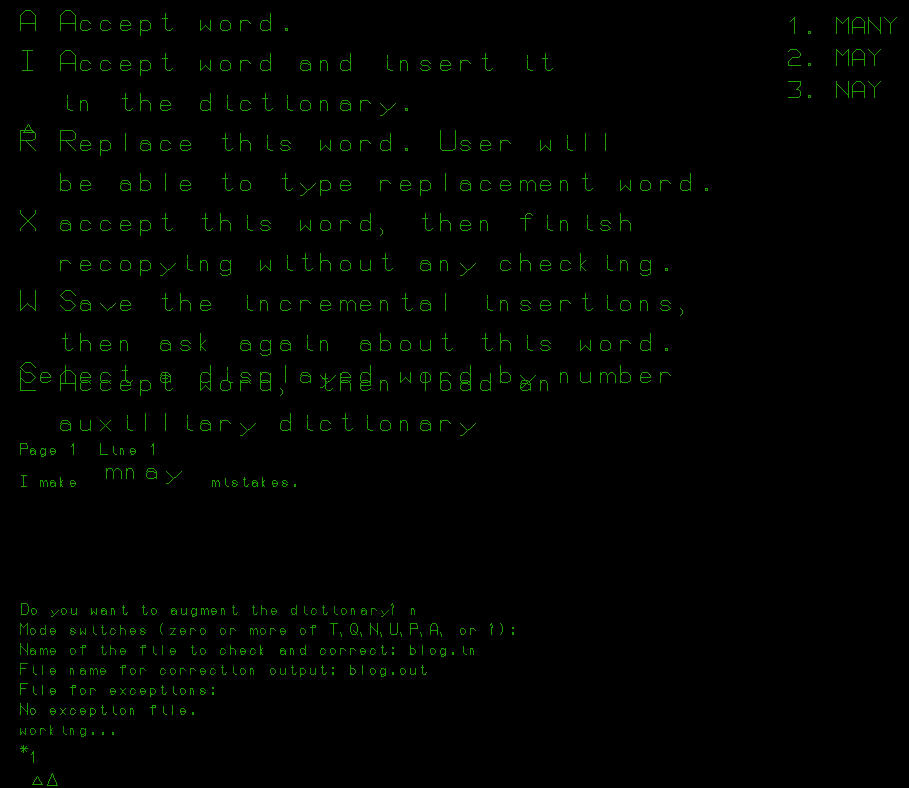 The WAITS spell checker on the III. Source: Rupert Lane. License: CC0.
Origins
The origins of SPELL are in work Les Earnest did at MIT to recognise
cursive handwriting in the late 1960s/early 1960s. He put together a
dictionary of around 10,000 English words (from ABANDON to ZOOLOGICAL)
and wrote a subroutine in assembly to match against handwritten words,
producing an output file of words not recognised. Les moved to SAIL in
1965 and took his dictionary with him (pictured below, on paper tape).
In 1967 this was used by a grad student to write a program in LISP
that would match words in a text file and print out anything it did
not recognise.
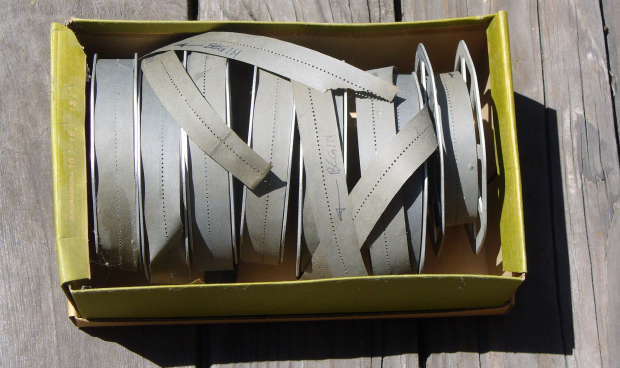 10,000 words on paper tape. Source: Les Earnest via archive.org. License: CC BY-NC-ND 3.0
Finally, in 1971. Ralph Gorin (the REG whose login we have been using
to access our emulated WAITS instance) wrote SPELL, using the same
dictionary. This took a text file - and an optional user dictionary -
as input, checked the words contained and if it did not recognise a
word, offer the user several alternatives such as select a candidate
replacement from the dictionary, ignore the word, add to personal
dictionary etc. This became popular at SAIL and was also adopted by
Tenex and other PDP-10 sites. Later versions could understand text
files using document preparation languages like PUB and TeX.
Running SPELL
Type R SPELL to start the program. On display terminals it will
present a multi-pane-of-glass view like the above, but it also
supports an interactive teletype session with * as the prompt.
First it asks if you want a personal directory and any switches to
support dictionary maintenance. It will then ask for the input and
output files (it can't edit a file in place). Here we'll use a file
called blog.in that contains a single sentence "I make mnay
mistakes.".
.r spell
Do you want to augment the dictionary? n
Mode switches (zero or more of T,Q,N,U,P,A, or ?):
Name of the file to check and correct: blog.in
File name for correction output: blog.out
File for exceptions:
No exception file.
When it detects a spelling mistake it will prompt you for what to do next
working...
Page 1:1
I make mnay mistakes.
mnay
Type S,A,I,R,X,D,W,L or ?
If you've ever run ispell on Unix (or its Emacs interface) the
commands will look remarkably similar - a to accept, i to insert
into personal directory, r to retype the word by hand etc. In fact
ispell traces its origins back to SPELL, starting with a revised
version on the PDP-10 and eventually being ported to C and Unix.
On the display terminal you can see a list of candidate words on the
right which you can choose from. On teletypes, you need to press s
and then use Return to see the options.
*s
Type C,^,<altmode>,<cr> or ?
MANY
*
MAY
*
Those are all the choices.  Type S,A,I,R,X,D,W,L or ?
*s
Type C,^,<altmode>,<cr> or ?
MANY
*c
Finished.
Before it exits it will prompt for some options to continue checking
other files or manage core files. But the normal response is e to
save the output file and exit.
Type E,S,C,A,D,I, or ? e

EXIT
^C
Source code
The 1974 source code for SPELL is on the WAITS disk as SPELL[S,REG]
and the master dictionary in SLOVAR[S,REG] (unfortunately the
[S,REG] directory is not accessible on saildart.org). The source
file has around 5600 lines, 4700 of which are FAIL assembly source code
and the rest is the manual. The header reads.
	TITLE	SPELL	I HAVE YOU UNDER MY SPELL
;		SPELLING CHECK  & CORRECTION.
;		R. E. Gorin 20 February, 1971
;		Revised July 23, 1972 III displays
;		TENEX version 1/12/74 Wiiliam W. Plummer, mod REG 11/19/74
;		Additional features, October 1974, Jerry Wolf, mod REG 11/23/74
Internally the program uses a form of hash coding, where words with the same first two characters and length are stored in a list so candidate replacements can be found quickly.
The program detects four types of mistakes; from the manual:
- one wrong letter.
- one missing letter.
- one extra letter.
- two transposed letters.
The executable program is built by assembling the code, starting it and giving it a master dictionary file name. It then builds its hash tables and stops, at which point the core image is saved for future use. This was a common technique for machines of this area. as the resulting core file starts up quickly as the master dictionary read and parse does not need to take place. The downside is that the master dictionary cannot be changed without rebuilding the program.
Further information
SPELL is documented in SPELL.REG[UP,DOC]
Here's a video of Ralph Gorin accepting an award for his work on SPELL at a SAIL reunion in 2009.
See Les Earnest's paper on the first spell checker at archive.org.
Questions, corrections, comments
I welcome any questions or comments, and also especially any corrections if I have got something wrong. Please email me at rupert@timereshared.com and I will add it here and update the main text.
Sun, 12 Jul 2026 09:10:00 +0900
WAITS: Jobs, users and security
Today we'll look at how users and security are handled on WAITS - this is fairly relaxed, allowing free access to resources for people inside the lab, but with protection available if needed. Remote users are more restricted. We also look at jobs, which are similar to processes on modern systems.
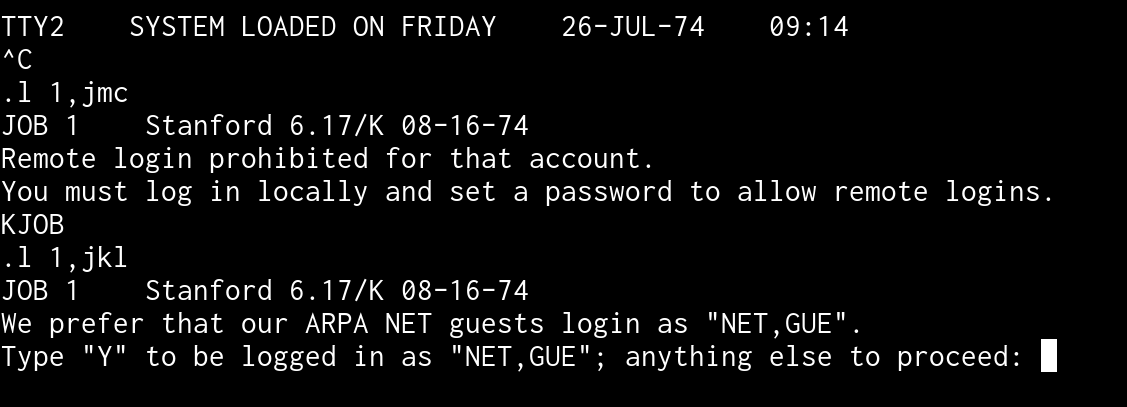 Remote logins to WAITS. You can't log in as an existing user (like JMC) if no password has been set. Trying to create a new
user, like JKL, will not work if done remotely. Source: Rupert Lane. License: CC0.
Remote logins to WAITS. You can't log in as an existing user (like JMC) if no password has been set. Trying to create a new
user, like JKL, will not work if done remotely. Source: Rupert Lane. License: CC0.
Security and users
In the previous post we talked about PPNs like [1,REG]; here REG
is the ID that identifies which user you are.
To create a new user ID, simply choose a 3 letter ID and log in as that. This must be on a device internal to SAIL, ie the console or display terminal, not via the external communication lines that are modelled by a telnet connection on simh.
Here I choose REL as an ID and log on. It asks me if I am sure, as
this is a new ID, and if I type Y I am logged in and can run programs
or create files.
.l 1,rel
JOB 1    Stanford 6.17/K 08-16-74
Are you sure? y
Friday  26-JUL-74       0945
.
If I log out with an empty directory, it will be removed.
.k
Your empty file directory has been deleted.
But it is recreated the next time I log in.
If you had logged in as 1, FOO, you would get this message when you
logged out:
You are not an authorized user. Your files have been deleted.
This turns out to be a simple check in the LOGOUT routine - if your
user ID is one of FOO, BAR, BAZ, ABC, 100 it will say you are
unauthorised, probably because these are common IDs used for testing.
You will note that no password was asked for at any stage. You can set
a password by replacing the . with a % at the login stage, eg L
1%REL. You get the option to only ask for a password if you are
logging in remotely so you don't need to supply it when logging in via
the console or display terminals.
The password is set at the PPN level on the user file directory entry,
so you could have a different password for say 1,REL and 2,REL.
According to the UUO (system calls) manual it is stored in plain text,
case insensitive with a maximum length of 6 characters.
File protection
Files and directories have a 3 octal digit protection code.
| Bit | File | Directory |
| 400 | Don't backup this file | Ask for password for remote logins only |
| 200 | Delete protect | Unused |
| 100 | Owner may not overwrite this file | Owner may not write files |
| 040 | Local users may not change protection of this file | Same as for files |
| 020 | Local users may not read this file | Same as for files |
| 010 | Local users may not overwrite this file | Same as for files |
| 004 | Guest users may not change protection of this file | Same as for files |
| 002 | Guest users may not read this file | Same as for files |
| 001 | Guest users may not overwrite this file | Same as for files |
The default protection is 000, so anyone can do anything.
To set protection on files, you need to use COPY with the
/PROTECTION flag to create a new file with the desired level, eg
.copy /protection=006 foo2 ← foo1
would create FOO2 from FOO1 but set protection so guest users
can't access it at all.
Directory protections can only be set by logging in with the % delimiter
Jobs
WAITS is quite similar to TOPS-10 here so reading the Jobs on TOPS-10 post will give more details. But in brief:
When you log in to WAITS, it gives you a job number which lasts
throughout your session. Some simple commands (like DAYTIME) you
type are built into the monitor. Others need to be loaded into memory
from core files, which have the extension .DMP on WAITS.
If you have a core file FOO.DMP in your directory you can invoke it
with RUN FOO. Common programs are stored in the SYS: area, which
is equivalent to [1,2], and programs here can be run using R.
RUN can also take a file name and directory, so R LISP is the
same as RUN LISP.DMP[1,2].
Some common programs, like COPY, are recognised by the monitor but
behind the scenes it will invoke RUN on the right core file.
You can create another job by logging in a second terminal. But you
can also DETACH from a job, which will suspend it and log you out,
and then log in elsewhere and resume execution using ATTACH. Jobs
can also run in the background if they do not need interact with the
user's console.
All that is pretty much the same as TOPS-10. WAITS adds some more
conveniences. FORK works like DETACH, but rather than logging you
out will create a new job as your current ID. KILL can be used to
kill a job owned by you.
WAITS replaces TOPS-10's SYSTAT with WHO, along with the "who
line" we saw earlier on interactive terminals.
Batch jobs
TOPS-10 had a fairly sophisticated batch processing system, where jobs could be submitted from the terminal or via cards, and queues of jobs could be maintained and run in the background.
WAITS chose instead for a simple facility to run from the terminal,
similar to a shell script file on a modern system. The concept is you
create a file with a set of commands or data to input to those
commands. The end of each line must be denoted by a ↔ rather then
Return. There are a number of other metacharacters to allow you to
enter the special keys on the Stanford keyboard, eg ≠ will emit an
Altmode key
You run the file with DO and it basically pastes data it into your
keyboard buffer as if you'd typed it directly, expanding any
metachracters.
There is provision for variables via the question mark and a single
letter, eg ?A. The first time this is seen it will prompt for input
and store that in variable A; from then on using ?A will expand it
to the value you entered.
There is no looping or branching available, however.
As an example, if you have the file foo.do:
hello↔dir [?D,DOC]↔
and type DO FOO.DO it will run the hello command, prompt you for a
value for D then do a directory listing of that area under DOC.
More information
See the Monitor Command Manual for more details on these topics.
Questions, corrections, comments
I welcome any questions or comments, and also especially any corrections if I have got something wrong. Please email me at rupert@timereshared.com and I will add it here and update the main text.
Sun, 05 Jul 2026 09:34:00 +0900
WAITS: Files and directories
Today we'll look at how WAITS handles files, the commands to manipulate them, and how the WAITS PPN / directory structure works.
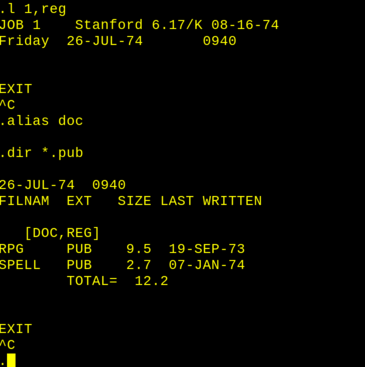 Logging in and changing directory. Source: Rupert Lane. License: CC0.
Files
Files are named file.ext where file is 1-6 characters long and
ext 0-3. The extension is used to identify the type of file, eg
HELLO.SAI would be a source code file in SAIL, the lab's version of
Algol. One exception is seen in some shared directories, where the
file extension is the initials of the person maintaining the file.
Filenames are case insensitive, and each character is stored using 6
bits instead of the usual 7 bit Stanford ASCII. This means that the
special characters in Stanford ASCII like ← or α cannot be used in
file names.
The PPN and directories
PPN means project and programmer number. These are both 1-3 alphanumeric characters long, with the programmer number (eg REG) identifying the person and the project number (eg 1) indicating a particular set of work. Programmer numbers can also be shared areas, eg DOC.
This information is given when you log in (eg typing L 1, REG) and
also represents an area of the disk, for which is written in square
brackets, (eg [1, REG]). By convention, [1, xxx] is like the home
directory of user xxx, but the number 1 itself has no special
meaning. Users would generally have different project numbers for
different tasks, eg REG has [CRF, REG] for working on the CREF
program and [DOC, REG] for documentation tasks.
To change directories, eg from [1, REG] to [DOC, REG] you could
log out and log back in again with K and then L DOC,REG. But an
easier way is to use ALIAS. With one argument this will change your
project number, so ALIAS DOC will put you in [DOC, REG], as seen
in the screenshot above. When invoked with two comma-separated
arguments it will change to that PPN, eg ALIAS 1,BGB. With no
arguments it will return to the directory you logged in as.
Typing R ALIAS will show what your current alias is, and what you
logged in as.
To create a new directory, you need to log in with that PPN, so to
create [FOO, REG] log out with K then log in with L FOO,REG. It
will ask you for confirmation and then create an empty directory which
you can start adding files to.
When you log out, if your logged in directory has zero files, it will be deleted.
Alphanumeric PPNs are a change from TOPS-10, which only allowed octal numbers. Unlike TOPS-10, there is no concept of sub-directories on WAITS.
File manipulation
There are several commands to manipulate files which share a common code base.
| Command | Function |
| COPY | Copy files |
| RENAME | Renames files |
| TYPE | Display file on the TTY |
| LIST | Send file to the line printer |
| DIR | Do a directory listing |
In general the arguments for these commands takes the form
destination ← source. On display terminals you can get the left
arrow by pressing the left cursor key; on TTYs, you can use underscore
instead.
So COPY bar ← foo would copy foo, creating bar, and RENAME bar
← foo would change the filename foo to be bar.
Each file argument can be fully specified as
dev:file.ext[prj,prg]
dev is by default DSK: and does not need to be specified unless
you are working with magnetic tape devices. prj,prg by default is
the PPN you are currently logged in or aliased to.
The * wildcard means match all for the field it is specified in, eg
*.txt. There is no partial wildcarding like a*.txt.
Some examples:
RENAME *.BAK ← *.TXT
renames all text files in your current PPN to have an extension BAK.
COPY X ← A,B,C
concatenates a, b and c to form x
DIR MYLIST ← *.TXT
lists all files in the current PPN matching *.TXT and writes output
to the file MYLIST.
There's also a working copy of PIP, DEC's Peripheral Interchange
Program, on disk which you can run with R PIP. See my article in the
TOPS-10 series of posts for more details.
Directory structure
The root of all directories is [1,1], also called the Master File
Directory. If you do a DIR on this you can see each sub-directory as
a file containing the PPN and the extension UFD, for User File
Directory.
. dir [1,1]
...
  1REG  UFD    388  26-JUL-74
...
DOCREG  UFD    116  01-JAN-64
...
Some notable areas on the file system. As well as browsing these in WAITS, you can also look at the saildart archive by prepending https://www.saildart.org/ and either the PPN in brackets or the programmer number on its own, eg https://www.saildart.org/[S,DOC] or https://www.saildart.org/DOC .
| Area | Usage |
[1,3] |
Common programs |
[2,2] |
Mail and plan files |
[3,2] |
Help files accessed the via HELP command |
[*,DOC] |
Documentation |
[AIM,DOC] |
AI Memos |
[CSP,DOC] |
Docs on user programs |
[H,DOC] |
Hardware docs |
[P,DOC] |
Docs about people |
[S,DOC] |
Documentation of system programs |
[UP,DOC] |
Update docs on system programs |
[*,LSP] |
Files relating to Lisp |
[*,SYS] |
Data files for system programs |
Further information
The file manipulation commands are documented in COPY.RPH[S,DOC] in
WAITS, or at saildart.org here.
We'll look at file protection, and user setup, in the next post.
Questions, corrections, comments
I welcome any questions or comments, and also especially any corrections if I have got something wrong. Please email me at rupert@timereshared.com and I will add it here and update the main text.
Sun, 28 Jun 2026 08:53:00 +0900
WAITS: Terminals and keyboards
To expand on what we saw in the quick tour, let's look further at how you can interact with WAITS using the simh emulator. There are two classes of terminals: teletypes and display terminals.
Teletypes
Teletypes here means the console typewriter (shown below, with John McCarthy helpfully holding the paper) and remote connections, which simh emulates as a telnet connection but on the real system could have come from phone dial up lines or over the Arpanet.
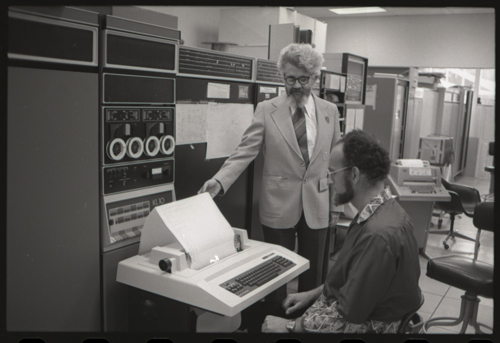 Using the console at SAIL. Source: CHM.
These devices support the backspace key, but do not delete
characters; instead they print a backslash, then the characters you
want deleted, then another backslash when you start typing again. So
if I entered ABCDEF but deleted the last three characters and
inserted XYZ it would look like:
ABCDEF\FED\XYZ
You can press Control-U to delete the whole line, but TOPS-10's Control-R to reprint the line is not supported.
Pressing Control-C will stop a job; pressing Control-O will keep a job running but suppress any further output.
The console
By default the console will print in upper case, but you can coerce it
to print lower case (in most programs) by typing TTY FULL.
The console was not intended for regular users and if you try to log
on as one (eg L 1,BGB) it will ask for a password:
.L 1,BGB
JOB 1    STANFORD 6.17/K 08-16-74
THE CTY IS FOR DEBUGGING ONLY,
UNLESS YOU KNOW THE PASSWORD =
Well, we own the system now, so the password to get around this is
FEEPER. This is a special password for the console, and if you have
a password for the account this would be prompted for next.
Remote access
simh allows remote access via telnet: if using the quickstart this is
on port 1974. However, users without a password (which is true for the
REG and BGB accounts we have used so far) are not allowed.
$ telnet 0 1974
Trying 0.0.0.0...
Connected to 0.
Escape character is '^]'.


Connected to the KA-10 simulator DCS device, line 0


TTY2    SYSTEM LOADED ON FRIDAY    26-JUL-74    18:10
^C
.l 1,reg
JOB 2    Stanford 6.17/K 08-16-74
Remote login prohibited for that account.
You must log in locally and set a password to allow remote logins.
KJOB
.
To set a password, use the console or display terminal to login as
your chosen account using % instead of . in the login command, eg
L 1%REG. It will prompt you for a password and whether to use this
on all logins, or just remote ones.
If you try to login as an unknown user over a remote connection, you get
politely redirected to use the NET,GUE guest account
.l 1,foo
JOB 2    Stanford 6.17/K 08-16-74
We prefer that our ARPA NET guests login as "NET,GUE".
Type "Y" to be logged in as "NET,GUE"; anything else to proceed: y
What is your name, please? A tourist
Friday  26-JUL-74       1822
3 jobs logged in. 1 Running.
.
The guest account has no disk directory and cannot run all programs.
Note that the remote access communication speed is quite slow, and I have seen it hang for 10-20 seconds sometimes.
Display terminals
Most users in the lab would have access to a display terminal, which was very unusual for the early 1970s. There were 6 III (Triple-I) vector displays and 58 DD (Data Disc) raster displays in 1973 (not all DDs could be used at the same time, however). simh has good support for the III which we'll go into details below.
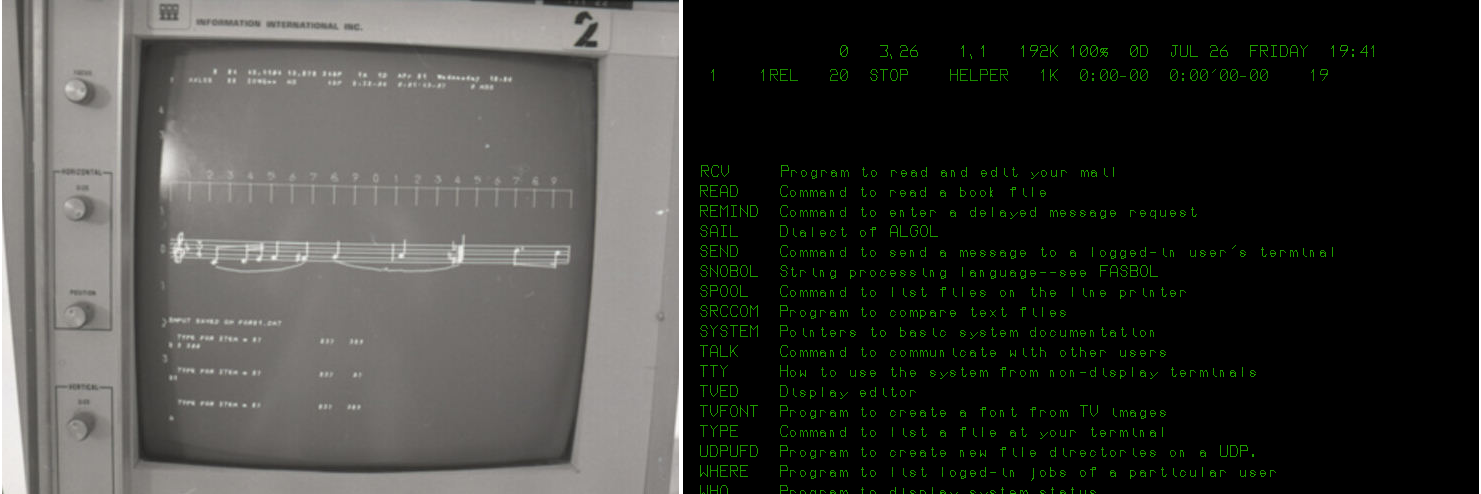 Left: An III display in use at SAIL running an unknown music program.
Source: CHM. Right: a simulated III display on simh.
Left: An III display in use at SAIL running an unknown music program.
Source: CHM. Right: a simulated III display on simh.
Display terminal keyboards
Display terminals used a special keyboard, the layout of which is recreated below.
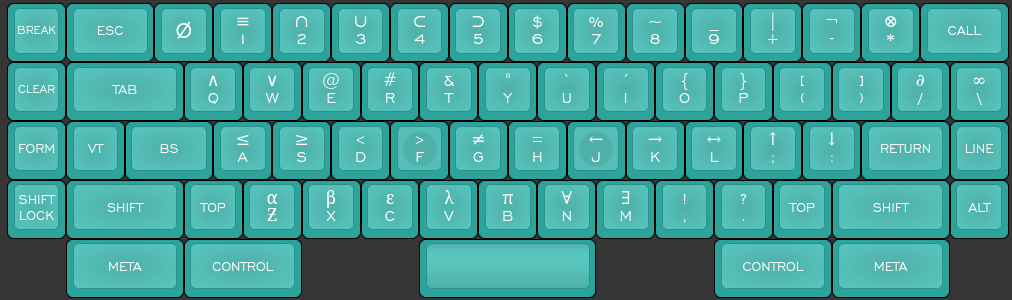 Stanford keyboard layout. Source: keyboard-layout-editor.com
There are a number of modifiers that can be combined with other keys:
Shift, Control, Meta and Top. On simh, Meta is mapped to the Alt or
Option key. Top is used to select the symbol on the top of most letter
and number keys, such as > on the F key. This is mapped to the
Windows/Command key on your keyboard (which may be hard to use as some
window managers grab these). On your modern keyboard you will have
many of these available directly, so for > you can press Shift and
dot as normal.
There are also special keys at the side like BREAK and CALL which are used to control the line editor; simh uses the function keys for these. These are not modifiers, ie to type the sequence BREAK e you'd press F3, let go and type E.
The ALT key (also known as ALTMODE) is not a modifier but another special key, and is accessed by pressing Escape on your modern keyboard. The ESC key is another function key not related to the modern Escape key.
Here's a summary of how all these keys are mapped to a modern keyboard when using simh.
| Stanford key | Modern key |
|---|---|
| META | Alt/Option |
| TOP | Windows/Command |
| CALL | F1 |
| ESC | F2 |
| BREAK | F3 |
| LINE | F4 |
| FORM | F5 |
| VT | F6 |
| ALT | Escape |
There does not seem to be a simh mapping for CLEAR, however
The cursor keys will emit the arrow characters like ←.
Not a Stanford key, but a facility provided by simh: pressing F11 will make the window full screen.
The saildart javascript emulator does not use the above keyboard mappings, but does provide a layout with a virtual keyboard you can click keys on.
The line editor
Similar to the facility you are used to in modern shells like bash, the display terminals supported a powerful line editor to help you quickly edit text, using the Control and Meta keys. This works on all text input fields, not just the monitor command line.
If you log on to the III you will see there are two cursors, one at the start of the text field you are typing into, and one at the end. You can move back and forward on the line with Control-Backspace and Control-Space respectively. If you are not at the end of the line, typing a character will replace what's currently behind the second cursor. Typing Meta and a character will insert a character. So typing X with the cursors as shown below would change 'world' to 'xorld'.
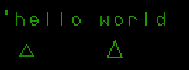 The two cursors. Source: Rupert Lane. License: CC0.
Meta-Backspace will delete the character behind the cursor. Control-D deletes the character in front of the cursor.
Plain Backspace at the end of the line deletes the last character, but if the cursor is not at the end it will act the same as Control-Backspace, ie move the cursor left.
A summary including the other line editing commands. C- means Control. M- means Meta.
| C-Space | Forwards one character |
| C-Backspace | Back one character |
| M-ch | Insert character ch |
| M-Backspace | Delete char to the left |
| C-d | Delete char to the right |
| C-Return | Recall last command typed |
| C-Tab | Move to end of line |
| C-FORM (F5) | Move to start of line |
| C-S | Search forwards for the next char you type |
| C-K | As above, but search backwards |
| C-R | Repeats the last Control-S or -K search |
| C-I | Toggle insert mode |
Finally, you can repeat a command n times by typing Control and the number n, then typing the command.
Controlling the screen
Often commands with lots of output will cause the screen to scroll. To
pause the output, press Control-BREAK (ie Control-F3). HOLDING will
appear at the top of the screen. Press an editing key like Control-Tab
to resume.
You can also make it pause automatically after every n lines by typing ESC n E, ie to pause after every 20 lines press the keys F2 2 0 E. The important thing here is that you must enter this command while a program is running, and it only has effect for the life of that program, ie you can't set it once at the monitor level and have it apply to all programs.
In summary:
| Control-BREAK | Pause output; press Control-Tab to resume |
| ESC n E | Pause display after n lines |
| ESC E | Turn off pause display |
To control the WHO line at the top of the screen:
| ESC W | Display a who line at the top of the screen |
| BREAK W | Turn off the who line |
| ESC Q | Display your next job in the who line |
There are also other controls to adjust the position and pane of glass behaviour which I have not yet found much use for - see section 2 of the Monitor Command Manual, linked below for details.
The Data Disc terminal
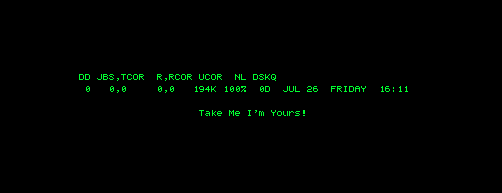 The Data Disc display on simh. Source: Rupert Lane. License: CC0.
The Data DIsc terminal was the more common of the two terminal types at SAIL. It used a modified TV set to display pixel graphics and text; the name came from the controller which used tracks on a hard disk to store pixel data to be sent to the screen. It also had a video switch so you could select video from TV cameras used in lab experiments and even broadcast TV signals. There's a footmote in the Monitor manual that says:
The first edition said, at this point, "Thus, BREAK S at 6pm on a weekday selects Star Trek." However, I understand that we are being spared that this season.
This terminal is not supported on the saildart emulator yet. On simh,
it is emulated but has several problems with scrolling (see this issue
for details). You can try this out by changing set dd disable to
set dd enable in the run.ini file in the quickstart and restarting
the emulator.
Further information
You can find out more about the SAIL keyboard, along with pictures, at Xah Lee's site and in an issue created by Lars Brinkhoff on the Github PDP-10 organisation.
This 1975 video shows the Stanford DD display terminals in action.
The Monitor Command Manual section 2 describes the display terminal in more depth.
Questions, corrections, comments
June 2026: Corrected numbers and availability of display terminals, from a comment by Lars Brinkhoff.
I welcome any questions or comments, and also especially any corrections if I have got something wrong. Please email me at rupert@timereshared.com and I will add it here and update the main text.
Sun, 21 Jun 2026 09:09:00 +0900
WAITS: A quick tour using simh
In this post I will show how to get the 1974 snapshot of WAITS running using the simh emulator. We'll use the command line on the console, run a AI program from 50 years ago, write a short program and use the display terminal for some vector graphics.
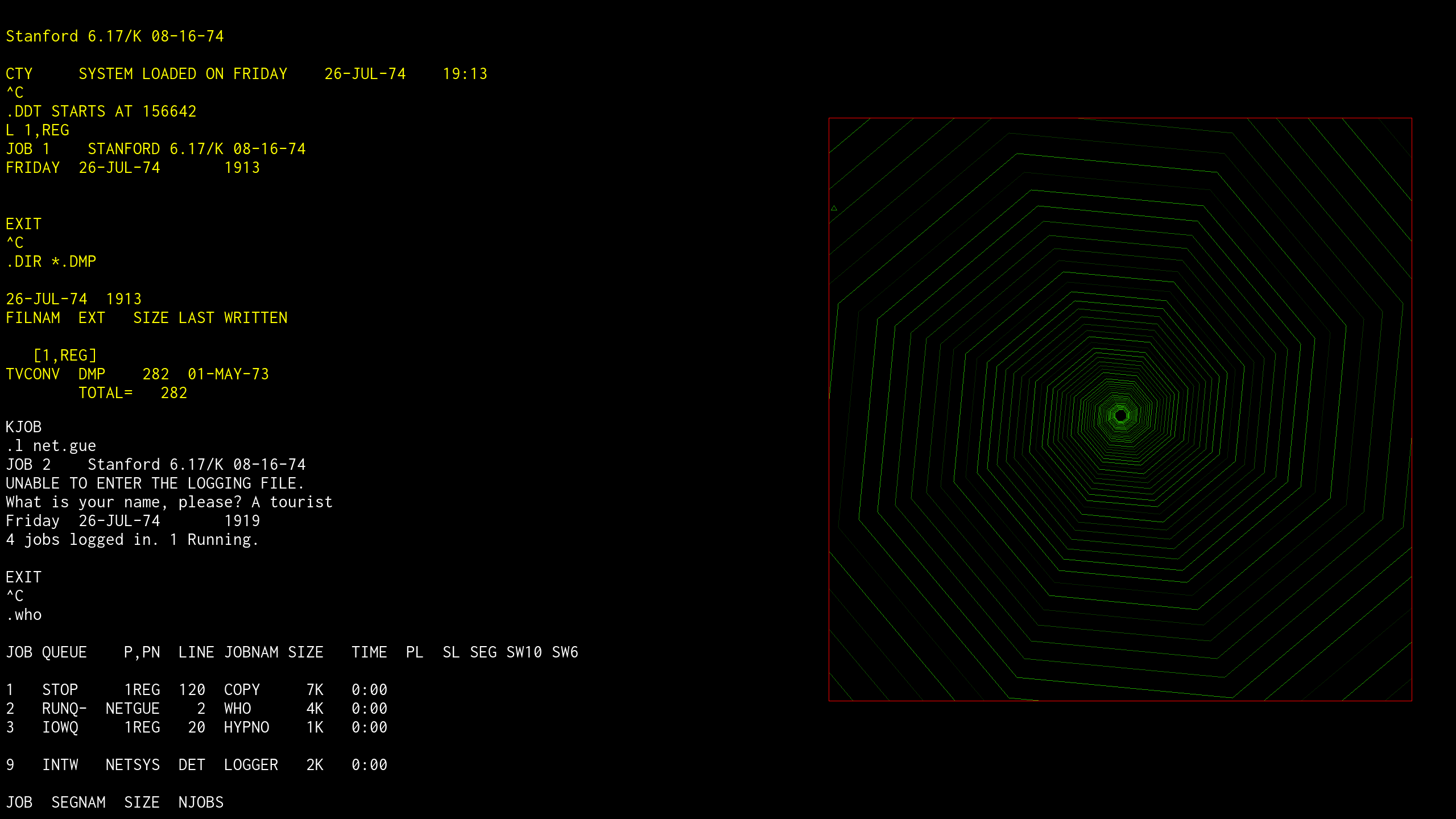 Running WAITS on simh. Source: Rupert Lane. License: CC0.
The quick start repo
I have put together a repo on Github that uses Richard Cornwell's KA PDP-10 simh emulator along with a ready-to-use disk image of WAITS from Lars Brinkhoff's sailing-on-arpanet project. This builds on the simh disk images from Richard Cornwell and ultimately Bruce Guenther Baumgart's saildart archive.
To use this, you will need a Unix-like environment capable of running a shell, git, make, a C compiler, bunziip2 and the SDL library. An optional requirement is a telnet client. See the README for more details.
First, clone the repo and cd into it
git clone https://github.com/timereshared/stanford-waits-simh-quickstart.git
cd stanford-waits-simh-quickstart
Then type ./build.sh. This will
- Download opensimh using git and compile the pdp10-ka emulator binary.
- Download a copy of the WAITS disk images.
- Apply some missing system files.
Start WAITS
Type ./run.sh. An III display terminal window will pop up, and the
system will boot, showing the below on the main console window.
Stanford 6.17/K 08-16-74

CTY	SYSTEM LOADED ON (date, time)
Using the WAITS CLI
The main window now acts as the PDP-10 console. You can log into it
using the LOGIN command which can be abbreviated as L. As this is
a snapshot of a live system, it has several accounts set up already.
Let's use REG, which was the account of Ralph Gorin, a system
programmer at SAIL. By defailt, no password is needed so just type L
1, REG
L 1,REG
JOB 1    STANFORD 6.17/K 08-16-74
FRIDAY  26-JUL-74       1105


EXIT
^C
.
It prints EXIT and ^C to show the login job has finished, then
prompts you to enter commands with a dot.
Type TTY FULL to let it use upper and lower case letters (the
console would normally only print capitals).
If you have tried TOPS-10 the interface will look familiar, and indeed
most of the commands work the same way. Type DIR to get a directory
listing; you can use wildcards to limit the search, so to find all
SAIL programs:
.dir *.sai

26-JUL-74  1132
FILNAM  EXT   SIZE LAST WRITTEN

   [1,REG]
FORTUN  SAI    256  30-MAY-72
        TOTAL=   256


EXIT
^C
You can view the contents of files by using the TYPE command, so to
see the above you'd enter TYPE FORTUN.SAI
The help system is invoked by typing HELP; to see a summary of
commands type HELP HELPER.
.help helper
ALIAS   Command to change default directory used for disk files
ARPA    Basic information for users from other ARPA network sites
ASSIGN  Command to acquire use of non-sharable device
ATTACH  Command to attach terminal to a detached job
BINCOM  Program to compare binary files
...
Running programs
As a snapshot of a running system rather than a freshly installed but
blank operating systen, there are several commands available to run
that were created by the researchers at the AI Lab. One example is
PARRY, which was an attemp by psychiatrist Kenneth Colby to simulate a
person with paranoid schizophrenia. You can invoke this with the R
command. It asks you some questions to set up the parameters for the
interaction than lets you start talking to Parry. Press Control-C to
exit.
.r parry

END INPUT PARAMETERS WITH CARRIAGE RETURN OR ALTMODE

PRINT NON VERBAL FEATURE? [Y,N]
*y
[...]
END INPUT WITH A PERIOD OR QUESTION MARK,
   FOLLOWED BY CARRIAGE RETURN.
TO INDICATE SILENCE, TYPE   .
   WHEN FINISHED, TYPE   BYE.
USE PERIODS ONLY AT THE ENDS OF SENTENCES,
   NOT IN ABBREVIATIONS.

READY:
*why is the sky blue?

THAT'S THE WAY IT GOES

READY:
*tell me about your past.

I'M QUITE UPSET

READY:
*why are you upset?

PEOPLE GET ON MY NERVES SOMETIMES

READY:
*^C
^C
Creating a simple program
Let's create a simple hello world program using Fortran. We will use the SOS editor to create the source file then compile it and run it.
Type CREATE HWORLD.F4 to create a new file and put us in the
editor. As this is a new file, the editor will allow you enter text
immediately. It will precede each line with a line number (which is not
a Fortran label) automatically. So the screen will look something
like this after you run CREATE
.create hworld.f4
00100
Type the following program. Where you see ⭾ below you should press
the Tab key rather than typing spaces.
⭾	DO 1 J=1,5
1 ⭾	WRITE(5, 2)
2 ⭾	FORMAT(' HELLO, WORLD')
⭾	END
Type Alt-mode (which is Esc on your keyboard) to exit input mode, and
then type e at the * prompt to save and exit. Finally type exec
hworld.f4 to compile and run the program. Your screen will look
something like the below.
.create hworld.f4

00100           DO 1 J=1,5
00200   1       WRITE(5, 2)
00300   2       FORMAT(' HELLO, WORLD')
00400           END
00500   $
*e

EXIT
^C
.exec hworld.f4

FORTRAN:  HWORLD.F4
LOADING

LOADER 5K CORE
EXECUTION

HELLO, WORLD
HELLO, WORLD
HELLO, WORLD
HELLO, WORLD
HELLO, WORLD
EXIT
^C
.
The program is still in core memory at this point, so if you want to
save a permanent copy to disk use the SAVE command
.save hworld
JOB SAVED IN 4K

^C
If you now use DIR you can see the files you created.
.dir hworld.*

26-JUL-74  1122
FILNAM  EXT   SIZE LAST WRITTEN

   [1,REG]
HWORLD  F4      19  26-JUL-74
HWORLD  DMP    3.5  26-JUL-74
HWORLD  REL     57  26-JUL-74
        TOTAL=   3.6

EXIT
^C
The .rel file is the object code and the .dmp the executable,
which you can run again by typing RUN HWORLD (RUN rather than R
as R is for system programs)
Using the display terminal
So far we've done everything using the console, but you probably noticed the III display terminal that appeared when simh started with its welcoming prompt.
 Prompt on WAITS display terminals. Source: Rupert Lane. License: CC0.
All the login and command line programs we have used so far will work on this terminal as well. But this is a vector terminal that can draw text and graphics, along with a keyboard that can enter more characters than the traditional teletype.
Let's login this time as BGB, the main archivist of the saildart.org
site. Type L 1,BGB and then try a few commands. You will note that
pressing Delete will delete the last character rather than reprinting
it as it does on the teletype; in fact there is an extensive command
line editor which we will look at in a later post. A warning: the
system does not handle type-ahead that well, so it's best to type
slowly.
The video display can show more than just the interaction with the
monitor command line. Press F2 then W and a dynamic display of system
usage will appear at the top of the screen - called the WHO line.
Press F3 and then W to turn it off. A more extensive set of system
information cab be displayed in the main area by typing WHO; press
any key to exit.
Next, type COPY MON ← MONCOM.BH[S,DOC]: you can get the left arrow
by pressing your left cursor keu. And then type TV MON.
This will open up the TV editor on a copy of the monitor command manual. Type Control-P to advance by page and Control-minus then Control-P to go back. Press Control-Alt-E to exit back to the prompt.
 Running the TV editor. Source: Rupert Lane. License: CC0.
There are also a number of graphical demos. Try running each of these
with R, eg R DAZZLE
- armdpy
- dazzle
- hypno
- petal
- repent
When done with each, press F1 twice and type CORE 0 to clear the
screen.
 Display hacks running on the III. Source: Rupert Lane. License: CC0.
Maybe finish with a game? Two which have graphical versions for the III
are Go (R IIIGO) and AI Monopoly (R MONPLY).
 Two games on the III. Source: Rupert Lane. License: CC0.
Logging off and shutting down the system
Type K, short for KJOB on any logged in terminal to log off. Or
get a more personalised signoff by typing K/ME.
There is no procedure to shut down the operating system. Just
switch over to the main simh window, press Control-E and type q.
You can restart the operating system with ./run.sh as needed.
Further information
Read the Monitor Command Manual on saildart.org for more information on WAITS commands (this was the document we saw in the TV edit session above).
See PARRY Parries Again for a recreation of a dialogue between ELIZA and PARRY.
Questions, corrections, comments
June 2026: Corrected program compilation example to use e to exit
SOSt and then to type the exec monitor command, rather than the g
command in SOS, as g will not work until you have done the first
compile/exec command.
I welcome any questions or comments, and also especially any corrections if I have got something wrong. Please email me at rupert@timereshared.com and I will add it here and update the main text.
Sun, 14 Jun 2026 09:02:00 +0900
Stanford WAITS
WAITS was the operating system for the PDP-6 and PDP-10 at the first incarnation of the Stanford AI Laboratory (SAIL), running continuously from 1966 to 1991. Uniquely, its full file system was preserved and a snapshot of the system can be run under emulation.
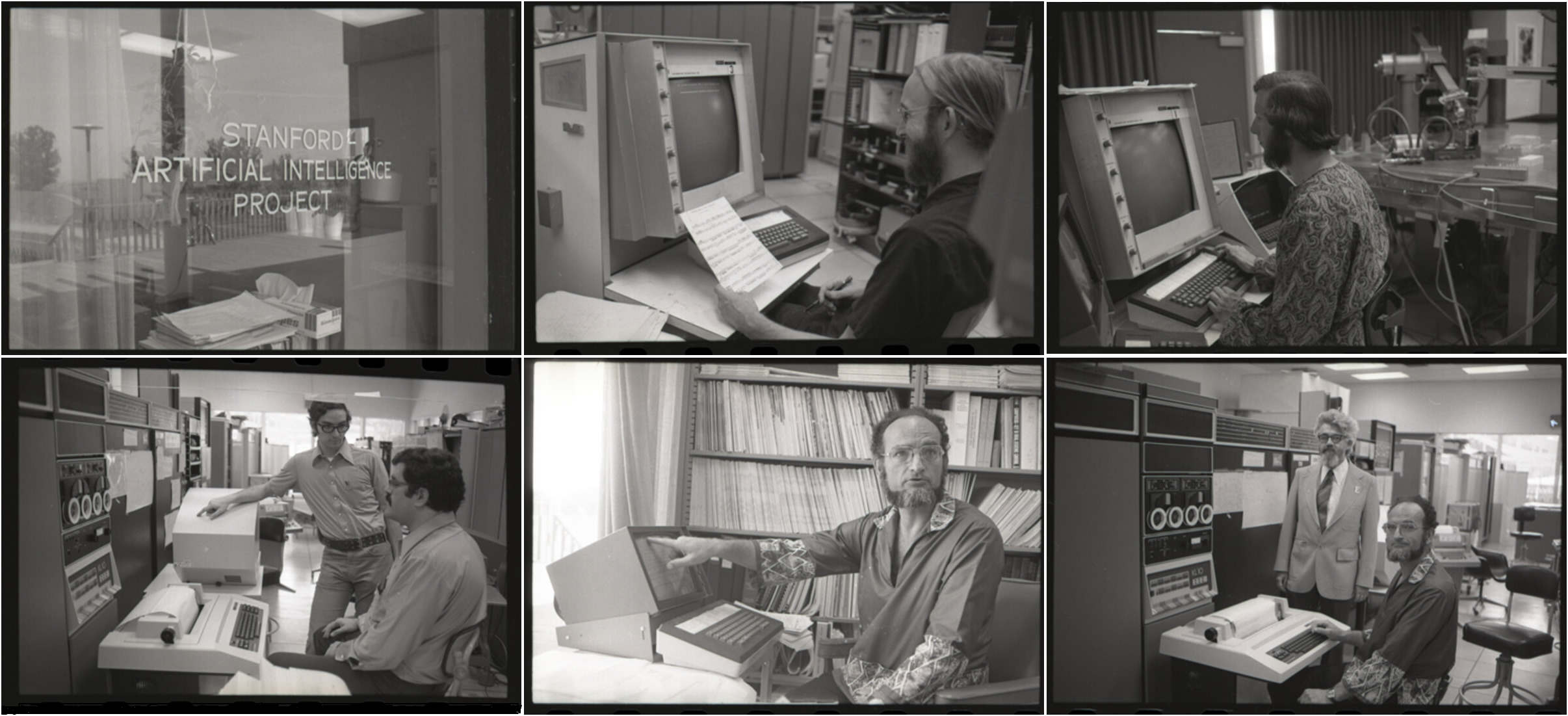 Collage of images from a visit from DEC staff to SAIL, 1976. Source: CHM.
SAIL was founded by John McCarthy in 1963 (before Stanford even had a CS department) with 6 researchers. This grew to 128 people by 1973, by which time the lab had became one of the principal centres for AI research. Work spanned robotics, heuristic programming, NLP and computational theory. Among its alumni were Arthur Samuel, Raj Reddy, Hans Moravec and Alan Kay. Several people not associated with AI also made the lab their home, including Whitfield Diffie, John Chowning and Donald Knuth.
SAIL started out with a PDP-1, for which they implemented a time-sharing system with interactive displays. No traces of this remain, but there is an amusing film about its superiority to batch computing. In 1966, they got a PDP-6. WAITS started off as a version of DEC's Monitor (the forerunner of TOPS-10) but was extensively modified to suit the needs of the lab. It was notable for its support of experimental peripherals - robot arms, autonomous vehicles, display terminals, audio/visual support, and the XGP, one of the first laser printers. Over its lifetime it moved from the PDP-6 to the PDP-10 KA in 1968 and then the KL, added paging (from Tenex) and more memory and disk. As of 1973, it had 256k words of memory, 86M words of disk and 64 display terminals. It was one of the first machines connected to the Arpanet. It was also installed on machines outside of SAIL for a brief time, including at Lawrence Livermore National Labs.
On the software side, most AI research was done in Lisp, but it also spawned its own dialect of Algol called SAIL, and a powerful assembler called FAIL. It had several text editors that made use of its interactive terminals, and had document compilers that could use the XGP, including the first version of TeX.
Incidentally, the name WAITS was adopted several years after the system was introduced, and there are multiple explanations for the name: Western AI Time-sharing System, West coast Alternative to ITS, Worst Acronym for a Time-sharing System, or simply that it waits on you hand and foot.
Preservation status
 Screenshot of saildart.org. Source: Rupert Lane. License: CC0.
The complete backup tapes for WAITS have been preserved and are available for access. Bruce Guenther Baumgart, who worked at SAIL, was asked by John McCarthy to preserve the tapes produced by the DART archive tool when the system was shut down. He has built an amazing archive site, saildart.org, where you can access files, documents and other information about the system. (Personal files are not publicly available.)
For most operating systems we will look at, we only have the material to install the officially published software. But in this case we have the full file system, so we get to see all the surrounding files that made up a living system. Most of the documentation for WAITS was produced on WAITS, so it is available in its original digital form. Also, as an incremental backup, we can see how files changed over time.
Beyond the file archive, Bruce has produced a snapshot of the system as of July 1974 - representative of the lab's peak activity period - that can be used by emulators.
Emulation status
There are two emulators for WAITS.
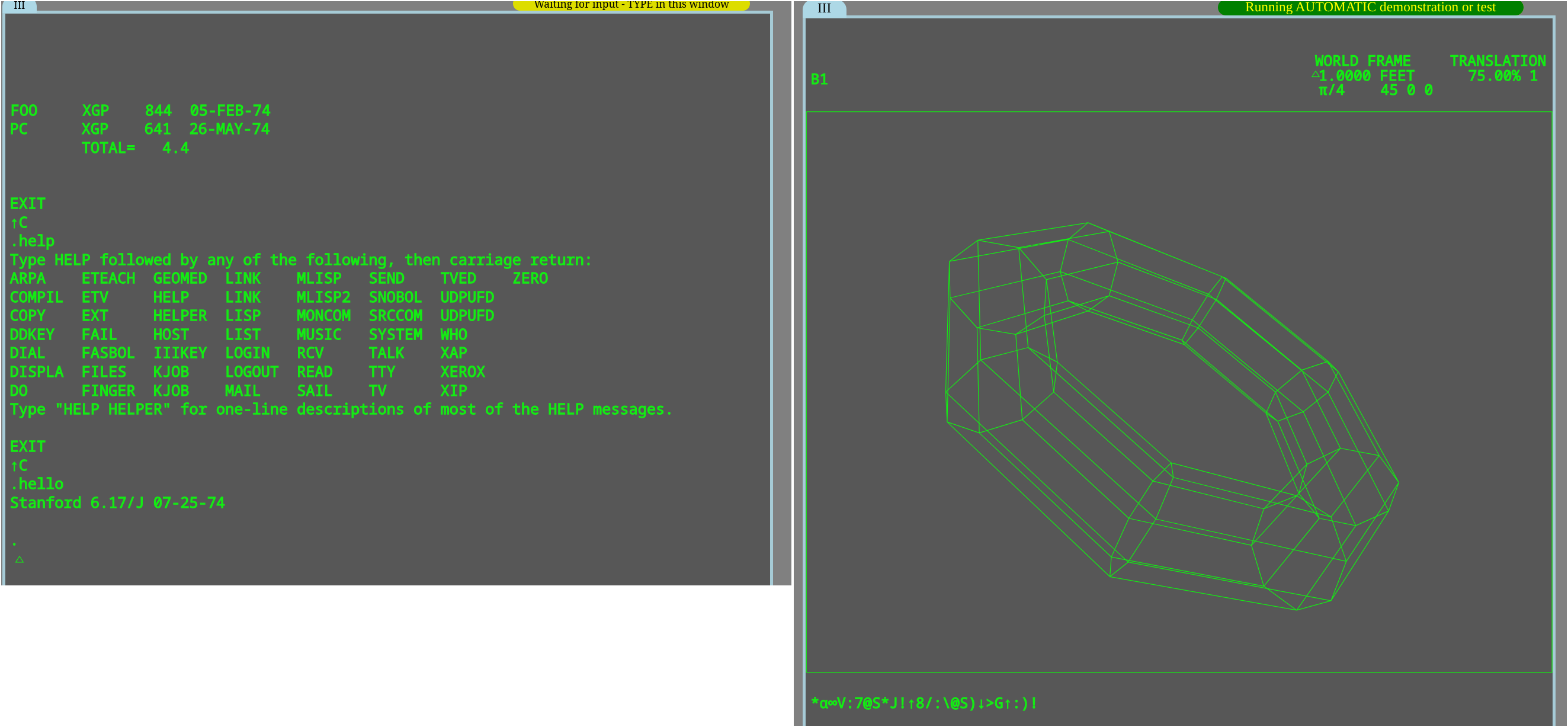 WAITS running on saildart.org's emulator. Source: Rupert Lane. License: CC0.
Bruce has produced an emulator that uses the 1974 snapshot and runs in your web browser at saildart.org. This has demonstrations of a number of interesting systems such as SUDS, the Stanford University Drawing System. It also has interactive access to the complete system using either the console or the III display terminal, so you can login and run commands. Without any additional setup, this allows you to try out the system, but note that your work is not persisted across sessions.
WAITS running on simh. Source: Rupert Lane. License: CC0.
Richard Cornwell has adapted his simh PDP-10 KA emulator to incorporate some of the special hardware used by WAITS, and has provided disk images on his site. The emulator contains support for the III and DD display terminals, along with networking capabilities, which Lars Brinkhoff is currently trying to recreate its Arpanet connection at sailing-on-arpanet. The simh version needs some set up, but does allow you to import/export files and keep your changes over several runs of the system.
One important thing to note: neither emulator has complete coverage of WAITS features, and some programs do not work. This is not due to lack of effort on the part of the authors, rather due to the non-standard nature of the SAIL hardware, which often lacks docs and diagnostics, and the fact this is a snapshot of a running system rather than an official release.
Topics
See the links below for more details on WAITS.
- A quick tour of running WAITS on simh
- Using the terminals
- Files and directories
- Users, jobs and security
- The interactive spell checker
- Text editors
- Getting data in and out of the system
- Arthur Samuel's checkers program
- The XGP, associated fonts and document tools, plus a new emulator that can convert XGP files to PDF.
The main focus of this blog is the operating system and its associated tools, so I will not look in detail at all the user programs available on WAITS. The final update mentions some interesting areas for future study.
Further information
For background information on the PDP-10, see my previous article.
As mentioned, there is a great deal of information on saildart.org. A good place to start is the booklet which gives an overview of SAIL WAITS, and the archive project. The Visitor 1976 gives a photo tour of the lab along with some of its equipment and people.
For more detail, look at the collection of AI Memos and SAIL Operation Notes, or dig further into specialised areas on the main page such as music.
References to files on the SAIL system can be viewed by prepending saildart.org. For example, to read the Lisp manual LISP.WD[S,DOC] you would go to https://www.saildart.org/LISP.WD[S,DOC]
AI Memo 228 gives a good overview of the work done at SAIL in its first 10 years.
Regarding the PDP-1 system that preceded WAITS, the Stanford archive The History of Artificial Intelligence has some interesting material, eg Time Sharing Implementation on the PDP-1 and the User's Guide.
Questions, corrections, comments
June 2026: Added links to more PDP-1 material.
I welcome any questions or comments, and also especially any corrections if I have got something wrong. Please email me at rupert@timereshared.com and I will add it here and update the main text.
Sun, 10 May 2026 09:19:00 +0900
Site Update
That's all, for now, on TOPS-10. I've concentrated on the roughly pre-1975 era, using the PDP-10 KA CPU and operating system version 6.03; I may come back to this in the future and look at later versions if I find anything interesting.
Next update to this blog will be in June, where we will look at the Stanford University A.I. lab's operating system for the PDP-10, WAITS. This started out as a version of DEC's PDP-6 Monitor (which became TOPS-10) but WAITS evolved over the years to add support for experimental peripherals - display terminals, laser printers, robotics - and many interesting software features, as well as being an important platform for A.I. research.
As a taste of WAITS, here's a small demo I was involved in recently. PARRY, a chat program that mimics a paranoid patient, was written by Kenneth Colby on WAITS in 1972. Using simh, Lars Brinkhoff got PARRY running on WAITS for the first time in many years. I then got this talking to the ELIZA chat program running on CTSS, recreating a dotctor/patient dialogue done in 1973 as RFC 439. See Jeff Shrager's writeup, PARRY Parries Again, for more details.
Questions, corrections, comments
May 2026: Lars Brinkhoff correctly pointed out that WAITS derived from the PDP-6 Monitor rather than TOPS-10.
I welcome any questions or comments, and also especially any corrections if I have got something wrong. Please email me at rupert@timereshared.com and I will add it here and update the main text.
Sun, 03 May 2026 09:04:00 +0900
TOPS-10: Essex BCPL
BCPL - Basic Combined Programming Language - is probably best known as the ancestor of the C programming language made famous by Unix. But BCPL was an important and widely used language in its own right. First implemented by Martin Richards for CTSS, it spread to many different architectures during the 1970s, especially in the UK where it was used for teaching computer science, AI and in industry.
(Incidentally my first ever job, as an intern in 1990 working for the former British semiconductor company Inmos, was writing CAD tools using BCPL on a micro-VAX).
Essex BCPL for TOPS-10
The version we are looking at today for TOPS-10 is from the University of Essex and dates from the mid 1970s. The original compiler by Richards generated machine code for a generic stack machine, called OCODE, and the compiler itself was available in OCODE, so it was easy to port to new machines. Essex produced a version for the ICL 1900 to start with, and moved this across to TOPS-10 on their new PDP-10 in 1970. They then rewrote the compiler to remove the OCODE layer and improve performance.
This second implementation of BCPL is included in the TOPS-10 6.03
disk images we are using so there are no special set up instructions.
The compilation system recognises files with a .BCP extension by
default. Here's what a hello world program looks like and how to run it:
.type hello.bcp
GET "BCL:BCPLIB"
LET START() BE
$(
	WRITES(TTY,"Hello, world*C*L")
$)

.execute hello.bcp
BCPL:  HELLO	400031/2	32%
LINK:	Loading
[LNKXCT BCPL Execution]
Hello, world

EXIT
TPK in BCPL
Let's use the compiler to run the TPK algorithm. The source code can be found here. This can be loaded onto the disk using the techniques described in this article.
The TPK formula (√|x | + 5x³) is implemented as a function with a single expression:
LET TPK(X) = SQRT(#ABS X) #+ 5.0 #* X ** 3
As BCPL is typeless, different operators are needed for floating point
and integer arithmetic such as #+ for floating point add. Note also
that #ABS is a unary operator.
However, we have a problem in that SQRT is not part of the language
library at this point in history. We can implement it using the
Babylonian approximation:
LET SQRT(X) = VALOF
$(
    LET X1, X2 = X, X #/ 2.0
    WHILE #ABS (X1 #- X2) #> 0.0001 DO
    $(
        LET OLD = X2
        X2 := 0.5 #* (X1 #+ (X2 #/ X1))
        X1 := OLD
    $)
    RESULTIS X2
$)
This uses a VALOF expression which yields its results using
RESULTIS. As there is more than one statement we use a block, marked
by $( ... $). Semicolon can be used to separate statements, but is
not needed if there is a single statement per line.
Inside the block we define a variable, LET OLD = X2, but note that
assignment uses := ad plain = is used for comparison.
With this, we can supply the driving logic in START, BCPL's
equivalent of C's main.
// Define constants
MANIFEST $( N = 11; IOVS = 300 $)

// Main program
LET START() BE
$(
    LET A = VEC N
    LET IOVECTOR = VEC IOVS
    INITIALISEIO(IOVECTOR, IOVS)
    WRITE(TTY, "Please enter :N numbers*C*L", N)
    FOR J = 0 TO N-1 DO A!J := RDF(TTY)
    WRITE(TTY, "Results are*C*L")
    FOR J = N-1 TO 0 BY -1 DO
    $(
        LET R = TPK(A!J)
        TEST R #> 400.0 THEN
            WRITE(TTY, "Too large*C*L")
        OR
            WRITE(TTY, ":F*C*L", R)
     $)
$)
BCPL allows both single line comments with // and block comments
with /* ... */. C initially only took block comments, with single
line comments first re-implemented by C++ and coming back to C in the
1999 standard.
MANIFEST sets up compile time constants, which we can use when
declaring the stack vector LET A = VEC N. Elements of this vector
can be accessed using infix !, eg A!2. Two FOR loops are used,
one counting forwards to read in numbers and the second counting
backwards to calculate and print results. BCPL has IF, but it only
supports a single clause for the true case; TEST ... THEN ... OR
supports both true and false cases.
I/O is done using RDF to read in a single floating point value and
WRITE for output. I/O is stream based, and we use the predefined
value TTY to communicate with the user's console. INITIALISEIO is
needed before we use I/O to allocate buffers. WRITE supports output
of different types using : as positional markers, eg :F for a
floating point number. *C*L in the string means carriage return /
line feed.
A full transcript of the program execution can be found here.
Further information
The Github PDP-10 organisation has the essex-bcpl repo which contains the source tape and manual for the version of the language. There is also MUD1 which is an early multi-user dungeon written in BCPL; this looks like it needs TOPS-10 7.03 and a KI CPU to run, however.
A completely separate implementation of BCPL on TENEX from BBN can also be found at tenex-bcpl.
The Computer History Museum Software Preservation Group has a detailed history of BCPL, including links to documents, papers and other implementations.
The classic reference to BCPL (and what I originally leaned the language from) is "BCPL - the language and its compiler" by Martin Richards and Colin Whitby-Strevens; there's a copy at the Internet Archive.
Martin Richards continues to work on BCPL and his home page has links to implementations for modern computers.
Questions, corrections, comments
I welcome any questions or comments, and also especially any corrections if I have got something wrong. Please email me at rupert@timereshared.com and I will add it here and update the main text.
Sun, 26 Apr 2026 08:46:00 +0900
AID - the JOSS language for TOPS-10
AID, or the Algebraic Interpretive Dialogue, was DEC's first public version of the JOSS interpreter for the PDP-6/10.
JOSS - the JOHNNIAC Open Shop System - was an early time-shared language created at the RAND corporation in 1963. This ran on JOHNNIAC, a computer they had built in house, and offered 20-30 users who were not expert programmers the ability to write short mathematical programs.
By 1964 the JOHNNIAC was not powerful enough to support demand so RAND and DEC worked together on a successor, JOSS-II, to run on the new PDP-6. This was a complete operating system allowing multiple users to run JOSS from their own teletype.
AID is a standalone version of JOSS that runs as a normal program on TOPS-10. I'm not sure on how much of the code of JOSS-II is in AID, but DEC's manual says:
Digital Equipment Corporation is grateful to The RAND Corporation for permission to adapt the language processors of JOSS for the PDP-l0.
Installing AID
By default, AID does not come with the 6.03 version of TOPS-10 we are using, so we will need to restore it first from a tape of customer supported programs from pdp-10.trailing-edge.com.
- Get a copy of this tape file and decompress it using
bunzipor similar. - Copy it to your simh installation directory.
- With TOPS-10 running, press Control-E on the simh console and attach the tape file to MTA0
sim> at mta0 bb-x130a-sb.tap
%SIM-INFO: MTA0: Tape Image 'bb-x130a-sb.tap' scanned as SIMH format
sim> continue
- Log in to TOPS-10 as user [1,2], password FAILSA. Run
BACKUPand restore the executable file toSYS:
.r backup

/tape mta0:
/rewind
/restore dskb:[1,4]=aid.exe
!
"Done

/exit
- Finally, still as [1,2], set permissions:
.protect sys:aid.exe <155>
AID can now be run via R AID by any user.
Using AID
After you start AID, you can enter simple expressions at the *
prompt.
.r aid
AID 20A(32) AT YOUR SERVICE ...

*type 22/7
	22/7 =	      3.14285714
*a = 12
*b = 30
*type a+b
	 a+b =	     42
or you can enter programs, using decimal line numbers:
*1.0 Do part 5 for i=1(1)5
*5.0 Type "Hello, world"
*do part 1
Hello, world
Hello, world
Hello, world
Hello, world
Hello, world
Note that loops can be added at the end of any expression: here we
call part 5 (the hello world print) via for i=1(1)5 with the numbers
being the initial, step and final value.
Just like the original JOSS, any errors you make will be reported with the single message "Eh?"
It's possible to save your code (and variables defined in the environment) to a disk file. First you specify a file number to work with:
*use file 123
Roger.
and then save your code to a item number under that file:
*file all parts as item 5
Done.
If you quit out of AID with a Control-C and do a DIR you can see
the file that has been created - in this case QQ0123.J05. This is in
binary format and so cannot be easily manipulated by editors such as
SOS
To load in the code from disk:
*use file 123
Roger.
*recall item 5
Done.
*list all parts

1.0 Do part 5 for i=1(1)5
...
Running TPK
Let's use AID to run the TPK algorithm. The source code can be found here but will need to be typed in to the interpreter directly.
.r aid


AID 20A(32) AT YOUR SERVICE ...

*1.000 Let t(x) = sqrt(!x!) + 5 * x ^ 3.
*1.010 Type "Please enter 11 numbers".
*1.020 Do part 2 for j=1(1)11.
*1.030 Type "Results are".
*1.040 Do part 3 for j=11(-1)1.
*1.050 Stop.
*
*2.000 Demand a(j).
*
*3.000 Let r = t(a(j)).
*3.010 Type "Too large" if r > 400.
*3.020 Type r if r <= 400.
*
*do part 1
Please enter 11 numbers
	a(1) = *10
	a(2) = *-1
	a(3) = *1
	a(4) = *2
	a(5) = *3
	a(6) = *4
	a(7) = *4.3
	a(8) = *4.305
	a(9) = *4.303
       a(10) = *4.302
       a(11) = *4.301
Results are
	   r =	    399.8863
Too large
Too large
Too large
	   r =	    399.608644
	   r =	    322
	   r =	    136.732051
	   r =	     41.4142136
	   r =	      6
	   r =	     -4
Too large
Stopped by step 1.05.
This exposed a number of differences from the original JOSS:
- Variables and functions are single characters, but are case sensitive.
- The character set is different: use
*for multiplication.^for exponentiation and!x!to find the absolute value ofx. - There is no support for comments (which JOSS defines as lines
starting with or ending with
*.
Further information
On Bitsavers, DEC's documentation of the AID system can be found in the PDP-10 Timesharing Handbook from 1970: see the section "Conversational Programming With AID" starting on page 123.
RAND's documentation for JOSS, such as The JOSS Primer, can be used for AID with small modifications.
There's a reconstruction effort for the original JOSS-II on github.
This includes source code, and also many other JOSS documents in the
doc/ directory.
Later on, DEC created FOCAL which made more extensive changes to the
JOSS language. This is available on the 6.03 distribution we are using
(via R FOCAL) but I will look at this later on when I cover TOPS-20.
I've written about other JOSS dialects before: WIPL for MCP on the Burroughs B5500 and PIL for the Michigan Terminal System on the IBM System/360.
Questions, corrections, comments
I welcome any questions or comments, and also especially any corrections if I have got something wrong. Please email me at rupert@timereshared.com and I will add it here and update the main text.
Sun, 19 Apr 2026 08:57:00 +0900
TOPS-10: Algol 60
This week it's time to look at the Algol 60 compiler on TOPS-10. This
was a supported product from DEC that integrates with the standard
COMPILE/EXEC system. Files should have an extension of .ALG to be
automatically recognised as Algol
As with every Algol compiler, there are several implementation dependent features to deal with issues like character set and for unspecified facilities like I/O.
Single pass compiler
The compiler needs only a single pass over the source code, which
makes it fast, but does mean that functions used before they are
defined are flagged as errors. A non-standard keyword FORWARD was
added to work around this, so you can say FORWARD REAL PROCEDURE x;
and then define x later in the program.
Source format and special characters
This version of Algol does not require keywords to be quoted (eg FOR
vs 'FOR' ), but if you have programs already using quoted keywords
you can add the /Q switch to the COMPILE command to accept this.
Periods are allowed in identifiers to improve readability.
Some additional characters are used to represent language features which are implementation dependent
:=for left arrow assignment#for not equals to^for exponentiation@or&for floating point exponents!for comments
There are two special forms for constants. Octal constants are
introduced by a leading %, eg %770. ASCII constants - ie a single
word of memory containing up to 5 ASCII characters - start with a $
and the constant surrounded by the user's choice of delimiter, for
r example $/ABC/.
Strings
TOPS-10 Algol adds a string type, which is implemented as a pointer to a character array internally.
    STRING S, T;
    S := "HELLO WORLD";
    T := S;
Here S and T would point to the same byte array in memory. If
instead the last line was T := COPY(S); then T would point to its
own string.
Square brackets inside double quotes are used to incorporate special
characters, for example "HELLO[N]" would print HELLO and a carriage
return/new line.
Input/Output
I/O is not part of the Algol spec, so all this is implementation
dependent. The basic output functions are WRITE for character data
and PRINT for numeric data. READ is used to input data based on
the type of parameter.
By default, I/O goes to the user's typewriter. You can select other
places by using INPUT or OUTPUT to define a channel, eg INPUT(5,
"CDR"); will define input channel 5 as going to the card reader. You
then need to do SELECTINPUT(5) to direct all future input via READ
to come from this channel. This facility also allows input and output
for disk files.
Other language extensions
- There is a
LONG REALtype for additional floating point precision. - Procedures can be marked as
EXTERNALand linkage to other languages is allowed. - While loops, eg
WHILE X < 10 DO X := X + 1;. - Variables can be declared as
OWN, which has similar semantics to C'sstaticvariables, ie their lifetime continues when the block they are defined in is exited.
Running TPK
Let's use the compiler to run the TPK algorithm. The source code can be found here. This can be loaded onto the disk using the techniques described in this article.
.type tpk.alg
BEGIN
    COMMENT TPK ALGORITHM IN ALGOL 60;

    REAL PROCEDURE FN(X);
    VALUE X;
    REAL X;
    BEGIN
        FN := SQRT(ABS(X)) + 5*X^3
    END PROCEDURE;

    COMMENT Main program;
    INTEGER N, J;
    REAL ARRAY A[1:11];
    N := 11;
    COMMENT Read numbers;
    FOR J := 1 STEP 1 UNTIL N DO
        READ(A[J]);
    WRITE("RESULTS ARE[N]");
    FOR J := N STEP -1 UNTIL 1 DO
    BEGIN
        REAL RESULT;
        RESULT := FN(A[J]);
        IF RESULT > 400.0 THEN
            WRITE("TOO LARGE")
        ELSE
            PRINT(RESULT);
        WRITE("[N]");
    END LOOP;
END PROGRAM

.exec tpk.alg
ALGOL: TPK
12  NO DECLARATION SHOULD FOLLOW PROCEDURE OR SWITCH DECLARATION
LINK:	Loading
[LNKXCT TPK Execution]
10
-1
1
2
3
4
4.3
4.305
4.303
4.302
4.301
RESULTS ARE
 3.9988630&  2
TOO LARGE
TOO LARGE
TOO LARGE
 3.9960864&  2
 3.2200000&  2
 1.3673205&  2
 4.1414214&  1
 6.0000000
-4.0000000
TOO LARGE


End of execution.
Note the warning that the declaration of INTEGER N, J; should not
follow the procedure declaration. This is not something that other
Algol compilers have picked up and it may be due to the single pass
nature of the compiler mentioned earlier.
In the output section, numbers are printed with the mantissa and
exponent separated by a space, eg 3.9960864& 2 means 399.60864.
Further information
Questions, corrections, comments
I welcome any questions or comments, and also especially any corrections if I have got something wrong. Please email me at rupert@timereshared.com and I will add it here and update the main text.
Sun, 12 Apr 2026 09:10:00 +0900
TOPS-10: The TECO editor
We looked at the SOS editor previously, now let's try the more powerful - and more complex - TECO (Text Editor and Corrector) on TOPS-10.
History
Dan Murphy wrote the first version of TECO for the PDP-1 in 1962 while working at MIT. The name originally stood for Tape Editor and Corrector - "tape" here meaning paper tape. For this machine programs were prepared offline using a teletype that could write a paper tape from the user's keystrokes. The tape was then taken to the PDP-1 and loaded. The problem was how do you make corrections to a continuous reel of paper tape? The solution Murphy came up with was to write a program that would take the user's source tape and a set of instructions punched to a second tape to edit it. It would apply the corrections in a batch and produce a new paper tape - so TECO was more like a language for processing text than what we would think of as an editor.
It became popular and the program was extended, adding interactive editing and many new commands. The program was ported to most of DEC's operating systems and other machines, and even became the underlying program for the first version of Emacs.
TECO concepts
Some important concepts to keep in mind when using TECO. Unlike the line-orientated SOS, TECO is character orientated: it keeps track of your location in the file via a pointer to a character position - or more precisely the position between two characters. This also means that TECO does not create line numbers and save them like SOS does.
TECO also uses the concept of pages in a file. Each page can be arbitrary length and the separator between pages is a form feed (or Control-L). When TECO starts, it will read in the first page and operate on that; you can then use commands to move on to the next page. This feature allows files that would be larger than core memory to be edited. In practice, if you are creating or editing your own files you will probably not use this feature, but it's something to watch out for if editing older files.
Getting in and out
There are two ways to start TECO: MAKE file.ext will create a new
file file.ext and start editing it, and TECO file.ext will open an
existing file and position you at the top of the first page. TECO will
create a backup file file.bak containing the version of the file
before you made edits. Whichever way you invoke it, TECO will print
the * prompt showing it is ready to accept commands.
The EX command will save and exit; pressing Control-C will abandon
your edits and return you to the command line.
Commands
TECO commands are single or two letter combinations, with an optional
numerical prefix and a textual suffix. Textual suffixes must be
terminated by pressing Altmode (ie Escape on your keyboard, which will
print a $). Several commands can be entered as one long stream. To
tell TECO that your command is ready to process, press Altmode twice;
just pressing Return will be treated as a textual suffix and will not
submit the command.
An example: the C command moves forwards by one character. With a
prefix it moves by that number of characters, eg 4C moves forwards 4
characters and -2C moves back 2.
Other useful navigation commands are L to move by line (with 0L
meaning move to start of line), J to move to start of buffer and
ZJ to end of buffer.
The S command searches for text and if found, moves the character
position. The prefix determines which match to jump to and the suffix
what text to look for, so 2Shello would jump to the second instance
of hello in the buffer.
TECO will not print any of your file unless you tell it to. T will
print from the character position to the end of line, and takes
prefixes if you want to print more lines. HT prints the whole page.
I will insert the text in the suffix to the current character
position, including any whitespace like Return. The Tab command
works the same way but will insert an actual tab followed by the text
in the suffix.
D will delete the number of characters supplied in the prefix; K
will delete by lines.
A sample session
Let's take as an example our hello world program.
        DO 1 J=1,5
1       WRITE(5,2)
2       FORMAT(' HELLO, WORLD')
        END
We want to change 'WORLD' to "EARTH'. The session could look like this:
.teco hworld.for

*sWORLD$$
*-5d$$
*iEARTH$$
*0lt$$
2	FORMAT(' HELLO, EARTH')
*ex$$
.
After invoking TECO we search for the first instance of 'WORLD'. We
then delete the preceding five characters (as S places us after the
search match) and use I to insert the replacement text. We then use
0L to move us to the start of the line and T to type out the line
to confirm the change looks OK. We then use EX to save and exit.
If we were feeling confident, we could do this whole change on a single line:
.teco hworld.for

sWORLD$-5diEARTH$ex$$

.
There's also a find and replace command that can do the above:
FSold$new$ will replace 'old' with 'new'
Advanced usage
This only scratches the surface of what TECO can do. Some of its other features are to automatically type out where you are when a search is executed. "Q-registers" where you can store and retrieve sections of text, and iteration and branching - so TECO is Turing complete. The Programmer's Reference Manual weighs in at 144 pages and describes each command fully.
Summary of commands discussed
| Command | Meaning |
|---|---|
C |
Move by character |
D |
Delete characters |
EX |
Save and exit |
F |
Find and replace |
I |
Insert the text in the suffix |
J |
Move to start of buffer |
ZJ |
Move to end of buffer |
K |
Delete lines |
L |
Move by line (takes prefix) |
0L |
Move to start of line |
R |
Move back by character |
S |
Search by suffix text |
Tab |
Like I, but inserts a tab first |
T |
Type out text |
HT |
Type out the whole file |
Further information
On Bitsavers, the 1975 Introduction to TECO is a good place to start. The TECO Programmer's Reference Manual gives a complete description of each TECO command.
Dan Murphy, the original author of TECO, describes the origin and initial development of the editor in The Beginnings of TECO.
There's a version of TECO for modern computers on Github.
Questions, corrections, comments
I welcome any questions or comments, and also especially any corrections if I have got something wrong. Please email me at rupert@timereshared.com and I will add it here and update the main text.
Sun, 05 Apr 2026 08:55:00 +0900
TOPS-10: Fortran
Today we'll take a quick look at programming using Fortran on TOPS-10.
Compiler versions
As noted in the programming introduction , there were two Fortran
compilers for TOPS-10: the original compiler, later called F40, that
supported Fortran 66, and Fortran-10 which was introduced in around
1972 that supported Fortran 66 and, in later versions, Fortran 77. The
6.03 disk images we have contains both, under SYS:F40.EXE and
SYS:FORTRA.EXE respectively. We will look at Fortran-10 in this
article.
By default, files with an extension of either .F40 or .FOR will be
compiled by Fortran-10: to force the use of F40 you need to provide
the /F40 compile-time switch eg COMPILE/F40 HWORLD.F4.
Implementation features
The standard Fortran-66 fixed format is used (labels in columns 1-5, comment/continuation in col 6, program text cols 7-72) but is relaxed slightly: a line starting with a tab is assumed to skip over the initial label.
There are a number of extensions to standard Fortran 66 including:
- Multiple statements can be combined on a single line using
;. - Comments can be added anywhere in the line by starting them with
!. - Octal constants allowed, starting with a
". - Literal strings, eg
"YES"are allowed along with Hollerith literals (eg3HYES). - Two-way IF statements for logical comparisons, eg
IF B THEN 100,200will go to statement label 100 if B is true, else 200. PAUSEallows you turn on trace mode, which prints subroutine calls.
There is also extensive I/O capabilities via a package called
FOROTS. Random access, and append to files is supported, as well as
utilisation of TOPS-10 devices.
The 1974 manual describes a source level called FORDDT, but this
does not seem to be available on the version of TOPS-10 we have.
Running TPK
Let's use the compiler to run the TPK algorithm. The source code can be found here. This can be loaded onto the disk using the techniques described in this article.
Type EXEC TPK to compile and run the program. To get a listing of
the program you can add /LIST to the EXEC or COMPILE command. It
will create a temporary listing file and send it to the printer when
you log out.
While developing this, I found I had to change both the WRITE and
READ unit numbers to be 5.
The compiler also uncovered a mistake I had made in the original version of
the program. Before I had the function definition followed the
DIMENSION for the array:
      FTPK(X) = SQRT(ABS(X)) + 5.0*X**3
      DIMENSION A(11)
but I got a warning
00004	      DIMENSION A(11)
%FTNSOD LINE:00004  DIMENSION STATEMENT OUT OF ORDER
The fix for this is to switch the order of the two lines. After that, it ran as expected.
Here's the compile and execution looks:
.type tpk.for
C     TPK ALGORITH IN FORTRAN 66
      DIMENSION A(11)
      FTPK(X) = SQRT(ABS(X)) + 5.0*X**3
C     MAIN PROGRAM
      N=11
      WRITE(5, 100)
 100  FORMAT(24H PLEASE ENTER 11 NUMBERS)
      READ(5, 101) A
 101  FORMAT(F9.4)
      WRITE(5, 102)
 102  FORMAT(12H RESULTS ARE)
      DO 3 J = 1, N
      K = N - J + 1
      RESULT = FTPK(A(K))
      IF (RESULT .LE. 400) GOTO 2
 1    WRITE(5, 103)
 103  FORMAT(10H TOO LARGE)
      GOTO 3
 2    WRITE(5, 101) RESULT
 3    CONTINUE
      STOP
      END

.exec tpk.for
FORTRAN: TPK
MAIN.
LINK:	Loading
[LNKXCT TPK Execution]

PLEASE ENTER 11 NUMBERS
10.
-1.
1.
2.
3.
4.
4.3
4.305
4.303
4.302
4.301

RESULTS ARE
399.8863
TOO LARGE
TOO LARGE
TOO LARGE
399.6086
322.0000
136.7320
 41.4142
  6.0000
 -4.0000
TOO LARGE
STOP

END OF EXECUTION
CPU TIME: 0.00	ELAPSED TIME: 1:19.92
EXIT

.
Further information
On Bitsavers, the FORTRAN-10 Language Manual from 1974 is the closest reference to the version of Fortran-10 that we have on TOPS-10 6.03. There's also a guide to F40 in the FORTRAN IV Programming Manual from 1969.
Questions, corrections, comments
I welcome any questions or comments, and also especially any corrections if I have got something wrong. Please email me at rupert@timereshared.com and I will add it here and update the main text.
Sun, 29 Mar 2026 09:01:00 +0900
TOPS-10: BASIC
BASIC on TOPS-10 is very similar to the version of Dartmouth BASIC from 1968. It runs in its own environment where you can edit programs and load/save file, and is interpreted rather than compiling source to machine code first.
Language features
As in 4th edition Dartmouth BASIC, the DEC version supports
LET(optional) to define variables,DIMENSIONto declare arrays.PRINT,INPUTfor I/OREAD,DATAto encapsulate data in a programIF…THENfor conditionalsFOR..NEXTfor loopsGOTO,ON…GOTO,GOSUB&RETURNfor transfer of control.DEF FNfor single line functions
END is needed as the last statement of the program.
The default variable type is floating point. String variables are
available by suffixing the name with a $. Both types can be formed
into arrays using DIMENSION. There is no integer type, but there is
a matrix capability via the MAT keyword.
It also has these common extensions to Dartmouth 4th edition
STOPwill half the programREMfor commentsCHAINto load in a new program from the existing program- Page and margin control
- String concatenation via
+, string/number conversion viaASC/CHR - Character access via
LEFT$,MID$etc. - Access to disk files via
FILE.
Controlling the interpreter
Start BASIC with R BASIC. Lines starting with a number are taken as
part of the program. You can correct a line by typing it again and
delete a line by just typing its line numbers.
Lines not starting with a number are commands.
| Command | Meaning |
|---|---|
BYE |
Logs out of TOPS-10 |
CATALOG |
List files on disk |
DELETE range |
Delete multiple lines |
HELP |
Prints the help file |
KEY / TAPE |
Switch between keyboard and paper tape |
LIST [range] |
List program with optional line number range |
MONITOR |
Returns to TOPS-10 |
NEW [filename] |
Start a new program with optional filename |
OLD filename |
Read in an existing program from disk |
QUEUE filename |
Print filename to printer |
RENAME filename |
Change name that program in core will be saved to |
REPLACE [filename] |
Replace filename with program in core |
RESEQUENCE |
Renumber the program |
RUN |
Execute program |
SAVE [filename] |
Save program in core to filename |
SCRATCH |
Remove the program from core |
SYSTEM |
Returns to TOPS-10, erasing core |
UNSAVE filename |
Deletes filename |
WEAVE filename |
Merges the file with the current one in core |
Files are not saved to disk unless you type SAVE. Both MONITOR and
SYSTEM will return you to TOPS-10, the difference being that
MONITOR will preserve core (see how jobs work) and SYSTEM does not.
Running TPK
As a demonstration, we'll run the TPK algorithm. in BASIC. This
uses the 4th edition version unchanged. I created the file on my PC
and loaded it into my TOPS-10 account using the techniques described
here. Then when I start BASIC I use the old command to read this
from disk.
.r basic


READY, FOR HELP TYPE HELP.
old tpk

READY
list


TPK           15:36         07-MAR-79


100 REM TPK ALGORITHM IN BASIC
110 REM
120 DEF FNT(X) = SQR(ABS(X)) + 5*X**3
130 REM
140 REM MAIN PROGRAM
150 DIM A(11)
160 LET N=11
170 PRINT "PLEASE ENTER", N, "NUMBERS"
180 FOR I = 1 TO N
190 INPUT A(I)
200 NEXT I
210 PRINT "RESULTS ARE"
220 FOR J = 1 TO N
230 LET K = N - J + 1
240 LET R = FNT(A(K))
250 IF R > 400 THEN 280
260 PRINT R
270 GOTO 290
280 PRINT "TOO LARGE"
290 NEXT J
300 END

READY
run

TPK           15:36         06-MAR-79


PLEASE ENTER   11           NUMBERS
 ?10
 ?-1
 ?1
 ?2
 ?3
 ?4
 ?4.3
 ?4.305
 ?4.303
 ?4.302
 ?4.301
RESULTS ARE
 399.886
TOO LARGE
TOO LARGE
TOO LARGE
 399.609
 322
 136.732
 41.4142
 6
-4
TOO LARGE


TIME:  0.00 SECS.

READY

system

EXIT

.
Note that the line numbers in BASIC will not be recognised by TOPS-10
native commands as they expect 5 digit line numbers. However, the SOS
editor has a /BASIC switch that does understand these so can be used
to edit BASIC code outside of the interpreter.
BASIC programs on the DECUS tapes
There are a number of user contributed BASIC programs on the DECUS tapes (which were discussed briefly in the last article). Component 72 is a snapshot of the Dartmouth program library. Component 97 is a set of lessons for BASIC written in BASIC itself. Component 103 contains some mathematical routines in BASIC and Fortran.
Let's restore and run the teaching program in component 97 as an example. Looking at the trailing-edge page, component 97 will be on tape DECUS 10-LIB-1:
             DECUS 10-LIB-1                  5.64 Mbyte      902
      Contains 10-3 through 10-138           compressed   extracted
             except 10-101                   tape image     files
If you click on the extracted files link next to this you will see all files on the tape. Search on the page for 97.inf and you will see below that a set of BASIC files.
   1       25(7)  <007> 43,50014 31-Mar-75 dcus:[43,50141]97.inf
   12     1467(36) <007> 43,50014  9-Oct-70 dcus:[43,50141]tutr01.bas
    9     1099(36) <007> 43,50014  9-Oct-70 dcus:[43,50141]tutr02.bas
   11     1311(36) <007> 43,50014  9-Oct-70 dcus:[43,50141]tutr03.bas
   10     1202(36) <007> 43,50014  9-Oct-70 dcus:[43,50141]tutr04.bas
   11     1379(36) <007> 43,50014  9-Oct-70 dcus:[43,50141]tutr05.bas
Take a note of the user ID for this component - [43,50141].
On the previous page, download a copy of the compressed tape image and
decompress it with bzip2 -d decuslib10-01.tap.bz2. Copy this under
your simh directory, press Control-E on the console and attach the
tape:
sim> at mta0 decuslib10-01.tap
%SIM-INFO: MTA0: Tape Image 'decuslib10-01.tap' scanned as SIMH format
sim> c
Login as the operator (user 1,2 password failsa) and restore the files
using BACKUP. Here I'm going to put all the files in my home directory
for user [200,200] but they can be placed anywhere you want.
.login 1,2
JOB 11 KA603 TTY1
Password:
[LGNJSP Other jobs same PPN]
1100	22-Mar-79	Thur

.r backup
/tape mta0:
/restore dskb:[200,200]=dcus:[43,50141]*.*
!43,50141	DCUS

"Done

/^C
Note it will take about a minute to restore the files as the tape needs to be read sequentially.
Now switch over to your user account and run the newly restored program:
.r basic


READY, FOR HELP TYPE HELP.
old tutr01

READY
run

TUTR01        11:02         22-MAR-79


WELCOME TO TIMESHARING PDP-10.WE WILL
TRY TO TEACH YOU ENOUGH ABOUT THE SYSTEM IN THIS SITTING SO THAT
YOU WILL BE ABLE TO WRITE YOUR OWN COMPUTER PROGRAMS.
Further information
On Bitsavers, the 1974 BASIC Conversational Language Manual is probably the best guide for this version of BASIC. There's also 1968's Advanced BASIC for the PDP-10 from which the 1974 version looks to have been derived.
Both manuals draw material from Dartmouth's documentation (see their manual for a comparison). Interestingly, the 1968 DEC manual notes Dartmouth as the registered trademark holder of BASIC, and thanks them for using the material in their manual. The 1974 manual has no mention of BASIC being registered nor any acknowledgements to Dartmouth.
Questions, corrections, comments
I welcome any questions or comments, and also especially any corrections if I have got something wrong. Please email me at rupert@timereshared.com and I will add it here and update the main text.
Sun, 22 Mar 2026 09:29:00 +0900
TOPS-10: Programming
A large number of programming languages were available for TOPS-10, both provided by DEC and created by third parties. In this article we'll take a quick tour of what is available today, along with a brief look at the TOPS-10 programming environment.
Programming languages available
From DEC
DEC provided the MACRO-10 assembler, and compilers for the big three languages of the time: Fortran, Algol and COBOL. DEC also had its own system programming language called BLISS.
There were two main versions of Fortran: F40, used until around 1972 and supporting Fortran IV/66, and Fortran-10, which took over after then and supported Fortran 66 and 77. The COBOL version is COBOL-68 and Algol is Algol-60.
On the interpreter side, DEC produced a BASIC and several languages inspired by JOSS - the initial one was AID, which was similar to RAND's JOSS II, and this was supplanted by Focal, DEC's own dialect that was implemented on its other machines.
DEC also produced an APL interpreter called APL-SF, but note this did not run on the KA CPU.
Versions of all the above exist on the disk images we are using.
From third parties
A probably incomplete list of preserved languages that can run on TOPS-10 is:
- Algol-W - Niklaus Wirth's follow-up to Algol 60
- BCPL - a compiled language that was one of the forerunners of C.
- ECL - an interactive programming language from Harvard
- Forth - a stack based language
- IMP72 - a system language
- Edinburgh IMP - a completely unrelated Algol like language
- Lisp - several varieties of the list processing language
- Logo - a language for teaching programming
- Pascal - Wirth's follow-up to Algol-W
- PILOT - a computer aided instruction language
- SAIL - Stanform's extended Algol 60
- SAM-76, a functional text processing language like TRAC
- Simula - an early object orientated language
- SNOBOL, a text processing language
Sources
Many of these were preserved via the DECUS tapes - a collection of
software donated by PDP-10 users that DEC would distribute to users
via tape on request. The program catalogue from 1978 can be found on
Bitsavers and the tapes on trailing-edge.com. Software can be loaded
via the TOPS-10 BACKUP utility as described in a previous post.
Others have been collected at the Github PDP-10 repo, often together with documentation.
Coverage on this blog
For this section of the blog, I will in later posts cover languages available on the TOPS-10 version we are using (6.03) and processor (KA). Discussion of Lisp will be deferred to future ITS/WAITS articles, and most post 1975 languages will be covered when I eventually look at TOPS-20.
The TOPS-10 compilation system
TOPS-10 has an common program development system for compiled
languages where you can type EXECUTE src where src is a source
file like HWORLD.FOR and it will work out what to do to execute the
program. The steps it takes behind the scenes are
- If the object file is newer than the source file, skip to the next
step. Otherwise it will run
COMPILEon the source file which works out what compiler to use based on the file extension and invokes it, This produces an object file with aRELextension. - Runs
LOAD src.RELwhich loads the object file into memory and resolves external references - similar to linking on modern systems, but the result is now in core memory, not saved to an executable file. - Starts the program now in core memory using
START.
If you want to create an executable file, you can use LOAD on the
.REL file and then type SAVE name. This will create name.SAV
which you can then invoke by typing RUN name.
As an extra convenience, the monitor will remember the parameters for
the last 'compile-class' command. So if you type COMPILE hworld you
can then just type LOAD and SAVE and it will use hworld as the
parameter automatically.
There are several operators that can be used for more complex compile
scenarios. COMPILE a+b+c will concatenate the three files a, b and c
to produce a single output. COMPILE bin=src will create bin.REL
after compiling the file identified by src. Compile options can also
be saved into config files and then referenced in the command line by
preceding them with @. See section 1.5 of the Operating System
Command Manual linked below for more details.
Programmer's tools
As well as compilers, there are a number of tools helpful for programmers included in TOPS-10.
CREFproduces a cross reference listing of symbolsMAKLIBto create object librariesDDTfor debugging
Further information
See the Operating Systems Command Manual on Bitsavers for full documentation of the compile-class command.
Questions, corrections, comments
I welcome any questions or comments, and also especially any corrections if I have got something wrong. Please email me at rupert@timereshared.com and I will add it here and update the main text.
Fri, 13 Mar 2026 17:02:00 +0900
TOPS-10 utilities: PIP, RUNOFF, FILCOM and SEND
This week we'll look at four utilities included in TOPS-10: PIP, for
file copy and translation; RUNOFF to produce text documents; FILCOM
to compare files; and finally the chat facility provided by SEND.
PIP
PIP or the Peripheral Interchange Program, is a tool to copy and
transform files that was implemented on most of DEC's operating
systems, and later copied by CP/M. Many of the file handling utilities
on TOPS-10 such as COPY or RENAME are actually implemented by
calling PIP.
Start the program with R PIP and then give commands at the *
prompt. Note you can't supply arguments on the command line directly.
Once at PIP's * prompt, the command format is
dest = src /flags
You can enter multiple commands, and can then press Control-C to exit when done.
Wildcards are allowed, eg to make a backup of all your Fortran files
under the extension .BAK you could do *.bak=*.for. Device names,
like TTY: for the terminal, or a tape drive logical device, can be
used as well.
PIP is a bit of a Swiss Army knife of a tool: there are 25 flags that can be used in this version, consuming all letters from A-Z except K. Many of these are only useful when dealing with specific hardware such as tapes. Here are some of the other ones of interest when running TOPS-10 under emulation.
| Flag | Meaning |
|---|---|
| /C | Delete trailing spaces and convert multiple spaces to tab |
| /J | Convert non printing character to printable, eg ^A |
| /N | Delete sequence numbers |
| /O | Adds sequence numbers |
| /Q | Prints out help options |
| /W | Converts tab to spaces |
RUNOFF
RUNOFF is a document production system that takes a text file that
has been marked up with special codes and produces an output text file
that is suitable for printing. The concept is clearly inspired by
CTSS's RUNOFF, with typesetting codes indicated by a period as the
first character of the line, and many similar commands. For example,
both CTSS and TOPS-10 use .center to indicated that the next line
should be centred on the page. The TOPS-10 program does have more
commands, including support for footnotes, indices and callouts.
Special flag characters can precede text for additional effects: &
will underline it while > will add the next word to the index.
To use, prepare your input file using a standard text editor like SOS
and give it a .RNO extension. Start RUNOFF with R RUNOFF and
give the input file at the * prompt. It will report any errors and
write an output file with the extension MEM.
Here's an example of RUNOFF processing this section's text:
.type blog.rno
.chapter RUNOFF
&R&U&N&O&F&F is a document production system that takes a
text file that has been marked up with special codes
and produces an output text file that is suitable for printing.
.note
Be sure to read the manual first
.end note

.r runoff

*blog
BLOG	1 page
*^C

.type blog.mem

			 CHAPTER 1

			   RUNOFF


RUNOFF is a document production system	that  takes  a	text
______
file that has been marked up with special codes and produces
an output text file that is suitable for printing.


			    NOTE

	       Be sure	to  read  the  manual
	       first
FILCOM
FILCOM is a utility to determine differences between files, similar to
diff on Unix. Start it with R FILCOM and at its * prompt give
commands of the format
output = input1,input2
where input1 and input2 are the files to compare and output is
the output file - which can be omitted, in which case the differences
are displayed on the terminal.
For an example we'll use our Hello World program from before and just
change one line so it prints Hello Earth instead, and save that to a
file hearth.for. Here's what FILCOM prints when comparing the two
files:
 .r filcom

 *=hworld.for,hearth.for
 File 1)	DSKB:HWORLD.FOR[100,100]	created: 1441 16-JAN-1979
 File 2)	DSKB:HEARTH.FOR[100,100]	created: 1100 21-FEB-1979

 1)1	00400	2	FORMAT(' HELLO, WORLD')
 1)	00500		END
 ****
 2)1	00400	2	FORMAT(' HELLO, EARTH')
 2)	00500		END
 **************

 %files are different
The lines that differ are marked with n)m where n is the file
number and m the page in the file. This is followed by a line where
both files are the same (the END statement here) for identification
purposes.
By adding the /U switch it will print differing lines with a bar in
column 1 like the below. But there is no equivalent of Unix's < and
> to show both lines side by side.
|	00400	2	FORMAT(' HELLO, EARTH')
|	00500		END
FILCOM will also compare binary files, for example looking at two
object code files:
*=hworld.rel,hearth.rel
File 1)	DSKB:HWORLD.REL[100,100]	created: 1443 16-JAN-1979
File 2)	DSKB:HEARTH.REL[100,100]	created: 1101 21-FEB-1979

000024	536372 246210	426032 252220	110340 014030

%files are different
Here the output is broken into three fields: the octal address, file 1's word, file 2's word and the XOR of the two words.
By default FILCOM will decide whether to do a text or binary
comparison by looking at the file extensions. You can override this by
giving a flag after the input file specifications: /A to force
ASCII text mode, /B to force binary mode.
Some other useful flags are /S to ignore spaces and tabs, and /C
to ignore comments (text after ;).
SEND
SEND allows one-way communication from one terminal to another. The
parameters can either be a terminal device
.send dev:message
or a job number
.send job message
An example of the former would be if you are logged in on TTY0: and want to send a message to TTY1:
.send tty1:hello
On tty1 the bell will ring and it will type
;;TTY0: - hello
You can also specify cty: as the device to send the message to the
operator's console.
More information
The User Utilities manual on Bitsavers describes the PIP, RUNOFF
and FILCOM commands in more detail, but note this manual is for a
later version of TOPS-10. The Operating Systems Command Manual
documents the SEND command.
Questions, corrections, comments
I welcome any questions or comments, and also especially any corrections if I have got something wrong. Please email me at rupert@timereshared.com and I will add it here and update the main text.
Sun, 08 Mar 2026 09:09:00 +0900
TOPS-10: Users
Today let's investigate how users and logins are handled on TOPS-10. We will see how to look at user information and add new ones, and there's also a brief discussion of the security of this version.
Viewing user information
The REACT program is used to manage users on TOPS-10. Although you
can start this program as a regular user, it will not have much effect
as it cannot read the accounting files in SYS:. So first, login as
the operator, which has a user ID of 1,2 and password failsa, and
then start REACT.
.login 1,2
JOB 11 KA603 TTY1
Password:
[LGNJSP Other jobs same PPN]
1018	22-Feb-79	Thu

.r react

FOR HELP TYPE "H<CAR RET>"

*
Type r to read in the main accounting file SYS:ACCT.SYS and t to
display it on the terminal. For the second command, it will ask you if
you want to list codes (ie passwords) as well.
*r
[8 OUT OF 500 ENTRIES ARE USED]

*t
LIST CODES?y
...
100	100	DEMONSTRATIO	000000000000	DEMO1 	777777777777
	511,,511 2,,5      	017500001763
	8 SEP 768	0	511
There's no ready source of documentation for these fields, but you can work out what some of them are by context, such as the account name and password.
To view the other accounting file SYS:AUXACC.SYS type a. REACT
will read this file into its buffer and you can again display it with
t.
*a
[5 OUT OF 500 ENTRIES ARE USED]

*t

...

100	100	DSKB  	0	100000	100000	0
This indicates what disk structures the user is allowed to access.
Type e to exit REACT.
Creating a new user
Often you will want to set up a new user ID beyond the 100,100
account so you can arrange your work or just to have a personalised
account. To prepare for this, first choose an octal project and
programmer ID pair. For regular users these numbers should be larger
than 10. For this example let's choose 200,200. Also select a login
name (here rupert) and a password (here secret). Passwords can be
1-6 characters long and are case-insensitive.
The easiest way to do this is copy an existing user and edit it.
Logged in as user 1,2 again, start REACT and load the main
accounting file with r. Type i 200,200=100,100 to copy the user
from 100,100 and then c 200,200 to change the name and code
fields. Finally, write the file with w.
*i 200,200=100,100

*c 200,200
CHANGE: name
ARGS: rupert
CHANGE: code
ARGS: secret
DEMO1  WAS THE OLD CODE FOR THAT NUMBER
CHANGE:

*w
Next, change the auxiliary accounting file to give access to disk
structures. Load it in with a, insert a copy with i, save the file
and exit.
*a
[5 OUT OF 500 ENTRIES ARE USED]

*i 200,200=100,100

*w

*e

EXIT
One last task needs to be done - create a user file directory for the
new login. Still as 1,2, use the credir command.
.r credir

Create directory: [200,200]
  Created DSKB0:[200,200].UFD/PROTECTION:775
Create directory: ^C
The login is now ready for use.
Changing passwords
Using REACT you can change the password for any user with the C
command, choosing the code option as shown above.
It should also be possible for a user to change their own password.
The help file for LOGIN indicates this is done by giving the
/PASSWORD switch at login time, ie
.login 200,200/password
However, the version we have does not seem to support this.
Who am I?
With multiple logins it can be easy to lose track as to what you are
currently logged in as. The PJOB command will help here.
.pjob
Job 11   User RUPERT   [200,200]   TTY1
Predefined users
Certain user IDs have a predefined function. There is often also a
logical device name associated with these, so for a directory of
system help files you can do either dir [2,5] or dir HLP:.
| User | Meaning | Logical |
|---|---|---|
| 1,1 | Master File Directory | MFD: |
| 1,2 | System operator | |
| 1,3 | Old versions of programs | OLD: |
| 1,4 | System programs | SYS: |
| 2,5 | Help files | HLP: |
| 3,3 | Batch queues | |
| 5,11 | Relocatable object library | REL: |
| 5,17 | MACRO universal files | UNV: |
| 10,6 | Software distributions | |
| 10,7 | Software distributions | DEC: |
The full set of defined users - including those empty or not present on the disk files we are using - can be found in the Operating Systems Command Manual Appendix A.
Security
As you can see from the above, security is fairly rudimentary on this version of TOPS-10. Passwords can be as short as one character, are stored in plain text and being case-insensitive their strength is not great.
At login time, if you enter an invalid user id or an invalid password for an existing user id you do get the same message.
?LGNIET INVALID ENTRY - Try again
so it is not possible to guess user IDs this way. However, some
minitor commands such as SYSTAT are available before you login, so
you can get a list of currently logged in users that way. It is
possible to keep trying different passwords - there is no lock out
after a number of attempts - but the system introduces a small delay
after each attempt which at least slows this down.
More information
For TOPS-10 6.03 there is no printed documentation for REACT
available that I can find. There is a short help file available via
H while running REACT, or via HELP REACT from the command line.
Bitsavers has the Monitor Installation Guide with a description of
REACT for TOPS-10 version 7, but this is quite different from the
version we have in 6.03.
The Operating Systems Command Manual documents the LOGIN command,
but note this differs slightly from what the online help file for LOGIN.
Questions, corrections, comments
I welcome any questions or comments, and also especially any corrections if I have got something wrong. Please email me at rupert@timereshared.com and I will add it here and update the main text.
Sun, 01 Mar 2026 09:20:00 +0900
Reconstructing OPL: Joseph Weizenbaum's Online Programming Language
Joseph Weizenbaum joined MIT in 1963 and is most famous for creating ELIZA, the world's first chatbot. One of his other projects was OPL, the Online Programming Language, which used his SLIP list processing library to implement an interpreted, interactive language that could take advantage of the new facilities provided by time-sharing operating systems like CTSS. First conceived in 1963, it was a contemporary of such languages as JOSS, BASIC and interpreted LISP. It was even combined with a later version of ELIZA to provide probably the first embedded scripting language.
Based on a printout of source code found among Weizenbaum's papers archived by MIT Libraries, I have reconstructed the language so it can live again for the first time in nearly sixty years on a IBM 7094 emulator running CTSS. I'm calling this a reconstruction as although the main logic of the interpreter was in the printout, the I/O routines and some utility functions were missing. I have written these in MAD (Michigan Algorithm Decoder), which is the source language of OPL. Around 18% of the project is new code.
Source code and further details on Github.
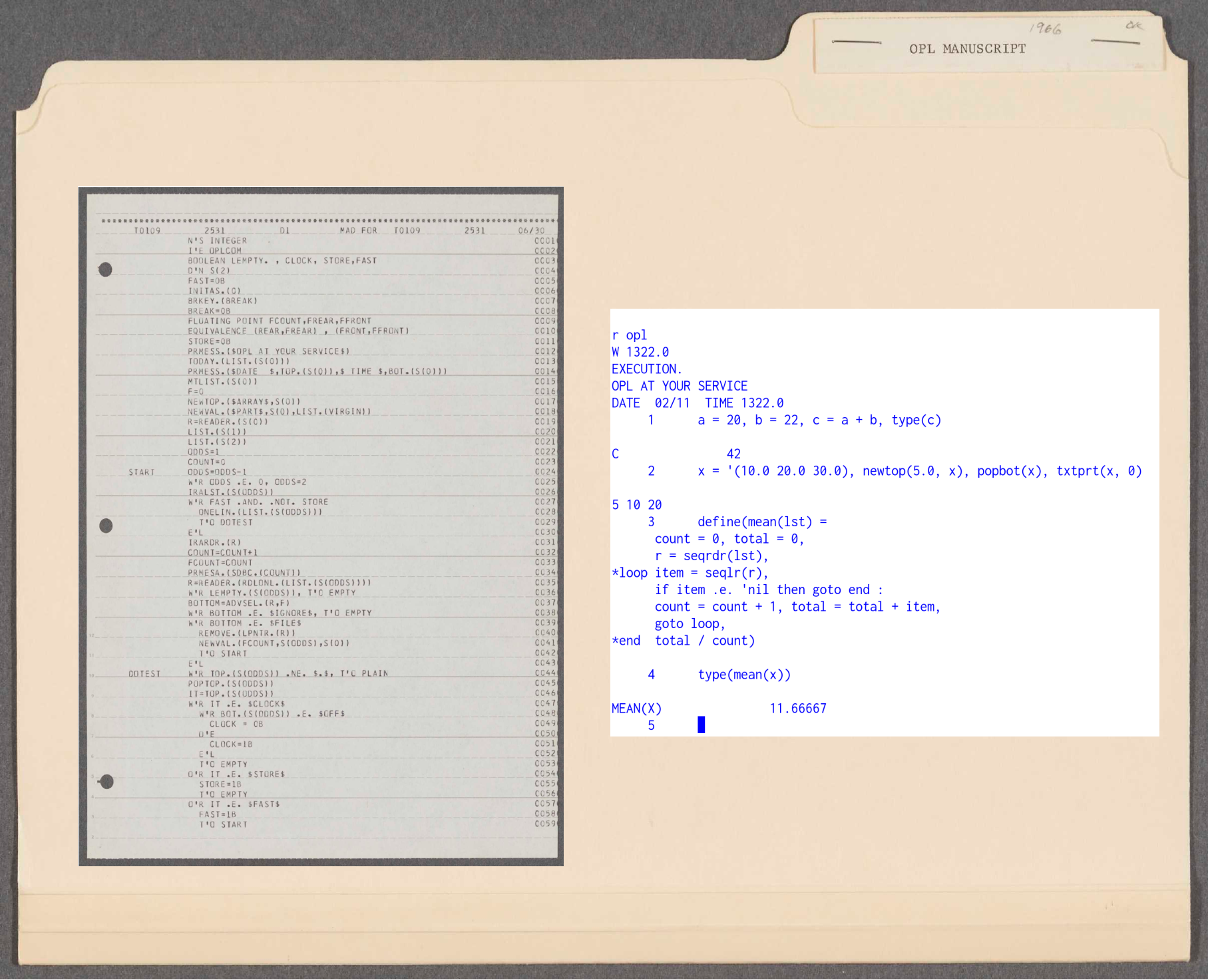 OPL printout and code execution under emulation. Source: MIT Libraries and Rupert Lane. License: MIT
The origins of OPL
The first reference to OPL is in OPL-I An Open Ended Programming System Within CTSS. a Project MAC technical report written by Weizenbaum in April 1964. He notes the shared observation that new time-sharing operating systems like CTSS allow programmers to attack problems in new ways that traditional high-level languages like Fortran do not allow.
The whole point of time-sharing is to enlarge the opportunities for carrying out truly significant man-machine dialogue — not to merely reduce turn-around-time.
with a longer term goal
It is to be expected that in many problem areas the computer will begin to help man by doing only the most obvious in mechanical parts of his problem but that, as the man-machine dialogue extends over a long period of time, more and more of the previously fussy issues over which man retained authority will become clear and finally be turned over to the computer.
(which rings true today with the advent of LLM based coding agents).
But Weizenbaum does draw the line somewhere - "The goal is to give to the computer those tasks which it can best do and leave to man that which requires (or seems to require) his judgement." - the fundamental difference between humanity and machines would be something he increasingly feel strongly about as he became more disillusioned with AI in the 1970s and wrote his book Computer Power and Human Reason
But turning to the details on the language itself. OPL-I, as it was called then,
permits the user to augment both his program and his data base during widely separated successive sessions at his terminal. Facilities are provided which make it possible for the user to operate on his already established data base both by means of built-in operators and in terms of operators (functions) which the user has previously defined in the language of the system.
The OPL system is written in a high level language and uses the SLIP list processing library for its internal workings; the same SLIP functions are exposed to the user for their programs. Users can build up their own lists and functions that operate on them, and can run small fragments of code to interrogate their data. These queries are discarded after running them, but the data and functions remain.
Persistence over sessions is afforded by a facility in CTSS which is
not really available on modern operating systems. At any time while
running OPL, the user can press the Interrupt key on their typewriter
console and it will return them to the CTSS command level. The user
can then type SAVE and a complete record of their core memory - the
OPL program and the user functions and data - is stored to a disk
file. At any point later they can RESTORE that core image file and
pick up where they were before they pressed Interrupt, without the
need to load in data and code again.
As a concrete example, Weizenbaum gives code for a function that calculates the mean of a list of numbers.
(DEFINE)
(MEAN (L)
          (S = SEQRDR(L))  (SUM = 0.0)  ((COUNT = 0.0)
BEGIN     (C = SEQLR(S,F))
          IF(F)MORE,MORE,DONE
MORE      (COUNT = (COUNT + 1.0))
          (SUM = (SUM + C))  GOTO BEGIN
DONE      ( (SUM/COUNT))  )
Here, the SLIP primitive SEQRDR is used to start an iterator over
the list L. Each call to SEQLR brings in the next element,
travelling left to right over the list's contents. The flag F
denotes what has been read: this will be 1 at the end of the list, so
the Fortran II style IF statement is used to branch to the label DONE
at this point, where the mean is returned. This could be called by
something like:
(X = MEAN(SET))
Weizenbaum gives an example of a use for OPL. An organisation can define its management hierarchy as a set of lists arranged into a tree, and write functions to do tasks such as compute the budget at an arbitrary level based on money allocated to sub-organisations, "What-if" scenarios could be run by temporarily changing the data.
He also looks ahead to a potential multi-terminal version of OPL (which as far as I can tell was never built) where several people could play a business game, sharing the same data and seeing the impact of changes performed by one player on the other terminals.
Weizenbaum compares OPL to LISP and IPL-V, and states "OPL-I is of a character quite similar to the LISP program mode and of about equivalent power." IPL-V was falling out of use at this time, and LISP was growing its number of users. The AI lab at MIT was using LISP on the PDP-1 and PDP-6, and I would speculate that there was an interchange of ideas between the groups.
The marriage of OPL and ELIZA
The next sighting of OPL is a talk Weizenbaum gave at UCLA in the spring of 1965, reproduced in a 1966 paper On-Line User Languages. This does not add much technical detail, but Weizenbaum puts OPL in the context of wider interpreter development at MIT. He views the command line environment in CTSS as an ad hoc interpreter to solve problems, and mentions other CTSS interpreters such as COGO.
But the really interesting news came in the Project MAC progress report for 1966-7. Weizenbaum had turned OPL into an evaluator that could be called by ELIZA to do arbitrary computation:
The difficulty with the early ELIZA system alluded to above was that the system could do no computation in any significant sense. […] In order to enhance the ability of ELIZA in this direction it was necessary to design and build an evaluator, that is, an interpretive program, to which computational and logical tasks could be given for execution. Such an evaluator was built.
The composition of this evaluator proved to be an interesting task with ramifications extending beyond its immediate utility as a subsystem to ELIZA. An effort was made to design the program in a way such that it would prove a useful tool for the teaching of a number of deep issues in the field of programming languages. The resulting program is essentially an interpreter version of SLIP with approximately the power of LISP but with very considerably simpler syntactic conventions than LISP.
Note the source code for this combination of ELIZA and OPL has not been found. What we do have is the stand alone version of OPL from 1967.
But there are several documents that show ELIZA+OPL being used. Paul Hayward's 1967 bachelor's thesis Flexible Discussion Under Student Control in the ELIZA Computer Program describes creating a system to have a computer interactively discuss a physics problem with a student, and gives his scripts at the end of the document. Two papers by Edwin Taylor from the Science Teaching Group at MIT: The ELIZA Program: Conversational Tutorial and Automated Tutoring and Its Discontents describe the experience of building teaching scripts using ELIZA+OPL.
Of most interest is Hayward's 1968 Eliza Scriptwriter's Manual which contains a description of how ELIZA and OPL work together, including an appendix on the OPL language and its functions. This is the sole documentation we have on OPL.
The source code
The printout of source code we have is for a standalone version of OPL without its ELIZA embeddings. The document contains
- Three pages of what looks like a larger manuscript about OPL, describing how it uses description lists to store symbol tables.
- A listing of the file
DI MAD. This is the main entry point for the stand alone program. It accepts commands from the user's terminal and sends them toEVALfor evaluation. It has some debug facilities the user can turn on or off, such as printing how much free space is left. - A listing for the file
EVAL MAD. This is an external function that takes a list expression as input and returns the result of its evaluation. It contains a parser and run time support for OPL's statements. - A listing of a CTSS ARCHIV file called
FAP FAPthat contains several FAP assembly language files that support OPL. An example of these isOBEY FAPwhich has a jump table that matches OPL function names with their entry points. This had to be done in assembly language as MAD lacks function pointers.
In total there are 48 pages or 2654 lines of code in the printout.
The printout is dated "06/30" and I think the year is 1967 based on
the internal dates on the files in the FAP FAP archive. The user ID
printed on top of the printout is T0109 2531 which from other
printouts we know is Weizenbaum's.
Having studied his 1965 ELIZA code for that reconstruction, it's instructive to compare the two.
Like the 1965 code, Weizenbaum uses playful names for variables and
functions: APRIL, JULY, VIRGIN, OBEY, RID. One distinctive
trait is seen in his use of EQUIVALENCE statements. These are
similar to C's union, where one location in memory can be accessed
by two variable names with different types. Weizenbaum often uses a
German and an English word with similar meanings to name these, as in
this example:
EQUIVALENCE (PLATZ,THERE)
Based on the non-contiguous line numbers and non-code file separators
in ELIZA, it was likely originally prepared on punched cards and then
loaded into CTSS for use under time-sharing. The 1967 code has
perfectly regular line numbers, probably indicating it was entered
online using an editor such as ED, which manages line numbers
automatically as you edit a file. The 1967 code also has more comments
and more blank lines, which is something you'd avoid on punched cards
as it would make the deck physically larger.
Weizenbaum also uses more CTSS subroutines rather than relying solely
on facilities in the MAD language. For example, he uses CTSS's
PRMESA to print a message on the typewriter without a terminating
carraige return.
The reconstruction
The first task was to OCR the PDF to extract machine readable text. Luckily recent LLMs do an amazing job on OCR, avoiding the hallucinations common even in mid 2025, and making around one mistake per page.
Then, the code was loaded into CTSS and compiled. This shook out the
last of the OCR issues, some of them subtle. IBM in their wisdom used
= to define decimal constants in assembly code and =O for octal
constants, so =020 means decimal 20 but =O20 means octal 20, ie
decimal 16, so this needed careful checking. No syntax errors were
detected in the code, but when it came time to link/load (using the
L command below) there was a problem:
l di eval (libe) opllib
W 1126.2
 NEED BOT    BRKEY  CNTSPC INITAS INLSTL IRARDR LEMPTY
      LIST   MTLIST NTHTOP ONELIN POPTOP RDLONL READER
      REMOVE SDBC   TODAY  TOP    LSLCPY LSSCPY LSTMRK
      MANY   MRKLST NAMTST NTHBOT NULSTL NULSTR OEPRNT
      POPBOT TXTPRT VCTLST NUCELL RCELL  ATEND  ATOMIC
      CONCAT TIME   REST   HIRANK CONS   REPLAC CALLS
      ADDKEY WASKEY NTOP   NBOT   MAX    MIN    FIRST
      SECOND INLSTR DSKLST DSKCLS LSTEQL NODLST LINLST
      STRLST YMATCH ASSMBL GETLIN FNDKEY
R .316+.033
61 functions were missing.
23 of these were SLIP primitives like BOT or LIST. We had a
complete SLIP library on hand from the ELIZA reconstruction and its
interface had been fairly stable since its first publication, so we
could drop in the ELIZA-SLIP library easily.
Input/Output
More problematic were the input/output routines that were missing. The
key ones here were RDLONL to read lines of input from the terminal
and convert to a list, and TXTPRT to print a list to the terminal.
We had similar code from ELIZA's TREAD and TXTPRT but they would
not work directly with OPL. ELIZA really just cares about text but OPL
needs support for numbers and symbols needed to express code in the
language. So I chose to write these from scratch in MAD.
String handling on the IBM 7094 is deeply unfamiliar to modern
programmers. The machine pre-dated ASCII and the 8-bit character:
instead it uses 6-bit BCD characters, packed 6 to a 36-bit word. Even
worse, there is no built-in facility to manipulate data at the
character level, either in the MAD language or in assembly. Instead,
characters need to be masked and bit-shifted to or from a word. Input
and output also only occurs at a word level, so to output A B you
have to prepare a word of 6 blanks, poke in the characters at bits
1-6 and 13-18, and then send the encoded word "A B " to the
CTSS output subroutine.
By seeing what the EVAL function was expecting, it was possible to
build working code for these functions. But lacking detailed examples
of OPL code running, we do not know exactly how this looked. For
example, we can see EVAL trying to output a list of two floating
point numbers separated by a comma. To what precision should the
numbers be printed? Should there be a space before or after the comma?
Although the functionality of OPL is working as it did in 1967. how it
looks on the terminal may be slightly different.
Data types
The next problem was data types. Each element of a SLIP list - called
the datum - is a single 36-bit word and OPL allows text, symbols like
*, integer and floating point numbers to be stored here. However,
there is no unified way to tag what type the datum represents. Text
data uses the SLIP indicator, which is two unused bits on the pointer
to the next word in the list. Symbols are encoded as text but with
the indicator turned off and padded with spaces, for example
" *". Numbers also have no indicator, and Weizenbaum appeared to
use a heuristic
           WHENEVER 77777K6 .A. DATUM .E. 0
              (treat datum as integer)
           OTHERWISE
              (treat datum as floating point)
           END OF CONDITIONAL
which basically means see if none of the bits marked as "x" in the word
...xxxxxxxxxxxxxxx.................. are set. FP numbers have the
IBM 7094 equivalent of the exponent set here (note this is not the
IEEE 754 floating point representation used today), whereas integers
will not have these bits set unless they are very large.
The overlapping nature of this type detection was not documented in the code and had to be worked out by trial and error when developing the I/O routines: it's probable that there are still some mistakes in the reconstruction here.
Lambda function support
The printout had several instances where someone, presumably Weizenbaum, had made hand-written annotations.
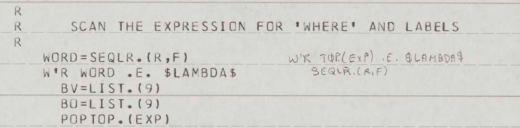 Example of an annotation to the OPL code.Source: MIT Libraries. License: MIT
These seem to concentrate around lines of code enabling lambda functions and the ability to create and call new anonymous functions. This feature does not appear in any of the OPL documentation and seems not to be fully working. I chose not to apply any of the hand written changes to the source code and left it as is.
There may be a connection here to the work Weizenbaum did on the funargs problem for his 1968 paper, though that only mentions the problem in the context of LISP. Joel Moses' 1970 paper The function of FUNCTION in LISP does provide some historical background that explicitly mentions OPL:
Joseph Weizenbaum got sufficiently interested in Landin's work that he implemented a subset of [the ISWIM lambda calculus] based on his SLIP-OPL system. The tree structure of the resulting stack was made quite vivid to me when Weizenbaum encountered difficulty in implementing the backward pointers necessary in the general case. The reason for this difficulty is that one could not then garbage collect the circular SLIP structures which are created in a straight-forward implementation. This is what motivated Weizenbaum to finally introduce classical garbage collection into SLIP [in 1969].
This would be a good topic for further research.
OPL utility functions
The above took care of most of the missing functions, but there were
still several functions not used by the interpreter directly, but
available to be called by the user's OPL program. Many of these were
trivial to implement - eg MAX and MIN - so I have included
implementations for around 15 of these. 18 functions remain
unimplemented at this point, mainly either because the documentation
is not clear on what they should do or if they are used by ELIZA but
we lack the main ELIZA+OPL code so they would not be useful on
stand-alone OPL.
Using OPL
See the GitHub repo for details on setting up the emulator and compiling the code.
Once done, you start OPL by typing R OPL. It responds with a
greeting, the current date/time and a prompt of a line number. You can
then enter one or more lines of text, ending your input with two
carriage returns in a row.
In the below, my input is in lower case, OPL's is in capitals. Simple variable assignment and calculation:
r opl
W 1818.1
EXECUTION.
OPL AT YOUR SERVICE
DATE  02/16  TIME 1818.1
     1      a = 21, b = 2, c = a*b, type(c)

C               42
List manipulation
     2      x = '(10.0 20.0 30.0),
newtop(5.0, x),
popbot(x),
txtprt(x, 0)

5 10 20
Reproducing the mean example from the original paper
     3      define(mean(lst) =
      count = 0, total = 0,
      r = seqrdr(lst),
*loop item = seqlr(r),
      if item .e. 'nil then goto end :
      count = count + 1, total = total + item,
      goto loop,
*end  total / count)

     4      type(mean(x))

MEAN(X)               11.66667
The logic is mostly the same, but note that parentheses are not needed
and statements are separated by commas. seqlr does not return a
flag, instead taking the value 'nil at the end of the list. Goto
targets are now prefixed by *, and the IF statement is now a
Fortran 66 style logical IF rather than the Fortran II three-way
branch version. IF also needs to be terminated with a : as the
THEN clause could have multiple statements separated by commas.
Sessions can be saved by pressing Interrupt (Control-Backslash under emulation)
and then using the SAVE and RESTORE commands.
     5       QUIT,
R .133+.066

save myopl
W 1825.5
R .000+.033

r myopl
W 1825.6

     5      type(a, b, c)

A               21
B                2
C               42
The interpreter has some built in meta commands which start with a
.. For example, .clock on enables display of how long an
expression takes to complete evaluation.
     1      define(fac(n) = if n .le. 1 then 1 else n * fac(n - 1) )

     2      .clock on

     2      type(fac(10))

FAC(10)                3628800
TIME      66 MILLISECONDS
OPL will also detect missing definitions of variables and functions, and prompt for them to be supplied when needed.
     1      a1 = 10, a3 = 20, type(a1 + a2 + a3)

A1 + A2 + A3      IDENTIFIER  A2     UNDEFINED
      12

          42
It's important to mention that this is a snapshot of Weizenbaum's
work, not a finished product. For example, undefined math results are
not handled correctly and missing keywords, like DO in the IF
statement below, can cause the program to crash.
     1      type(1/0)

1 / 0            0
     2      for j = 1 step 1 until j .e. 5 type(j)

J                1
 PROTECTION MODE VIOLATION AT 20163.
 INS.=050000063400, RI.=000000000000, PI.=053422000000
R .050+.050
I've put some more code examples in the samples directory of the
Github repo, along with some details on known issues.
OPL's impact
I think it's fair to say that OPL did not have much of a direct impact. Weizenbaum never published OPL and it did not spread outside of MIT. A lot of different approaches were tried in computer aided instruction at this time, and the ELIZA+OPL scripting approach did not take off: more successful were ventures elsewhere such as the PLATO system and the Logo language. Weizenbaum himself spent less time on programming, instead working on his book Computer Power and Human Reason and getting involved in the political turmoil of the early 1970s.
It's always difficult to identify firsts in computer science history, as many people have similar ideas at the same time. I think the idea of a library (SLIP) having bindings in both a compiled (MAD) and an interpreted (OPL) language is a first, and embedding a scripting language like OPL in a domain specific language like ELIZA is also novel for its time. Certainly the ideas developed by Project MAC and CTSS were shared across the community and as a collection of ideas it would show its influence on later generations of time-sharing operating systems and interactive languages.
OPL remains interesting as one of the last examples of Weizenbaum's technical achievements, and it's interesting to think what could have happened had he developed it further.
Acknowledgements
Thanks to Anthony Hay, Arthur Schwarz, David Berry, Jeff Shrager, Mark Marino and everyone on RetroAI/Team ELIZA for their help and advice.
Thanks to MIT Libraries for preserving and scanning this code, and making it publicly available.
Questions, corrections, comments
I welcome any questions or comments, and also especially any corrections if I have got something wrong. Please email me at rupert@timereshared.com
Sun, 22 Feb 2026 08:31:00 +0900
TOPS-10: Jobs
TOPS-10 is able to run multiple jobs (processes) per user, and has a flexible set of commands to control them, including the ability to pause a job and resume it on another terminal. It also has a batch job facility. But we'll start with a question on how to run jobs.
Why do I sometimes need to type R command and other times type command?
When you login to TOPS-10, you are in monitor mode - you are actually
running shared code that is part of the system kernel. Some simple
commands, like RESOURCES, are part of the monitor and can be
executed directly. Other commands need to be loaded from disk first.
To signal this, you type RUN command if the command is in your
directory, or R command if it is a system command. R looks for
EXE and SAV files to run in SYS:, so R PIP is the same as RUN
SYS:PIP.EXE
A program loaded from disk remains in memory - your core image -
even after the program exits. This image is only replaced when you
load a new command. As a demonstration, type R PIP to load and run
the PIP command. The prompt will change to *. Press Control-C and
you will be back at the monitor level with the . prompt. Type
RESOURCES and after that has finished, type START - you will find
yourself back in PIP again.
One other complication is that the system administrator can declare an
alias for some common commands. An example here is the SOS editor,
which you can run with just SOS. Behind the scenes, the system does
a R SOS for you to load and start SYS:SOS.EXE.
In practice you will remember what to type, but to check if a command
is part of the monitor look at the Operating Systems Command Manual
chapter 2. If the write up for a command says it "replaces core" then
it is a disk loaded command that you either need to start via R or
know that there is an alias declared.
Detaching and attaching jobs
You can log in more than one terminal under the same ID, and hence have more than one job running.
It is possible to pause execution of a job on one terminal and pick it up again on another. Let's say you are running this horribly inefficient way to print all prime numbers between 1 and 2 million:
	DO 1 J = 1000000,2000000
	DO 2 K = 2,J-1
	IF ((J/K)*K .EQ. J) GOTO 1
2	CONTINUE
	TYPE 100, J
1	CONTINUE
100	FORMAT(I)
	END
Run this with EXECUTE and press Control-C twice to interrupt it.
Then type DETACH to detach the job
.exec primes.for
LINK:	Loading
[LNKXCT PRIMES Execution]

       1000003
       1000033
       1000037
       1000039
       1000081
       1000099^C^C

.det
From job 5
As you are detached, you are also logged out. You could LOGIN again
and start a new job if you wished.
But let's start a new terminal. Login as normal and then type ATTACH
with the job number from the previous DETACH. Then type CONT to
continue execution from where you left off.
.login 100,100
JOB 13 KA603 TTY1
Password:
[LGNJSP Other jobs same PPN:5,12]
1055	31-Jan-79	Tue

.at 5
From job 13

.cont


       1000117
       1000121
       1000133
...
You can also run jobs in the background - after you press Control-C
type CCONT to continue the job in the background before DETACH.
However, if the job does terminal input or output it will pause until
it is attached to a terminal again.
Job information
You can get an idea of what jobs are running through SYSTAT. Giving
a job ID as a parameter shows just one job.
.sys 5
 5   100,100	TTY1	SYSTAT	7+SPY	RN	       5 $
I have not found a way to kill a job that is running apart from attaching to it and then doing a Control-C.
Batch jobs
The closest equivalent to shell scripts is the batch job. Here you can
prepare a file with a list of commands and send it for execution via
SUBMIT. This places it on the batch job queue (which could also
contain jobs submitted via punched cards) and it is run
asynchronously. Here we create a new batch file TEST.JOB to run the
DIR and SYS commands.
.sos test.job
Input: TEST.JOB
00100	dir
00200	sys
00300	$
*es

[DSKB:TEST.JOB]

.submit test.job
After you submit it you will see some activity on the operator's
console when it is started. To see the results, check the line printer
output (which is in host file units/printer.txt if you are using the
TOPS-10 Quickstart). There will also be a log file created in your
directory, by default with the extension .LOG.
.type test.log

13:24:26 BAJOB	BATCON version 13(1071) running TEST sequence 2 in strea
m 1 for DEMONSTRATIO
13:24:26 BAFIL	Input from DSKB3:TEST.JOB[100,100]
13:24:26 BAFIL	Output to  DSKB0:TEST.LOG[100,100]
13:24:26 BASUM	Job parameters
		Time:00:05:00	Unique:YES	Restart:NO

13:24:26 MONTR
13:24:26 MONTR	.LOGIN 100/100
13:24:26 USER	JOB 14 KA603 TTY15
13:24:26 USER	[LGNJSP Other jobs same PPN:5,12,13]
13:24:26 USER	1324	31-Jan-79	Tue
13:24:27 MONTR
13:24:27 MONTR	.dir
13:24:27 USER
13:24:27 USER	CTEST	CBL	2  <057>   21-Apr-78
13:24:27 USER	HELLO	MAC	1  <057>   21-Apr-78
...
You can also interleave commands and data for the commands by preceding
commands with . and data with *.
Further information
See the Operating Systems Command Manual on Bitsavers for full documentation of TOPS-10 commands. The Beginner's Guide to Multiprocessing Batch may be useful for batch jobs.
Questions, corrections, comments
I welcome any questions or comments, and also especially any corrections if I have got something wrong. Please email me at rupert@timereshared.com and I will add it here and update the main text.
Sun, 15 Feb 2026 08:51:00 +0900
TOPS-10: Getting data in and out
On a real PDP-10 running TOPS-10, you'd likely to have several peripherals to allow data to enter and leave the system: line printers, card punches and readers, paper tape and magnetic tape. One other alternative we've not seen before is DECtape which were magnetic tapes with a smaller form factor and a block structured, allowing random access to files. This meant they could be used as a slow substitute for hard disks, eg for user files.
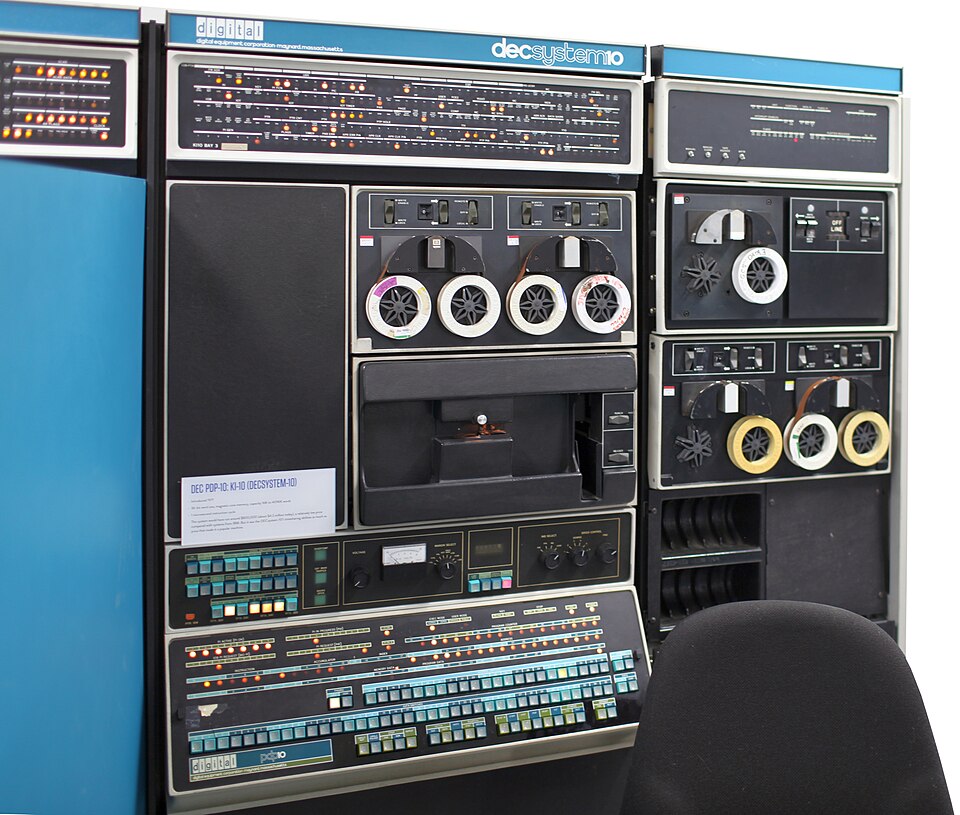 PDP-10 with several DECtapes. Source: Wikipedia/Jason Scott. License: CC0
On an emulated system your concerns are different: you want to get data to and from your host computer. Small amounts of text can be transferred using copy/paste in your terminal, but this is not practical for large amounts - especially for pasting, as the console was expected to be a typewriter and cannot accept text that fast.
Let's look at ways to do this using emulated devices under simh.
Device access
As a large computer running time-sharing for many users, one important concern for the operating system is how to mediate access to peripheral devices. There are essentially two options on TOPS-10
Spoolers allow several people to share a device. The operating system maintains a queue of jobs entered by different users, and processes them one at a time. These spooler jobs are run under the operator's ID via a system called OPSER, which you can see running on the operator's console after you boot the system. The line printer is an example of a spooled device.
Assignable devices allow you to request sole access to a device, giving it a logical device name you can use instead of the real physical device. This is useful for magnetic tape drives, where there may be several allocated on an as-needed basis to users.
The choice of how to share devices was up to each site and can be configured in the monitor; we'll just use how it is set up on the quickstart disk images without changing these.
Printing
The line printer is a good way to get text data out of the system.
This is a spooled device available as device LPT:. To print a single
file, use the PRINT command
.print hworld.for
Total of 1 block in 1 file in LPT request
You'll see a message on the operator's console saying this is being processed.
!11:34:52(L\7)
        Job HWORLD file DSKB1 :HWORLD.FOR   [64,64] for [64,64] started
        D:HWORLD.FOR   [64,64] Done
Then look in the file units/printer.txt on the host
system to find your output. You'll see the name of the file you
requested to be printed in large letters (on a physical printer this
would allow easy identification of jobs) followed by the file's text.
You can also use the device name where a file would be normally used. For example, to print all the Fortran files in your directory:
copy lpt:=*.for
Note when using the device, the files will not be printed until your job terminates, ie you log out.
In simh, where printer output goes on the host is controlled by the
attach lpt command in the configuration file. On the quickstart, see
common.ini:
at lpt -n units/printer.txt
The -n switch will start a new file each time the system is booted.
If you'd prefer to keep the contents of the file over each session and
append to it, replace -n with -a.
Extracting files to your PC via virtual tape
If you want to extract several files from TOPS-10, here is a method using emulated tapes and the TOPS-10 backup program.
You will need to get the back10 utility by Johnny Eriksson running on
your PC. Download the file back10.tar from the linked page, untar t
an empty directory and run make to compile the binary back10.
Place this on your PATH somewhere.
Next, on the simh console, we will create a blank tape file on your PC
backup.tap and attach it to the emulated tape drive MTA1.
Press Control-E to enter simh command mode and then type the following
at and set commands, then ~c` to resume TOPS-10.
Simulation stopped, PC: 000001 (SOJG 6,1)
sim> at mta1 backup.tap
%SIM-INFO: MTA1: creating new file
%SIM-INFO: MTA1: Tape Image 'backup.tap' scanned as SIMH format
sim> set mta1 write
sim> c
Switch to your TOPS-10 login. We will assign the tape to logical name
TAP: and run BACKUP . The prompt will change to a /. We'll then
use the following BACKUP commands
tapeto select the tape drivesaveto add files - below we add all Fortran files in our home directoryunloadto finalise the tape
Press Control-C to get back to the command level. and finally deassign the logical tape name. The session will look something like this:
.assign mta1: tap:
MTA001 assigned

.r backup

/tape tap:
/save *.for
!100,100	DSKB

"Done

/unload

[MTA001: WRITE(C/H/S) = 10880/0/0]
/^C

.deassign tap:
You may get a message "Tape write locked–add write ring then type "GO"" - just type GO as suggested in this case.
On your host PC, use back10 with the -l switch to list the
contents of the tape file
$ back10 -lf backup.tap
  21-Apr-1978 11:13:59  <057>  dskb:[100,100]ftest.for
  17-Jan-1979 14:40:59  <057>  dskb:[100,100]hworld.for
Use the -x option to extract files. Here I use -R and a wildcard
to extract everything.
$ back10  -xf backup.tap  -R '.'  '*.*'
  dskb:[100,100]ftest.for
  dskb:[100,100]hworld.for
Adding the -b option will create a directory tree, ie create files
named like dskb/100,100/hworld.for.
Uploading files
To upload files from your PC to TOPS-10, we can use the same technique
bur in reverse. First, use back10 with the -c option to create a
backup tape file. Here we create the tape transfer.tap containing a
single file test.for. Note we provide destination disk and user
information using the -U switch which will help simplify things when
we extract the files later.
$ back10 -cf transfer.tap -U dskb:100,100 tesr.for
Switch back to the simh console, press Control-E and attach the new file.
sim> at mta1 transfer.tap
%SIM-INFO: MTA1: Tape Image 'transfer.tap' scanned as SIMH format
sim> c
Go to your TOPS-10 login and use BACKUP with the RESTORE command
to get all the files in the archive:
assign mta1: tap:

.r backup

/tape tap:
/restore *.*
!100,100	DSKB

"Done

/^C
There are several other BACKUP commands available at the / prompt.
Type HELP for more information. One is PRINT, which will print a
listing of the tape on the line printer
Other methods
One potential way to interchange files is Kermit, which allows you to send and receive files interactively over your terminal connection. There is a version on the TOPS-10 v6.03 disk images that we are using, but it only works for download of files from TOPS-10 to your local machine, uploads do not work. A thread on the PiDP-10 group indicates that there is a newer version of Kermit that does work, but it is only compatible with TOPS-10 v7.
Further information
See the Operating Systems Command Manual on Bitsavers for full
documentation of TOPS-10 commands such as PRINT and BACKUP.
Questions, corrections, comments
I welcome any questions or comments, and also especially any corrections if I have got something wrong. Please email me at rupert@timereshared.com and I will add it here and update the main text.
A draft version of this article was publushed in error on 8-Feb-2026.
Sun, 08 Feb 2026 09:02:00 +0900
TOPS-10: The SOS text editor
In this post we'll look at the simple but powerful SOS text editor on TOPS-10.
Starting SOS
Type sos file.ext: if this is a new file SOS will print INPUT and
put you in a mode where you can type lines. If it is an existing file
it will print EDIT and you will be in command mode.
Inputting text
SOS will automatically assign numbers to each line which you will see
on the left. You can type each line normally, making corrections using
Delete, Control-U like on the command line. When you have finished
inserting text, press Escape; SOS will print $ and return you to
command mode.
SOS command format
At the * prompt, SOS accepts commands which are generally single
letters followed by which lines to work on.
| Command | Meaning |
|---|---|
p |
Prints around 16 lines around the current line |
p . |
Prints just the current line |
p 500 |
Prints line 500 |
p 600:700 |
Prints lines 600-700 |
p ^:* |
Print from first line to last line |
Let's load up and print our hello world program from before.
.sos hworld.for
Edit: HWORLD.FOR
*p
00100		DO 1 J=1,5
00200	1	WRITE(5, 2)
00300	2	FORMAT(' HELLO, WORLD')
00400		END
*
Quick navigation
Once you select a line (eg via p 500 above) you can quickly move up
and down by pressing Escape to move up one line and Control-J to move
down one line; SOS will print the line it has moved to.
Replace, Insert, Delete
The R, I and D commands replace, insert and delete lines. Each
take a line specification like above. R will prompt you to enter the
new line to replace it. I will insert a line after the one you
specified, giving it an appropriate line number. An example of
changing our hello world program to print a different message twice:
*r300
00300	2	FORMAT(' GOODBYE, WORLD')
1 Lines (00300/1) deleted
*i100
00150		WRITE(5,2)
*p^:*
00100		DO 1 J=1,5
00150		WRITE(5, 2)
00200	1	WRITE(5, 2)
00300	2	FORMAT(' GOODBYE, WORLD')
00400		END
Exiting SOS
At the * prompt, type E to save and exit, ES to save without
line numbers and exit, and EQ to exit without saving changes. Some
programs do not accept line numbers hence the ES option; even if you
do remove them, if you edit the file in SOS again it will add them
back.
Those are all the commands you need to do most editing tasks. But read
on for additional features that make life easier. Alternatively, you
can type H at the prompt to view the help file.
Find and replace
The F command finds the next line with the specified text. You type
F, then the text to find, then Escape and finally Return and it will
print out the matching line. Note that SOS prints $ when you type
Escape.
*fgoodbye$
00400	2	FORMAT('GOODBYE, WORLD')
After the Escape, but before the Return, you could also type a line number range.
To find the next instance of the same text, just type F on its own
again.
To replace part of text without retyping the whole line, use the S
command. Type S, the old text to replace, Escape, the new text and
then Escape. You then must add a line range before pressing Return, so
to replace on the current line you could use ..
00400	2	FORMAT('GOODBYE, WORLD')
*sGOODBYE$HELLO$.
00400	2	FORMAT('HELLO, WORLD')
Alter mode
This is a special mode where you can edit a line using interactive
commands. Type A and your line number (or .) and SOS will print
the line number. You can then type Space to move forwards one
character, Delete to move back one character. SOS will print character
by character as you do this navigation so you can see where you are.
D will delete the next character; I will allow you to insert text
until you press Escape. Commands take prefixes to say how many
characters to operate on.
In the example below I wanted to change HELLO to GOODBYE. I pressed
Space until I got to the start of the word then pressed 5D to
delete HELLO. I then pressed I, typed GOODBYE, then Escape, then
finally Return to accept the rest of the line.
*p400
00400	2	FORMAT(' HELLO, WORLD')
*a.
00400	2	FORMAT(' \\HELLO\\GOODBYE, WORLD')
Quit-and-go, renumbering files
Instead of saving and exiting with E, you can type G and it will
save and then execute (compile, load, run) the file - more precisely,
it will remember the last command you ran and execute that. But this
allows rapid edit-compile-run-edit loops.
The N command will renumber your lines - useful if you have done a
lot of inserts into existing text.
There's more, such as the ability to take editing commands from a file and to cut/copy text to move it around the file: see the Reference Guide linked below for details.
Summary of commands
| Command | Meaning |
|---|---|
| A | Alter mode |
| C | Copy text |
| D | Delete lines |
| E | Save and exit |
| ES | Save without line numbers, exit |
| EQ | Exit without saving |
| F | Find |
| G | Save and execute |
| H | Help |
| I | Insert |
| J | Join lines |
| Jc | Justify lines |
| K | Delete page mark |
| L | List to line printer |
| M | Set page mark |
| N | Renumber lines |
| P | Prints lines |
| R | Replace lines |
| S | Substitute text |
| T | Cut text |
| V | Case inversion |
| W | Save, but do not exit. |
| X | Extend (append) to a line |
Further information
See the SOS User's Guide and the SOS Reference Manual on Bitsavers.
Questions, corrections, comments
I welcome any questions or comments, and also especially any corrections if I have got something wrong. Please email me at rupert@timereshared.com and I will add it here and update the main text.
Sun, 01 Feb 2026 09:11:00 +0900
TOPS-10: Files and directories
In this post we'll look at how TOPS-10 handles files and directories, along with the commands to manipulate them.
Files
Files are named file.ext where file is 1-6 characters long and
ext 0-3. The extension is used to identify the type of file, eg
HELLO.FOR would be a Fortran source code file.
The * and ? wildcards operate like we are used to now, ?
matching one character and * matching any number of characters. An
example using the DIR command:
.dir hworld.*

HWORLD	FOR     1  <057>   12-Jan-79	DSKB:	[100,100]
HWORLD	REL     1  <057>   12-Jan-79
  Total of 2 blocks in 2 files on DSKB: [100,100]
Manipulating files
COPY, RENAME and DELETE do what you'd expect, but note that for
the first two you put the new name first followed by an =. For
example, to copy HWORLD.FOR to H2.FOR and then rename it to
H#.FOR you'd do:
.copy h2.for=hworld.for

.rename h3.for=h2.for
Files renamed:
H2.FOR

.dir h*.for

HWORLD	FOR     1  <057>   12-Jan-79	DSKB:	[100,100]
H3	FOR     1  <057>   15-Jan-79
  Total of 2 blocks in 2 files on DSKB: [100,100]
Many of these commands are implemented using the PIP utility, which I'll look at in a later post.
Users and directories
Users are identified by a project number and a programmer number. These are both octal values (ie they consist of the digits 0-7), and values for both lower than 7 are reserved by the operating system. If you followed the quick start you logged in as project 100, programmer 100.
This is tied together with the concept of the directory. There is a Master File Directory and below that a User File Directory for each valid project/programmer pair. These are enclosed in square brackets when referencing files, for example:
.dir [100,100]hworld.for

HWORLD	FOR     1  <057>   12-Jan-79	DSKB:	[100,100]
Project/programmer numbers can also be wirldcarded.
[1,1] is also the Master File Directory, so you can see a list of
all User File Directories by:
.dir [1,1]

     1,1	1  <555>   21-Apr-78	DSKB:	[1,1]
     1,4	4  <775>   21-Apr-78
     3,3	0  <777>   21-Apr-78
...
You can create sub-directories using the CREDIR command. For
example, to create a sub-directory test under my user directory I
would run CREDIR and at the prompt give the response [,,test]. I
could have typed [100,100,test] but as this is my current log on it
allows me to omit it. Running this looks like the below:
.r credir

Create directory: [,,test]
  Created DSKB1:[100,100,TEST].SFD/PROTECTION:775
Create directory: ^C
I can then use this in commands.
.dir [,,test]

%WLDDEM Directory DSK:[100,100,TEST] is empty
It is possible to change your current directory, but it is a little
more involved then typing cd on modern systems. Use the SETSRC
program and give it the CP command followed by the desired directory
at the * prompt. The TP command will list your current directory.
Type Control-C to exit.
.r setsrc

*tp
[100,100]/NOSCAN
*cp [,,test]

*tp
[100,100,TEST]/NOSCAN
*^C
To delete a sub-directory, ensure it is empty and then use DELETE on
the SFD file representing the directory. So for our example here,
test, you would do DELETE TEST.SFD.
Devices
Physical devices, such as tape drives, disks and the terminal, are referred to by device names which are 1-3 characters long, an optional digit followed by a colon. Some examples:
| Device | Meaning |
|---|---|
CDP: |
Card punch |
CDR: |
Card reader |
DTA000: |
DECTape unit #0 |
DTA001: |
DECTape unit #1 |
LPT: |
Line printer |
SYS: |
System library |
TTY: |
Your terminal |
You can see a list of physical devices on the system by typing
RESOURCES.
These can be referred to in commands. To type the contents of
HWORLD.FOR to your terminal you'd normally do TYPE HWORLD.FOR but
you could also do COPY TTY:=HWORLD.FOR.
There are also device names pointing to directories. An example is
SYS:, the location on disk where system executable files are stored.
We can see from the DIR command below that SYS~ points to user
[1,4].
.dir sys:pip.exe

PIP	EXE    44  <155>    8-Nov-76	33B(260)	DSKB:	[1,4]
You can create logical device names. Say your program was reading from
a DECTape where the unit may change depending on what is in use.
Rather than hard-coding the physical name, you can set up a logical
name with ASSIGN - for example ASSIGN DTA000: ABC: - and then use
ABC: to refer to the tape. DEASSIGN will remove the logical name.
Protection
A file has a protection code which is 3 octal digits enclosed in angle
brackets like <O57>. Each digit applies to a different class of user..
| Digit | Applies to |
|---|---|
| First | You |
| Second | Users with the same project number |
| Third | All users |
The values for each digit and their meaning:
| Digit | Meaning |
|---|---|
| 7 | No access |
| 6 | Execute |
| 5 | Read and execute |
| 4 | Append and everything in 5 |
| 3 | Update and everything in 4 |
| 2 | Write and everything in 3 |
| 1 | Rename and everything in 2 |
| 0 | Change protection and everything in 1 |
So a code of <057>, which is the default, means you can do anything, people in your project can read/execute, and all other users have no access.
Protection can be applied using the PROTECT command:
protect hworld.for<025>
Or directly at file creation time, eg via copy
copy world.for<000>=hworld.for
The default protection can be changed with SET DEFAULT PROTECTION.
Disk quota
Each regular user has an allowance of how much data they can store on
disk. A higher quota is given for when you are logged in compared to
logged out, to allow for creation of temporary files. The QUOLST
command allows you to see this: the units are 128-word blocks, so 576
bytes per block.
.r quolst

User:	100,100
Str	used   left:(in) (out)	(sys)
DSKB:	  135	99865	99865	132307
On an emulated system today this is not a concern. On a real system with small disks and many users, the quota could be set quite low (I read that some undergraduates were limited to 5 blocks).
An alternate way to log out of the system is KJOB. This will give
options for you to manage your files to get them under quota.
The quotas are set via the user administration utility REACT, which
we'll look at later.
Further information
See the Operating Systems Command Manual on Bitsavers for full documentation of TOPS-10 commands.
Questions, corrections, comments
I welcome any questions or comments, and also especially any corrections if I have got something wrong. Please email me at rupert@timereshared.com and I will add it here and update the main text.
Sun, 25 Jan 2026 09:31:00 +0900
TOPS-10: A quick tour using simh
In this post I will show how to get TOPS-10 version 6.03 running using the simh emulator.
 Starting up TOPS-10, with the console on top and the user login below. Source: Rupert Lane. License: CC0.
The quick start repo
I have put together a repo on Github that uses Richard Cornwell's PDP-10 KA simh emulator along with a ready-to-use disk image of TOPS-10 6.03 produced by the PiDP-10 project, which contains a tested install of the operating system along with many additional programs such as compilers.
To use this, you will need a Unix-like environment capable of running a shell, git, make, a C compiler, wget and unzip.
You will also need the telnet command line program or a GUI telnet
client.
First, clone the repo and cd into it
git clone https://github.com/timereshared/dec-tops-10-simh-quickstart.git
cd dec-tops-10-simh-quickstart
Then type ./build.sh. This will
- Download opensimh using git and compile the pdp10-ka emulator binary.
- Download a copy of the TOPS-10 disk images.
This will take around 2-3 minutes and will only need to be done once.
The virtual disks are stored in disks/ and take up about 310MB of
space.
Start TOPS-10
Type ./run.sh. The system will boot up and the date/time will be set
automatically using today's day/month but with the year set to 1979.
as this version of TOPS-10 is not Y2K compliant.
Sometimes the system hangs after printing %DPA7 IS OFF-LINE. In this
case, press Control-E, type q and then ./run.sh again.
If all goes well, you will see it print KA603 (time) CTY system 50.
Using a telnet client, connect to port 10603 (eg via telnet 0
10603.)
You can then login as user 100,100 and password demo1. Type login
100,100 and then enter the password at the prompt. Your screen will
look something like the image at the top of this post.
Using the TOPS-10 CLI
The command line interface has a . as its prompt. When you type
commands you can use backspace to correct mistakes, but as the system
was used on teletypes it will not rub out characters,
instead printing what has been deleted between backslashes. For
example, if I typed abcdef, realised the last three letters were
wrong, deleted them and typed xyz the screen would look like.
.ABCDEF\FED\XYZ
If you make several mistakes you can request the whole line to be retyped by pressing Control-R. Control-U can be used to delete the entire line.
Control-T will print a line of system statistics, including the current job you are running.
You can enter a command of more than a single line by typing - as
the last character on a line, pressing Enter, and continuing the
command text on the next line.
Commands can generally be abbreviated: for example instead of typing
DIRECTORY to see a list of your files, you can just type DIR.
There is an online help facility accessed by typing HELP. You can
view details of a single command by giving its full name as a parameter, eg
HELP DIRECTORY.
Creating a simple program
Let's create a simple hello world program using Fortran. We will use the SOS editor to create the source file then compile it and run it.
Type SOS HWORLD.FOR to create a new file and put us in the
editor. As this is a new file, the editor will allow you enter text
immediately. It will precede each line with a line number (which is not
a Fortran label) automatically. So the screen will look something
like this after you start SOS.
.sos hworld.for
Input: HWORLD.FOR
00100
Type the following program. Where you see ⭾ below you should press
the Tab key rather than typing spaces.
⭾	DO 1 J=1,5
1 ⭾	WRITE(5, 2)
2 ⭾	FORMAT(' HELLO, WORLD')
⭾	END
Now to exit inserting press Alt-mode - which is Escape on your
keyboard - and SOS will respond with $ and then * to show you
are back at its prompt. If you have made a mistake, you can replace a
line by typing Rnnn where nnn is the line number.
When ready, type ES at the prompt to exit with unsequenced lines (ie
don't preserve the line numbers).
The complete editing session will look like this:
.sos hworld.for
Input: HWORLD.FOR
00100		DO 1 J=1,5
00200	1	WRITE(5, 2)
00300	2	FORMAT(' HELLO, WORLD')
00400		END
00500	$
*es

[DSKB:HWORLD.FOR]
.
You can use TYPE to see the contents of the file:
.type hworld.for
	DO 1 J=1,5
1	WRITE(5, 2)
2	FORMAT(' HELLO, WORLD')
	END
Now use EXECUTE to compile, load and run the program:
.execute hworld
FORTRAN: HWORLD
MAIN.
LINK:	Loading
[LNKXCT HWORLD Execution]

HELLO, WORLD
HELLO, WORLD
HELLO, WORLD
HELLO, WORLD
HELLO, WORLD

END OF EXECUTION
CPU TIME: 0.00	ELAPSED TIME: 0.00
EXIT
You can use DIR with a wildcard to show the files that have been
created.
.DIR HWORLD.*

HWORLD	REL     1  <057>   12-Jan-79	DSKB:	[100,100]
HWORLD	FOR     1  <057>   12-Jan-79
  Total of 2 blocks in 2 files on DSKB: [100,100]
Logging off and shutting down the system
In the telnet window, type R LOGOUT to end your session.
.R LOGOUT

Job 4, User [100,100]  Logged off TTY0     1047  12-Jan-79
Saved all files (45 blocks)
Runtime 0.57 Sec
To shut down the system, switch to the simh window, press Control-E
and type do shutdown.ini.
Simulation stopped, PC: 146766 (JRST 0,146772)
sim> do shutdown.ini
:kill all

 **
BOOTS
Goodbye
$
When you want to use the system again, type ./run.sh and log in as before.
Further information
In the TOPS-10 Software Notebooks on Bitsavers, Getting Started with Decsystem-10 covers similar material.
See Richard Cornwell's TOPS-10 kit page for other versions of the operating system. The kits also contain simh scripts to build the system froms scratch, which is useful if you want to customise it further.
The PiDP-10 project's software provides an integrated system that can run TOPS-10, ITS and TOPS-20, even without a physical PiDP-10.
Questions, corrections, comments
I welcome any questions or comments, and also especially any corrections if I have got something wrong. Please email me at rupert@timereshared.com and I will add it here and update the main text.
Sun, 18 Jan 2026 09:22:00 +0900
DEC TOPS-10
For background information on the PDP-10, see the previous article.
TOPS-10 (standing for either Time-sharing or Total Operating System-10) was DEC's first operating system for the PDP-10 family of computers. It grew out of the original Monitor for the PDP-6 released in 1964, with the TOPS-10 name coming around the time the PDP-10 was launched. It received many updates adding new functionality and support for newer hardware, with the final release coming in 1988.
TOPS-10 drew influences from CTSS, such as project/programmer numbers to identify users and the load/save model for program images. In turn it influenced many later operating systems, both from DEC and elsewhere - its use of three letter file extensions and the / to introduce command line switches will be familiar to MS-DOS users.
 Detail from the cover of the PDP-10 Time-sharing Handbook 1970. Source: Bitsavers
Versions
Phil Budne's guide to TOPS-10 evolution provides an overview of release dates and features for each version. Richard Cornwell's list of software kits shows what's available.
In thus series of blog posts we're going to focus on version 6.03 from 1977, running on the PDP-10 KA processor. We'll use Richard Cornwell's pdp10-ka simh emulator to run this.
TOPS-10 features
TOPS-10 has a resident supervisor which has a dual role: firstly, providing access to machine resources and scheduling tasks, similar to a kernel on Unix based OSs. Its second role is to provide the main interface to user via the command control language - similar to a shell, but with code shared by users. Scheduling was done via priority queues, with support for real-time jobs.
The system can swap jobs in and out of disk and share code segments between programs. The particular version we are looking at did not support virtual memory and paging, however.
Users are identified by a project/programmer pair of numbers - eg [10, 11] - and access to the system is controlled by a password for each user.
The file system can span multiple disks. Each user gets their own directory to store files, and can share files by granting access to them. It's also possible for users to create sub-directories.
Peripheral devices such as printers, tapes or punched can either by shared by all users, with spoolers running to marshal access, or can be allocated to a specific user via a command.
The core system provides a set of utilities to manage files - both by individual commands such as RENAME and the powerful PIP (peripheral interchange program). Several editors were provided, from the simple SOS to the more complex TECO. Compilers and interpreters were available for BASIC, Fortran, COBOL and many other languages.
The system has a batch facility that allows jobs to be run at the same time as time-sharing users are logged in.
Topics
In this series of blog posts I plan to cover
- A quick start guide to getting TOPS-10 running under emulation.
- Files and directories.
- Getting data into and out of the system.
- Jobs on TOPS-10.
- Users: getting information, creating new ones, security.
- Utilities: PIP, RUNOFF, FILCOM and SEND.
-
Editors
-
Programming under TOPS-10
Further information
Bitsavers has a wide collection of documentation: see the TOPS10 and TOPS10 Software Notebooks directories. Note that these cover different versions of the operating system, so not all features may work - check the date on each manual. A good place to start is 1974's Introductionto DECsystem-10 Software.
Questions, corrections, comments
January 2026: Lars Brinkhoff pointed out an error I made regarding the launch date of the PDP-10 and the name change of the OS to be TOPS-10. The first PDP-10 KAs were shipped in 1967. The name TOPS-10 started being used around that time, but I could not find an exact date.
I welcome any questions or comments, and also especially any corrections if I have got something wrong. Please email me at rupert@timereshared.com and I will add it here and update the main text.
Sun, 11 Jan 2026 09:17:00 +0900
DEC PDP-10
 Detail from the cover of the PDP-10 Reference Handbook 1970. Source: Bitsavers
The PDP-10 family of computers (under different names) was manufactured by Digital Equipment Corporation between 1964 and 1983. Designed for time-sharing, batch and real-time systems, these computers were popular with universities, scientific companies and time-sharing bureaux. Several operating systems were available, some from DEC and some built by its users.
It had a large influence on operating system design, artificial intelligence (especially at MIT and Stanford), programming languages (LISP, ML), applications (TeX, Emacs), online communication (ARPANET, Compuserve), games (Advent, Zork) and even helped development of Microsoft's first version of BASIC.
Hardware
The first computer in the family was the PDP-6 which used germanium transistors. It had a 36 bit word, up to 256kW of core memory and ran at approximately 250kHz. It was large (500-700kg), expensive ($300k) and was not very reliable. Only 23 systems were sold, but the architecture was well received by its initial customers such as MIT.
A very similar architecture but advances in digital logic technology and a reliable manufacturing process was used for the PDP-10. Several CPU models were introduced, starting with the KA10 in 1968. This was replaced by the KI10 using TTL and in 1975 by the ECL based KL10. A cheaper variant called the KS10 arrived in 1978. DEC marketed the PDP-10 under the name DECsystem-10 and -20. Xerox PARC and several startups also experimented with clones of the hardware.
During its lifetime, advanced in memory, storage and peripherals were introduced, and there were also multiprocessor variants.
Operating systems
DEC's original operating system for the PDP-6 was called the Monitor and used just 6kwords of memory. This was enhanced and renamed as TOPS-10 (Time-sharing / Total Operating System-10) with the introduction of the KA processor.
Sites would often customise TOPS-10 systems, adding special hardware and facilities to support them in the OS. One notable version was Stanford's WAITS, which evolved to be a separate operating system. The time-sharing bureau Tymshare developed TYMCOM-X based on TOPS-10.
BBN took the KA and added paging hardware which was not compatible with TOPS-10; they built their own system called TENEX. Eventually, DEC brought this in-house and released it as a supported OS called TOPS-20.
MIT, as an early PDP-6 customer for their AI lab, went a completely different direction, developing their own unique operating system called ITS (Incompatible Time-sharing System, a play of words on CTSS.
Preservation status
There's a great collection of PDP-10 software and documentation in the Github PDP-10 organisation, created by Lars Brinkhoff and around 50 other volunteers.
Software kits are available for TOPS-10, TOPS-20, WAITS and ITS: see the above, the trailing-edge collection of tapes, and Richard Cornwell's page.
There is a large amount of documentation on Bitsavers.
Zane Healy's The DEC PDP-10 Emulation Webpage also has a good collection of links to other PDP-10 sites, some of which you may need to use the Wayback Machine to access.
Emulation status
Probably the most comprehensive suite of emulators is Richard Cornwell's simh-based emulators for the PDP-6 and the KA/KI/KL/KS model PDP-10s. This had been merged into opensimh.
Also of note is Ken Harrenstein's KLH10 for the KS10 and KL10, and Bob Supnik's original KS10 emulator for simh.
The PiDP-10 recreates in hardware the PDP-10's front panel connected to a Raspberry Pi running simh. A lot of MIT AI Lab hardware is also demonstratable using this project.
The Interim Computer Museum holds a collection of PDP-10s formerly
exhibited at Seattle's Living Computer Museum. Many of these systems,
along with some emulators, are available online at ssh
menu@tty.sdf.org:.
Coverage on this site
I plan to cover each of the below available operating systems, though probably not all immediately. When a system is added, click the links below to find out more.
- TOPS-10
- WAITS
- ITS
- TOPS-20
Further reading
Wikipedia's page for the PDP-10 is a good place to start.
Gordon Bell, who was an architect at DEC for the PDP-6 and other systems, wrote a paper The Evolution of the DECsystem 10 which gives a great overview of the system's hardware and software, along with its impact.
Questions, corrections, comments
I welcome any questions or comments, and also especially any corrections if I have got something wrong. Please email me at rupert@timereshared.com and I will add it here and update the main text.
Sun, 14 Dec 2025 09:29:00 +0900
Site Update
That brings us to the end of the series of posts about Burroughs MCP.
Next update to this blog will be in the new year, where I will look at our first operating system for the DEC PDP-10, TOPS-10.
Sun, 07 Dec 2025 09:09:00 +0900
Burroughs MCP: WIPL Programming
So one of the languages available on the CUBE tape for the Burroughs B5500 is WIPL. Let's find out what this is and get it running.
What is WIPL?
From the Algol source code of the language:
WIPL - WISCONSIN INTERACTIVE PROBLEM-SOLVING LANGUAGE
    BY  ED HARRIS  AND  BOB JANOSKI
    UNIV. OF WISCONSIN COMPUTING CENTER  (MADISON)
VERSION 1.50 (9/1/70)
So we know its name and source, but this is not much help - there is no documentation preserved and an internet search does not turn up much detail. I did find a UW report about a simulation program written in WIPL for school administration from 1969 at the Internet Archive. This includes an instruction manual for running the simulation, showing how to start WIPL and load the program - looks like this was run on the DCMCP rather than via CANDE. But no information on the language itself.
However, the CUBE tape also contains an online help file for the
system which defines its syntax and how to use it. Looking at this,
what stands out is its use of decimal line numbers and references to
PART, for example in this fragment of a sample program:
3.0 TYPE "ENTER THE DEGREE OF THE POLYNOMIAL"
3.1 ACCEPT DEGREE
4.0 TYPE "ENTER THE COEFFICIENTS"
4.1 DO PART 30 FOR I=1 TO DEGREE+1
This makes me think this must be a JOSS clone.
What is JOSS?
JOSS - the JOHNNIAC Open Shop System - was an early time-shared language created at the RAND corporation in 1963. This ran on the one-of-a-kind computer JOHNNIAC and offered 20-30 users the ability to write simple programs that looked like this:
1.3 Do part 5 for i=1(1)100.
5.1 Type "Hello, Wikipedia!".
5.2 Type "This is JOSS.".
Many places implemented their own version of JOSS under different names (presumably because RAND held the copyright on the name JOSS) - for example BBN developed TELCOMP, DEC had FOCAL and the University of Pittsburgh had PIL. Each version made changes to the syntax but the core of the language was the same - interactive interpreter, decimal line numbers, simple loops and conditionals. The intended user was a scientist or engineer that wanted to do quick calculations but did not want to have to learn a full programming language.
Getting WIPL running
First off, I assume you have the contents of the 'extras' tape installed: if not see this article.
You will need one additional file from the source CUBE tape. Get the file CUBEB13.BCD from Github and attach it to your emulator tape drive, either from the retro-b5500 tape window or via the simh command
at mt0 -r -f p7b /path/to/CUBEB13.bcd
Then switch to the operator's console, press Escape and type:
? LOAD FROM CUBEB13 ERRORS/CARDS; END
This may take a minute or so while the file is located on the tape.
Finally, you will need to rename some files. On the operator console, enter each of these commands:
? CHANGE WIPL/DISK TO 0WIPL/DISK; END
? CHANGE HELPFIL/CARDS TO WIPLS/HELPFIL; END
? ?CHANGE ERRORS/CARDS TO WIPLS/ERRORS; END
You can now run WIPL from CANDE via the RUN WIPL/DISK command. A
quick example of starting WIPL, viewing the first help page and trying
some immediate mode calculations before quitting and returning to
CANDE:
RUN WIPL/DISK
 RUNNING


TYPE HELP IF YOU HAVE QUESTIONS  (WIPL VERSION 1.5)
?HELP
PLEASE WAIT.
      YOU ARE USING WIPL, A B5500 INTERACTIVE LANGUAGE DEVELOPED
      BY THE UNIVERSITY OF WISCONSIN COMPUTING CENTER.  TO OBTAIN
      INFORMATION ON THE USE OF ONE OF THE STATEMENT TYPES, TYPE
      "HELP" FOLLOWED BY THE STATEMENT TYPE, SUCH AS "HELP SET".
      IF YOU WOULD LIKE TO KNOW ABOUT ANY SPECIFIC AREA OF THE
      LANGUAGE, YOU MAY CHOOSE FROM THE FOLLOWING LIST OF TOPICS:
      (TO SELECT TOPIC 2.00 TYPE "HELP 2)

 2.00 GENERAL INFORMATION
 3.00 CALCULATOR MODE
 4.00 STORED PROGRAM MODE
 5.00 SPECIAL STATEMENTS
 6.00 DEBUGGING AIDS
 7.00 SAMPLE PROGRAM
?SET A = 2
?SET B = 40
?SET C = A + B
?TYPE C
 42
?QUIT


 END WIPL .0 SEC.
You can also use SAVE and LOAD to store programs in the file system.
So with this, we can implement the TPK algorithm in WIPL.
TPK in WIPL
1.000 REM TPK ALGORITHM IN WIPL
1.010 DIM A[11]
1.020 PRINT "PLEASE ENTER 11 NUMBERS"
1.030 DO PART 2 FOR J = 1 TO 11 BY 1
1.040 PRINT "RESULTS ARE"
1.050 DO PART 3 FOR J = 11 TO 1 BY -1
1.999 STOP

2.000 REM GET EACH NUMBER AND STORE IN ARRAY
2.010 ACCEPT A[J]

3.000 REM CALCULATE TPK AND DISPLAY RESULTS
3.010 RESULT = SQRT(ABS(A[J])) + 5 * A[J] ** 3
3.020 IF RESULT GTR 400 PRINT "TOO LARGE" ELSE PRINT RESULT
I think this is fairly easy to understand, but here are a few notes. WIPL (and JOSS) programs are separated into parts (the number before the decimal point), each of which may have several lines (the number after the decimal point). A part is like a subroutine with an implicit return when the next part starts. So here we have part 1 for the entry point. It calls part 2 using a loop to input numbers, and then part 3 with a reversed loop to calculate TPK.
Variables are floating point only. Arrays need to be dimensioned before use, and are 1-indexed.
Source and a transcript of its execution can be found on Github. I have also provided a version of the code in JOSS, so you can see how the syntax has changed for WIPL.
Another JOSS on MCP
While researching this post I found this message by Paul Kimpel.
Burroughs had their own version of JOSS, originally called BOSS and
later renamed to INTERP. This is actually installed on disk as part of
MCP Mark XIII set up. as INTERP/DISK. However, no documentation or
help file is available. I can start it, but get the error message:
-INVALID USER INTERPS SAVFILE, S = 43, A = 37
suggesting there may be a step needed to grant access to the program. The source of INTERP is available on the MCP symbol tapes, however, so this would be an interesting project to understand the code and get this version of JOSS working.
Further information
Questions, corrections, comments
I welcome any questions or comments, and also especially any corrections if I have got something wrong. Please email me at rupert@timereshared.com and I will add it here and update the main text.
Sun, 23 Nov 2025 08:10:00 +0900
Burroughs MCP: The b5500-software archive
Apart from the preserved operating system tapes, the other major source of software for the Burroughs B5500 is retro-software/B5500-software on Github. This was assembled by Paul Kimpel, Richard Cornwell, Nigel Williams and many other contributors from a number of digital and physical sources. It contains around 100MB of compilers, interpreters, utilities and source code routines.
The centre of this collection is the CUBE library tape. CUBE, the Cooperating Users of Burroughs Equipment, was a user group that shared source code donated by users to other sites - similar to IBM's SHARE.
The other directories contain transcriptions of listings found elsewhere, along with some modern software.
In this article I will describe the highlights of the collection and show how to get APL and ELIZA working under time-sharing.
Interactive interpreters
- APL\B5500, an APL interpreter from the University of Washington adapted for time-sharing.
- WIPL, the (University of) Wisconsin Interactive Problem-solving Language - a JOSS clone.
- A LISP interpreter reported to come from Fort Monmouth, New Jersey.
- A 1970s era BASIC interpreter called XBASIC from the University of West Scotland
Read on for a brief look at APL. I will cover WIPL in a future article.
For LISP, I could get this running but it crashed on all input. XBASIC also runs but seems to require a tape to do anything useful. Let me know if you have success with these.
Other programming languages
- EULER, an early language developed by Niklaus Wirth.
- PASCAL as implemented at Heriot-Watt University in around 1975.
- SNOBOL3 as implemented at the University of Wisconsin.
- GTL, the Georgia Tech Language, created at the university of the same name. An enhanced version of Algol 60.
- MCALGOL, an enhanced version of Burroughs Enhanced Algol, developed at Westinghouse.
- OMNITAB, a statistics language developed by NIST.
Apart from OMBITAB, which is in Fortran, these are all written in Algol. All were designed to run under batch (although CANDE could be customised to run them, as Georgia Tech did) so I will not look at these further.
Other archived software
As top level directories in the collection:
- R/C (Remote/Card), a remote job editor/submit package from Burroughs Defence.
- A Burroughs B6500 simulator and accompanying early MCP for the B5500
- Fragments of Mark-XIV and Mark-XVI MCP
- KRUNCH and UNKRNCH utilities - compress your Algol card deck by removing whitespace and comments.
The CUBE tape has many Algol source code routines. mostly for mathematical/engineering problems, a computer aided teaching system from GT, ELIZA, a tic-tac-toe game, an Algol to Fortran translator written in GTL and many other small programs. The library index is a good place to start exploring these.
More recent software
Finally, the archive contains a few more recently developed programs
- A Sudoku solver by Paul Cumberworth
- Burroughs B5500-related utility programs for "Emode"
- Utilities from Paul Kimpel and Richard Cornwell
Installing the software
All of the above is in source form. To get them individually installed on your system you will need to compile them and install associated files as per the techniques described in the batch and data transfer posts.
However, a much easier way has been provided by Richard Cornwell, who
has made a virtual tape file containing compiled files for many of
the above. This is included in the simh distribution and can also be
installed on retro-b5500 by getting extras.bin from here, mounting
it on the tape drive as a BCD file and entering the command
? LOAD FROM EXTRAS =/=; END
on the console. The file extra.job at the same location also contains a script for building this tape if you want to find out how each component was constructed.
APL
This implementation was created in Burroughs Extended Algol at the Computer Science Group at the University of Washington by Gary Kildall, Leroy Smith, Sally Swedine and Mary Zosel. Gary Kildall became famous later as the creator of the CP/M operating system. The source code was originally found as a printed listing and transcribed to a source file; this was supplanted later by a digital copy found in the CUBE tapes.
This APL was designed to be as compatible as possible with the
original APL for the IBM System/360. As typewriters with the APL
glyphs did not exist for the Burroughs, alphanumerical
transliterations are used, eg Δ is written as $ and ⍴ as RHO.
If you install the contents of the extras tape as described above, you
can then start APL from a CANDE prompt by typing RUN APL/DISK. Below
is a sample session where I start APL, use calculator mode to do some
work, then quit and return to CANDE.
RUN APL/DISK
 RUNNING

      APL/B5500 UW COMPUTER SCIENCE # 3-05-71

 LOGGED IN THURSDAY 11-05-25  06:33

X := 30
Y := 12
X + Y
42

)OFF
      END OF RUN

 END APL .0 SEC.
I plan to add a project-tpk run of TPK using APL at a later date.
ELIZA
Created by Joseph Weizenbaum at MIT in 1964-6, ELIZA could be called the world's first AI chatbot. I was especially interested to see a version for the Burroughs B5500 having worked on the reconstruction of the CTSS/MAD original.
This version is written in Georgia Tech Language which was mentioned above. GTL incorporated Lisp features into Algol, and the code looks like it was a port of Cosell's Lisp version rather than Weizenbaum's original. The source code is dated 1970-1 and was written by Charles Fricks and John Covert, presumably at Georgia Tech..
Assuming you have installed the extras tape as per the previous section, you will have three files on your system
ELIZA/SYMBOL- source codeELIZA/SCRIPT- run time script fileELIZA/ELIZA- executable
In order to run under time-sharing, you will need to rename the
executable as CANDE expects runnable code to have a 0 as its first
character. Switch over to the operator console, press Escape and type:
? CHANGE ELIZA/ELIZA TO 0ELIZA/ELIZA; END
ELIZA can now be run under CANDE by typing RUN ELIZA/ELIZA. After it
starts up, you can interact with ELIZA by typing single lines of text.
Type *QUIT to exit. Here's a sample run, using the conversation in
Weizenbaum's 1966 ACM paper:
RUN ELIZA/ELIZA
 RUNNING


ONE MOMENT PLEASE...
HELLO. HOW ARE YOU TODAY?
?MEN ARE ALL ALIKE.
HOW?
?THEY ARE ALWAYS BUGGING US ABOUT SOMETHING OR OTHER.
WHAT INCIDENT ARE YOU THINKING OF?
?WELL, MY BOYFRIEND MADE ME COME HERE.
DOES THAT SUGGEST ANYTHING ELSE OF YOURS?
?*QUIT
GOODBYE


 END ELIZA .0 SEC.
It has some interesting features that distinguish itself from the original ELIZA:
- It saves the recall information to a file for use in subsequent sessions.
- After a certain amount of CPU time is used it will automatically quit with:
I AM VERY SORRY, BUT YOU HAVE USED UP YOUR TIME.
Questions, corrections, comments
I welcome any questions or comments, and also especially any corrections if I have got something wrong. Please email me at rupert@timereshared.com and I will add it here and update the main text.
Sun, 16 Nov 2025 09:18:00 +0900
Burroughs MCP: COBOL Programming
It's time for the final language supported by Burroughs MCP under time-sharing: COBOL. As always we will implement the TPK algorithm. However, this turned out to be quite a challenge.
Two view of COBOL
COBOL - the COmmon Business-Orientated Language - is probably the most successful language originating in the 1950s. Designed by a committee to standardise business processing, it was adopted by several computer manufacturers and powered many systems in the finance, retail and government space. Although not used for much new development today, it is still widely in use: the Wikipedia article mentions that as of 2020 "COBOL ran background processes 95% of the time a credit or debit card was swiped". It has an English-like syntax intended to make it easy to read, and has powerful I/O facilities.
On the other hand - it had a reputation for being verbose and over-complicated, with many keywords and quirks in how it processes code. It is rarely taught or studied in academia, and Jean Sammet, historian and one of the language's designers, said:
little attempt was made to cater to the professional programmer, in fact people whose main interest is programming tend to be very unhappy with COBOL
Personally I have never used COBOL nor know anyone who has. I am intrigued to learn more, but the size of the language makes it rather daunting. But before we continue, there is another question to answer.
Is this a suitable language to implement TPK?
TPK is a mathematical algorithm: it does floating point calculations
and relies on functions such as sqrt and exponentiation. This is
rather outside of COBOL's business-orientated domain:
- COBOL uses integer and fixed precision numbers, with floating point support only standardised in the 1980s.
- Mathematical functions like
sqrtwere also not a standard part of the language until then.
We also do not have contemporary documentation for COBOL on the B5500;
the closest is the B7000/B6000 Series COBOL Reference Manual
from 1977. This reserved word table starting on p404 notes
comparability with the B5700, saying that SQRT was available but
floating point numbers (using the COMP-4 type) were not, which seems
to be confirmed by my testing.
The plan
So to make this a little more tractable, I will do the following:
- Given the lack of floating point numbers, only allow positive integers of two digits as input, and display output as integers.
- Use a LLM to help set up the initial code as a way to get to grips with the language.
(A note on AI: I do not use AI for writing this blog. I will experiment sometimes with using AI to write code, but will clearly mark when it is used).
Unsurprisingly, the LLM said it could not write COBOL for that specific
machine, but would write generic COBOL for that era. It knew that
sqrt was supported, though.
The code it produced had some formatting and syntax errors when I tried it on CANDE. By consulting the 1977 manual, and reading existing Burroughs batch COBOL programs from the CUBE tape I was able to get it working - but with no guarantees on the quality of the code.
TPK in COBOL
1000 * TPK PROGRAM IN COBOL FOR BURROUGHS MCP
1100 IDENTIFICATION DIVISION.
1200     PROGRAM-ID. TPK
1300     AUTHOR.     RUPERT LANE AND GEMINI
1400 ENVIRONMENT DIVISION.
1500 CONFIGURATION SECTION.
1600     SOURCE-COMPUTER. B-5500.
1700     OBJECT-COMPUTER. B-5500.
1800 INPUT-OUTPUT SECTION.
1900 FILE-CONTROL.
2000     SELECT PRINT-FILE ASSIGN TO PRINTER.
2100 DATA DIVISION.
2200 FILE SECTION.
2300     FD PRINT-FILE;
2400         DATA RECORDS ARE PRT1.
2500     01 PRT1.
2600          05  PRT2         PIC X(120).
2700 WORKING-STORAGE SECTION.
2800     01 NUMBER-TABLE.
2900         05 INPUT-NUMBER   PIC 99.
3000         05 NUMBER-X       PIC 99 OCCURS 11 TIMES.
3100     01 SUBSCRIPTS.
3200         05 NDX            PIC 99.
3300     01 CALCULATION-FIELDS.
3400         05 CURRENT-NUM    PIC 99.
3500         05 RESULT         PIC 9999999.
3600     01 DISPLAY-FIELDS.
3700         05 DISPLAY-RESULT PIC 999.
3800 PROCEDURE DIVISION.
3900 MAIN SECTION.
4000 000-MAIN-LOGIC.
4100     DISPLAY "PLEASE ENTER 11 NUMBERS"
4200     PERFORM 100-ACCEPT-NUMBERS
4300         VARYING NDX FROM 1 BY 1
4400         UNTIL NDX GREATER THAN 11.
4500     DISPLAY "RESULTS ARE".
4600     PERFORM 200-PROCESS-NUMBERS
4700         VARYING NDX FROM 11 BY -1
4800         UNTIL NDX LESS THAN 1.
4900     STOP RUN.
5000 100-ACCEPT-NUMBERS.
5100     ACCEPT INPUT-NUMBER.
5200     MOVE INPUT-NUMBER TO NUMBER-X(NDX).
5300 200-PROCESS-NUMBERS.
5400     MOVE NUMBER-X(NDX) TO CURRENT-NUM.
5500     COMPUTE RESULT = SQRT(ABS(CURRENT-NUM))
5600         + (5 * (CURRENT-NUM ** 3)).
5700     IF RESULT GREATER THAN 400
5800         DISPLAY "TOO LARGE"
5900     ELSE
6000         MOVE RESULT TO DISPLAY-RESULT
6100         DISPLAY DISPLAY-RESULT
6200     END-IF.
6300 END-OF-JOB.
So this is indeed quite verbose - about double the size of the other implementations of TPK I have done. But even without any knowledge of COBOL it is fairly readable.
As in the Algol and Fortran examples, the line numbers are used for entry to CANDE only and are not used by the program itself.
The code is made up of five main divisions - identification, environment, data and procedure. Each contains one or more sections,
The line format is slightly relaxed compared to batch COBOL, with division and section definitions along with labels having to appear on column 1 but other lines can be free format.
The identification division contains structured comments about the propose and authorship of the code.
The environment division is where machine specific details are supposed to be put, such as computer type and selection of peripheral devices. The file-control part sets up the printer as an output device: although I don't use this explicitly, the compiler refuses to work without something being defined here.
The data division contains file and working-storage sections. The file
section defines the output format for the printer and is again unused
but required. The working-storage section defines variables - these are
all global. Variables can be grouped into structures, so
NUMBER-TABLE contains INPUT-NUMBER and NUMBER-X. The former is a
single variable, the latter is an array introduced by the OCCURS
keyword.
The PIC - or picture - keyword defines the variable type. 9
denotes a single digit 0-9, so INPUT-NUMBER PIC 99 means this
variable can accept 00-99. RESULT contains the output of the TPK
formula so needs to have a capacity of 7 digits to support TPK(99).
DISPLAY-RESULT is only 3 digits as we results greater than 400 will
not be printed.
The program code is in the procedure division, with control starting at
the top. This prompts the user with DISPLAY and then executes two
loops with PERFORM, each of which takes a label as the code to
execute.
100-ACCEPT-NUMBERS uses ACCEPT to get numbers (must be two digits)
and store them. ACCEPT NUMBER-X(NDX) would seem to be the obvious
way to get and store in the array, but this gives a syntax error so I
have to use the simple variable INPUT-NUMBER and then MOVE it into
the array.
200-PROCESS-NUMBERS. calculates TPK and prints the result. Functions
are not really part of COBOL so we use the COMPUTE statement, with
SQRT, ABS and the exponentiation operator ** being non-standard
Burroughs extensions.
Compiling and running the program
One interesting observation is that the COBOL compiler takes longer to run compared to the other languages - on retro-b5500, which runs close to the original hardware speed, it takes 20s for COBOL to compile and 10s for Algol. (simh runs as fast as possible but the difference is still noticeable). This probably comes from the size and complexity of the language, and may partially explain why interactive COBOL was never a great success on time-sharing systems.
The compiler also seems less polished than the Algol one, with several
crashes occurring as I worked on the program. For example, if you
delete the END-OF-JOB. statement and compile it seems to start
reading uninitialised memory:
**ERROR @??????: SEQUENCE NUMBER TRUNCATION -??-
**ERROR @??????: CARD TRUNCATION ??????

-EOF NO LABEL 1S002 RUPERT , S = 27, A = 164
Source and a transcript of its execution can be found on Github.
Further information
Apart from the B7000/B6000 Series COBOL Reference Manual mentioned above there is also Efficient B6700 COBOL from 1981 at the Charles Babbage Institute collection.
There is surprising little material about learning COBOL on the Internet - possibly because of a lack of interest from hobbyists. the University of Limerick had a COBOL course online once but this is now only available on archive.org
Questions, corrections, comments
I welcome any questions or comments, and also especially any corrections if I have got something wrong. Please email me at rupert@timereshared.com and I will add it here and update the main text.
Sun, 09 Nov 2025 09:08:00 +0900
Burroughs MCP: Getting data in and out
Today we'll look at how to get data in and out of MCP running under emulation. This is useful if you want to upload programs or download listings and data.
Using the CANDE terminal window, you can copy and paste small amounts of data but this does not work for large amounts (especially for input where the buffer is small). Instead we can reuse some of the facilities provided by the original hardware in a digital form under emulation.
Printer output
On retro-b5500 the printer has a window where you can view output directly and copy information to the clipboard.
On simh, printer output is to a text file - the quickstart uses
units/printer.txt.
CANDE provides direct output to the printer via a couple of verbs.
LIST FILES TO PRINTER will print a directory listing. COPY file TO
PRINTER will print the contents of file, which could be source code
or output captured to a file, such as done by the relocation
facilities described in a previous article. Here's what a program
listing looks like on retro-b5500:
 The B5500 printer window on retro-b5500. Source: Rupert Lane. License: CC0.
Card punch output
Using the card punch allows you to get an exact copy of code or data to a text file, without the pagination and spacing imposed by the line printer. This could then be edited on your host machine and the changed file uploaded via the card reader.
To punch from CANDE, use the COPY TO command:
COPY HELLO TO PUNCH
 WAIT.4 RECORDS COPIED (LAST RECORD COPIED=40)


 END COPY .0 SEC.
To actually get output, the operator needs to take some action, as on
a real machine they would have to load blank cards for each job.
Switch to the operator console and run the appropriately named job
HARD/CANDE via the ? command.
This is what it looks like on simh, with input lines preceded by I
and output by R. On retro-b5500 there is no prefix.
I ? EXECUTE HARD/CANDE; END
R
R  5:HARD/CANDE/SITE= 2 BOJ 1059
R  FILE NAMES?
R #HARD/CANDE= 2: ACCEPT
The job is asking you a question about whether to list file names
before processing them by prompting FILE NAMES. The next line
#HARD/CANDE= 2: ACCEPT means it is waiting for input. Use the AX
command to answer no, preceding the command by the mix number (process
ID) for the job - this may vary from run to run, but you can see it
from the = 2 on the BOJ line, showing on this run it is 2.
I 2 AX NO
R  WHATS NEXT?
R #HARD/CANDE= 2: ACCEPT
To the question WHATS NEXT answer ALL:
I 2 AX ALL
R  PUD0010 OUT PNCH:HARD/CANDE= 2
R  3HELLO/GUEST REMOVED
R  HELLO COPIED TO PUNCH
Now locate the card punch. On retro-b5500 this will be a browser
window where you can copy text from. On the simh quickstart it is in
units/card-punch.txt. In either case, it will look something like
this:
FILE: HELLO/GUEST        PUNCHED: 10/11/25

FOR I = 1 TO 5                                           00000010
PRINT "HELLO, WORLD"                                     00000020
NEXT I                                                   00000030
END                                                      00000040
(The above was edited slightly to trim whitespace.)
Note that the line numbers are now on the right side of each line, which is standard for punched cards.
You could also do COPY HELLO TO TAPE and use HARD/CANDE to create a
tape file if you wished.
Card reader input
So now we want to do the inverse of the above, provide a text file
from your host system to the card reader which will be read and stored
to a disk file on the guest. However, there seems to be no built in
facility on MCP to do this. Fortunately, Richard Cornwell has written
a program called OBJECT/READER that can do this. This program is
included in the simh distribution; on retro-b5500 follow these steps
to install it.
- Download https://sky-visions.com/burroughs/reader.card
- Go to the card reader window, select
reader.cardvia the browser file picker and pressSTART. - The operator console will show the job running and the line printer will show the compiler output.
- Confirm the binary was created by going to the operator window,
pressing Escape then typing
PD OBJECT/READER.
Now on both systems to use OBJECT/READER, prepare a ASCII file
representing a batch job that executes it, giving the parameters
COMMON=3 and FILE NEWTAPE to be a disk file name. For example, to
create a file called BYE on the CANDE account GUEST you could make
a file called goodbye.card on your host machine that looks like:
?EXECUTE OBJECT/READER
?COMMON = 3
?FILE NEWTAPE = BYE/GUEST DISK SERIAL
?DATA CARD
FOR I = 1 TO 5                                                          00000100
PRINT "GOODBYE, WORLD"                                                  00000200
NEXT I                                                                  00000300
END                                                                     00000400
?END
On simh, press Control-E on the console to attach the deck and continue;
sim> attach cr0 units/goodbye.card
%SIM-INFO: CR0: 9 card Deck Loaded from units/goodbye.card
sim> continue
On retro-b5500, load the file into the card reader window and press START.
You will see lines printed on the operator console indicating it is running:
R  5:OBJECT/READER= 2 BOJ 1120
R  CRA IN CARD 1:OBJECT/READER= 2
...
and output on the line printer confirming the file contents.
When finished, if you then do LIST FILES on CANDE you will see the
file, but with a type of UNKNOWN as this metadata is not part of the
file:
LIST FILES
10/11/25 GUEST          11:22 AM
NAME    TYPE     RECS SEGS   CREATED   ACCESSED  W/R  W/B  S-F LOCKD BY
BYE     UNKNOWN     4 1000  10/11/25 * 10/11/25   10  150   99
To fix this, type CHANGE BYE TYPE TO BASIC. You can then LOAD or
RUN the program as normal.
More information
HARD/CANDE is documented in the Time-sharing System User's Guide on
bitsavers.
OBJECT/READER has other options eg to copy a disk file to the line
printer: see the documentation on Richard Cornwell's site for more
details.
Questions, corrections, comments
I welcome any questions or comments, and also especially any corrections if I have got something wrong. Please email me at rupert@timereshared.com and I will add it here and update the main text.
Sun, 02 Nov 2025 10:43:00 +0900
Burroughs MCP: BASIC and Fortran 66 Programming
Previously we looked at Algol 60 on Burroughs MCP time-sharing; today we'll use both Fortran 66 and BASIC to implement the TPK algorithm.
BASIC
No documentation for this seems to have been preserved, but it appears to be close in features to Dartmouth's 4th edition (1968) BASIC, which does have a manual on bitsavers. Keywords like GOSUB and ON … GOTO are supported, but variables are still only floating point. INPUT is fully supported.
The code is very similar to the version we ran on DTSS, with the only
change being the exponentiation operator being **.
100  REM TPK ALGORITHM IN BASIC
110  REM
120  DEF FNT(X) = SQR(ABS(X)) + 5*X**3
130  REM
140  REM MAIN PROGRAM
150  DIM A(11)
160  LET N=11
170  PRINT "PLEASE ENTER", N, "NUMBERS"
180  FOR I = 1 TO N
190  INPUT A(I)
200  NEXT I
210  PRINT "RESULTS ARE"
220  FOR J = 1 TO N
230  LET K = N - J + 1
240  LET R = FNT(A(K))
250  IF R > 400 THEN 280
260  PRINT R
270  GOTO 290
280  PRINT "TOO LARGE"
290  NEXT J
300  END
Note than line 250 has a ? where you'd expect a >. Although this
was keyed in as > it was stored as ? due to the limited number of
characters supported by MCP.
Source and a transcript of its execution can be found on Github.
Fortran 66
MCP supports Fortran 66, which brings some improvements over Fortran II:
- The three-way-if
IF (RESULT-400.0) 2,2,1can now be expressed as a logical test:IF (RESULT .LE. 400) GOTO 2 - Function names no longer need to end with the letter
F.
The Burroughs implementation adds some more conveniences:
- Strings can be represented in quoted form
"HELLO"rather than Hollerith form5HHELLO. - Generic input/output can be done with
PRINT/READrather than specifying a unit number. - More than one statement is allowed per line, if separated by
;.
The time-sharing version relaxes the fixed column layout to make it
easier to enter programs on a terminal. Comments do need to start with
C- in columns 1-2, however.
Full information can be found in the 1971 Fortran Manual on bitsavers.
The program now looks like this. The left hand numbers are the line
numbers used for entering programs on CANDE. The middle numbers like
101 are Fortran labels.
1000 C-   TPK ALGORITH IN FORTRAN 66
1100      FTPK(X) = SQRT(ABS(X)) + 5.0*X**3
1200 C-   MAIN PROGRAM
1300      DIMENSION A(11)
1400      N=11
1500      PRINT 100
1600 100  FORMAT("PLEASE ENTER 11 NUMBERS")
1700      READ 101,A
1800 101  FORMAT(F9.4)
1900      PRINT 102
2000 102  FORMAT("RESULTS ARE")
2100      DO 3 J = 1, N
2200      K = N - J + 1
2300      RESULT = FTPK(A(K))
2400      IF (RESULT .LE. 400) GOTO 2
2500 1    PRINT 103
2600 103  FORMAT("TOO LARGE")
2700      GOTO 3
2800 2    PRINT 101,RESULT
2900 3    CONTINUE
3000      STOP
3100      END
Source and a transcript of its execution can be found on Github.
Questions, corrections, comments
I welcome any questions or comments, and also especially any corrections if I have got something wrong. Please email me at rupert@timereshared.com and I will add it here and update the main text.
Sun, 26 Oct 2025 08:32:00 +0900
Burroughs MCP: Batch and the Operator Console
Although our main focus is on time-sharing, it's good to know a bit on how the batch facility works on MCP. In this post I will give a brief introduction, along with details on how to use the operator console.
 The B5500 operator console on retro-b5500. Source: Rupert Lane. License: CC0.
Batch
The MCP batch facility allows you to compile and run programs, and manage files on disk. Interestingly it uses a different syntax from CANDE.
Batch instructions are indicated by an invalid character in column 1,
by convention a ?. Multiple instructions per line are allowed if
separated by ;. The end of the batch job is indicated by a END
instruction.
Batch jobs can be submitted via punched cards, tapes, keyed into the operator console or (if you are not running time-sharing) via the data terminals.
To compile a program you use COMPILE file WITH compiler where file
is a file name for the compiled program and compiler is ALGOL,
FORTRAN etc. The source can be an existing file on disk or you can
take it from cards supplied after the compile directive.
Putting this together, here is how to submit a simple job using punched cards on the emulator. Create a plain text file that looks like this:
?COMPILE LIFE/DISK WITH ALGOL
?DATA CARD
BEGIN
    FILE OUT PRINTER 4 (2, 15);
    INTEGER J;
    J := 42;
    WRITE(PRINTER, /, J);
END.
?END
The first line is a batch directive to create LIFE/DISK using the
Algol compiler. The second line indicates that this file should come
from the following cards. Next is the Algol program which terminates
with END.. Finally, the batch directive ?END finishes the job.
On retro-b6600, switch to the card reader, load this file and press
the REMOTE button. On simh, break into command mode on the main simh
window by pressing Control-E then typing attach cd0 /path/to/file
and then continue.
MCP will sense that there are cards to read automatically. On the operator console you will see work being done as the program is compiled, executed and the results printed.
5:ALGOL/LIFE= 2 BOJ 1020
PBD0004 OUT LINE:ALGOL/LIFE= 2
0:PRNPBT/DISK/SITE= 3 BOJ 1020
ALGOL/LIFE= 2,PST= 1 EOJ
4:LIFE/DISK= 2 BOJ 1020
PBD/0004001 REMOVED
PBD/0004001/0000000= 18 SEGS--CREATED 10/05/25 AT 10:20:16:35
PBD0005 OUT PRINTER:LIFE/DISK= 2
PRNPBT FOR ALGOL/LIFE, PST= 1, IOT= 1; EOJ AT 10:20
PRNPBT/DISK/SITE= 3,PST= 1 EOJ
LIFE/DISK= 2,PST= 1 EOJ
0:PRNPBT/DISK/SITE= 2 BOJ 1020
PBD/0005001 REMOVED
PBD/0005001/0000000= 3 SEGS--CREATED 10/05/25 AT 10:20:18:14
PRNPBT FOR LIFE/DISK, PST= 1, IOT= 1; EOJ AT 10:20
PRNPBT/DISK/SITE= 2,PST= 1 EOJ
Switch over to the printer window on retro-b6600 or the printer file
(units/printer.txt) on simh and you will see the compiler output and
finally the program running and printing 42. Below is how it looks,
slightly edited to remove whitespace:
 LABEL  000000000LINE   00125278?COMPILE LIFE/DISK WITH ALGOL   ALGOL  /LIFE
 LABEL  000000000LINE   00125278?COMPILE LIFE/DISK WITH ALGOL   ALGOL  /LIFE
    BURROUGHS B-5700 ALGOL COMPILER MARK XIII.0     MONDAY, 10/05/25,  10:20 AM.

                BEGIN                             0000
                    FILE OUT PRINTER 4 (2, 15);   0000
                    INTEGER J;                    0003
                    J := 42;                      0003
                    WRITE(PRINTER, /, J);         0004
                END.                              0011
                                                   2 IS   14 LONG, NEXT SEG    1

PRT(31) = OUTPUT(W) INTRINSIC, SEGMENT NUMBER =    3.
PRT(5) = BLOCK CONTROL INTRINSIC, SEGMENT NUMBER =    4.
PRT(14) = ALGOL WRITE   INTRINSIC, SEGMENT NUMBER =    5.
PRT(15) = ALGOL READ    INTRINSIC, SEGMENT NUMBER =    6.
PRT(16) = ALGOL SELECT  INTRINSIC, SEGMENT NUMBER =    7.
                             1 IS    2 LONG, NEXT SEG    0
                             8 IS   69 LONG, NEXT SEG    0

NUMBER OF ERRORS DETECTED =   0.  COMPILATION TIME =    1 SECONDS.
PRT SIZE =  26; TOTAL SEGMENT SIZE =    85 WORDS;
                 DISK SIZE =   9 SEGS; NO. PGM. SEGS =   8
ESTIMATED CORE STORAGE REQUIRED =   696 WORDS.
ESTIMATED AUXILIARY MEMORY REQUIRED =     0 WORDS.

 LABEL  000000000LINE   00125278?COMPILE LIFE/DISK WITH ALGOL
           ALGOL  /LIFE
 LABEL  000000000PRINTER00125278?COMPILE LIFE/DISK WITH ALGOL
           LIFE   /DISK
42,
 LABEL  000000000PRINTER00125278?COMPILE LIFE/DISK WITH ALGOL
           LIFE   /DISK
The above will do a 'load and go' compile, not storing the executable on the disk permanently. If you wish to do this, change the compile command to be:
COMPILE LIFE/DISK WITH ALGOL FOR LIBRARY
and the binary can then later be run with:
EXECUTE LIFE/DISK
Other batch commands are:
| REMOVE file | Delete file from disk |
| DUMP TO tape file | Save files to a tape in library format |
| UNLOAD TO tape file | As above, but deletes file on disk after tape write |
| LOAD FROM tape file | Loads file from specified library tape |
| ADD FROM tape file | As above, but only loads to disk if not already there |
| CHANGE file1 TO file2 | Renames file1 to file2 |
file in the above can use the = wildcard: for example, to remove
all files under the time-sharing user guest you could do REMOVE
=/GUEST.
The Operator Console
The operator console, or SPO, allows the operator to monitor tasks and
manipulate the running system. It is half-duplex, so it can either be
printing or accepting input. To start giving input, press Esc and
type the command, terminated by Enter. To abandon the command, press
Esc again. simh precedes input with an I and output with an R
when printing to the console.
Commands are two letters, like MX. They take optional parameters
which are in most cases given after the command. One special case is
when you need to provide a 'mix number' or process id: in this case
you give the number before the command.
Let's look at some commands that are useful on emulation.
MX will show what jobs are currently running. For example, if I typed
this while the above batch job was running I would see:
MX
 0:CANDE/TSHARER= 1
 4:LIFE/DISK= 2
END MX
If I wanted to kill the job, I would find its mix number -
here 2 - and 'deep six' the job with the DS command:
2 DS

-OPRTR DS-ED:LIFE/DISK= 2, S= 2, A= 11
 LIFE/DISK= 2,PST= 1 DS-ED
If I had compiled the file to save on disk, I could run the binary via
the CC or ? command which takes batch instructions:
? EXECUTE LIFE/DISK; END

 4:LIFE/DISK/SITE= 2 BOJ 1135
 PBD0009 OUT PRINTER:LIFE/DISK= 2
PD will show a listing of files on disk, allowing the = wildcard.
To see a list of files starting with FORTRAN:
PD FORTRAN/=
 FORTRAN/TRANS
 FORTRAN/DISK
The image at the top of this post shows the start of a directory
listing of all files on the disk via PD =/=.
Here is a full list of operator commands; many of these are only of
use when running on real hardware. m means mix number.
| Command | Usage |
|---|---|
| m AX data | Send data to program that is waiting for input |
| BK | Send break |
| BS tu/buf | Make tu/buf a SPO |
| CC control info | Supply control information, eg run a program |
| ? control info | Supply control information, eg run a program |
| CD | Type info on pseudo decks on disk |
| CE | Start CANDE |
| CI file | Change intrinsics file |
| CL unit | Stop the job using unit |
| m CT proc io | Set limits for processor or I/O for a job |
| m DS | Terminate a job |
| DT mm/dd/yy | Set the date |
| ED deck | Eliminate pseudo card deck |
| EI | Was intended to stop all processes, but now prints EIO |
| ES job spec | Eliminate scheduled job |
| m FM unit | Reply to a FM RQD message |
| m FR | Tell a job that was the last tape reel |
| m IL unit | Designate what unit to find a non-labelled file on |
| m IN index = int | Insert a value in the PRT at index |
| LD dk/mt | Load CONTROL/DECK from disk or tape |
| LN | Start a new log file |
| LR | Run LOGOUTR/DISK |
| MX | List programs in the mix |
| m OP | Specify that a COBOL file is optional |
| m OK | Resume processing of a job |
| OL unit | Print status of units |
| m OT index | Print value of index in memory for job |
| m OU unit | Send output to unit |
| PB unit | Load a printer backup tape |
| PD file spec | List files on disk |
| PG unit | Purge a magnetic tape |
| m PR = level | Set priority of a job |
| m QT | Skip a printer backup file |
| RD #int | Remove a pseudo card deck |
| m RM | Remove file flagged by job as duplicate |
| RN n | Specify number of pseudo card decks |
| RS unit | Restart a job |
| RW unit | Rewind and lock a tape |
| RY unit | Mark a tape as ready |
| RO,SO,TO | Reset, set and list options |
| SF factor | Set multiprocessing factor |
| SS SPO or ALL | Send message to remote SPOs |
| m ST | Suspend a job |
| SV unit | Mark a tape as not ready |
| TF | Show multiprocessing factor |
| m TI | Show how much time a job has used |
| TR hhmm | Set time |
| TS | List tasks in the scheduler |
| m UL unit | Designate unit as source for file |
| WD | Print current date |
| WM | Print system version |
| WT | Print current time |
| WU | Print who is logged in where |
| m WY | Print why a job has been suspended |
| XI file | Swap intrinsics file |
| XS job | Force job to be executed from scheduler |
Further Information
On bitsavers, the Operations Manual section 4, "Control Information"
starting on PDF page 63, details the batch language and options. The
B5500 Handbook section "Keyboard Input Messages" on PDF page 37
defines the operator console commands (except a few time-sharing
related ones like CE).
Richard Cornwell also has a good summary of batch commands.
Questions, corrections, comments
I welcome any questions or comments, and also especially any corrections if I have got something wrong. Please email me at rupert@timereshared.com and I will add it here and update the main text.
Sun, 19 Oct 2025 09:32:00 +0900
Burroughs MCP: Algol 60 Programming
Let's look at programming using the Algol 60 implementation under time-sharing on Burroughs MCP.
 Algol 60 Syntactical Chart. Burroughs Corporation, 1961. Source: softwarepreservation.org.
MCP had several Algol implementations: the main one which we will consider here is called Extended Algol and according to the manual:
In addition to implementing virtually all of ALGOL 60, Extended ALGOL provides for communication between the processor and input/output devices, enabling editing of data, and facilitates program debugging.
There was also Compatible Algol which
represents a subset of B 6500 Extended ALGOL and should be useful for facilitating conversion to a B 6500 System. This language is intended to be used where character mode manipulation is required without jeopardising the integrity of the operating system or other multiprocessing programs
which makes Extended Algol sound dangerous, but I think this refers to stream processors which were rather difficult to use; see the article The Agony and the Ecstasy of Stream Procedures on the retro-b5500 project blog.
Beyond that there was ESPOL - Executive System Problem Orientated language - for programming MCP itself, and TSPOL which had some extensions for building time-sharing code. We will only look at Extended Algol here, but it would be an interesting project to find all the differences.
To show how to use Extended Algol we will as always work on an implementation of the TPK algorithm.
TPK in Extended Algol
100 BEGIN
110     COMMENT TPK ALGORITHM IN ALGOL 60;
120
130     REAL PROCEDURE FN(X);
140     VALUE X;
150     REAL X;
160     BEGIN
170         FN := SQRT(ABS(X)) + 5 TIMES X * 3
180     END;
190
200     COMMENT MAIN PROGRAM;
210     INTEGER N, J;
220     REAL ARRAY A[1:11];
230     FILE OUT DCO 19 (1, 10);
240     FILE IN DCI 19 (1, 10);
250     FORMAT NUM(R11.4);
260     FORMAT PROMPT("PLEASE ENTER 11 NUMBERS");
270     FORMAT RESULTS("RESULTS ARE");
280     WRITE(DCO, PROMPT);
290     N := 11;
300     FOR J := 1 STEP 1 UNTIL N DO
310         READ(DCI, NUM, A[J]);
320     WRITE(DCO, RESULTS);
330     FOR J := N STEP -1 UNTIL 1 DO
340     BEGIN
350         REAL RESULT;
360         FORMAT TOOLARGE("TOO LARGE");
370         RESULT := FN(A[J]);
380         IF RESULT GTR 400.0 THEN
390             WRITE(DCO, TOOLARGE)
400         ELSE
410             WRITE(DCO, NUM, RESULT);
420     END;
430 END.
The line numbers are for entry on CANDE and are not used by the
program itself. Keywords like INTEGER are reserved and do not need
to be quoted.
On line 170, FN := SQRT(ABS(X)) + 5 TIMES X * 3, note that the
multiplication operator is the Algol glyph × but we can't type that so
we use the text equivalent TIMES. * here is the exponentiation
operator. Similarly on line 380 we use GTR to stand in for >.
I/O is not a part of Algol so each implementation does its own thing. Burroughs did it as follows:
FILEintroduces an I/O channel. The19refers to the device, here the data terminal. Other devices are listed on p105 of the manual. The(1,10)refers to the buffer size used. Note that input and output each needs a separateFILEvariable.FILEdeclarations are block-scoped, so here the devices are closed automatically at the programEND.FORMATworks like in Fortran to define how input should be parsed and output presented. We use it here for real numbers (NUM) and some string constants (egPROMPT).READandWRITEdo the actual I/O, taking the file, format and data as their parameters.
On line 390, I originally had WRITE(DCO, TOOLARGE); ie with a
semi-colon on the end. This was correctly raised as a syntax error by
the compiler as this is not an end of statement situation as the IF
clause extends to the ELSE on the next line. The Dartmouth Algol
compiler allowed this.
Apart from this, the rest of the implementation works the same way as standard Algol.
When executing this you need to enter numbers in floating point, eg
1.0 instead of 1.
The code and execution transcript for this can be found on Github.
Other extensions to Algol
The manual is rather terse, as it is intended as a reference rather than a tutorial, and also does not list in a single place what extensions have been added. However, the text follows the format of the Revised Report on the Algorithmic Language Algol and when each part of the language is introduced in Backus-Naur form it prefaces each of them with a tag:
- 1 means this is the same as the standard
- 2 means this has differences
- 3 means this is new syntax
So this is not a comprehensive list, but some of the interesting extensions I noted while reading the manual:
- Conditional expressions:
K := (IF J = 0 THEN 0 ELSE 1 / J);. - Fill an array:
REAL ARRAY A[1:11]; FILL A WITH 42; ZIPto run an external program in the background:ZIP("HELLO ", "RUPERT ");would run the hello world example we did earlier.TIME(0)gets the current date.WHEN(5)pause for 5s- Can recover from errors eg divide-by-zero via testing flags
- A
CASEstatement
Further information
See the reference manual from 1969 on bitsavers. The other Algol material noted on the Dartmouth DTSS article may also be useful.
Questions, corrections, comments
I welcome any questions or comments, and also especially any corrections if I have got something wrong. Please email me at rupert@timereshared.com and I will add it here and update the main text.
Sun, 12 Oct 2025 08:42:00 +0900
Burroughs MCP: Advanced CANDE
In the last post we looked at using the CANDE command shell for basic program editing and execution; this time we'll go into some more advanced features.
Security
By default, files are not visible to other time-sharing users on
CANDE. With the UNLOCK command you can make them visible and
read-only to others; PUBLIC makes them read/write. LOCK returns
files to their default state. You can see the protection on files with
LIST FILES.
UNLOCK HELLO
#
LIST FILES
09/26/26 RUPERT         02:27 PM
NAME    TYPE     RECS SEGS   CREATED   ACCESSED  W/R  W/B  S-F LOCKD BY
HELLO   BASIC       4   10  09/23/25 * 09/26/25   10  300    7  UNLOCKD
HELLO   OBJ(B)     13   13  09/23/25 * 09/26/25   30   30    7  UNLOCKD
       2  FILES         23  SEGMENTS      17  RECORDS
Other users can access them by adding a / then the user name, eg
RUN HELLO/RUPERT.
It's also possible to apply more granular permissions with a GUARD
file. You run the interactive GUARD command to create a list of
names and permissions, then apply via LOCK WITH. For example, to
grant read only access to a staff group containing FRED and MARY:
GUARD
 RUNNING


NEW OR OLD LOCK FILE??NEW
LOCK FILE NAME??STAFF
READ ONLY NAMES??FRED,MARY
READ/WRITE NAMES??
ADD, DELETE, LIST, SAVE, OR QUIT?
?LIST
(R) FRED
(R) MARY
ADD, DELETE, LIST, SAVE, OR QUIT?
?SAVE
LOCK FILE SAVED.
ADD, DELETE, LIST, SAVE, OR QUIT?
?QUIT
THANK YOU.


 END GUARD .0 SEC.

LOCK HELLO WITH STAFF
#
Note that this security model only applies to CANDE. Batch jobs can access any file on the system.
Scheduling
You can run a sequence of commands - like a Unix shell script - using
the SCHEDULE facility. First you need to create a DATA file containing
the commands. DATA files do not have line numbers and their contents
can be entered by starting a line with ?DATA and terminating with
?END.
CREATE HRUN DATA
FILE:HRUN - TYPE:DATA  -- CREATED
?DATA
 OK
LOAD HELLO
LIST
RUN
?END
You then issue the SCHEDULE command, giving the file to send output
to as the second parameter. The AFTER time parameter is optional,
without it the job should be scheduled as soon as possible.
SCHEDULE HRUN TO HOUT AFTER 1530
You can then use STATUS with the output file name to see its status,
or STOP to cancel it.
STATUS HOUT
SCHEDULED
However, in practice I have found that these jobs never get executed - they stay in state SCHEDULED forever. Let me know if you find a way to get this working.
Redirection
This is a way to make a program send input/output to a different place without changing the source code. Say you have this simple Algol program:
FILE:P42    -10/02/25  6:41 PM.

100  BEGIN
110  FILE OUT TYPEWRITER 19 (1, 10);
120  INTEGER J;
130  J := 42;
140  WRITE(TYPEWRITER, /, J);
150  END.
which if run prints 42 to the user's terminal
RUN
 RUNNING

42,

 END P42 .0 SEC.
In the code, the FILE statement defines an output file called
TYPEWRITER to attach to unit 19, which is the user's terminal. (We'll
go into I/O on Algol in more detail in a later post).
Using the CANDE EQUATE verb you can redirect this to a file or
another device. The file must already exist before running. So if you
wanted to send output to MYOUT:
CREATE MYOUT
SAVE
LOAD P42
EQUATE TYPEWRITER=MYOUT
RUN
 RUNNING

 END P42 .0 SEC.

LIST MYOUT

FILE:MYOUT  -10/02/25  6:37 PM.

 42,

 END QUIKLST .0 SEC.
Note that the EQUATE only lasts until the next RUN command, but
you can stack up more than one EQUATE before running.
Chat
There's a way to send single line messages to other users or the
operator via the TO command. For example, if It was logged in as
GUEST and wanted to send a message to RUPERT:
TO RUPERT HELLO
and if he was logged in he would see:
** FROM GUEST (03) HELLO
With the first parameter set to SPO it gets sent to the operator's console.
TO SPO HELP I LOST MY TAPE
and they would see:
R ** FROM GUEST(03) HELP I LOST MY TAPE
Extensions to CANDE
It's not possible for an end user to add new verbs to CANDE, nor can
they use other compilers beyond those already defined. However, all
Burroughs sites would receive the source code for CANDE so it would be
possible for the system programmers to add these. For example, Georgia
Tech added a CALL command to execute programs like GPSS or APL.
Command summary
Finally here's a list of all commands on CANDE.
In the table, f is a file name; if not given, it assumes the work
file. Note that if you have say a file FOO which you load into
work and then change, COMPILE will compile that working file, but
COMPILE FOO will compile the old version on disk.
Several commands have synonyms not listed here: for example DO does the same as EXECUTE
| APPEND | Add a file to the current file |
| BYE | Log off |
| CC | Set line length, SHORT=72, LONG=unlimited |
| CHANGE PASSWORD | Change user's password |
| CHANGE f TO fn | Rename file to f2 |
| CHANGE f TYPE TO t | Change type of file f to t |
| CHARGE | Enter account to charge time to |
| COMPILE f | Compile file |
| COPY f | Make a copy of f to file or device |
| CREATE f t | Create a new file |
| DELETE | Delete all or parts of the work file |
| DISPLAY | Like list, but use 8 chars for line number |
| EQUATE | Reassign references to I/O devices |
| EXECUTE f | Execute a file |
| FILES | List files in directory, short form |
| FIND f | Find text in file |
| FIX | Edit the program |
| GUARD | Allow access to files |
| HELLO | Log in again without disconnecting line |
| LIST | List program lines |
| LIST FILES | List files in directory, long form |
| LOAD | Load a program into the work area |
| LOCK | Restore file security to private |
| MERGE f | Merge a file into the work file |
| MONITOR f | Record an audit log of changes to f |
| Like LIST, but suppresses the header | |
| PUBLIC | Make a file read/write by all |
| PUNCH | Punch to terminal paper tape |
| REMOVE | Remove a file from disk |
| RENAME f | Rename work file to f |
| RESEQ | Renumber sequence numbers |
| RESET | Clear an option from SET or MONITOR |
| RUN | Compile (if needed) and execute |
| SAVE | Save work file to disk |
| SCHEDULE | Run a command in batch |
| SEQ | Set up line numbers for entry |
| SET | Set options for verbosity and messages |
| STATUS | Show status of scheduled jobs |
| STOP | Stop a scheduled job |
| TAPE | Read a file from terminal paper tape |
| TIME | Show stats on current session |
| TO | Send a message to a user / the operator |
| TYPE | Change a file's type |
| UNLOCK | Allow read access to a file |
| WHATS | Describes a file |
More information
On bitsavers, the Time-sharing System User's Guide is the best first reference; note this is from a different version of MCP so some of the commands may differ. The Georgia Tech B5700 Time-sharing System Manual is a more complete reference, giving examples of each command, but note this also contains extensions added by Georgia Tech not available on the base Burroughs system.
Also of interest is The Complete CANDE Primer in the Charles Babbage Institute Burroughs collection. However this is from 1980 so for a much enhanced version of CANDE compared to what we have today.
Questions, corrections, comments
I welcome any questions or comments, and also especially any corrections if I have got something wrong. Please email me at rupert@timereshared.com and I will add it here and update the main text.
Sun, 05 Oct 2025 08:44:00 +0900
Burroughs MCP: Using CANDE
CANDE, (Command And Edit) is the user facing part of time-sharing on Burroughs MCP, similar to a shell.
Logging on
On retro-b5500. halt/load the system, and enable time-sharing by
entering CE on the operator console. navigate to the terminal (DCA)
window and click connect.
On simh, start the system - time-sharing is already enabled if you used the quick-start - then use telnet to connect to port 5500 on localhost. Then give your user name and password.
B5500 TIME SHARING - 01/00, STATION 02
ENTER USER CODE, PLEASE-RUPERT
AND YOUR PASSWORD
RUPERT@@
09/23/25 12:11 PM.
GOOD AFTERNOON, RUPERT LANE     YOU HAVE STATION 02

#
General usage
Once logged in, you can either edit a work file or issue commands, in an interface similar to Dartmouth DTSS.
Input lines should be less than 72 characters long. You can use backspace to correct mistakes and Enter to terminate a line - this is a convenience of the emulator; on the real system you'd use ' to backspace and ← to finish a line.
A line starting with " is treated as a comment, ie just printed on the teletype but not saved or processed.
More than one command can be given on a single line by separating them
with ;. Commands can usually be abbreviated, eg LIST can by typed
as L.
If you get an error message, typing ? will often provide more
details.
If you get stuck, eg a program is in an infinite loop, you can interrupt it back to the command level by pressing break, which is Control-E on simh or Control-B on retro-b6600.
Selecting a work file
CANDE has the concept of a work file which is a temporary copy of a program on disk. You can make a work file by creating a new file or loading from an existing disk file.
File names in CANDE are 6 characters long and must start with a letter.
To create a new work file, use CREATE name type where name is the
file name and type is a programming language: BASIC, ALGOL, FORTRAN,
or COBOL. You can also set type to be SEQ (for general line numbered
files) or DATA (for un-numbered line files).
CREATE HELLO BASIC
FILE:HELLO - TYPE:BASIC  -- CREATED
To load an existing file, use LOAD
LOAD HELLO
FILE:HELLO - TYPE:BASIC  -- LOADING
4 RECORDS LOADED.
Editing a program
Typing a line starting with a number adds to a program or replaces the line if it already exists. Typing a line number on its own will delete that line. Lines can be entered in any order.
You can use the SEQ command (or just the abbreviation +) to
automatically create a line number for each line you enter. Terminate
it by pressing Enter on a blank new line.
SEQ
100FOR I = 1 TO 5
200PRINT "HELLO, WORLD"
300NEXT I
400END
500
#
As well as retyping a line, there is also the FIX command which can
delete or change part of a line.
FIX's syntax is
FIX line-number delimiter old delimiter [new]
So for the line
200 PRINT "HELLO, WORLD"
you can change this to "HELLO, EARTH" with
FIX 200 /WORLD/EARTH
and delete HELLO with
FIX 200 /HELLO, /
The delimiter used above was /, but this could be any character.
Note that only two delimiters are used, compared to say Unix sed where
you'd do s/world/earth/.
Note also that FIX only makes changes the next time the file is used
(eg on LIST or RUN) - so any errors in your FIX syntax will be
presented then, not immediately.
FIX can also be abbreviated to just *.
Compiling and running
COMPILE will compile your work file, printing out any errors if
found. EXECUTE will run the compiled file. Typing RUN will compile
and execute, skipping the compile if the program has not changed.
RUN
 WAIT.

 COMPILING.


 END COMPILE .0 SEC.

 RUNNING


HELLO, EARTH
HELLO, EARTH
HELLO, EARTH
HELLO, EARTH
HELLO, EARTH


 END HELLO .0 SEC.
Listing
You can use LIST to list out your program; rather than listing the
whole file you can give a single line number or a range as parameters,
eg LIST 200-300. PRINT is like LIST but will omit the banner.
PRINT 200-300
200 PRINT "HELLO, EARTH"
300 NEXT I
File management
You can see what files you have in your disk area with FILE or for
slightly more detail, LIST FILES.
FILES
*HELLO HELLO
#
LIST FILES
09/23/25 RUPERT 12:57 PM
NAME TYPE RECS SEGS CREATED ACCESSED W/R W/B S-F LOCKD BY
HELLO BASIC 4 10 09/23/25 * 09/23/25 10 300 7
HELLO OBJ(B) 13 13 09/23/25 * 09/23/25 30 30 7
2 FILES 23 SEGMENTS 17 RECORDS
END LFILES .0 SEC.
You can manipulate files with COPY, RENAME and REMOVE, as well
as APPEND and MERGE to combine several files.
Logging off
Type BYE to end your session. If you have modified your work file,
you will get an error; you can either type SAVE to save it or
DELETE to discard.
When you log off you will see some statistics
ON FOR 3 MIN, 45.2 SEC. C&E USE .0 SEC. EXECUTE .0 SEC. IO TIME .0 SEC. OFF AT 6:50 PM. GOODBYE GUEST 07/14/25
Some funny responses to commands
If you enter ? to find out details of an error before you have
submitted any commands at all, you get:
? I AM THE GENIE OF THE DISK--WHAT IS YOUR COMMAND?
If you halt/load the system while still connected to the terminal you will see the following when the system comes back up:
P L o P RESTARTING . . PLEASE WAIT
In the next post I will go into more details on some advanced CANDE commands.
More information
On bitsavers, the Time-sharing System User's Guide is the best first reference; note this is from a different version of MCP so some of the commands may vary. The Georgia Tech B5700 Time-sharing System Manual is a more complete reference, giving examples of each command, but note this also contains extensions added by Georgia Tech not available on the base Burroughs system.
Also of interest is The Complete CANDE Primer in the Charles Babbage Institute Burroughs collection. However this is from 1980 so for a much enhanced version of CANDE compared to what we have today.
Questions, corrections, comments
I welcome any questions or comments, and also especially any corrections if I have got something wrong. Please email me at rupert@timereshared.com and I will add it here and update the main text.
Sat, 27 Sep 2025 08:41:00 +0900
Burroughs MCP Architecture
The Burroughs B5500 machine, along with the Master Control Program (MCP) operating system, had some novel ideas for a system from the early 1960s. One of these was that the hardware was developed side-by-side with the software - compare this to the IBM 709x where the manufacturer did not provide software until well after the hardware was released. But at Burroughs:
Hardware engineers were educated in the intricacies of software architecture and software designers learned the subtleties of hardware design. These people were then merged into a single design team.
Source: Time-sharing System User's Guide
In this article I'll take a brief look at how the system works, focusing on some of its innovative features.
Hardware
The B5500 was a 48 bit machines with 6 bit characters and could have up to 32 kwords of core memory. It could contain one or two CPUs, with the second CPU only doing compute rather than I/O. The B5000 only supported drum storage but the B5500 brought a fast head-per-track disk. Each stored 48 or 96 Mbytes and in theory up to 20 could be attached.
A dedicated teletype console, called the SPO (supervisory printer/keyboard), allowed an operator to interact with the system.
A data controller allowed up to 15 terminals - initially teletypes - to be attached for use by time-sharing or other programs.
There was also the usual peripherals - magnetic tape drives. card punch, card reader and line printer.
 B5000 System Diagram. Note this is for the B5000 so shows a drum
instead of the disk used on the B5500. Source: The Descriptor at bitsavers.
B5000 System Diagram. Note this is for the B5000 so shows a drum
instead of the disk used on the B5500. Source: The Descriptor at bitsavers.
MCP versions
As noted in the introductory, the original drum-based version of MCP was modified to use disks and called the Disk File MCP (DFMCP); another version used the data concentrator for terminal access and was called the DCMCP; finally there was the time-sharing variant of MCP was called the TSMCP.
The TSMCP allowed both batch and time-sharing jobs to be run simultaneously. The main way that time-sharing users communicate with the system is a job called CANDE, standing for Command and Edit. This managed communication with each data line, allowing users to log in, edit programs and run jobs.
Memory was divided into two sections ('the fence'); the MCP and CANDE run on one side, user programs run on the other. The TSMCP would schedule time-sharing jobs so they would receive regular short time-slices, while batch jobs would queue up until they had enough memory to run for longer time-slices.
Compiler Oriented Hardware
The system had no assembler - it was programmed entirely in high level languages. Initially Algol and COBOL was supported, with BASIC and Fortran being added later. Compilers would generate machine code directly.
This lack of an assembler even extended to system software, with the entire operating system being written in an extended form or Algol called ESPOL that could do low level operations not defined in pure Algol. For example, you could access any position in memory via an array.
This also meant that the machine was never used 'bare' - programs would not run directly on the hardware, they would always be run under the MCP.
Stack and segmentation
Machine operations were done with a push down stack, so to add two numbers you would push the numbers onto the stack and then execute an add, leaving the result on the top of the stack. This made writing a compiler much easier as expressions could be translated into stack operations without having to deal with temporary memory locations. This also enabled easy relocation of programs and support for recursion.
Larger areas of memory, such as programs or arrays, were arranged into segments that could be swapped in and out of memory, allowing programs or data sets larger than core to be handled. Each compiler organised how it broke down programs into segments, which did mean there was no facility to link together code from multiple languages.
Segments were tagged as either data or code, so it was impossible for user programs to modify its own code.
Dynamic hardware recognition
You may have noticed while installing the system there was no need for a system generation phase where you tell the OS what hardware it can access. Instead, the MCP senses what hardware is connected, and can cope with peripherals, memory and even the second CPU being temporarily offline without restarting.
File system
Files had a two part name separated by a /, such as HELLO/GUEST. The
second part indicated the grouping of a set of files, in this case the
time-sharing user GUEST. This is not a directory, however: you could
call a file HELLO/XYZ without having to create XYZ first.
Magnetic tape files are device independent: if a job wants to read from a certain tape file, it just needs to call for the tape file name. MCP senses what tapes are mounted where and will direct the read to the correct device.
Further information
See the documents on bitsavers, especially the Time-sharing System User's Guide and The Descriptor.
Questions, corrections, comments
I welcome any questions or comments, and also especially any corrections if I have got something wrong. Please email me at rupert@timereshared.com and I will add it here and update the main text.
Sun, 21 Sep 2025 08:20:00 +0900
A quick tour of Burroughs MCP using simh
In this post we will turn our attention to Richard Cornwell's B5500 emulator running on simh. Along with the emulator, Richard has created a package of tapes, cards and config files to run MCP on it, and even rebuild the OS from source. Unlike retro-b5500 this is a command line program; by using the simh core it brings in its flexibility and automation capabilities. It also supports more than one time-sharing terminal via telnet.
You can follow the instructions on Richard's site to set this up - start on this page and note the PDF link which gives a great summary.
I have also created a quick start that allows you to build and run the time-sharing system with two commands.
Before you start
Install required software
You will need a Unix-like environment capable of running a shell, git,
make, a C compiler, wget and unzip. You will also need the telnet
command line program or a GUI telnet client.
Clone the quick start repo
git clone https://github.com/timereshared/burroughs-mcp-simh-quickstart
Get the operating system tape file
The MCP operating system is free for non-commercial use under a license from Unisys, but cannot be redistributed here. You will need to get it from Paul Kimpel's site as follows:
- Go to https://www.phkimpel.us/B5500/webSite/SoftwareRequest.html
- Select SYSTEM image
- Read and accept the license
- Download the zip file
- Unzip B5500-XIII-SYSTEM-adc00257.zip
- Store B5500-XIII-SYSTEM-adc00257.bcd in the
packages/directory under this repo.
If you omit this step, the build command will refuse to continue.
Define time-sharing users
Edit the file tss-setup.card. Copy the 4 lines starting with $USER
"GUEST" and ending with NO CHARGE and insert just before $END.
Edit these copied lines to define your own user account. For example,
I might do:
$USER "RUPERT" PASSWORD "SECRET" NAME "RUPERT LANE" NO CHARGE
You can add as many users as you want, and remove the GUEST user if
you like.
If you omit this step, the build command will only create the GUEST
user with password GUEST.
Build the system
Type ./build.sh. This will download simh and the mcp-kit under
packages/, build the simh b5500 binary and copy files. The file
structure on your PC will now look like
bin/ |
simh binary |
disks/ |
virtual disks for MCP |
tapes/ |
tape files for MCP |
units/ |
printer and card images |
It will then proceed to
- cold boot the B5500 from a punched card image
- set up the virtual disks and install MCP files
- add extra software that has been collected.
- set up time-sharing and create users
 Installing MCP on simh. Source: Rupert Lane. License: CC0.
This will take around 5 minutes and will only need to be done once. If
you ever need to rebuild the system, run build.sh again; it will not
re-download the package files.
Start MCP
Type ./run.sh. After a few seconds the system will say it is ready
for connection. Using a telnet client, connect to port 5500 (eg via
telnet 0 5500.)
In the telnet session, type your username and password. Your screen will look something like this, with the window on top being the console and the one below the user session.
 Login to CANDE on MCP under simh. Source: Rupert Lane. License: CC0.
Create and run a hello world program
Here's an example of a complete session.
$ telnet 0 5500
Trying 0.0.0.0...
Connected to 0.
Escape character is '^]'.
Connected to the B5500 simulator DTC device, line 0
B5500 TIME SHARING - 01/00, STATION 02
ENTER USER CODE, PLEASE-GUEST
AND YOUR PASSWORD
GUEST@@@
09/02/25 6:04 PM.
GOOD EVENING, GUEST USER YOU HAVE STATION 02
#
CREATE HELLO BASIC
FILE:HELLO - TYPE:BASIC -- CREATED
100 FOR I = 1 TO 5
200 PRINT "HELLO, WORLD"
300 NEXT I
400 END
RUN
WAIT.
COMPILING.
END COMPILE .0 SEC.
RUNNING
HELLO, WORLD
HELLO, WORLD
HELLO, WORLD
HELLO, WORLD
HELLO, WORLD
END HELLO .0 SEC.
LIST
FILE:HELLO - TYPE:BASIC --09/02/25 6:08 PM.
100 FOR I = 1 TO 5
200 PRINT "HELLO, WORLD"
300 NEXT I
400 END
END QUIKLST .0 SEC.
SAVE
FILE:HELLO - TYPE:BASIC -- SAVED.
BYE
ON FOR 4 MIN, 00.4 SEC.
C&E USE .0 SEC.
EXECUTE .0 SEC.
IO TIME 2.9 SEC.
OFF AT 6:08 PM.
GOODBYE GUEST
09/02/25
After we login, we create a new BASIC file called HELLO, and type in
the program using line numbers. RUN will compile and execute it,
LIST will display a listing.
Finishing your session
Type BYE to log out. If it complains about unsaved work, you can
either type SAVE to keep it on disk or DELETE to discard your work.
There is no shutdown process for the operating system itself. Go to
the emulator window and type Control-E to interrupt it, then q to quit.
You can restart MCP with ./run.sh as needed.
Questions, corrections, comments
I welcome any questions or comments, and also especially any corrections if I have got something wrong. Please email me at rupert@timereshared.com and I will add it here and update the main text.
Sun, 07 Sep 2025 08:42:00 +0900
A quick tour of Burroughs MCP using retro-b5500
The first Burroughs B5500 emulator we will look at is retro-b5500 by Nigel Williams and Paul Kimpel. We'll get the the system set up, install the operating system, enable time-sharing and enter a simple BASIC program interactively.
Using retro-b5500
As mentioned in the introduction, retro-b5500 runs in any modern desktop web browser. It aims to emulate each component of the system with a graphical user interface so you get a taste of what it would be like to operate the machine.
The project includes some great information on its wiki, starting here, describing how the system works and what you need to do step by step. Rather than repeat this here, I will give a summary of the steps involved along with some screenshots. For a first install I recommend you use the server code hosted on the web and the default configuration.
Getting the Burroughs software
You will need a copy of the virtual install tapes for MCP. Unisys, the current owners of the OS, have provided a license to use these non-commercially. Go to Burroughs B5500 Mark XIII System Software, read and accept the license, download the files, unzip and store them somewhere.
You will also need to download the cold start card image.
Power on and set up media
Go to the main page and click Start & Power On. Accept the default configuration and the emulator front panel will pop up along with windows for each peripheral. Note that you should keep the main page visible at all times otherwise the browser may think it's inactive and starve resources from the emulator. I have found it OK to arrange windows I don't use often, such as the card punch, into tabs instead of windows.
Find the tape drive window and load the uncompressed system tape you downloaded earlier, then click the REMOTE button.
Find the card reader and load the cold start card you downloaded earlier. Click the START button.
On the operator console, click CARD LOAD SELECT.
On the SPO (operator console), ensure REMOTE is selected.
Arrange the windows so you can see all the above. Your screen should now look something like this:
 retro-b5500 just before starting the install. Source: Rupert Lane. License: CC0.
Install the operating system
Follow the wiki instructions on cold starting the system. This will involve:
- Booting the system from the card deck.
- The system will start and read from the tape drive, and then initialise the disk. This is all automatic and you should see console messages, ending with MCP FILE LOADED.
- It will then reboot and load from disk from the first time.
- You will be prompted to enter the date and time on the SPO.
- More software will be automatically installed to the disk.
- You will then set the intrinsics (system library).
This should all take less than ten minutes. After this is done, you can shut the system down by pressing the HALT button - there's no special shutdown procedure.
You can restart by pressing LOAD. The system will ask for the date and time again and look something like this:
 retro-b5500 on first boot. Source: Rupert Lane. License: CC0.
The guide has one more section on Loading Additional System Files which you can follow if you want, but we will basically load the entire tape as part of the next section so this is not necessary.
Install time-sharing
At this point the system can accept and run batch jobs. To add time-sharing (CANDE) we need to install more components. Switch over to WebUI Setting Up TSMCP and CANDE for this.
You will need to create two new card files to control terminal line set up and specify user accounts as part of this. Load each of these into the card reader and press START, and the system will read and create these files on disk.
You then tell the system to load all files from tape with the CC
command specified in the above wiki. While this is happening, the
screen will look like this:
 Installing CANDE on retro-b5500. Source: Rupert Lane. License: CC0.
Finally, tell the system about the new install with the CM and CI
commands, and halt-load.
Using time-sharing
When you next start up, enter date and time as before, and enter one
more operator command CE to begin time-sharing. (This will need to
be done each time you start the system.)
Now find the Datacom window and press CONNECT. You may need to hit enter to get a login prompt. Type the user name and password you specified earlier - when the screen prompts for the password it will type some characters that on a real typewriter would overwrite the password, but on a screen this will not, and you do need to wait for the overprint to stop before entering the password.
Once you are logged in, try creating a simple program and running it:
CREATE HELLO BASIC 10 FOR I = 1 TO 5 20 PRINT "HELLO, WORLD" 30 NEXT I 40 END RUN
When you type RUN it will compile and execute the program. The
screen will look like this:
Note the tasks you are doing also show up in the SPO.
To finish, type SAVE to store the working copy of the program to
disk, and type BYE to log out. You can then click HALT on the main
console.
Questions, corrections, comments
I welcome any questions or comments, and also especially any corrections if I have got something wrong. Please email me at rupert@timereshared.com and I will add it here and update the main text.
Sun, 31 Aug 2025 08:51:00 +0900
Burroughs MCP
 Collage of stills from Burroughs 16mm films, 1962-4. Source: Youtube @slurn45.
Like IBM, Burroughs was a company originally formed in the 19th century to produce mechanical calculators and accounting machines. By the late 1950s it had built several small computers such as the B220 and also worked on the system for controlling the Atlas ICBM. But it had no large civilian system such as IBM's 7090 on offer.
This did give one advantage: a blank sheet of paper to design a new system. This yielded several innovations:
- The ability to design the hardware and operating system in parallel, rather than add software after the computer had been designed.
- It was programmed in high level languages only - the system language was an extension of Algol - and had no assembler.
- It had A stack driven architecture and virtual memory.
The system the came up with was the B5000 which ran an batch operating system called the MCP, or Master Control Program. Introduced in 1963, its first customers included NASA, Dow Chemicals, Stanford University and Georgia Tech. However, it only sold 33 systems by the end of 1964, with concerns over performance and the lack of a Fortran compiler; it was also overshadowed by the launch of IBM's System/360 in 1964.
Later that year Burroughs announced the B5500. Using integrated circuits instead of transistors, and a disk drive instead of a drum, it was almost 3 times faster. A Fortran compiler was added, along with data communication equipment. These supported remote entry of batch jobs and interaction with programs. However, MCP was tuned for fast throughput of long running jobs, keeping a few in memory and queuing the rest, so latency for interactive use was not great.
The solution was to add full time-sharing, which it did with the TSSMCP in 1968. This ran a shell called CANDE (Command & Edit) on up to 24 terminals, providing an interactive environment reminiscent of DTSS where users could develop and run programs in Algol, BASIC, Fortran and COBOL. An early customer for time-sharing was the UK's GPO, which used it for telephone network analysis.
Its ease of programming and flexibility helped in the market, with 220 B5500s sold by 1970. Burroughs would continue to develop the system and the MCP, but was always overshadowed by IBM. It merged with another IBM rival, Sperry, in 1986 to form Unisys. MCP continues to be supported by Unisys today, now via (paid) emulation on x86 hardware.
Preservation status
For software, there are some listings on bitsavers but the most important artefact is a complete copy of the Mark XIII (1971) release of MCP, found on a 7 track tape in the collection of Sid McHarg. This was concerted by Paul Pierce to a tape file and Unisys has allowed this to be distributed under a non-commercial use license. You can find it on Paul Kimpel's site. There is also a collection of miscellaneous software including the CUBE tapes, which was a user-contributed library of programs from Burroughs users.
For documentation, bitsavers has a good collection of manuals for the hardware, operating system and languages.
Emulation status
There are two excellent Burroughs B5500 emulators that take quite different approaches.
Paul Kimpel and Nigel Williams developed retro-b5500. This is written in Javascript and runs in the browser, storing virtual disk files in the browser's local files. It has a user interface that presents each system component - console, printer, tape drive etc - in a form similar to the original hardware, so you get a great idea of how the machine was operated. It runs the batch and time-sharing MCP, though the latter is limited to a single terminal. The documentation is complete and well written; the story of how the project was built is also a fascinating read.
The prolific Richard Cornwell has developed a version of simh for the architecture. This uses the traditional command line interface, supports multiple terminals and brings the automation features of simh which can help with some tasks. Richard's project page contains full information about setting up and using the system; the quick start guide is a good place to start.
I believe Unisys used to offer Windows emulators of its contemporary MCP product under a hobbyist license, but the links I have no longer work.
Further reading
The Wikipedia articles on Burroughs and its large systems are good places to start.
The IEEE Annals of the History of Computers articles "Before the B5000" and "After the B5000" give a detailed history of Burroughs computers around this period.
There are several good oral histories about this period. Richard Waychoff's Stories about the B5000 (pdf; archive.org link) gives an account of the development of the Algol compiler, with a cameo from a young Donald Knith. The B5000 Conference brings together many of the people involved in the system's design to discuss its origins.
Topics
Introduction
Using the system
- Using CANDE, the time-sharing 'shell' for MCP.
- Advanced use of CANDE - security, scheduling, redirection and chat.
- Batch and the operator's console..
- Getting data in and out.
- The b5500-software archive
Programming
- Extended Algol 60.
- BASIC and Fortran 66.
- COBOL
- WIPL, a JOSS clone.
Questions, corrections, comments
I welcome any questions or comments, and also especially any corrections if I have got something wrong. Please email me at rupert@timereshared.com and I will add it here and update the main text.
Sun, 24 Aug 2025 09:16:00 +0900
Which time-sharing operating systems can be run via emulation today?
 Cover from DEC's "VMS Language and Tools Handbook". Source: bitsavers.
I reckon there are 39 families of operating systems with time-sharing features first developed before 1983 that you can run today via freely available emulation.
See the table below, with links to coverage on this blog on the left, and links to the emulator, software kits and documentation on the right. Each of the italic terms above needs qualification, which I explain in detail after the table.
| Year | OS | System | Developer | Emulator | SW | Doc |
|---|---|---|---|---|---|---|
| 1963 | CTSS | IBM 709x | MIT | s709, simh | kit | doc |
| 1964 | DTSS | GE 2xx | Dartmouth | dtss | kit | doc |
| 1964 | TOPS-10 | DEC PDP-6/10 | simh | kit | doc | |
| 1966 | WAITS | DEC PDP-6/10 | Stanford | simh, saildart | kit | doc |
| 1967 | ITS | DEC PDP-6/10 | MIT | simh | kit | doc |
| 1967 | TSS/360 | IBM S/360 | hercules | kit | doc | |
| 1967 | CP/CMS | IBM S/360 | hercules | kit | doc | |
| 1967 | MTS | IBM S/360 | U Michigan | hercules | kit | doc |
| 1969 | MCP | Burroughs 5000 | simh, b5500 | kit | doc | |
| 1968 | George 3 | ICL 1900 | g3ee | kit | doc | |
| 1968 | TSS/8 | DEC PDP-8 | simh | kit | doc | |
| 1969 | Multics | GE 645 | Multics | dps8m | kit | doc |
| 1968 | SCOPE/HUSTLER | CDC 6000 | Michigan St | dtCyber | kit | doc |
| 1969 | HP TS BASIC | HP 2100 | simh 3 | kit | doc | |
| 1969 | BS 3 | Telefunken TR 440 | tr440 | kit | doc | |
| 1970 | RSTS | DEC PDP-11 | simh | kit | doc | |
| 1971 | Unix | DEC PDP-7/11 | Bell Labs | simh | kit | doc |
| 1971 | Kronos | CDC 6000 | dtcyber | kit | doc | |
| 1971 | TSO for MVS | IBM S/360 | hercules | kit | doc | |
| 1971 | Wang 3300 | Wang 3300 | emu3300 | kit | doc | |
| 1972 | MUSIC/SP | IBM S/360 | McGill | sim390 | kit | doc |
| 1973 | RSX-11 | DEC PDP-11 | simh | kit | doc | |
| 1973 | Wang 2200 | Wang 2200MVP | wangemu | kit | doc | |
| 1973 | CP-V | SDS Sigma | simh | kit | doc | |
| 1974 | OS/32 | Interdata 32 | simh | kit | doc | |
| 1974 | MPE | HP 3000 | simh 3 | kit | doc | |
| 1974 | PRIMOS | Prime 300 | p50em | kit | doc | |
| 1974 | AOS | Data General Eclipse | simh WH | kit | doc | |
| 1974 | SITS | DEC PDP-11 | NIT | simh | kit | doc |
| 1975 | NOS (+ PLATO) | CDC 6000 | dtcyber | kit | doc | |
| 1976 | XVM/RSX | DEC PDP-15 | simh | kit | doc | |
| 1976 | TOPS-20 | DEC PDP-10 | simh | kit | doc | |
| 1976 | ETOS | DEC PDP-8 | EDUCOMP | simh | kit | doc |
| 1977 | DX10 | TI 990 | sim990 | kit | doc | |
| 1977 | AMOS | Alpha Micro AM-100 | vam | kit | doc | |
| 1977 | VS | Wang VS | vs | kit | doc | |
| 1978 | VMS | DEC VAX | simh | kit | doc | |
| 1979 | MP/M | DR 8080 | simh | kit | doc | |
| 1981 | Domain/OS | Apollo Domain | mame | kit | doc |
What is a time-sharing operating system?
By "time-sharing" I mean an operating system which is
- multi-user - more than one person can use the system at the same time.
- multi-programming - more than one job can appear to run on the system at the same time.
- interactive - a user can interact with the system without having to go through an intermediate step like submitting a batch job.
- general purpose - the system can be used to develop and run programs in more than one language.
I also include virtualised systems like CP/CMS in the list.
A very brief history of time-sharing
We start with pioneers such as CTSS and Dartmouth DTSS in the early 1960s, but time-sharing really took off with mainframes in the late 1960s, with IBM's System/360 and Digital Equipment Corporation's PDP-10 having several commercial and academic operating systems. Also very influential was Multics, built by a consortium for a GE machine. IBM had many other competitors at this time, and outside the US several systems were developed. Minicomputers such as the PDP-8 and -11 started to appear towards the end of the decade, along with the birth of Unix on the latter machine. As the 70s continued, more minicomputers arrived, along with later large scale systems like PRIMOS and VAX VMS. Coming into the 1980s, focus shifted to microcomputers for personal use, with some outliers like MP/M and the workstation orientatted Domain/OS.
Families of operating systems
I have grouped operating systems into families where there is a clear line linking them together. This may span many years and different computer hardware. Probably the biggest example is Unix which is listed once in the table for the original implementation but went on to appear in many different versions (BSD, commercial Unixes like Solaris, Linux) across many different platforms.
As an operating system evolves, it can take on many names: for example the OS listed as CP/CMS includes its derivatives VM/370, VM/SE, VM/SP, VM/XA, VM/ESA, z/VM etc.
In some cases this is a judgement call - for example WAITS was originally based on TOPS-10, but I have included it as it is evolved to be a quite different system,
Dates
In scope are operating systems first introduced before 1983 - this is a fairly arbitrary cut off date chosen to focus on the period time-sharing systems were dominant before the personal computer started its ascent.
The date column indicates the first year an operating system was introduced: for commercial systems, the year of its first release to customers; for academic systems, the first year it ran production workloads.
Some operating systems had a lifespan of many years, gaining features and adding architectures. Some started as batch operating systems and had time-sharing added later. I have used the year when time-sharing features were added in that case. Some are still being maintained today, albeit in quite different forms from the original version, such as MVS, MCP and VMS.
This column was by far the hardest to verify and I would appreciate any correctiobs.
One complication then is, when we look at an operating system which version should we select? Often the choice is made for us, so for CTSS we have a single source from around 1969; in other cases like TOPS-10 we have a choice of releases spanning 1972 to 1988.
I will generally choose to look at the most recent version of a system, but this does make a chronological comparison of different systems more difficult.
Emulators
I concentrate on running operating systems under emulation here, which anyone can do if they have a personal computer. The gold standard is an open-source, cross platform emulator, but I do included single platform ones (eg emulators running on Windows only) and closed-source but freely available emulators where this is the only choice. I do not include commercial, paid-for emulators as the focus for this site is hobbyists and researchers.
Some systems have more than one emulator. I usually choose simh or hercules if available, if not the most fully features single architecture emulator. In some cases where there is sufficiently different functionality or approach to emulation I list more than one.
simh is the most frequently represented emulator on this list as it emulates more than 30 different architectures. There are several different forks, but in most cases a recent version of open-simh is a good choice.
hercules also appears several times due to the large number of IBM System/360 operating systems. Again there are several forks, but SDL hercules hyperion is my current preference.
I have not (yet) run all the emulators listed in the table, so it's quite possible some do not work fully - please let me know if so.
Alternatives to emulation running on your own personal computer:
- hardware for more recent systems such as PDP-8s or VAXes is available on sites like ebay, but is getting increasingly expensive.
- replicas running emulators on hardware like Raspberry Pis, such as the PiDP-11.
- some museums has put original hardware online where you can get an account, such as The Interim Computer Museum.
- there also collections of online-accessible emulators such as nostalgiccomputing.org.
Software kits and documentation
In the "SW" column I link to the project page or archive site where software kits can be obtained. Be aware that some kits have specific licenses attached and others have no obvious current owner so their licensing status is unknown.
The "Doc" column links to the main source of documentation for the operating system in PDF format: this is usually Bitsavers.
What's missing
This is not a comprehensive list of all time-sharing operating systems ever produced - to my knowledge, no such list exists but I estimate it would be at least double this size.
In order for a system to be available on emulation, several things need to happen (or to have already happened)
- the original software and documentation needs to have been preserved, ideally in digital form
- sufficient details of the hardware it ran on need to have been preserved
- someone has made the big effort to write an emulator for the system
Some examples of systems that are not available, at least today, via emulation
- early systems like AN/FSQ-32, JOHNNIAC or the PDP-1 systems developed by BBN and MIT, along with British systems like the Titan Supervisor
- Mainframe operating systems like GE GCOS, RCA TSOS, Univac Exec 8 and ICL VME.
- Academic systems like CAL-TSS, OS-3, CAP or EMAS.
- Many minicomputer systems.
- More recent systems that are only available commercially, eg Tandem or Stratus VOS.
And in many cases, even for those available, not all versions of each operating system has been preserved.
Questions, corrections, comments
Please let me know if you think I am missing any systems, or if you think my methodology is not right. You can email me at rupert@timereshared.com and if it makes sense I will add it here and update the main text.
August 2025: Lars Brinkhoff suggested adding SITS.
Sun, 20 Jul 2025 08:46:00 +0900
Site Update
That concludes the series of articles on Dartmouth DTSS. If you'd like to learn more about how it evolved, this book at bitsavers is a useful guide. There's also a list of what user programs were available on the system in 1972.
A book by Joy Lisi Rankin, A People’s History of Computing in the United States, explores at the development of DTSS and BASIC, and its impact on non-specialist users.
Next update to this blog will be in August, where I want to quantify exactly how many time-sharing systems are runnable via emulation today, and after that look at the Master Control Program running on the Burroughs B5500.
Sun, 13 Jul 2025 09:32:00 +0900
Dartmouth Time-sharing System: Algol 60
The Algol family of languages and Algol 60
Algol was originally designed by a committee of European and American computer scientists in the 1950s-60s. The first version to be widely implemented was Algol 60, which is what we will look at here.
Dartmouth had experience of implementing subsets of Algol on its smaller computers before DTSS, and this was the second language to be introduced on DTSS after BASIC in 1964.
An illustration of a GE-225 system from "GE 200 Series Operation Manual", GE, 1966. Source: bitsavers.
Algol 60 on Dartmouth DTSS
One important point when dealing with Algol is different levels or representations of the language: there is one for the spec, one for printed programs and one for the machine implementation. As an example, to raise a to the power b:
- Spec: a ↑ b
- Printed: ab
- Machine - Dartmouth:
a ^ b - Machine - IBM:
a ** b
We'll use the printed form in this article and the Dartmouth machine form for code examples.
Keywords are in bold lower case in the printed form (eg integer).
Dartmouth uses upper case (eg INTEGER). (IBM used quotes, eg
'INTEGER', which must have been a pain to type).
Here's an example program that will print Hello World 5 times
10 BEGIN
20 INTEGER I;
30 FOR I := 1 STEP 1 UNTIL 5 DO
40 PRINT("HELLO, WORLD")
50 END PROGRAMThe line numbers are not part of Algol but are needed for the Dartmouth program editor.
Statements are grouped into blocks, separated by semicolons; the last statement in a block does not need a semicolon.
Variables are typed (real, integer, boolean); strings are allowed only as constants.
Algol has no standard I/O - reflecting how different each computer was at that time, it was up to the implementation to add this. Dartmouth Algol uses print much like BASIC for output.
Let's exercise Algol further by implementing the TPK algorithm.
TPK in Algol 60
100 BEGIN
110 COMMENT TPK ALGORITHM IN ALGOL 60;
120
130 REAL PROCEDURE FN(X);
140 VALUE X;
150 REAL X;
160 BEGIN
170 FN := SQRT(ABS(X)) + 5*X^3
180 END PROCEDURE;
190
200 COMMENT MAIN PROGRAM;
210 INTEGER N, J;
220 REAL ARRAY A[1:11];
230 N := 11;
240 COMMENT READ NUMBERS FROM DATA;
250 FOR J := 1 STEP 1 UNTIL N DO
260 READATA(SAMPLE, A[J]);
270 PRINT("RESULTS ARE");
280 FOR J := N STEP -1 UNTIL 1 DO
290 BEGIN
300 REAL RESULT;
310 RESULT := FN(A[J]);
320 IF RESULT > 400.0 THEN
330 PRINT("TOO LARGE")
340 ELSE
350 PRINT(RESULT);
360 END LOOP;
370 DATA SAMPLE := 10, -1, 1, 2, 3, 4, 4.3, 4.305, 4.303, 4.302, 4.301;
380 END PROGRAMThe indentation is for readability only and is not required by the language. Contemporary users would probably pack more statements per line so as to use less vertical space on the typewriter output. It's not shown here, but you can also spread out statements over several lines and even include spaces in variable names.
In the procedure definition, note that we declare the input parameter
X as having real type and also value class, so it is passed by
value; the other option is name which is similar to
pass-by-reference.
The main program starts on line 200. Note that variables need to be declared before they are assigned to, and arrays can have arbitrary indices.
The program uses the readata procedure, which is a Dartmouth
extension to read items from the matching data statement, similar to
BASIC READ and DATA. print is also a Dartmouth extension.
At line 300, note that RESULT is declared in the for block so its scope lasts until the end of the block only; this was an innovation of Algol.
Executing this on the emulator
- See the quick tour on how to get the emulator running.
- Download the source file from Github.
- If you are not on Windows, ensure the file has CR/LF line endings. A simple way to do this:
awk 'sub("$", "\r")' < input_file > output_file- Store the file as
TPKA(no extension) in the same directory asDTSS.EXE. - Start DTSS.
- Type
SYSTEM ALGOLto switch from BASIC to Algol. - Type
OLD TPKA. - Type
LISTto confirm the source has been loaded. - Type
RUN.
Further information
The DTSS zip file contains An Algol Outline.pdf.
The Revised Report on the Algorithmic Language Algol can be considered as the standard definition of the language.
There are some contemporary books on the Internet Archive: Dijkstra's A Primer of Algol 60 Programming is terse but readable; McCracken's A Guide to ALGOL Programming is a more traditional text book.
I wrote an overview of Algol 60 on the IBM S/360 under MTS here, which goes into more detail on the language and how IBM implemented it.
Questions, corrections, comments
I welcome any questions or comments, and also especially any corrections if I have got something wrong. Please email me at rupert@timereshared.com and I will add it here and update the main text.
Sun, 06 Jul 2025 09:10:00 +0900
Dartmouth Time-sharing System: BASIC
According to their 1985 book Back to BASIC, Kemeny and Kurtz had eight goals in mind when designing the language.
- It should be easy to learn for the beginner.
- It should be a general-purpose language, allowing the writing of any program.
- Advanced features had to be added so that, if there was a price, it would be paid by the expert, not the novice.
- It should take full advantage of the fact that the user could interact with the computer.
- It should give error messages that were clear and friendly to the user.
- It should give fast response for small programs.
- No understanding of the hardware should be necessary.
- It should shield the user from the operating system.
Let's take a look at the language in its first implementation on DTSS in 1964.
 Detail from the cover of the original BASIC manual. Source: Bitsavers.
Dartmouth BASIC
There are only 15 keywords.
LET GOTO RETURN
PRINT IF DEF
END FOR DIM
READ NEXT REM
DATA GOSUB STOP
All variables are floating point numbers, and variables names must be
a single character or a single character followed by a single digit.
You have to use the LET keyword to assign to variables.
PRINT can print numbers or strings enclosed in double quotes.
This early version could only write data back to the user running the
program and was unable to take input from the the user. This was
implemented two years later by adding the INPUT keyword and OS
support. The emulator does support INPUT, but we'll be historically
accurate by using the READ statement to take data from a DATA
statement in the program.
GOTO allows jumps to any line number, GOSUB also jumps to the
given line number, but when RETURN is reached it will transfer
execution back to the line after the GOSUB.
Up to 26 functions, containing a single expression only like Fortran,
can be defined with DEF.
The result of an IF statement can only be a line number which is
jumped to if the expression is true.
Let's exercise BASIC by implementing the TPK algorithm.
TPK in BASIC
100 REM TPK ALGORITHM IN BASIC
110
120 DEF FNT(X) = SQR(ABS(X)) + 5*X^3
130
140 REM MAIN PROGRAM
150 DIM A(11)
160 LET N=11
170 REM READ NUMBERS FROM DATA
180 FOR I = 1 TO N
190 READ A(I)
200 NEXT I
210 PRINT "RESULTS ARE"
220 FOR J = 1 TO N
230 LET K = N - J + 1
240 LET R = FNT(A(K))
250 IF R > 400 THEN 280
260 PRINT R
270 GOTO 290
280 PRINT "TOO LARGE"
290 NEXT J
300 DATA 10, -1, 1, 2, 3, 4, 4.3, 4.305, 4.303, 4.302, 4.301
310 END
In line 120, we use ^ to raise X to the power of 3.
Arrays are zero indexed, but we use 1-11 for the array defined on line 150.
The READ on line 190 takes values in order from the DATA on
line 300. You could substitute INPUT A(I) here to take input from
the user.
Executing this on the emulator
- See the quick tour on how to get the emulator running.
- Download the source file from Github.
- If you are not on Windows, ensure the file has CR/LF line endings. A simple way to do this:
awk 'sub("$", "\r")' < input_file > output_file- Store the file as
TPK(no extension) in the same directory asDTSS.EXE. - Start DTSS.
- Type
OLD TPK. - Type
LISTto confirm the source has been loaded. - Type
RUN.
The results will look like this:
OLD TPK RUN TPK 18:55 JUN 23, 2025 RESULTS ARE 399.886 TOO LARGE TOO LARGE TOO LARGE 399.609 322 136.732 41.4142 6 -4 TOO LARGE TIME 0. SECS
Further information
The DTSS emulator zip file contains A BASIC Outline.pdf. A 1964 introduction to the system and BASIC can be found on bitsavers.
Questions, corrections, comments
I welcome any questions or comments, and also especially any corrections if I have got something wrong. Please email me at rupert@timereshared.com and I will add it here and update the main text.
Sun, 29 Jun 2025 09:10:00 +0900
Dartmouth Time-sharing System: Architecture
As mentioned in the introduction, DTSS comprised of two computers, a GE-235 to run user programs and a DATANET-30 to talk to terminals and schedule tasks, both sharing a disk drive. Let's look at how this worked in more detail. This describes the system at around its launch in 1964; it was considerably expanded later.
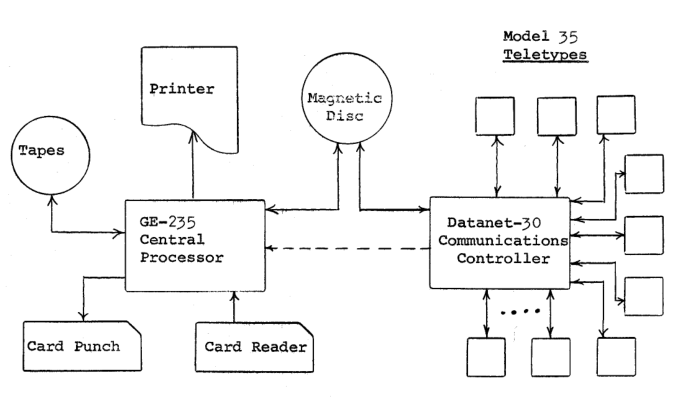
Architecture diagram from "DTSS: A Brief Description", Computation Center, Dartmouth College, 1964. Source: bitsavers.
User interface
The user interface was much like we saw in the emulator quick tourm
with the addition of a HELLO command for the user to identify
themselves via a numeric ID; there were no passwords.
The user can either be editing their program - indicated by a typing a
number at the start of a line - or submitting commands such as LIST
or RUN. The commands are not tied to BASIC, so you could use them if
programming in ALGOL, for example.
The DATANET-30
The DATANET-30 was intended by GE to be a smart communication controller, capable of handling several terminal lines, buffering data and sending messages. It had 18-bit words and was relatively fast. It was interrupt driven and had a stored program facility which Dartmouth used to create an operating system. This was divided into real-time and spare-time tasks.
The real-time part was driven by an interrupt running 110 times per second. It would scan the lines for activity and store them in buffers. For commands, it would set up a job entry and store it in the spare-time queue.
The spare-time part ran every second and would examine its queue.
Programs being developed would be sent to the disk. Command such as
RUN would cause the DN-30 to send a message to the GE-235 to do the
actual work of compiling and running the program.
The disk drive stored up to 16 million words of data and was connected to both the DN-30 and the GE-235.
The GE-235
The GE-235 was more powerful than the DN-30 for integer and floating point arithmetic. It had up to 16,000 words of core memory, each word having 20 data and 1 check bit.
During time-sharing, its operation was controlled by the DN-30. It held the compilers and execution services in memory. When it receives a message from the DN-30, it read the user program from the disk and starts compiling and executing it - so user programs were compiled every time they were run rather than saving object files. At run-time user programs had access to 6,000 words of memory.
As far as I can tell from the documentation, only one user program could be in memory at any time: the DN-30 could tell the GE-235 to write the contents of memory to disk in order to process another user program. The 1964 documentation states that the system was good at running a number of short jobs this way, but there could be waits of 5-10s for jobs to be executed. However, longer running jobs were not really suitable for this system.
Peripherals such as tapes and card readers were not used during time-sharing, but were used for system development purposes, presumably in a batch execution mode.
Further information
From bitsavers:
- The 1964 DTSS System Description from Dartmouth.
- The DATANET-30 and GE-225 programmer's reference manuals from GE.
- A book from 1980 covers later versions of the operating system.
Questions, corrections, comments
I welcome any questions or comments, and also especially any corrections if I have got something wrong. Please email me at rupert@timereshared.com and I will add it here and update the main text.
Sun, 22 Jun 2025 09:31:00 +0900
Dartmouth Time-sharing System: A quick tour using DTSS.EXE
In this post we'll look at how to get the Dartmouth Time-sharing System emulator DTSS up and running. As mentioned in the previous post, this is fairly limited in what it can do, but gives a flavour of what a user of the system in around 1964 would see.
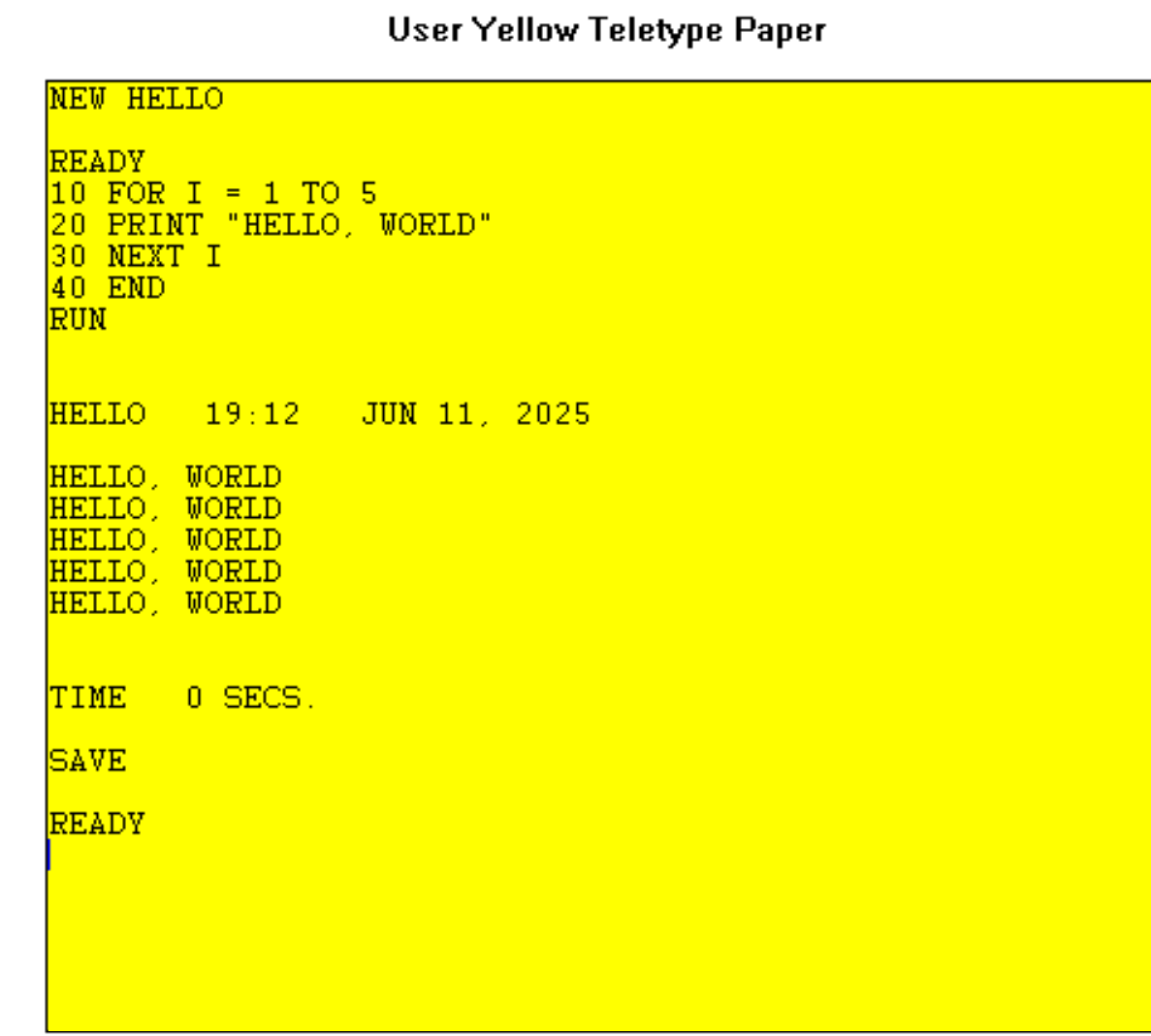
Running DTSS.EXE. Source: Rupert Lane. License: CC0.
Set up
Download the Windows zip file from the dtss.dartmouth.edu site and
unpack it to a directory. Then just run the DTSS.EXE program to
start; on non-Windows devices with Wine installed, run wine DTSS.EXE
instead.
There are no user configurable options to adjust the simulator or interface.
Input should all be in upper case. Note that copy/paste does not work, usually bringing up an error message that ends the emulator. But there is a way to get programs in and out of the system - see below.
Entering a simple BASIC program
Type NEW HELLO to start a new program called HELLO. Then type the
program lines including the starting line number.
10 FOR I = 1 TO 5
20 PRINT "HELLO, WORLD"
30 NEXT I
40 ENDYou can edit the program by retyping any lines. To delete a line, just type the line number and press Enter.
Type RUN to start the program and LIST to get a listing.
To save the program to disk, type SAVE.
You can then exit the emulator by typing BYE or just closing the
window. When you come back, load your old program by typing OLD
HELLO.
Program libraries
There are two libraries, a personal one and a system one. Type CAT to
see your library: you will see your HELLO program along with a
number of other demo programs.
To see what is in the system library, type OLD LIBCAT*** then
LIST. To load one of these programs, for example FTBALL, type
OLD FTBALL*** (note the *** at the end to denote a system
program.
100 BASIC PROGRAMS 110 120 AVELOG*** AVERAGE OF 100 LOGARITHMS 130 FTBALL*** DARTMOUTH FOOTBALL 140 GUESS*** GUESS A NUMBER FROM 1 TO 100 150 GCD*** GREATEST COMMON DIVISOR (GCD) 160 GCD3NO*** GCD OF THREE NUMBERS 170 MORT*** CALCULATES LIFE OF A MORTGAGE 180 NORMAL*** PLOT OF THE NORMAL CURVE 190 QUAD*** SOLVE A QUADRATIC EQUATION 200 PIE*** APPROXIMATE PIE
Getting data in and out
Programs are stored on the host file system as plain text files, with your
library in the same dierctory as the executable, and the system
library under LIB/. So to see the text of your HELLO program, look
for the file named HELLO without an extension.
You can view, edit and create new files outside of the emulator using this method. Remember to save files in DOS format, ie with CR/LF at the end of each line.
Other features
The SPEED command will adjust the speed of the emulator: SPEED 10
is approximately the speed of the original system.
You can switch from BASIC to ALGOL with SYSTEM ALGOL.
There is a computer aided learning system called TEACH available
also.
Further information
The DTSS emulator zip file contains three useful documents.
- Commands.pdf
- A BASIC Outline.pdf
- An Algol Outline.pdf
A 1964 introduction to the system and BASIC can be found on bitsavers.
We'll look at BASIC and ALGOL in more detail in upcoming posts.
Questions, corrections, comments
I welcome any questions or comments, and also especially any corrections if I have got something wrong. Please email me at rupert@timereshared.com and I will add it here and update the main text.
Sun, 15 Jun 2025 08:48:00 +0900
Dartmouth Time-sharing System
DTSS, the Dartmouth Time-sharing System, was developed at the eponymous New England college in 1963/4. Running on a pair of GE computers, it achieved campus-wide access to computing and was the origin of the BASIC language.
Captures from "Educating the Computer", a 1969 video by GE. Source: Youtube.
Dartmouth had experimented with several smaller computers from the late 1950s but wanted to extend this to all students and faculty. This had two immediate issues - batch processing was not viable for a large number of inexperienced users, and existing high level languages like Fortran or Algol were too complex.
Professors John Kemeny and Thomas Kurtz decided to solve the first problem by building a time-sharing system (famously after Kurtz had talked to John McCarthy at MIT, who suggested "why don't you guys do time-sharing?"). They got funds from the NSF and evaluated several computers, eventually settling on a large GE-225 computer together with a GE DATANET-30 communication controller. Their plan was to build a real time user facing operating system on the D-30 that would talk to user teletype terminals, and would then send work to the GE-225 for compilation and execution. Disks drives were shared between both computers. This combination of systems looked to the end user like a single time-sharing system.
To solve the language issue, they invented the BASIC programming language specifically for people new to programming: with a small number of keywords it was ideal for developing programs of 10-100 lines. Over time, the system would also run other languages but BASIC was the most popular.
All the software for both computers had to be written in house - they enlisted several undergraduates to help, writing code on paper before the machine arrived. The system went into service for the fall term of 1964. The GE-225 was soon replaced with a more powerful GE-235.
It met their goals, with the system being able to serve tens and later hundreds of users at the same time. Terminals were installed throughout the college and the surrounding area, including many high schools. A library of programs developed by people in different faculties was built up, including many games.
A second version of DTSS came along in 1969 that extended its capacity and added more features; copies were was installed at at least 10 external sites, and became the basis of several commercial time-sharing services. BASIC went on to be used on many mini- and micro-computer systems, and still has users today in products like Visual BASIC.
The Wikipedia article and its references are a good way to find out more on the history of DTSS.
Preservation status
There are code listings for the GE-235 and D-30 executives along with BASIC and ALGOL compilers from about 1965 available on dtss.dartmouth.edu, but sadly later versions of DTSS or the libraries of user code have not been found.
Bitsavers has manuals from Dartmouth for DTSS/BASIC/ALGOL and from Honeywell for the hardware.
Lars Brinkhoff has collected known DTSS material, including all the above, at Github.
Emulation status
A group of people from Dartmouth, including Thomas Kurtz, came together in the early 2000s to scan the listings, create an assembler and build a simulator (written in True BASIC). This only simulates the GE-235 part of the system, so is not multi-user, but can run BASIC and ALGOL code. Only 32 bit Windows and classic Mac binaries are available, however the former runs fine under Wine.
There was also a web based emulator of the GE-235 and D-30 running similar era code but including the multi-user executive. Although the website is still online, as of 2025 logins no longer works and I have not been able to find a contact address for the owners.
We will use the Windows emulator dtss.exe to explore DTSS further.
June 2026: The Interim Computer Museum has created a new DTSS emulator. This does not emulate the GE computers that made up the system, rather it simulates the "in the seat" experience of someone connecting to it via teletype.
It emulates the same 1964 era system that the above emulator does, including BASIC and Algol and a catalogue of stored programs. However. instead of being an old Windows/Mac binary it is available over the Internet, so it should be more accessible.
You can see the ICM's blog post about the system here and access the
simulator either through their web portal or via the command ssh
menu@sdf.org .
Topics covered
Questions, corrections, comments
June 2025: correct name for Dartmouth College, clarified use of GE-225 vs 235.
June 2026: added ICM emulator.
I welcome any questions or comments, and also especially any corrections if I have got something wrong. Please email me at rupert@timereshared.com and I will add it here and update the main text.
Sun, 01 Jun 2025 08:39:00 +0900
Site Update
That concludes the series of articles on CTSS, at least for now. I will next be looking at the Dartmouth Time-sharing System - expect posts later in June.
Sun, 25 May 2025 08:20:00 +0900
CTSS: The QED editor
The QED editor has a long history. It was originally created for the Berkeley Timesharing System running on the SDD 930/940 machine in 1965-6. Ken Thompson, who was part of the Bell Labs contingent working on Multics, re-implemented it for CTSS in around 3500 lines of FAP assembly code some time in 1969; he also produced a version for Multics using BCPL. While working on Unix, the ideas from QED inspired tools such as ed and sed.
Other authors produced implementations of QED for other time-sharing systems, and you can even find versions for Unix you can run on current systems.
A session using QED to move text to a new file.. Source: Rupert Lane. License: CC0.
Setup
Note that QED only supports 6- and 12-bit line-marked files and ASCII
files, not card image files. If your file is in card image format,
convert it using SQUASH first.
An editing session
QED has the concept of multiple buffers rather than working on a
single file at a time. In the below I start QED and read in TPK MAD
to the default buffer using the r command with the s option to
mean 6-bit line-marked.
qed W 1755.3 QED rs tpk mad
x will list the buffers in use: here we have the default buffer 0
with 23 lines:
x "0" 0023
The p command prints lines from the buffer. Like many commands, it
takes an optional range as its first argument. Without a range it
defaults to . which is the current line, but I can specify line
numbers or ranges of lines:
p
END OF PROGRAM
10 p
DIMENSION NUM(11)
3,5 p
INTERNAL FUNCTION(X)
ENTRY TO F.
FUNCTION RETURN SQRT.(.ABS.X) + 5 * X.P.3
1,$ p would print all lines of the file.
Range arguments can also be regular expressions quoted by /
/th.* input/,/read/ p
THROUGH INPUT,FOR J=0,1,J.GE.N
INPUT READ FORMAT FMT,NUM(J)
Had we used the d command instead of p, it would delete those
three lines.
The global command
As well as using regular expressions in ranges, we can use them as an
argument to the global command g. As an example, to find all lines
that match the string 11
gp/11/
N = 11
DIMENSION NUM(11)
PRINT COMMENT $PLEASE ENTER 11 NUMBERS$
Here, the range is not specified before the command, so it is
implicitly the whole file. The g command takes two parameters: the
command to execute (p) and the regexp to max (/11/).
Search and replace
The s command takes two regexps as parameters for the text to find
and the text to replace. So if I wanted to change all 11s to 15s I
could do:
1,$ s/11/15/
The range, 1,$ needs to be supplied as otherwise this command will
only operate on the current line.
Inserting text
Position yourself on the line after you want the new text to go and
then use the i command. Terminate this with the escape character
followed by f, ie \f
/other/
OTHERWISE
i
PRINT COMMENT $TRY AGAIN$
\f
a will append text directly to the end of the buffer.
Moving text
Let's say we want to move the internal function to an separate file,
and make it an external function. We can use the m command with a
range to determine what lines to move. Here this will move the text to
buffer 1:
/internal func/,/end of func/ m1
We can use b to switch to the other buffer and look at it. We also
change INTERNAL to EXTERNAL.
b1
1,$p
INTERNAL FUNCTION(X)
ENTRY TO F.
FUNCTION RETURN SQRT.(.ABS.X) + 5 * X.P.3
END OF FUNCTION
/internal/
INTERNAL FUNCTION(X)
s/int/ext/
p
EXTERNAL FUNCTION(X)
Let's save it as func mad.
ws func mad
We then return to buffer 0 and confirm that it has gone by seeing the
?1 error message when searching for sqrt.
b0 /sqrt/ ?1
Save the main file.
ws tpk mad
Execute system commands
QED can execute commands stored in a buffer and then return to the editor. Let's set up some compile/load commands in buffer 2:
b2 i mad tpk \f
Return to buffer 0 and execute it.
b0 e2 LENGTH 00152. TV SIZE 00006. ENTRY 00040
Other QED commands
fwill replace the contents of the current buffer with information such as date, time, login details etc.kwill sort a rangelwill list a file to the consoleu- the audit command - will create a buffer showing the effect of all edits done since the last read.
Further information
QED is described more fully in the CTSS Programmer's Guide section AH.3.09 p353.
Source code for QED on a number of different systems is collected on Github at arnoldrobbins/qed-archive.
Questions, corrections, comments
I welcome any questions or comments, and also especially any corrections if I have got something wrong. Please email me at rupert@timereshared.com and I will add it here and update the main text if needed.
Sun, 11 May 2025 09:24:00 +0900
CTSS: Document production with TYPSET and RUNOFF
The concept of using computers to produce documents was first demonstrated before CTSS in 1960 with the Colossal Typewriter project on the PDP-1. Rather than typing directly to paper, you could store text and edit it in memory before printing to a typewriter or line printer. However, in single user mode, it was not a cost-efficient use of a computer, as alluded to by a similar PDP-1 project Expensive Typewriter.
On an interactive multi-user system it did make more sense, as the processing requirements for this is quite small. CTSS had an early system called DITTO/ROFF, and this was replaced by TYPSET/RUNOFF by Jerry Saltzer in around November 1964, which we'll look at today.
A version of the above produced with TYPSET/MEMO". Source: Rupert Lane. License: CC0.
TYPSET
TYPSET is an editor where you can add and change text, including
control codes to specify output formatting. This uses the same editor
commands as EDC and EDL (in fact, as described in an earlier
article, the design for these editors came from TYPSET; see that
article for how to use the editor).
TYPSET expects the name2 of a file to be (MEMO), so the command
TYPSET abc will create or edit a file ABC (MEMO). It uses 12-bit
line-marked files, so with a suitable typewriter you could enter lower
case and an extended range of symbols. If you are using a recent
version of s709/ctss-kit or my quickstart or eliza-ctss released after
22 May 2025 this will support it as well.
Control words
Control words always start with a . (dot) in column 1. There are
full and abbreviated forms, eg .center, which will center the next
line, can be abbreviated as .ce.
A full list of control words:
| Abbr | Command | Meaning |
|---|---|---|
| .ll | .line length n |
Set line length to n characters |
| .in | .indent n |
Set indent of each following line to be n characters |
| .un | .undent n |
Reduce indentation by n characters |
| .pl | .paper length n |
Set lines per page, default 66 |
| .ss | .single space | This is the default line spacing |
| .ds | .double space | |
| .bp | .begin page | Start a new page |
| .ad | .adjust | Justify text by adding spaces (the default) |
| .nj | .nojust | Turns off the above |
| .fl | .fill | Justify JJ text by moving words to fill (the default) |
| .nf | .nofill | Turns off the above |
| .pa | .page (n) |
Turns on page number printing, optionally starting at n |
| .sp | .space (n) |
Inserts n blank lines. Default for n is 1. |
| .he | .header xxxx |
Sets page header to be xxxx |
| .br | .break | Prevents filling of text before and after this word |
| .ce | .center | Centers the following line |
| .li | .literal | Indicates the following line is not a control word |
| .hm | .heading mode P |
P can be CENTER, MARGIN, FACING, OPPOSED |
| .op | .odd page | Next page number will skip ahead to next odd number |
| .pm | .paging mode P |
Page mumbler mode, eg MARGIN, CENTER |
| .ap | .append A |
Include text from file A (MEMO) here |
Text styles
As the output for this system was a typewriter, there was obviously no
concept of bold, italics, different fonts, text size etc. One feature
the typewriter did have that we don't have today was backspacing. For
example, to get something like Ç you could enter C, then
backspace, then ,. The system will move the head back one character
on backspace so the two symbols print in the same space.
RUNOFF
The RUNOFF command takes the input memo file, interprets the control
words and prints the formatted output to the typewriter console. It
prompts the user LOAD PAPER, HIT RETURN so the paper can be changed
if needed.
As an example, the screenshot above was produced by this file:
.ll 80 .ds .header TIMERESHARED.COM .hm center .bp .center CTSS: Document production with TYPSET and RUNOFF The concept of using computers to produce documents was first demonstrated before CTSS in 1960 with the Colossal Typewriter project on the PDP-1. Rather than typing directly to paper, you could store text and edit it in memory before printing to a typewriter or line printer. However, in single user mode, it was not a cost-efficient use of a computer, as alluded to by a similar PDP-1 project Expensive Typewriter.
Further information
TYPSET/RUNOFF are described more fully in the CTSS Programmer's Guide section AH.9.01 p504; there's an OCR'd version at multicians.org.
These commands was the inspiration for similar text production systems on Multics and Unix. On a Unix system today you are likely to find troff which uses very similar control words.
Questions, corrections, comments
May 2025: Updated to point to the newer versions of the s709 emulator/ctss-kit for full support of lower case letters. Thanks to Dave Pitts for his continued work on this system.
I welcome any questions or comments, and also especially any corrections if I have got something wrong. Please email me at rupert@timereshared.com and I will add it here and update the main text.
Sun, 04 May 2025 09:36:00 +0900
CTSS: The "." shell, chat and email
Many people think that command line shells, electronic mail and chat
as something fairly modern. But CTSS had them all 60 years ago. In
this post we'll look at "." (or "dot"), the interactive shell
including a chat facility, along with the MAIL command.
A chat session on CTSS using "dot". Source: Rupert Lane. License: CC0.
"dot"
The CTSS supervisor contains basic functionality for users to enter commands. During the design of Multics, this concept was developed further to create the idea of a shell, a program intended for humans to enter commands and monitor what is going on. From the Multics design memo:
[…] unlike a calling program, a user is not assigned once and for all a predetermined set of instructions. One does not know what he plans to do next, and he will eventually overlook some yet highly recommendable checking, if the command does not warn him against any possible misunderstanding as to what has been performed.
This idea was brought back to CTSS by Tom Van Vleck and Noel Morris in 1965 with the creation of "dot".
Installation: "dot" is included on simh. On s709, you will need a
recent version of the CTSS kit to run this - either version 1.0.10 or
later from Dave Pitts' site or a version of my quickstart or
eliza-ctss released after 1 May 2025. Reinstall your system, then
start CTSS and login as user sysdev password system. Run the
runcom mkdot command. This will compile and install "dot" as a
system component.
To start it, just type . You will notice the prompt changes to an
abbreviated form of the R and W notifications. "dot" will reload
itself after you run a command, but in some cases, for example after
an error, it will be suspended, so type RSTAT to continue
.
W 1508.2
R
hello
W
MIT8C0: 2 USERS AT 05/03/25 1509.3, MAX = 30
R
xxx
W
'XXX' NOT FOUND.
TYPE RSTART TO IGNORE.
R .100+.150
rstart
W 1509.7
R
Multiple commands
With "dot" running, you can type more than one command per line,
separating them by commas with whitespace. For example to run hello
and listf:
hello , listf * mad
W
MIT8C0: 2 USERS AT 05/03/25 1451.4, MAX = 30
3 FILES 5 RECORDS
NAME1 NAME2 MOD NOREC USED
HELLO MAD 000 1
BOTTLE MAD 000 1 04/14/25
CQA1 MAD 000 3
R
You can run several commands on a given parameter, so rather than
typing MAD HELLO , LOADGO HELLO you can do:
( mad loadgo ) hello W LENGTH 00020. TV SIZE 00003. ENTRY 00011 EXECUTION. HELLO WORLD EXIT CALLED. PM MAY BE TAKEN. R .166+.050
You can also run one command on multiple parameters: rather than
typing MAD HELLO , MAD BOTTLE you can do:
mad ( hello bottle ) W LENGTH 00020. TV SIZE 00003. ENTRY 00011 LENGTH 00155. TV SIZE 00003. ENTRY 00070 R
Abbreviations
Commonly used commands can be abbreviated using DC. Existing
abbreviations can be listed with ABBREV COM. So for forgetful
Unix users who keep typing ls and cp you could do:
dc ls listf cp move
W
R
abbrev com
W
LS LISTF
CP MOVE
R
ls * mad
W
3 FILES 5 RECORDS
NAME1 NAME2 MOD NOREC USED
BOTTLE MAD 000 1 05/03/25
HELLO MAD 000 1
CQA1 MAD 000 3 04/14/25
R
Command line parameter can be defined with DP. Abbreviations are
stored across sessions in the file USER PROFIL.
There is also a handy built in abbreviation .x for (CFLx) so to
list files in common file directory #4 you now just need to type ls
.4 instead of LISTF (CFL4).
Several people are typing
"dot" also includes a typewriter-to-typewriter chat facility. Both
ends of the chat need to be running "dot". Say you are logged in as
guest and want to chat to sysdev who is user M!416 5. Use the
write m1416 5 command. On the other end, you will see the messages
and can respond immediately. See the image at the top of this post for
an example.
Either end can type Control-C to exit the chat session. The ALLOW
and FORBID commands control who can chat to whom.
Electronic mail
A separate facility from "dot" was the electronic mail command MAIL.
The design and history of this is covered by Tom Van Vleck (one of
MAIL's original authors) at multicians.org which is well worth a
read.
A quick demo of how it is used. Say I am logged on as SYSDEV and I
want to send an email to GUEST. I put my message in a file, here
HELLO TXT, and send it using MAIL.
p hello txt
W 1924.2
HELLO GUEST, WELCOME TO CTSS.
R .000+.033
mail hello txt m1416 guest
W 1925.1
R .016+.016
When GUEST logs in, they will see
YOU HAVE MAIL BOX
and they can view the message by printing the file.
p mail box
W 1926.8
FROM M1416 6 IN M1416 SYSDEV AT 04/27 1925.1
HELLO GUEST, WELCOME TO CTSS.
R .016+.033
The source code for the MAIL program is in com5/ in the CTSS kit.
As mentioned in the article, the program is simple (only 250 lines of
MAD code) and contains a hard coded list of users who can email * *,
ie all users:
INTERNAL FUNCTION(X,Y)
ENTRY TO USRCHK.
R
WHENEVER X.NE.$ M1416$ .OR. (Y.NE.$ 385$ .AND. Y
1 .NE. $ 4301$ .AND. Y .NE. $ 2962$ .AND. Y .NE.
2 $ 3845$)
3 , ERROR RETURNQuestions, corrections, comments
I welcome any questions or comments, and also especially any corrections if I have got something wrong. Please email me at rupert@timereshared.com
Sun, 27 Apr 2025 08:28:00 +0900
CTSS: Security
Did the concept of computer security exist before CTSS? In the world of batch processing, access to computer resources was done by submitting a deck of punched cards or a magnetic tape to the computer operations staff who would supervise its execution, so only physical access control was needed. There was also no concept of persistent, private data residing in the system - any such data would be physical, on paper or tape, to be held by the user or computer centre offline.
CTSS introduced the idea of multiple users accessing the system at the same time, so now there was the problem of how to prevent one program interfering with another. Access to the system was from outside the computer room, via typewriters wired to the computer or even remotely via modem, so there needed to be some way to control this. Finally, CTSS had a hard disk where files could be stored and control was needed over who could access them.
File access was covered in CTSS Files & Directories; in this post we will look at resource protection and login control.
Resource protection
In a multi-user system a programmer should no longer have direct access to all hardware resources; access needs to be mediated through the operating system.
As several programs can be loaded in core memory at any time, CTSS prevents direct access to memory that is not part of your program. For example, take this assembly language program.
CLA 0
TSX CHNCOM,4
CHNCOM TIA =HCHNCOM
END
The important line here is the first one: CLA addr will clear the
accumulator and load it with the contents of memory at address addr.
The remaining two lines will cause the program to exit by calling the
CHNCOM system routine.
Compiling and executing this program works fine. But if I change the address to 7000 it will give a protection error.
p test fap
W 954.3
CLA 7000
TSX CHNCOM,4
CHNCOM TIA =HCHNCOM
END
R .016+.016
fap test
W 954.3
LENGTH 4
R .016+.000
loadgo test
W 954.4
EXECUTION.
PROTECTION MODE VIOLATION AT 05360.
INS.=050000015530, RI.=000000000000, PI.=005364000000
R .000+.016
Internally this is handled by the supervisor setting two protection registers representing the upper and lower bounds of memory areas the program can reach, along with a relocation register to map logical to physical address.
There is also protection against trying to change these registers, or trying to access I/O devices directly.
Login control
Early versions of CTSS had a login command to identify which user
wanted to start a session: the user would provide their problem and
programmer number but no password was required. The CTSS Programmer's
Guide from 1963 states:
In the future an additional parameter may be required in order to afford greater security for the user. This will probably be in the form of a private code given separately; explicit instructions will be given by the
logincommand if necessary.
Passwords were probably added around May 1964 according to Time
Sharing System Notes #4. When the user entered the login command,
the computer would prompt for the password and turn off the
typewriter's print head so the user could enter it without it being
displayed. If it matched, the user was logged in.
Note the login command prints different error messages depending on
whether the user name or password was incorrect, which does mean it is
possible to determine whether a user name is valid.
login nouser
W 1025.2
Password
NOUSER NOT FOUND IN DIRECTORY
LOGIN COMMAND INCORRECT
READY.
login guest
W 1025.4
Password
PASSWORD NOT FOUND IN DIRECTORY
LOGIN COMMAND INCORRECT
READY.
User information is stored in the file UACCNT TIMACC in common files
#2. Passwords are stored in plain text. It is possible to view the
file using the emulated system; in the real system this likely would
have had file protection set so non-system users could not open it.
Here we can see that user guest's password is system.
comfil 2
W 1050.9
R .000+.000
p UACCNT TIMACC
W 1050.9
...
GUEST 5000001000000GUEST 000001000001000000SYSTEM
000000004000000000000360000360000360000360000360
...
Further control was provided by specifying a group of lines the user could login from, and giving each user a quota of time to access the system, divided into shifts (for example, shift 1 was Monday to Friday, 8am to 6pm).
Contents of these files were set by operations staff; it is not possible for the user to change their password online.
The structure of the user accounting files is described in the 1969 Programmer's Guide section AD.5.
Access control hacks
The IEEE put together The CTSS Fiftieth Anniversary Commemorative Overview which contains many interesting stories about CTSS. There is one entry by Allan Scherr who was about to lose access to system files and CPU quota, but wanted to find a way to keep running his program.
Late one Friday night, I submitted a request to print the password files and very early Saturday morning went to the file cabinet where printouts were placed and took the listing out of the M1416 folder. I could then continue my larceny of machine time.
As the passwords were in plain text, the printout of the file was all that was needed to get access to other accounts.
Denial of service
Another story in the IEEE overview recounted by Tom Van Vleck recounts
how Bill Mathews noticed an error where the password file had been
mixed up with the message of the day file so all users could see
passwords for other users when they logged in. Bill wanted to limit
the damage by crashing the machine: the way he did this was to enter
the debugger and issue the assembly instruction XEC *. XEC means
read the word at the given address and execute it; * means the
current address, so this is effectively an infinite loop.
We can recreate this on the emulated system (using FAP):
edc splat fap
W 1836.2
FILE SPLAT FAP NOT FOUND.
Input:
XEC *
END
Edit:
file
R .016+.016
fap splat
W 1836.4
LENGTH 1
R .016+.033
load splat
W 1836.9
R .000+.016
start
W 1836.9
EXECUTION.
Now the program (and all other user sessions) do not respond to further input and even the s709 emulator needs to be force killed to recover from this.
Questions, corrections, comments
I welcome any questions or comments, and also especially any corrections if I have got something wrong. Please email me at rupert@timereshared.com
Sun, 13 Apr 2025 09:36:00 +0900
CTSS: Assembly Language
I am not planning to go into too much detail on assembly language in this blog, but I will take a quick look at some of the features of the IBM 7x architecture that are different from what we are used to today, and the assembler available on CTSS.
Part of the assembly language listing of the SLIP library used in ELIZA. Source: Github jeffshrager/elizagen.org
The FAP assembler
The Fortran Assembly Program was used on batch operating systems to assemble FORTRAN compiler output and user assembly code. As mentioned in the article on early software, this was based on work one by individual 7x sites and eventually adopted by IBM as part of IBSYS and FMS. This code was ported to CTSS to run interactively and used for most of the low level operating system code.
Although the opcodes and operands are hardware specific, the format of code as shown above would be familiar to machine code programmers today, with labels on the left followed by instructions in column 8, and then optional comments.
To assemble name1 fap on CTSS, use the command FAP name1. It takes
the optional argument (LIST) if you want to produce a listing, and
(SYMB) to produce a symbol table for debugging.
The instruction set architecture
1s complement
The 7x uses 1s complement for quantities and arithmetic, so that the left most bit of a word is 0 for positive and 1 for negative. This has some interesting consequences such as there existing a +0 which is different from -0.
Word addressing
Access to memory is via words; there is no concept of byte or sub-word addressing.
Not many general purpose registers
There is really only the accumulator as a general purpose register. There is a multiplier/quotient register that is used when multiplying two words together where the extra space is needed. But most operations involve bringing data in from memory and applying it to the accumulator.
Index registers
Arrangement of fields in a sample instruction. Source: IBM 7094 Principle of Operations at bitsavers.org
To aid with constructs like looping, there are 3 index registers on the 7090 and 7 on the 7094. These are selected by means of a 3 bit tag field in many instructions (shown as T above): on the 7090 you can select multiple index registers at once, on the 7094 you can do multiple selection for index registers 1-3 or select any single register from 1-7 depending on the mode of the machine.
Index registers are effectively 15 bits wide, as 2¹⁵ = 32k is the maximum memory space.
The contents of the selected index register(s) are subtracted from the address specified rather than added. This leads to tables of values being naturally stored in descending order of memory location, for example Fortran II does this for arrays. It is however possible to get the contents of the index registers to be added by storing a 2s complement value in a index register.
Indirect addressing
Setting the Flag field (F in the above) indicates indirect addressing. The CPU goes to the address indicated in the instruction, loads the value there and then treats that as an address to load the final value from.
Calling convention
There is no stack register on this CPU, so a different method is needed for calling subroutines. For a single parameter/return you could use the accumulator, but for more than one the convention used was to place the parameters in the program's memory just after the call instruction, use index registers to access these from the subroutine and then jump back to a fixed location after the callee and parameters. (frobenius.com has a great example of how this works in detail.)
Supervisor calls are done by branching to a subroutine whose first
instruction is TIA and contains in the address field the BCD
formatted name of the system call. The machine will trap into an
exception where the supervisor can recognise it and take action.
Further information
All the below are on bitsavers. The IBM Principles of Operation describes the architecture and opcodes for the 7094. This should be read before the FAP manual on how to run the assembler. James Saxon's 1964 book Programming the IBM 7090 may be an easier way to learn assembly as it is structured as a series of lessons.
Questions, corrections, comments
I welcome any questions or comments, and also especially any corrections if I have got something wrong. Please email me at rupert@timereshared.com
Sun, 06 Apr 2025 09:18:00 +0900
CTSS: Lisp
Two of the oldest programming languages still in use today debuted on the IBM 7x series of computers in the late 1950s. Last time we looked at Fortran, today it's the turn of Lisp.
Lisp on CTSS
John McCarthy and colleagues developed the first version of Lisp at MIT. It originally targeted the IBM 704 and had its own batch operating system (called Overlord) and assembler. The first fully working version was called Lisp 1.5 and documented in the 1962 book LISP 1.5 Programmer's Manual. It was originally developed as an interpreter but a compiler, written in Lisp, was soon added.
At this point in history, the notation for list expressions was not
the universal S-expression we know today. The book uses M-expressions,
which has square brackets. There was also the 'doublet form' used to
enter expressions at the top level. For example, take this CONS
expression which takes as parameters the symbol A and the list (B
C) to form (A B C):
| Type | Expression |
|---|---|
| S-expression | (CONS (QUOTE A) (QUOTE (B C))) |
| M-expression | cons[A; (B C)] |
| Doublet form | CONS (A (B C)) |
Internally, Lisp stored two 15 bit cells in each 36 bit machine word,
with the left hand cell taking up the space used by the address
portion of the word when viewed as a IBM 7x machine code instruction,
and the right hand cell in the decrement portion. This led to the
primitive functions CAR and CDR used to access the address and
decrement portions; these functions are still used today despite the
link to the original hardware being long gone.
The version we have today derives from a port of this original code to CTSS in around 1965. Although the 1969 CTSS Programmer's Guide indicates that features specially for CTSS were added, such as a listen mode where commands could be typed interactively, the version we have seems to be an earlier one that does not have this.
The Lisp binary contains only definitions of fundamental functions
like CONS, CAR etc; higher level standard functions such as
REVERSE or even DEFINE were done in Lisp as an external library.
This library can be loaded into the interpreter and then core saved to
a new executable file, speeding up invocation of programs.
TPK in Lisp
Below is an implementation of the TPK algorithm in Lisp 1.5, taking into account the limitations mentioned above.
- Library functions, namely
DEFINE,APPEND,REVERSE,SQRTandABS, are implemented separately in a library; I tookDEFINE
from existing code and provided implementations for the others based on the Programmer's Manual.
- As there is no interactive input, the numbers acting as input to TPK
are hard coded into the function call.
DEFINE ((
(F (LAMBDA (X) (PLUS (SQRT (ABS X)) (TIMES 5 (EXPT X 3))))
)
(LIMIT-F (LAMBDA (X) (PROG (RESULT)
(SETQ RESULT (F (CAR X)))
(RETURN (COND
((GREATERP RESULT 400) (QUOTE TOO-LARGE))
(T RESULT)))))
)
(TPK (LAMBDA (NUMS)
(MAPLIST (REVERSE NUMS) (QUOTE LIMIT-F)))
)
))
TPK ((10 -1 1 2 3 4 4.3 4.305 4.303 4.302 4.301))
STOPThis uses doublet form to invoke functions and the indentation is what was commonly used at the time.
The code should be read from bottom to top.
TPK reverses the list and calls MAPLIST on this, which will call
LIMIT-F 11 times with lists formed by removing the first item in
turn, ie (10 -1 1 2 ...), (-1 1 2 ...) (1 2 ...) etc. MAPCAR
would be a better choice on more modern Lisps.
LIMIT-F uses a PROG and a local variable RESULT so the function
F is only called once per number. The COND checks the result and
returns the symbol TOO-LARGE if over 400, else the result.
Running TPK
The first step is to load the library file created for this project into the base Lisp interpreter, and save the resultant binary to a new excitable file.
lisp lib
W 1818.8
06978
VALUE
NIL
VALUE
DEFLIST
VALUE
DEFINE
VALUE
(APPEND REVERSE SQRT ABS)
R .016+.066
save mylisp
W 1818.9
R .000+.066
This can then be run against the solution.
r mylisp tpk W 1819.0 VALUE (F LIMIT-F TPK) VALUE ( 0.39988629E3 TOO-BIG TOO-BIG TOO-BIG 0.39960863E3 0.322E3 0.13673205E3 0.41414213E2 0.6E1 -0.4E1 TOO-BIG) R .016+.050
Full details on Github.
Further information
A great deal of information on the history of Lisp can be found at softwarepreservation.org.
Questions, corrections, comments
I welcome any questions or comments, and also especially any corrections if I have got something wrong. Please email me at rupert@timereshared.com
Sun, 30 Mar 2025 09:17:00 +0900
CTSS: Fortran II translator
Fortran became a very popular language for scientific computation on the IBM 7x series soon after its creation in 1957. Although it could run as a FMS batch job, it was not available for online users of CTSS - according to Tom Van Vleck 'IBM FORTRAN II would not run in CTSS foreground, because the FORTRAN compiler was a complex multi-pass monster.'
What was available was a translator from Fortran to MAD called
MADTRN. This would take a Fortran file as input (with name2 of
MADTRN), translate it to MAD and then compile it. The
CTSS Programmer's Guide does provide some warnings on its use,
however:
MADTRN does not always produce perfect results and, therefore, should not be used unless absolutely necessary. MADTRN assumes a working Fortran program and therefore MADTRN diagnostics are minimal.
In any case, let's try this out on CTSS by implementing the TPK algorithm.
Blank Fortran punched card. Source: IBM 7090/7094 Programming Systems: FORTRAN II Programming
TPK in Fortran II
This is based on Knuth's Fortran I version in the original paper. See the file on Github or the annotated version below.
The source format, as shown in the illustration above, is fixed, with
C in column 1 indicating a comment, line numbers in cols 1-85 and
code starting at column 7.
C TPK ALGORITH IN FORTRAN II
FTPKF(X)=SQRTF(ABSF(X))+5.0*X**3 ②
C MAIN PROGRAM
DIMENSION A(11)
N=11
PRINT 100
100 FORMAT(23HPLEASE ENTER 11 NUMBERS) ⑦
READ 101,A ⑧
101 FORMAT(F9.4)
PRINT 102
102 FORMAT(11HRESULTS ARE)
DO 3 J=1,N ⑫
RESULT=FTPKF(A(J))
IF (RESULT-400.0) 2,2,1 ⑭
1 PRINT 103
103 FORMAT(9HTOO LARGE)
GO TO 3
2 PRINT 101,RESULT
3 CONTINUE
STOP
END
The function to be called is on line ②, and is an example of a single
expression function. Note that functions have to end with the letter
F, including built in ones like SQRTF.
Variable types are indicated by the first letter: I - N means an
integer, otherwise it is floating point.
Strings can be printed, as shown on line ⑦, but need to be
incorporated in the format definition as the string length followed by
H.
Arrays can be read in by a single statement as shown on line ⑧.
However something odd is going on here - see the section "The case of
the reversed READ" below.
Line ⑫ introduces a loop. ⑭ is a 'computed if', with the test
expression being compared against zero and a branch taken to the
first, second or third label if the result is less than, equal to or
greater to the test. So here if RESULT is > 400 control will
transfer to label 1, otherwise to label 2. This is the only 'if'
syntax available in Fortran II.
Compiling the program
To compile, run MADTRN TPK, optionally with the (LIST) switch.
Noe that MADTRN will create TPK MAD as its output before compiling
it, so if you already have TPK MAD from the previous post in your
directory it will be overwritten.
As indicated by the warning in the manual, if there is a mistake it is
unlikely to be caught until the MAD program is compiled which means
you need to trace back from the translated source. The only MADTRN
diagnostic I could get was if I forgot the END statement:
****ERROR 20 *****NO END CARD ***** PROBABLE ERROR IN MADTRN FILE. MAD FILE CREATED,USE AT OWN RISK.
Otherwise, the compile and execution is straightforwards:
madtrn tpk (list)
W 1905.1
LENGTH 00205. TV SIZE 00006. ENTRY 00055
R .033+.066
loadgo tpk
W 1905.2
EXECUTION.
PLEASE ENTER 11 NUMBERS
...
The MAD output of the translator is reasonably clean so could be used as a starting point for further development.
The case of the reversed READ
Added May 2025.
As mentioned above, line ⑧ reads in an entire array. However, MADTRN
stores this array backwards, ie the first number input is stored in
A(11), the second in A(10) etc. Looking at the generated MAD code
we can see it does this by giving the array backwards:
READ FORMAT QQ0004,A(11)...A(1)As the array is already read in backwards, there is no need to further reverse it.
Why it does this, I do not know. I was able to get this code running
on a real Fortran II compiler on IBSYS, and the READ populated the
array from A(1) to A(11). Looking at the Fortran I and II specs
indicate that arrays are stored backwards in memory, due to the
decrement nature of IBM 7090 index registers, but this storage is
transparent to the user and the READ is done in natural, ie
incremental form. So is this a bug in MADTRN? If you have more
information, please let me know.
Further information
The IBM manual IBM 7090/7094 Programming Systems: FORTRAN II Programming is a short and readable guide to the language.
There's lots of information about early Fortran at softwarepreservation.org.
Questions, corrections, comments
I welcome any questions or comments, and also especially any corrections if I have got something wrong. Please email me at rupert@timereshared.com
Sun, 23 Mar 2025 08:11:00 +0900
CTSS: MAD language
MAD - the Michigan Algorithm Decoder - was a ALGOL inspired language
commonly used for scientific programming on the IBM 7x series of
computers. It was conceived by Bernard Galler and colleagues at the
University of Michigan in 1959. A version from around 1963 was ported
to CTSS, where it was used to write many of the system utilities such
as LISTF.
To demonstrate MAD and how to write programs in it on CTSS, I will show an implementation of the TPK algorithm.
What is the TPK algorithm?
See the repo project-tpk for more details, but basically this was developed by Donald Knuth and Luis Trabb Pardo for a paper about early (pre-1957) languages. It does the following
read 11 numbers to an array
for each x in in reverse order of the array
calculate √|x| + 5x³
print that number if ≤ 400, else print TOO BIG
which is not supposed to be a useful task, but demonstrates many typical language features like I/O, loops, arrays, functions and conditionals.
TPK in MAD
Here is the complete program.
R TPK ALGORITHM IN MAD ①
R FUNCTION F
INTERNAL FUNCTION(X) ③
ENTRY TO F.
FUNCTION RETURN SQRT.(.ABS.X) + 5 * X.P.3
END OF FUNCTION ⑥
R MAIN PROGRAM
INTEGER N,J ⑧
N = 11
DIMENSION NUM(11) ⑩
VECTOR VALUES FMT = $F9.4 *$ ⑪
PRINT COMMENT $PLEASE ENTER 11 NUMBERS$ ⑫
THROUGH INPUT,FOR J=0,1,J.GE.N ⑬
INPUT READ FORMAT FMT,NUM(J) ⑭
PRINT COMMENT $RESULTS ARE$
THROUGH CALC,FOR J=N-1,-1,J.L.0 ⑯
RESULT = F.(NUM(J))
WHENEVER RESULT.G.400 ⑱
PRINT COMMENT $TOO LARGE$
OTHERWISE
PRINT FORMAT FMT,RESULT
CALC END OF CONDITIONAL ㉒
END OF PROGRAM
Numbers in circles (like ①) are for reference below, not part of the program. You can download the machine readable file from github.
The layout is fixed, with
- columns 1-10 containing an optional line label
- column 11 contains
Rif the line should be treated as a comment (such as line ①), or a digit if it is a continuation line, blank otherwise - code is in columns 12-72
- columns 73-80 are optional sequence numbers, useful for punched cards
Lines ③-⑥ contain the function F. to do the calculation. Functions
can share code have multiple entry points indicated by ENTRY TO.
Functions are denoted by a dot on the end, eg F., SQRT., whereas
language operators have dots before and after, like .ABS. and .P.
(power).
The main program starts at ⑧ with some variable definitions. Default
type for undefined variables is floating point (can be overridden per
program file with eg NORMAL MODE IS INTEGER). ⑩ introduces an array
of floats called NUM.
⑪ defines and initialises an array of six-bit BCD characters; the $
indicates the character type. The contents of ⑪ is a
format specification, similar to a C scanf string, requesting
floating point.
⑬-⑭ is a loop, delimited by the label INPUT, to read in 11 floating
point numbers from the user.
⑯-㉒ is another loop to execute the function on each array item in
reverse order, with a conditional in ⑱-㉒ to display TOO LARGE or
the result of the function.
One other language feature not used here is the ability to abbreviate
keywords: instead of typing WHENEVER you can use W'R, or E'M
instead of END OF PROGRAM.
Compiling and running
See the guides on how to upload or edit files to enter the program into the system.
MAD TPK will compile this file and create an object file TPK BSS.
The compiler has two optional arguments
(LIST)to produce a full listing file inTPK BCD(SYMB)to include symbols in the object file for debugging.
mad tpk (list) W 1831.4 LENGTH 00211. TV SIZE 00007. ENTRY 00040 R .016+.016
Run the program directly with LOADGO TPK, or save it to an
executable file that can be used later, and run it via
LOAD TPK
SAVE TPK
R TPK
(see this previous post on how loading works on CTSS.)
When running the program, you need to include a decimal point in each
item to indicate its type, so you'd enter 1 as 1.. An example run:
loadgo tpk W 1831.7 EXECUTION. PLEASE ENTER 11 NUMBERS 10. -1. 1. 2. 3. 4. 4.3 4.305 4.303 4.302 4.301 RESULTS ARE 399.8863 TOO LARGE TOO LARGE TOO LARGE 399.6086 322.0000 136.7320 41.4142 6.0000 -4.0000 TOO LARGE EXIT CALLED. PM MAY BE TAKEN. R .150+.016
See github for the compile/run transcript, and the full listing.
Further reading
I have not been able to find the language reference for this particular version of MAD, but this manual from the University of Illinois on bitsavers is close. Also there is Bernard Galler's introduction to programming using MAD, The Language of Computers.
CTSS project director Fernando Corbato wrote an abbreviated guide to MAD in MIT Computer Center Memo 213, but the print quality is not great so this is hard to read.
ELIZA is a good example of a larger program written in a mix of MAD and assembly language.
I have written about GOM (Good Old MAD), a later version of MAD for MTS on the System/370 over at try-mts.com.
Questions, corrections, comments
I welcome any questions or comments, and also especially any corrections if I have got something wrong. Please email me at rupert@timereshared.com
Sun, 16 Mar 2025 09:07:00 +0900
CTSS: Programming
Today we'll look at languages and other programming facilities on CTSS. Page numbers listed below are from the CTSS Programmer's Guide,
As in the previous section on CTSS commands, in some cases a command
is described in the guide but is not available on the emulated
systems, which is shown using strike through. This is because the
CTSS we have today was reconstructed from a listing tape which does
not include every command that was present then.
Languages
| Command | Meaning | Guide |
|---|---|---|
FAP |
IBM 7094 Assembler | p306 |
MAD |
Michigan Algorithm Decoder | p315 |
MADTRN |
Fortran II to MAD translator | p318 |
LISP |
List Processing Language | p314 |
AED |
ALGOL Extended for Design | p293 |
BEFAP |
Bell Laboratories' 7094 Assembler | p294 |
COGO-90 |
Coordinate Geometry Language | p295 |
COMIT |
String Processing Language | p296 |
DYNAMO |
Model Simulation Language | p303 |
GPSS |
General Purpose System Simulator | p313 |
SNOBOL |
String Manipulation Language | p319 |
OPS |
Online Programming System | p320 |
TIP |
Technical Information Program | p321 |
FOR4 |
Fortran IV to MAD Translator | p322 |
FORMAC |
Desk Calculator | p324 |
The languages CTSS was developed in (FAP assembly and MAD) are available, along with a translator from FORTRAN to MAD and an early LISP implementation.
The other languages are not available. I speculate that these were not maintained by the Computation Center hence were not on the listing tape used to reconstruct CTSS. The IEEE 50th anniversary retrospective document has a section on the origin and importance of some of these languages.
Loading, saving and starting programs
| Command | Meaning | Guide |
|---|---|---|
LOAD |
Load a program into memory | p422 |
L |
Load a program into memory, providing more table space | p422 |
LOADGO |
Load a program into memory and start it | p422 |
VLOAD |
Load a program into memory, remove the loader | p422 |
NCLOAD |
Load a program into memory, remove the loader and commons | p422 |
LDABS |
Load a program into memory without relocation, | p428 |
USE |
Supply missing modules when loading a program | p422 |
SAVE |
Save a dormant program | p341 |
MYSAVE |
Save a dormant program and the state of its files | p341 |
START |
Start a program in memory | p430 |
RSTART |
Restart a chain of programs in memory | p430 |
RESTOR |
Loads a program into memory from disk | p430 |
RECALL |
As RESTOR, but also restores old command line args |
p430 |
RESUME |
Loads and runs a program. Can be abbreviated to R |
p430 |
CONTIN |
Load and continue a saved chain of programs | p430 |
DO |
Execute a saved program from common files | p440 |
LAED |
Loader for the AED language |
p432 |
PLOAD |
Simulate the loading process | p441 |
BLIP |
Show a message every few seconds of program execution | p442 |
RUN |
Used by TIP to execute programs |
p443 |
The paradigm for creating user programs and running them is different
from modern operating systems. As an example, on Unix if you have a
main program main.c and two modules a.c and b.c you might
compile them to a binary foo as follows:
cc -c a.c
cc -c b.c
cc -o foo main.c a.o b.o
The first two commands make object files a.o and b.o. The last
command compiles main.c and then invokes the linker to bind together
the three modules into an executable file called foo.
Now let's say we are on CTSS and programming in MAD instead of C, so
now we have three files A MAD, B MAD, and MAIN MAD. First we
compile each of the components:
MAD A
MAD B
MAD MAIN
Now we have object files called A BSS, B BSS, MAIN BSS.
Instead of linking them to a disk file, we load them into memory:
LOAD MAIN A B
At this point you can start the program immediately - without ever creating an executable file - with
START
The LOADGO command is basically a LOAD followed by a START.
Instead of starting, we could save the memory image to a SAVED file:
LOAD MAIN A B
SAVE FOO
This creates a file called FOO SAVED. It can then be loaded and
started with RESUME, or simply with R:
R FOO
SAVE can be run at any time for a user program. Say you have a
program that on start up reads a configuration file, parses it and
then enters a loop where it prompts for a command and prints a
response. (For example, ELIZA!) If you pressed the interrupt key
after the config file was loaded and then ran SAVE, the file it
creates would allow you to restart the program at the same point, ie
within the prompt-response loop rather than right at the beginning.
Similarly, if you have a job which does a lot of calculation, you could
interrupt it, save the current state, log off, and come back later and
restart it at the saved point.
These are the load/save commands you will use the most often; the
others in the table are useful in specific scenarios. For example, L
allows more object files to be loaded at the expense of space
available for the program.
Library management
| Command | Meaning | Guide |
|---|---|---|
EXTBSS |
Extract a BSS file from a COMBIN-ed library |
p411 |
UPDBSS |
Update a BSS file in a COMBIN-ed library |
p411 |
Libraries of object (BSS) files are created on CTSS by using COMBIN.
For example, to create library MYLIB BSS from two objects A BSS and
B BSS:
COMBIN * MYLIB BSS A B
(the * means don't change the line numbers in the object file).
Once created, these libraries can be manipulated with the above commands.
Using our example from the previous section, instead of loading each object file:
LOAD MAIN A B
with a library file we can now use the (LIBE) option:
LOAD MAIN (LIBE) MYLIB
Debugging
| Command | Meaning | Guide |
|---|---|---|
FAPDBG |
Symbolic debugger for assembly language programs | p449 |
MADBUG |
Symbolic debugger for MAD language programs | p459 |
DEBUG |
CTSS symbolic debugger | p486 |
PM |
Print post mortem information about a program | p473 |
STOPAT |
Set a breakpoint | p479 |
PATCH |
Modify a program's memory image | p479 |
TRA |
Transfer when reaching a certain address | p479 |
SPATCH |
Absolute program patching | p477 |
STRACE |
Trace a running program | p480 |
SD |
Supervisor debug printing | p478 |
SP |
Supervisor debug patching | p478 |
STOMAP |
Print storage (memory) map | p503 |
The standard library
CTSS also had a comprehensive library of functions available to programmers, both from assembly and high level languages like MAD. These are documented in the CTSS Programmer's Guide section AG (p108 onwards) and cover
- Console I/O
- File I/O and status
- Tapes and pseudo tapes
- Error handling and program status
- Command and subsystem control
- Conversion (eg number to BCD string)
- Timers
"Pseudo tapes" here means when a program tries to access a tape - eg
via language constructs like MAD's READ BCD TAPE statement - it is
redirected to a disk file, as regular users would not have access to
physical tapes.
Questions, corrections, comments
I welcome any questions or comments, and also especially any corrections if I have got something wrong. Please email me at rupert@timereshared.com
Sun, 09 Mar 2025 09:17:00 +0900
CTSS: RUNCOM and FIB: scripting and background jobs
Another first for CTSS was the idea of collecting a sequence of
interactive commands into a script file that could be run as a single
unit, which helped simplify complex or repetitive tasks. The command
that does this is called RUNCOM, for Run Commands. This influenced
the Multics shell and the terminology carried over to Unix in file
names containing the letters rc, eg /etc/init.rc.
Associated with this is FIB, the Foreground Initiated "Background"
batch job scheduler, which allows you to execute RUNCOM jobs without
being logged in. Let's take a look at both. Note that FIB is different
from the ability to run FMS batch jobs, which existed before CTSS.
 FIB running a job submitted by GUEST.
Using RUNCOM
At its simplest, this is just a text file with name2 of RUNCOM
containing a list of commands to run in order. For example, if I am
editing, printing, compiling and running a program FOO I could write
the following to a file DEV RUNCOM
EDL FOO MAD P FOO MAD MAD FOO LOADGO FOO
and then type RUNCOM DEV to execute it.
By using parameters we can generalise this to work with other source
code files. Parameters are introduced with the CHAIN statement.
CHAIN PROG EDL PROG MAD P PROF MAD MAD PROG LOADGO PROG
and then executed by typing, for example RUNCOM DEV FOO.
We can generalise further to allow MAD and FAP code to be developed by noticing that the name2 and translator can be parameterised as one item:
CHAIN PROG TRANS EDL PROG TRANS P PROF TRANS TRANS PROG LOADGO PROG
and run as RUNCOM FOO MAD
Optional parameters can be introduced using (NIL). Say sometimes I
want to give options to the translator command, like (LIST). I can
change the runcom file to be:
CHAIN PROG TRANS OPT EDL PROG TRANS P PROF TRANS TRANS PROG OPT LOADGO PROG
and then invoke as RUNCOM FOO MAD (NIL) if I don't want any options,
or RUNCOM FOO MAD (LIST) if I want the compile command to be MAD
FOO (LIST).
(END) is a similar parameter which will end the line at that point
if detected.
Finally, a line starting with * in the runcom file will act as a
comment; a line starting with $ will be echoed to the console.
Using FIB
FIB allows you to submit a runcom file for later execution. It is
invoked as:
FIB NAME1 -LIMIT- -TIME- -DAY-
where NAME1 is the name1 of a runcom file, eg FOO for FOO
RUNCOM.
The next three parameters are optional. LIMIT sets a maximum CPU
time in minutes that the job can run for, with a default of 5. The
last two set a time and date before which the job cannot start.
Once you submit a job, you can cancel it with DELFIB or query it
with PRFIB. Only one job can be submitted at a time.
fib make
W 914.1
R .016+.016
prfib
W 914.3
JOBNAM LIMIT DATE TIME
MAKE 5 03/09 0914.1
R .016+.016
In addition to any time/date argument, the job will not run until you have logged out. Behind the scenes, the FIB job switches to your ID and executes the job, as can be seen from the screenshot of the console at the top of this post.
This is because CTSS only allows one task per ID to be running at a time. Had you tried to log in while the job was running, you would see a warning and if you continued the FIB job would be cancelled.
After the job has finished, you will see its console output in a file
called $$$FIB OUTPUT. This will be in 12-bit mode, so use P to
view the file.
Further details
See the CTSS Programmer's Guide p326 for RUNCOM and p287 for FIB.
Questions, corrections, comments
May 2025: Tom Van Vleck provided a correction for the name of FIB,
noted the difference between this and FMS batch jobs and the output
format for FIB jobs.
I welcome any questions or comments, and also especially any corrections if I have got something wrong. Please email me at rupert@timereshared.com and I will add it here and update the main text.
Sun, 02 Mar 2025 09:05:00 +0900
CTSS: ED and friends: online editors
Colossal Typewriter on the PDP-1 was earlier, but the CTSS text
editors were probably the first used for actual work. In this article
we'll look at how to do simple editing tasks using EDC and EDL on
CTSS.
 A sample session using EDL, changing two lines in a file.
Historical editors on CTSS
The first disk-based text editor on CTSS was invoked by either of the
commands INPUT and EDIT, the first creating a new file for
insertion and editing, and the second for editing an existing one.
These worked only on card image files and would automatically number
the sequence iDs for you. Actions were limited to entering text and
either replacing or deleting the contents of a card/line by referring
to its sequence number.
A more advanced, context aware editor called ED was introduced
later, based on concepts and commands introduced in the TYPSET text
processing system (which we will look at it a later post).
None of these editors are available on the CTSS we have today,
However, we do have two editors which were developed after ED with a
similar interface, EDC for card image files and EDL for line
marked files.
Invoking
There are different commands for card image (EDC) and line marked
(EDL) files and you need to select the correct one based on the file
you are editing. See Files and Directories for a discussion of the two
formats; if you are looking at an existing file and are not sure of
the format, try running P on it: if it shows sequence numbers, use
EDC.
Invoke the editor by giving the name of the file you want to work on,
eg EDL HELLO MAD. If the file does not exist, it will create it.
If you have interrupted a previous editing session you may see a
message like Old file (INPUT 5 --Do you wish to delete it?; it's
safe to reply yes.
Input and Edit mode
The editors have two modes, input where you can type lines and edit where you can give commands. New files being edited will start up in input mode, existing files in edit mode. Press Enter at the start of a new line to switch between the two.
Edit mode commands have a long form and an abbreviation which we will show in brackets in the discussion below.
Getting in and out
In edit mode, typing file (fl) will save the file and exit the editor.
Giving a parameter will save it under a new name.
The quit (q) command will exit without saving.
Example: creating a new file
Here's what this looks like when I edit a new file, add text and then save and exit:
edl try mad W 1847.7 FILE TRY MAD NOT FOUND. Input: PRINT COMMENT $HELLO FROM ED$ END OF PROGRAM Edit: file * R .016+.016
Note the blanks at the start of the PRINT and END program lines;
these were introduced by pressing Tab. ED knows the correct
indentation for the languages used on CTSS.
The blank line after END OF PROGRAM tells ED to go to Edit mode,
after which I give the file command to return to the command level.
Moving around
The editor maintains an internal pointer on which line it is on in the file.
The command top (t) and bottom (b) move to the start and end
of the file. next (n) will move one line down, or you can give it
a numeric parameter to move down a certain number of lines.
locate (l) takes a string as a parameter and finds the first line
starting at the pointer where the string matches. It will print the
line if found and move the pointer, otherwise it will print an error
message.
Printing text
Type print (p) to show the current line you are on. You can give
this a numeric argument to print more than one line.
A simple way to print the whole file is to move to the top with t
and then typing something like p 1000.
Changing text
Pressing Enter while in edit mode will switch you to input mode. Type lines of text, which will be inserted after the current line pointer, and then type Enter at the start of a new line to return to edit mode.
While in edit mode, use the command insert (i) followed by a line
of text (ie without pressing enter before the text) to insert a single
line and remain in edit mode.
retype (r) followed by a line of text will replace all of the
current line. delete (d) will delete it.
change (c) will replace parts of the line by matching text. An
example that will replace the word "from" with "to" on the current line.
c /from/to/
The / are delimiters and can be replaced with any character that is
not in the search or replace text.
change takes two parameters: number of lines and g. The first
specifies how many lines to search forwards and do replacements. The
second is a flag meaning global, if set it will replace all instances
of the from text on each line.
So to replace every instance of "before" to "after" in the whole file you could do:
c QbeforeQafterQ 1000 g
EDC and sequence numbers
EDC has special handling for card sequence numbers, which normally
occur in columns 76-80.
The ncols (nc) command determine how many columns are available for non
sequence number text, and is normally set to 72.
serial (sr) normally takes two parameters, m and n, indicating the
start sequence number and the increment. Normally these are both set
to 10, so you will get sequence numbers 00010, 00020 etc. serial off
will turn off sequence number generation; this can be restored with
serial on.
Note the EDC will automatically resequence the numbers in an
existing file unless you specify serial off before you start.
Command summary
| Command | Short | Meaning |
|---|---|---|
| bottom | b | Move to bottom of file |
| change | c | Change a line based on text |
| delete | d | Delete the current line |
| file | f | Save and exit |
| insert | i | Insert a line |
| locate | l | Find a line based on text |
| ncols | nc | (EDC) Set columns to use for text |
| next | n | Move down one or more lines |
| p | Print lines | |
| quit | q | Exit without saving |
| retype | r | Replace a line |
| serial | sr | (EDC) Set sequence numbering |
| tabset | ts | (EDC) Set tab stops |
| top | t | Move to top of file |
Further details
See the CTSS Programmer's Guide p333 for the common set of ED
commands and then p351 and p372 for adjustments made to EDL and
EDC respectively.
Questions, corrections, comments
I welcome any questions or comments, and also especially any corrections if I have got something wrong. Please email me at rupert@timereshared.com
Sun, 23 Feb 2025 09:06:00 +0900
CTSS: Getting data in and out
There are two approaches to getting data in and out of CTSS - one involves using the contemporary tools of the operating system, the other is to use facilities provided by the s709 emulator. We'll look at both, but first we need to understand what I/O meant when CTSS was originally running.
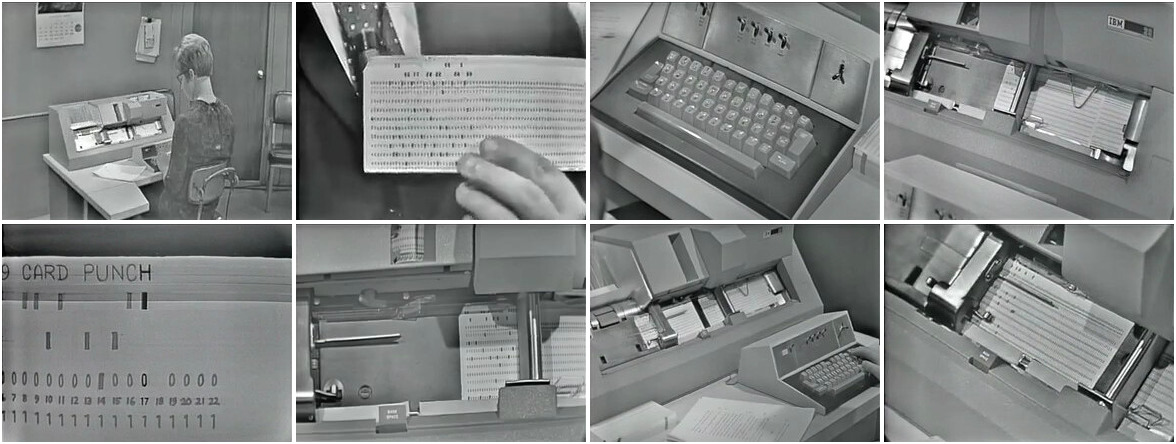 Using the IBM 029 Card Punch. Source: deepblue. Copyright: Board of Regents, University of Michigan.
Data interchange in the 1960s
At the time there were basically three media that could be used.
Printed paper - as typewriters were used as consoles, a printed record of what you were doing would be created automatically. But the print quality was not great, and it would also be slow to print a large file. So computer facilities like MIT offered ways to print on a faster and better quality printer.
Punched cards can be used for both input and output of programs and data. A user could punch a set of cards offline on a dedicated key punch (see image above), and get them loaded into the system. They could also get the computer to punch out cards and use the resulting deck as a backup or a way to transfer the data to another computer. At roughly a line of 80 characters per card, this only made sense with relatively small amounts of data; they were also slow to read.
Magnetic tapes was the choice for large amounts of data needed to be backed up or transferred elsewhere, but these were more expensive. Although operators and system programmers would use tape regularly, I believe end users would be less likely to use tape, at least at the time of CTSS.
(One further option was paper tape, but I believe this was used on smaller computers like the PDP-1.)
Mapping this to emulated systems
Card punches and magnetic tape drives are things you are very unlikely to have access to today - even printers are getting more scarce - so how does this work with an emulated system?
Put simply, it maps to files on your host system. Printer output goes to a single text file. Cards and tape map to binary files whose format is determined by the emulator, which provides tools to convert them to PC readable data at the cost of losing the original format.
Let's look at some ways we can use to do data interchange, starting with facilities provided by CTSS.
Printing and punching files via RQUEST
On the real 7094, printing and card punching was not done online due
to the CPU load it would place on the system. Instead, users could
request files to be printed and punched. Several times a day, the CTSS
operators would collect the files on to a tape and bring this to a
smaller system for printing and punching, and then distribute the
results to users. The command to initiate this on CTSS was RQUEST.
We can use this facility with the emulator as well.
- While online, type
RQUEST PRINT name1 name2to request printing of filename1 name2orRQUEST DPUNCH name1 name2to request punching. Wildcards are OK, so you could typeRQUEST PRINT * BCDto produce a print out of all compile listings. - Shut down CTSS
- Run
dskedtctsson your host - You will need to press Enter a few times and then `q` when done.
If you are running the ELIZA version of ctss-kit, all printer output
will be in output/sysprint.txt and each punched file will be a
separate file based on the original filename in output.
For the upstream version of ctss-kit, you will need to convert the
output tapes produced by dskedtctss as follows:
- Printouts: Run
bcd2txt -p sysprint.bcd sysprint.txt. - Punches: Run
punchctss syspunchid.bcd syspunch.bcd .
Downloading files via the emulator
We can use a utility provided by s709 called extractctss to get
files from inside CTSS to your host machine. Usage is:
extractctss file-type name1 name2 prob prog local-file
file-type should be t for card image files and l for listings.
Note that the CTSS system should be shut down when you do this.
A sample run to get the HELLO MAD source file from the guest user:
extractctss t hello mad m1416 guest hello.mad
This will produce hello.mad in your current directory.
extractctss can also download several files in batch mode; see the
ctss-kit README for more details
Should you use RQUEST or extractctss? I use both and think
RQUEST is useful when you are logged into CTSS, looking at files and
picking several to print or punch. extractctss is great for
automated downloading.
Uploading files via the emulator
You can also go the other way, uploading files from your host machine to CTSS. This is a two step process.
First, convert the file into a tape format readable by the upload
program using obj2img. Here's an example to prepare upload.mad to
become file UPLOAD MAD on the guest account:
obj2img -a " M1416GUEST " -f upload -e mad -t -o upload.img upload.mad
The -a flag determines the account to send it to; the problem number
(M1416) must be right justified into 6 characters, and the
programmer number (GUEST) must be left justified. Both must be in
capital letters.
The -f and -e flags determine the name1 and name2 of the file
on CTSS.
-t specifies card image format; obj2img can also do line marked,
binary files and other special formats. See obj2img -h for options.
Second, to get this image file loaded into CTSS, run setupctss as follows:
setupctss upload.img IBM 7094-CTSS Simulator 2.4.3 ATTACHING TO M1416 GUEST COPY TO TEXT FILE UPLOAD MAD DISK INITIALIZATION COMPLETE. CTSS IS FINISHED. YOU MAY NOW CLEAR CORE.
You can then remove the .img file.
Areas to explore
The Disk Editor on the real CTSS system also allowed you to upload files by giving the operators a card deck, but I don't believe this is supported on the s709 virtual system.
CTSS provided a number of tape handling commands so you could MOUNT
a tape and then associate files on there with entries in a UFD to it
can read/written. These commands are available, but are not fully
supported by s709 I believe.
Questions, corrections, comments
I welcome any questions or comments, and also especially any corrections if I have got something wrong. Please email me at rupert@timereshared.com
Sun, 16 Feb 2025 09:16:00 +0900
CTSS: Commands
In this post we'll run through what commands are available on CTSS. This is based on the The CTSS Programmer's Guide section AH, but is reordered here for simplicity. A page reference to the PDF is given for each command.
This does not cover programming languages, loading and debugging facilities; these will be covered in a later post.
In some cases a command is described in the guide but is not available
on the emulated systems, which is shown using strike through. This
is because the CTSS we have today was reconstructed from a listing
tape which does not include every command that was present then.
 The CTSS Programmer's Guide with its "candy stripe" cover.
Logging in/out
| Command | Meaning | Guide |
|---|---|---|
LOGIN |
Login to the system | p282 |
LOGOUT |
Log out | p286 |
TTPEEK |
Show quotas | p290 |
DIAL |
Attach a remote terminal | p291 |
HELLO |
Print system message | p292 |
SUBSYS |
Restrict interactive environment | p532 |
OPTION |
Set subsystem options | p538 |
WHO |
Prints who is online | p544 |
LOGIN is the only command available when you first connect to CTSS.
It is also treated as a user level command so you can use it to switch
accounts when logged in.
TTPEEK will show how much CPU time and disk space you have used. A
quota for this was established when a user ID was created.
DIAL allows a non logged in terminal to be associated with a logged
in session. Once associated it can be used by programs on the logged
in session to send and receive text, but cannot run commands directly.
However none of the existing commands on CTSS use this facility.
HELLO gives a simple system summary similar to what you see at
login.
SUBSYS and OPTION restrict what type of operations can be done. It
seems to be intended as a way for a login to be used to run a specific
interactive program rather than issue general commands. These are
selected by the user and can be changed so it is not a security
mechanism.
A sample of WHO output:
who
W 1815.0
MIT8C0 STARTED AT 1127.2 02/15.
2 USERS AT 1815.0 02/15.
LINE USER NAME GRP UNIT TUSED TIMEON
1 C0056 99995 FIBMON 0 (FIB) .0 1127.2 02/15
3 M1416 10 ELIZA 1 700000 .0 1815.0
R .016+.016
File management
| Command | Meaning | Guide |
|---|---|---|
CHMODE |
Change the permissions on a file | p406 |
DELETE |
Delete a file | p406 |
LINK |
Make a link to a file | p345 |
MOVE |
Copy a file within the same UFD | p370 |
PERMIT |
Grant access to another user | p345 |
RENAME |
Rename a file | p406 |
REVOKE |
Remove link access to a file | p345 |
UNLINK |
Remove a link to a file | p345 |
CALL |
System call wrapper | p415 |
These have been discussed in the post Files and directories.
The exception is CALL, which is a thin wrapper around several system
calls. For example to delete a file A MAD you could use CALL DELFIL
A MAD.
Show file contents
| Command | Meaning | Guide |
|---|---|---|
P |
Quickly print a file in an appropriate format | p400 |
PRINT |
Type a text file to the console | p393 |
PRBIN |
Dump a file in octal | p395 |
PRBSS |
Print details of a BSS file to the console | p397 |
SDUMP |
Print a summary of a SAVED file to the console | p398 |
PRINTA |
Print an ASCII file to the console | p399 |
PRINTF |
Print a card image file to the console | p392 |
P is a good choice to view any type of text file.
Editing
| Command | Meaning | Guide |
|---|---|---|
ED |
Older card image file editor | p333 |
EDC |
Card image file editor | p372 |
EDL |
Line marked file editor | p351 |
EDB |
Binary file editor | p352 |
EDA |
ASCII file editor | p369 |
QED |
Programmable editor | p353 |
These are all line-orientated editors. The ED family shares a very
similar command set, documented on the ED page. QED is a more
sophisticated editor allowing multiple buffers; it was created by Ken
Thompson of Unix fame. I go into more details in the articles on
EDC/EDL and QED.
File transformation
| Command | Meaning | Guide |
|---|---|---|
SQUASH |
Convert card image to line-marked | p379 |
XPAND |
Convert line-marked to card image | p379 |
CRUNCH |
Compress/uncompress BCD files | p377 |
SQZBSS |
Compress BSS files | p381 |
PADBSS |
Uncompress BSS files | p381 |
ARCHIV |
Archive several files into one | p374 |
APENDA |
Append to an archive | p383 |
AARCHV |
Version of ARCHIV for ASCII files |
p382 |
APND |
Append a file | p370 |
APEND |
Append several files | p420 |
COMBIN |
Combine several files | p402 |
SPLIT |
Split a file into several | p404 |
These exist to translate between text formats and to save space.
We looked at SQUASH and XPAND in the post Files and directories.
CRUNCH was used with the BEFAP assembler which is also not
available.
SQZBSS and PADBSS works on BSS object files by removing card
sequence numbers and compressing sequences of zero value words.
ARCHIV is reminiscent of Unix tar, bundling a number of files into
a single file so it takes up less space (both in terms of disk and
entries in the directory) and can be un-archived later. Its first
argument is a command like C for create and X for extract, also
implying that tar was modelled on this. The semantics were a bit
different as it generally worked on files with the same name2. For
example, if you wanted to archive files A MAD B MAD and C MAD
into an archive ARC MAD you would type archiv arc mad a b c.
APND is used as follows:
APND sub mad main mad
which will append a copy of SUB MAD to the end of MAIN MAD.
APEND is similar but takes multiple files as input and writes to the
first file as output, so to get SUB1 MAD and SUB2 MAD appended to
MAIN MAD you would do:
APEND main mad sub1 mad sub2 mad
COMBIN is useful for card image files as it can adjust the sequence
numbers of the combined file to make them contiguous. It is also used
to create a library from several BSS files.
Directory management
| Command | Meaning | Guide |
|---|---|---|
LISTF |
Print files in a directory | p384 |
ATTACH |
Change to another user's directory | p419 |
COMFIL |
Change to a common file directory | p408 |
COPY |
Copy a file from a common file directory | p409 |
UPDATE |
Copy a file to a common file directory | p409 |
We looked at these in the post Files and directories.
Command execution
| Command | Meaning | Guide |
|---|---|---|
RUNCOM |
Run a sequence of commands | p526 |
SAVFIL |
Save a runcom file execution status | p343 |
RERUN |
Restart from a SAVFIL file |
p343 |
FIB |
Submit a background job | p287 |
DELFIB |
Delete a background job | p287 |
PRFIB |
Print pending background jobs | p287 |
GENCOM |
Supply non printable args to a command | p531 |
ECHO |
Prints command before running it | p546 |
YES |
Like ECHO but prompts first |
p550 |
WAIT |
Like ECHO but sleeps first |
p551 |
TIME |
Like ECHO but prints time first |
p552 |
. |
Command interface | p328 |
WRITE |
Send chat messages | p328 |
RUNCOM will run a series of commands stored in a file.
The FIB commands allow you to queue a job to be run the next time
you are logged out.
Both of these will be discussed in a later post.
ECHO is like the Unix shell set -x in that it prints its arguments
and then executes them as a command.
Input/Output
| Command | Meaning | Guide |
|---|---|---|
RQUEST |
Request printing or punching | p412 |
RQASCI |
Request offline ASCII printing | p421 |
MOUNT |
Request a tape to be mounted | p348 |
UMOUNT |
Request a tape to be unmounted | p348 |
VERIFY |
Read the label on a tape | p348 |
LABEL |
Set the label on a tape | p348 |
TAPFIL |
Add a file to a tape | p348 |
We'll look at these in the next post.
Text processing and email
| Command | Meaning | Guide |
|---|---|---|
TYPSET |
Create a formatted text file | p504 |
RUNOFF |
Print a TYPSET file |
p504 |
ROFF |
Print an ASCII memo file | p523 |
PINFO |
Print information files | p525 |
MAIL |
Send a message to another user | p521 |
PINFO appears to be like the Unix man command, showing text files
about each command on the system. Both PINFO and its files are not
available on the CTSS we have.
Miscellaneous
None of these commands are available on the CTSS we have today. Most deal with typewriter control.
| Command | Meaning | Guide |
|---|---|---|
PRINTER |
Print error diagnostics | p542 |
PERROR |
Explains error codes | p553 |
SPACE |
Insert blank lines | p545 |
EJECT |
Eject a page | p545 |
PON |
Turn typewriter printer on | p548 |
POFF |
Turn typewriter printer off | p548 |
RED |
Change printer ribbon colour | p549 |
BLACK |
Change printer ribbon colour | p549 |
OCT |
Octal to decimal conversion | p547 |
DEC |
Decimal to octal conversion | p547 |
REMARK |
Send remarks to operators | p520 |
PRNTER appears to be used to debug issues communicating with a
typewriter.
REMARK allows a user to send comments to the operators: these are
appended to a public file and was then printed out once a day.
Questions, corrections, comments
May 2025: Tom Van Vleck pointed out a typo in the example of using
APND.
I welcome any questions or comments, and also especially any corrections if I have got something wrong. Please email me at rupert@timereshared.com and I will add it here and update the main text.
Sun, 09 Feb 2025 09:07:00 +0900
CTSS: Files and directories
CTSS was not the first system to have a hard disk - that may have been the IBM RAMAC in 1956 - but as a time-sharing system it pioneered using the disk for online, multi-user, persistent random-access storage for user files and programs, as opposed to using the disk as a fast tape drive or a slow secondary memory.
Looking at its features, we can see how it evolved to match what users wanted. For example, the original filing system only allowed one person to read a particular file (or a directory) at a time, so there was no easy way for a group of people to work together on a file without taking copies of it. Features like common file directories and links were added to support this.
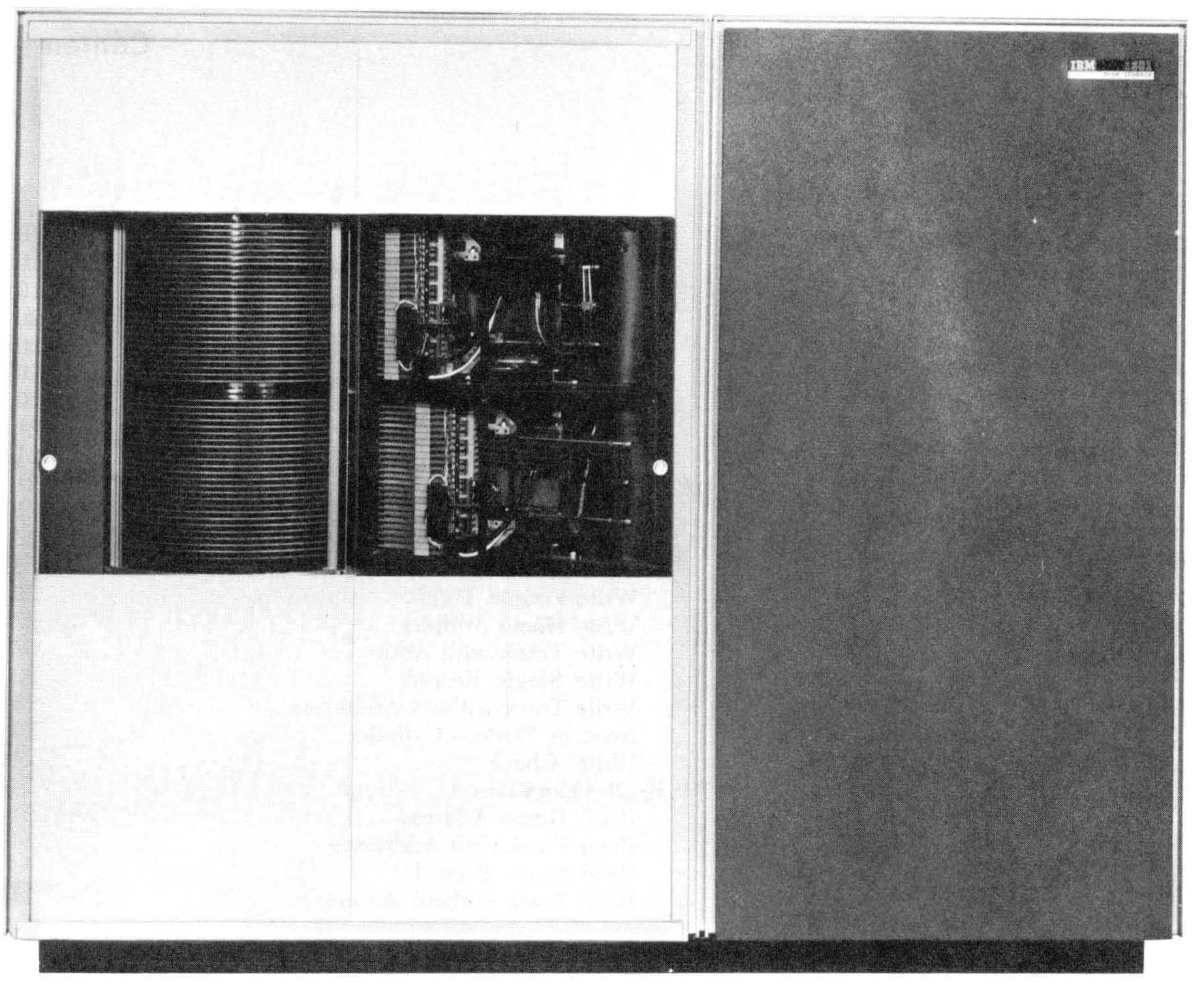
The IBM 1301 disk drive. Source: IBM manual
File names and types
As mentioned previously, each file name has two parts, with up to six characters for each part. (Six characters as a limit comes up a lot in CTSS, as 6 x 6 bit BCD characters would fit into a 36-bit machine word.) The two parts of the file name (called name1 and name2) are separated by a space when giving them to a command.
By convention, the second part of the name indicated the file type, eg
MAD for MAD source code or BSS for object files.
Metadata on the file directory included the record size and the number of records, so fixed record data files are supported.
Text files
Text files evolved over time. Initially card image or line-numbered files were used: these use 14 machine words (so 84 BCD characters) per line. This allows interchange with punched cards, with each card representing a line in the file. Especially at the start of CTSS, many users would have collections of cards for their programs and data, and would transfer from these to and from the disk. The line-numbered name refers to the convention for punched cards of having a sequence number in columns 73-80 so the order of cards could be recovered if you accidentally dropped the deck on the floor.
Although easy to access specific lines, the problem with this format is it is inefficient: a completely blank line would be represented by 14 words of space characters. Line-marked files offered a solution, where each line could have a variable length and the start of each line would have a marker and its length.
Later on - I think as a byproduct of doing Multics development on CTSS - ASCII format files were supported, with the familiar 8 bit encoding and variable line length. There was also support for 12-bit BCD files which packed 3 characters into a word and allowed lower case.
It is up to each program to decide what type of files it supports. The
MAD and FAP compilers accepted both card image and line-marked files,
but some other compilers only accepted one format. For editing files,
use EDC for card image and EDL for line-marked.
You can convert a card image file to a line-marked one with the
SQUASH command and go the other way with XPAND.
As an example, let's look at a two-line program stored as a card image
file HWC MAD and as a line-marked file HWL MAD. We use PRINT to
show how the two files look and PRBIN to show a binary dump.
Note that PRINT puts the line number at the start of the print out.
PRBIN will print in octal, with each two-digit number representing a
BCD character; for example, 60 is space and 00 is digit 0.
print hwc mad
W 1059.9
HWC MAD 01/11 1059.9
00010 PRINT COMMENT $HELLO, WORLD$
00020 END OF PROGRAM
R .016+.016
prbin hwc mad
W 1100.0
HWC MAD 01/11 1100.0
1 606060606060 606060606047 513145636023 464444254563 605330254343 467360664651
7 432453606060 606060606060 606060606060 606060606060 606060606060 606060606060
13 606060000000 010060606060 606060606060 606060606025 452460462660 475146275121
19 446060606060 606060606060 606060606060 606060606060 606060606060 606060606060
25 606060606060 606060606060 606060000000 020060606060
R .016+.016
print hwl mad
W 1101.7
HWL MAD 01/11 1101.7
PRINT COMMENT $HELLO, WORLD$
END OF PROGRAM
R .016+.016
prbin hwl mad
W 1101.8
HWL MAD 01/11 1101.8
1 777777000005 724751314563 602346444425 456360533025 434346736066 465143245357
7 777777000003 722545246046 266047514627 512144575757
R .000+.016
Directories and common files
Directories in CTSS are rooted in the single Master File Directory
(MFD) which contains pointers to several User File Directories
(UFD). Each user would have their own UFD named after their login
project number and name, eg M1416 GUEST. It is not possible to make
sub-directories under a UFD.
You can change to another user's directory with eg ATTACH M1416
ELIZA and return to your own directory with just ATTACH. But you
are only able to do this if the other user has given you access with
PERMIT.
Common files are UFDs intended for sharing. There are 5, numbered 1-5
and named CMFL01 to CMFL05. Although you could use ATTACH, the
simplest way to get to them is type COMFIL n where n is a number;
0 will return you to your own directory. On s709/ctss-kit, this is
how they are used
| COMFIL | Contents |
|---|---|
| 1 | Supervisor object code |
| 2 | System binaries and accounting files |
| 3 | Unused |
| 4 | System libraries |
| 5 | Unused |
You can also view other directories using LISTF without changing to
them by giving parameters. Foe example, the MAD compiler is stored as
MAD TSSDC. in common files 2. Here is two ways to see it.
listf (cfl2) MAD TSSDC.
W 1122.7
MAD TSSDC. 000 33 01/10/14
R .016+.033
comfil 2
W 1122.8
R .000+.000
listf MAD TSSDC.
W 1122.8
MAD TSSDC. 000 33 01/10/14
R .016+.000
COPY will allow you to take a copy of a file from common files to
your own UFD. Let's return home and grab that binary.
comfil 0
W 1123.9
R .016+.000
listf mad tssdc.
W 1124.1
NAMES NOT FOUND
MAD TSSDC.
R .016+.016
copy 2 mad tssdc.
W 1124.3
R .050+.016
listf mad tssdc.
W 1124.4
MAD TSSDC. 000 33 01/11/14
R .033+.016
UPDATE does the same in reverse, ie copies a file from your UFD to a
common file directory.
However there is no way in general to refer to a file in another
directory, so for example if you want to PRINT a file you would need
to change directory first rather than referring to a path to access
it.
File management
RENAME and DELETE work as expected. MOVE is used to copy a file
within the same UFD.
Links
CTSS also had a way to link a file name to another one. This is what we'd call a soft link today - there is a record pointing to a file name rather than multiple directory entries. This was often used to make files available to other users, for example having a common file entry point to the real file in a user's UFD. Links have a maximum depth of 2.
Permission to link must be granted via PERMIT, even to link to your
own files. So to make HELLO2 MAD point to HELLO MAD we could do:
permit hello mad 0 * *
W 1742.0
R .000+.016
link hello2 mad m1416 guest hello
W 1742.2
R .000+.016
listf
W 1742.3
10 FILES 14 RECORDS
NAME1 NAME2 MOD NOREC USED
PERMIT FILE 120 1 01/11/14
HELLO MAD 000 1
[...]
HELLO2 MAD 000 M1416 GUEST HELLO
R .016+.016
Note PERMIT saves permissions to PERMIT FILE rather than using
file metadata, and that the new link file is displayed at the end of
LISTF output in a special format.
UNLINK can be used to remove a link file.
Permissions
You can see the permissions field in the MOD column of the LISTF
output above. Like Unix there are three octal digits that can be
OR-ed together but the meaning is different
| Mode | Meaning |
|---|---|
--1 |
Temporary - file will be removed after next read |
--2 |
Secondary - file is being backed up and will be removed |
--4 |
Read-only |
-1- |
Write-only |
-2- |
Private - file can only be referenced by its owner |
1-- |
Protected - permissions can only be changed by its owner ted |
The effect of making a file both read- and write- only seems to be neither is permitted.
Permissions to delete a file come from whether it can be written to or not.
The command to change permissions is CHMODE which takes the file
names first and then the new mode at the end.
Further reading
The CTSS Programmer's Guide section AD discusses how the file system works, and sections AH.3 - 6 have further details on the commands mentioned in this post.
Questions, corrections, comments
I welcome any questions or comments, and also especially any corrections if I have got something wrong. Please email me at rupert@timereshared.com
Sun, 02 Feb 2025 09:03:00 +0900
The CTSS supervisor
The supervisor is at the heart of the CTSS system and operates similarly to what we'd call a kernel today. Let's look at each of its functions, comparing them to modern systems to get a feel of what is different.
Hardware
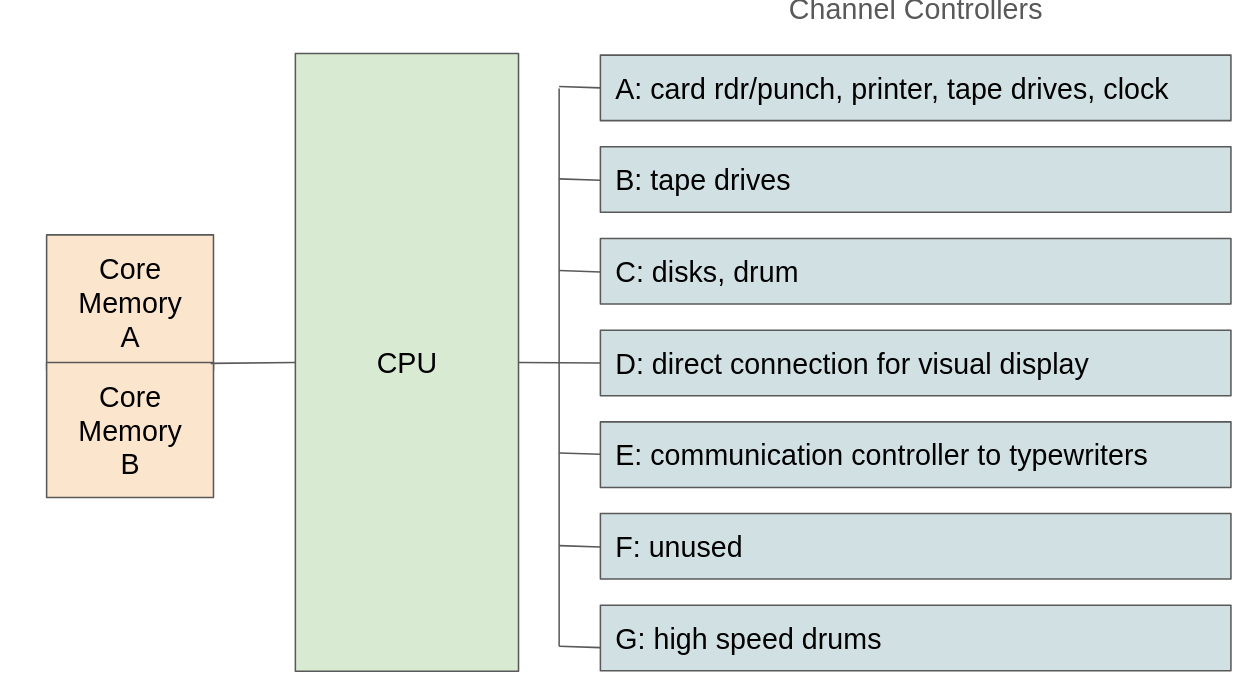 Diagram of CTSS hardware. Source: Rupert Lane. License: CC0.
The hardware controlled by CTSS changed over its lifespan. This is the setup that matches the CTSS source code used in the emulator. Most I/O work was done by channel controllers which offloads some of the work from the CPU. Each channel can have up to 10 devices connected to it. User programs cannot access components directly, they need to go through supervisor services.
Memory
There are two separate 32kW banks of memory, known as Core Memory A and B. Note each word is 36 bits, so that's the equivalent of around 147 kilobytes in each bank. As the 7094 can only address 32kW at a time, these are switched between as needed. The supervisor sits in Core A at all times. User programs are brought into Core B as requested by the user, and may be swapped out to drum or disk as CTSS schedules other tasks to run. The maximum memory available to a task is 32kW and there is no concept of virtual memory; however several smaller tasks can be in memory at the same time.
Tasks
A fixed maximum number of users can be logged in at any time (30 is the limit on the emulated system). Each user can only have one task active, so could not login twice simultaneously or create (fork) a new task while an existing one is running.
There is no equivalent to a shell as a separate user program. Logged
in users type in commands which are processed by the supervisor.
Commands and their parameters can each be up to 6 characters long.
Commands can be either system programs (eg LISTF) or user created
programs and are treated the same way: the supervisor will load the
program into core B and transfer to it. Once a task is completed,
control is returned to the supervisor.
Each task can be in a particular state, such as working, waiting for I/O etc. Two special states refer to the task after it is completed: dormant means the program has finished but is still in core so can be restarted or the machine state analysed. Dead means the program is out of core.
Scheduling
The scheduling algorithm for CTSS evolved over time as experience was gained using the system. As of the later system it had nine priority queues, ordered so that smaller or newer tasks would get a small amount of CPU time quickly, and longer running tasks would run less frequently but get more CPU time when it was being run.
It is also possible to run background tasks at a lower priority. This included jobs submitted by users from the online system (called FIB jobs) as well as non-time-sharing aware jobs, such as batch or standalone 7090 programs. This ability to run pre-CTSS jobs explains the 'Compatible' in the OS's name.
Protection
CTSS applies relocation to each task so it can be placed anywhere in memory without the task being aware of its physical position. The system also keeps track of what areas of memory the program is using, so any access outside of there leads to a protection violation and the program being terminated.
Further reading
The original paper by Fernando Corbato is available at the ACM. It describes an earlier version of the system we have today, but also includes information on why the system was developed.
The CTSS Programmer's Guide section AA gives more detail on the supervisor.
Bob Supnik's analysis of CTSS hardware was also useful in understanding how CTSS worked and is emulated.
Questions, corrections, comments
I welcome any questions or comments, and also especially any corrections if I have got something wrong. Please email me at rupert@timereshared.com
Sun, 26 Jan 2025 09:01:00 +0900
Early software on the IBM 7x
In the beginning, there was nothing. At the launch of the 701 in 1952, IBM would happily sell (or rent) you a computer, but it came with no operating system and no high-level compilers, as these did not exist yet. What you had was machine code and some early assemblers.
Indeed, IBM was not really in the business of selling software at all. IBM would facilitate meetings amongst its customers on ways to program its computers. Techniques to automatically assemble machine language programs were discussed, but each site would adapt these for its own use. Over time, through user groups such as SHARE, assemblers and subroutine libraries were distributed and improvements suggested. An example of some of these for the 704 can be seen at Richard Cornwell's page.
Using the computer without an operating system
How then was the computer used?
Sample hand written program for the 701. Source: IBM's early computers by Charles J Bashe.
According to George F. Ryckman, who worked with a 701 at General Motors Research Laboratories in the early 1950's:
Each user was allocated a minimum 15-minute slot, of which time he usually spent 10 minutes in setting up the equipment to do his computation. He mounted his own tapes and set up the card reader, card punch, and printer to carry out his computation. By the time he got his calculation going, he may have had only 5 minutes or less of actual computation completed-wasting two thirds of his time slot.
For the programmer, this was not a great experience as they had limited time to debug their programs. For the computer owners it was even worse, given the great expense of the machine, most of the time the CPU was sitting idle as programmers set up their program and tried to work out what was going on,
Early high level languages
The idea of a programming language operating at a higher level than assembly had been discussed since the 1940s, with one of the first fully working ones being Short Code for the UNIVAC. Assembly language programmers expressed scepticism: running a compiler would add to the time taken to produce the machine code, and how could code produced by a compiler compile to their own hand-optimised code?
Cover of the 704 Fortran manual. Source: IBM Manual at bitsavers.org
Fortran, developed between 1956 and 1957 by John Backus and a team at IBM, helped answer these questions. It had a syntax that allowed easy translation of mathematical formulae into code and was fairly quick to run. Scientists and researcher adopted it quickly, and it spread to many other contemporary computers.
A simple Fortran program to print Hello World 5 times:
C HELLO WORLD PROGRAM
DO 10 I=1,5
WRITE (6,20)
10 CONTINUE
STOP
20 FORMAT(13H HELLO, WORLD)
ENDAnother early language was MAD, the Michigan Algorithm Decoder. Developed at the University of Michigan in 1959 for the 704, it provided a more English-like syntax inspired by early drafts of the Algol language, and had a fast compiler.
The equivalent of the above program in MAD:
* HELLO WORLD PROGRAM
THROUGH LOOP, FOR I=1, 1, I .G. 5
PRINT COMMENT $HELLO, WORLD$
LOOP CONTINUE
END OF PROGRAMBatch operating systems
High level languages like these helped speed the development process, but the problem of efficient machine utilisation was still present.
The solution to this was batch processing. A series of jobs for several programmers could be grouped together into a batch of work that could be executed by the computer in sequence with minimal set up time. Programmers would submit their code and running instructions to the operator, who would prepare a set of tapes to load into the computer and execute. After the batch was run, a tape containing items to print or punch to cards would be transferred to a smaller computer, and the physical paper/cards delivered to the programmers.
The development of these batch operating systems again started with customers contributing and sharing code: examples are the SHARE Operating System and Bell Labs' BESYS. Eventually, IBM adapted the Fortran Monitor System (used at MIT) and released this as IBSYS.
An example of a set of control cards to compile the above Fortran code, run it and produce a listing.
$JOB HELLO WORLD $EXECUTE FORTRAN $ID HELLO * XEQ * LIST8
Along with increased utilisation, this helped efficiency as jobs had to be submitted in a way that was understandable by the computer. The set up tasks were also done by experienced operators who used the machine constantly rather than programmers who did not.
The disadvantages were latency and lack of debugability. It could take hours or days for the batch to finish and each programmer to receive their output. Minor errors in the program that could have been quickly fixed in the "open shop" method of operation would now have to wait for the next batch run.
The solution to this was time-sharing, of which CTSS was one early example. Next time we'll look at CTSS, starting with the supervisor.
Further reading and things to try
- IBM's early computers by Charles J Bashe describes the hardware and software of the IBM 7x and other early computers.
- Classic operating systems by Per Brinch Hansen has a chapter on how the 701 was used in an "open shop" manner at General Motors Research Laboratory, plus many other details on operating system history.
- Early assemblers such as UASAP can be run on simh, along with a manual.
- IBSYS is available to run on both s709 and simh, with manuals on bitsavers.
Questions, corrections, comments
Please email me at rupert@timereshared.com and I will update this page.
Sun, 12 Jan 2025 09:15:00 +0900
The IBM 7094
Running CTSS under emulation can help us understand the operating system, but it's important to put it into context by looking at the hardware it actually ran on.
The IBM 7094. Source: IBM CE manual
Big, fast, expensive
The IBM 7094 was big, taking up a large room at the MIT computer centre for its CPU and peripherals.
It was one pf the fastest computers available in the early 1960s.
It was also very expensive: a typical system sold for $2.9 million (equivalent to $23 million in 2023) or could be rented for $63,500 a month (equivalent to $501,000 in 2023) (from Wikipedia).
All this meant that very few sites could afford one - mostly universities and large corporations with extensive need for scientific computation facilities.
The 700/7000 range of computers
From 1952 IBM had developed a range of computers, first using vacuum tubes and later transistors. The table below shows how their scientific range evolved - there were also commercial application versions that were not completely compatible with the scientific models.
| Year | Model | Logic | Memory | Notes |
|---|---|---|---|---|
| 1952 | 701 | Tubes | 2kw Williams tubes | aka Defence Calculator |
| 1954 | 704 | Tubes | 4-32kw core | First h/w floating point |
| 1958 | 709 | Tubes | 32kw core | First indirect addressing |
| 1959 | 7090 | Transistors | 32kw core | 6x faster than 709, ½ the price |
| 1962 | 7094 | Transistors | 32kw core | 2x faster than 7090 |
| 1963 | 7040 | Transistors | 32kw core | Scaled down version of 7090 |
| 1963 | 7044 | Transistors | 32kw core | Slightly faster version of 7040 |
| 1964 | 7094II | Transistors | 32kw core | 2x faster than 7094 |
MIT had a 704, then a 709 which was the first machine to get CTSS. They upgraded through 7090 - 7094 - 7094 II and had a second machine to support Project MAC.
CPU and memory
The 7094 had a 36 bit word size and could directly address up to 32kw of core memory (so around 144kB - bytes as a standard measure of memory had not yet been standardised).
It has a single main accumulator and a multiplier/quotient register for multiplication and division. It has four index registers allowing indirect addressing. Numbers were stored in sign/magnitude form, with the top bit the sign and the remaining 35 bits the number.
At the time there was no standard for text encoding like ASCII; the 7094 used 6-bit BCD encoding, allowing only numbers, capital letters and some punctuation symbols.
For CTSS, MIT requested an additional 32kw of memory used in a bank-switched manner, so one bank was for the supervisor and the other bank could be fully utilised by the client program.
Storage
The primary storage mechanism for computers at the time was magnetic tape. This offered fast sequential read/write but due to the linear nature of tape could be slow for random-access. Installations would often have multiple tape drives: for a batch Fortran compile run for example, there could be one tape for the compiler, one for the input program, one for scratch storage and one for the output object, all being used at the same time. CTSS used tapes for user file storage on early versions before the disk was available; after that it was used for bulk file input and backup. Each tape could store around 3MB and could be read at several hundred bytes per second.
Random-access storage was done by what IBM called DASDs (direct access storage devices) and what we'd now call drums and hard disks. The 7320 drum was a cylinder with one head per track that could store 174,000 36 bit words. CTSS used this for swapping and some file storage.
The 1301 hard disk was one of the first commercially available hard disks and could store 28MB of data. It spun at 1800 rpm and could transfer around 90,000 bytes per second. CTSS used this for file storage. If you wanted to buy one, it would cost over $100,000 in 1963 dollars.
Input/output
The console had switches and lights for the operator to toggle in values, view the state of the computer and start operations. There was also a line printer for logging.
User data could be fed into and out of the machine by punched card. Each card holds 80 characters. In practice this was not used for regular user input as it was too costly in CPU cycles; the user would instead punch data to cards using an off-line punch; the cards would be transferred to tape via a smaller computer and finally the tape loaded into the 7094.
What is missing here is interactive input/output. MIT purchased from IBM a data concentrator to handle multiple serial lines and used this to attach terminals such as the IBM 1050, 2741 and later the TTY37. It was also possible to connect over the telephone wires using an acoustic coupler.
IBM 1052 Printer-Keyboard, part of a IBM 1050 terminal. Source: Wikipedia/ComputerGeek7066. License: CC BY-SA 4.0
There was also an experimental graphical display connected to the IBM via a PDP-7, but this is not supported by the emulator.
Other peripherals
There were also a number of other items requested from IBM by MIT to support CTSS:
- Trapping I/O operations to interrupts so they could be handled by the supervisor
- Memory protection and relocation
- A real time clock and interval timer
Further reading
Much of the information on this page came from Wikipedia. Another great source is Tom Van Vleck's page on multicians.org about CTSS.
Questions, corrections, comments
May 2025: Tom Van Vleck noted that the data concentrator was purchased from IBM rather than a special creation for MIT, and pointed out that IBM 1050/2741 terminals were used initially, followed later by the TTY33.
I welcome any questions or comments, and also especially any corrections if I have got something wrong. Please email me at rupert@timereshared.com and I will add it here and update the main text.
Sun, 05 Jan 2025 09:05:00 +0900
CTSS: A quick tour using s709
In this post I will show how to get CTSS running using the s709 emulator.
Running s709 and a login session. Source: Rupert Lane. License: CC0.
Get the kit
We'll use my eliza-ctss repo to get set up as this automates several of the steps involved. You can also get the components directly from the s709 page and set it up following the instructions there - both methods will yield the same system.
You will need a Unix like environment that can compile C code, run shell scripts etc. You will also need a telnet CLI or GUI client.
Start by cloning the repo and changing into its directory. All commands will be run from there.
$ git clone https://github.com/rupertl/eliza-ctss
$ cd eliza-ctssSet up the system
(Numbers in square brackets refer to notes below, do not enter these on your terminal.)
$ source env.sh [1]
$ make-binaries [2]
$ make-disks [3]
$ format-disks [4]
$ install-disk-loader [5]
$ installctss [6]- Set up the path and environment variables needed. Run this before any other commands.
- Compile the s709 and utility binaries, and place them
into
ctss/bin. - Create files in
dasd/representing the disk and drums needed for CTSS. - Format the disks and drums. You will be prompted to press Enter a
few times and type
qand Enter when done. This may take 60s. - Install a basic disk loader on the disks to prepare for the full CTSS install.
- Install the base CTSS components on the disks.
Start the system and log in
$ source env.sh
$ runctssThis will start CTSS and begin accepting logins. The simulator window will show log in/out activity.
In another window, telnet to port 7094 on your local machine. Type
login guest and at the password prompt type system.
$ telnet 0 7094
Trying 0.0.0.0...
Connected to 0.
Escape character is '^]'.
s709 2.4.1 COMM tty0 (KSR-37) from 127.0.0.1
MIT8C0: 1 USER AT 12/30/14 852.7, MAX = 30
READY.
login guest
W 852.8
Password
M1416 5 LOGGED IN 12/30/14 852.8 FROM 700000
LAST LOGOUT WAS 12/25/14 1626.0 FROM 700000
HOME FILE DIRECTORY IS M1416 GUEST
THIS IS A RECONSTRUCTED CTSS SYSTEM.
IT IS A DEBUG AND NOT FULLY FUNCTIONAL VERSION.
CTSS BEING USED IS: MIT8C0
R .050+.000
Your two windows should now look like the image at the top of this post.
Orientation
- CTSS communicates in upper case, but you can type in lower case and it will be translated to upper automatically.
- There is no prompt, but you will know CTSS is ready for input when
it prints
Rfollowed by 2 numbers (which represent the CPU time and swapping time for the last command run). Deletewill delete the last character andControl-Uwill kill a whole line. This is an affordance of the emulator; on a a real teletype you'd type#to delete and@to kill; these keys still work as such on the emulator.Control-Cwill interrupt a program andControl-\(backslash) will quit it.- Commands are in the familiar format of the program name followed by parameters. Optional arguments are enclosed in brackets.
- When you enter a command, CTSS will first type something like
W 1724.3. TheWmeans you are waiting for the command to load and the numbers are the time of day the command started (using tenths of minutes after the decimal point).
Looking at directories and files
CTSS has the concept of a Master File Directory containing several User File Directories, one for each user. It is not possible to make further sub-directories. There is the concept of a shared directory which we will look at in a later post.
To view the contents of your directory, type listf.
listf
W 1305.9
9 FILES 90 RECORDS
NAME1 NAME2 MOD NOREC USED
CQA1 MAD 000 3 12/30/14
HELLO MAD 000 1
PRIMES MADTRN 000 2
MYLISP SAVED 000 77 12/26/14
FACT LISP 000 1
DEFINE LISP 000 2
FFACT LISP 000 1 12/13/14
PROCAL LISP 000 2
BOTTLE MAD 000 1
R .016+.016
You can give parameters to change the display order and select which files are printed. For example, to show MAD source code files in alphabetic order:
listf (sna1) * mad
W 1328.5
3 FILES 5 RECORDS
NAME1 NAME2 MOD NOREC USED
BOTTLE MAD 000 1 12/13/14
CQA1 MAD 000 3 12/30/14
HELLO MAD 000 1
R .016+.016
File names have two parts, called name1 and name2, each up to six
characters long. Note the first and second parts are not separated by
a dot, so what we'd call "hello.mad" would be "HELLO MAD" on CTSS. The
first part of the name is called name1, hence the parameter to sort
by name1 is (sna1). As shown, you can use * as a wildcard.
You can print a file to the console with P. This will include some
blank lines at the end so you will need to scroll up your terminal to
see it.
p hello mad
W 1332.4
VECTOR VALUES HELLO = $12H HELLO WORLD*$
PRINT FORMAT HELLO
END OF PROGRAM
R .000+.033
Compiling and running a program
Let's compile and run the above file.
mad hello (list) W 1333.7 LENGTH 00020. TV SIZE 00003. ENTRY 00011 R .016+.033
As the name2 of the file was MAD, we don't need to give it. If the
file had been called hello mymad we'd have entered mad hello
mymad.
The compile did not produce any errors. If you do a listf for files
you will see two new ones.
listf hello *
W 855.3
3 FILES 3 RECORDS
NAME1 NAME2 MOD NOREC USED
HELLO MAD 000 1 01/05/14
HELLO BSS 000 1
HELLO BCD 000 1
R .016+.016
The BCD file contains a listing of the compilation. The BSS file
contains object code.
There is no separate linker step required to get this in a runnable
state. Instead, the loader will bring this into memory and find any
called routines. By typing LOADGO you can then run ut immediately.
loadgo hello W 1335.0 EXECUTION. HELLO WORLD EXIT CALLED. PM MAY BE TAKEN. R .166+.016
Logging off
Type logout. The system will also log you off after a period of
inactivity. You can start the telnet session again if you want to
login again.
CTSS will support up to 30 simultaneous users, but note if you are already logged in with a certain user ID, you cannot start a second session.
Shutdown
It's important to shut down CTSS cleanly when finished to avoid corrupting its disks.
You will need to switch back to the main emulator window you started earlier - this cannot be done from the telnet session.
Execute the following, pressing Enter after each non Control-C line.
- Press Control-C
- Type
ek 40017 - Type
st - Press Control-C
- Type
ek 0 - Type
st - Press Control-C
- Type
ek 40032 - Type
st - Type
qand Enter to exit.
What is going on here? On the real IBM 7094 the operator would
initiate shutdown by toggling in a value on the front panel (ek, for
enter keys, in the emulator)
You can start CTSS again by running runctss as before.
Dealing with disk errors
If you forget to do the above, or your machine crashes, or if there
are any problems starting CTSS again, all is not lost. Run this
command to do the equivalent of a fsck or chkdsk.
$ source env.sh
$ salvagectss
You will need to type st a couple of times to start the machine.
When the output says QUIT, type q.
Further reading
The CTSS Programmer's Guide section AA.2 has a contemporary "Time-sharing Primer" showing nee users how to perform simple tasks.
Sun, 29 Dec 2024 10:12:00 +0900
Compatible Time-sharing System
CTSS, the Compatible Time-sharing System, was probably the first time-sharing system. Developed in the early 1960s at MIT, it ran on a IBM 7094, supporting up to 30 users on a system with just 64kwords of memory and a clock speed well under 1MHz.
CTSS project director Fernando J. Corbató (shown here wearing a bow tie) demonstrates CTSS in 1963 to a reporter from WGBH. Source: Youtube.
Some of the key innovations it brought were
- Users could develop and run programs interactively using remote keybaors/printer devices.
- They could log in with a user name (later passwords were added) and run commands, with the operating system interleaving jobs and protecting against interference beterrn jobs.
- It used a disk drive for storage, with users' work partitioned into directories and divided into files.
- Users could share files and use facilities such as email and online messages.
- It enabled the development of ELIZA, the world's first chatbot, many different programming languages and document preparation tools, and supported the work of Project MAC.
CTSS eventually ran on two computers at MIT. It was very influential: many of the CTSS engineers went on to develop Multics, and ideas from CTSS contributed to other OS. Using it today, it seems very familiar to those used to the Unix command line.
Preservation status
There is a good amount of documentation at bitsavers.org covering the machine and the operating system. Probably the best reference is the 1969 Programmer's Guide.
The original source code for CTSS was found on a backup tape 20 years ago and has been reconstructed into a version runnable on two emulators
We will use s709 for most of the work on this site as it is slightly easier to use.
Topics
Background
Using the emulators
- A quick tour of CTSS using s709
- Getting data into and out of the system using s709
- If you are interested in using simh instead of s709, see my quickstart repo.
Using CTSS
Reconstructions
Questions, corrections, comments
May 2025: Tom Van Vleck suggested using "remote keybaors/printer devices" instead of "teletypwriters", making changes to the bullet points and noted:
MIT having two 7094s was a height of affluence. Having a big mainframe computer was sort of like owning an ocean liner: cost to run, skilled staff required, etc.
I welcome any questions or comments, and also especially any corrections if I have got something wrong. Please email me at rupert@timereshared.com and I will add it here and update the main text.
Fri, 27 Dec 2024 10:25:00 +0900
timereshared.com
I am starting a new blog about time-sharing operating systems. Covering the mid-1960s to the mid-1980s, this will look at some of the key OS that allowed many users to share a computer, the innovations they brought and how to run them today on your own PC via emulation.
Some of the OS I am planning to cover:
- CTSS
- TSS/360
- CP/CMS
- TSO for MVS
- TOPS-10 and -20
- ITS
- Multics
- RSTS and RSX-11
- Something called Unix?
Please subscribe to the RSS feed to receive updates.
Fri, 27 Dec 2024 09:00:00 +0900
Michigan Terminal System
MTS, the Michigan Terminal System, is an operating system running on IBM System/360 compatible mainframes dating from the 1960s. It ran at a number of universities in the US, UK and Canada until the late 90s, It provided batch and interactive access with a large number of programs and tools included in the standard distribution.
I have written about MTS in much more detail on my other site try-mts.com.

_in_Living_Computer_Museum_(strongly_edited)_).jpg)

About RSS Enterprise
Before (a)social media, the web used to be social. Each and every Web 2.0 site used to offer its info pebbles also as an RSS feed. RSS (really simple syndication) is a standardized XML format (extensible markup language) that an RSS reader app can import and display. Some of this information infrastructure has survived and can be revived by the web app RSS Enterprise on this page.
The primary use case is Mastodon. But as it turns out, RSS feeds provided by at least BlueSky, tumblr, WordPress, SpeakerDeck, Pinterest, and Wordpress can also be displayed here.
For Mastodon in specific, there are a few special features:
- You can click Mastodon tags to load the tag’s content. Try #SciFiEtiquette or #trendytoots
Discover more insights at the tag #RSSEnterprise itself. - You can click a Mastodon user to display her feed.
Try @mprove or @chronohh - You can drag any RSS feed URL from any web page to the cover above and drop it into the river. This does also work for Mastodon users and hash tags, as well as for blogspot, pinterest, substack, and tumblr.
The menu command Edit > Paste of an RSS address is also possible, but less exciting.
Of course, you can always fiddle around with the parameters in the browser’s address bar:
RSS Enterprise parameter info
- rss=
- The feed url or a dropable blog URL
Support for multiple Mastodon hash tags; e.g. get the combined tags #ComputerHistory #HistoryOfComputers #HistoryOfComputing #chm with this RSS Enterprise link - rss2=
- A second feed to be displayed; but no support for multiple tags
- roundrobin
- Optional parameter to flip-flop between two feeds instead of sorting them chronologically
stay curious – share the links – have fun! Matthias
Hi, I’d appreciate a little tip to keep my pages open and free of ads and pay-walls.
 Support Me on Ko-fi Tip via PayPal
Try any RSS feed:
Cover (c) Maike im Hafen